The Best Social Login Plugin for WooCommerce: Full Setup Process
Table of Contents
- Introduction & Plugin Overview
- Features & Benefits for Store Owners and Shoppers
- Setup Guide – How to Add Social Login to WooCommerce
- Admin Controls, Reporting & Customer Management
- Conclusion
Introduction & Plugin Overview
Running an online store is not just about great products. It’s also about how smooth and fast the shopping experience is. One of the biggest hurdles for online customers is logging in or creating an account. Many users abandon their carts just to avoid setting up a new login.
That’s where the Social Login for WooCommerce plugin helps.
It allows your customers to sign in using their social media accounts. No need to create a new username or password. It makes logging in simple, quick, and secure.
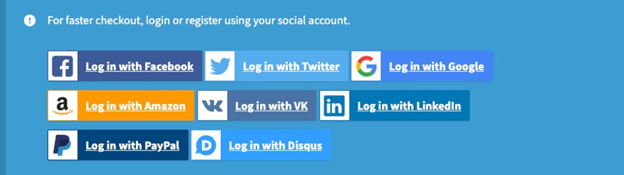
This plugin is designed specifically for WooCommerce stores. It connects with popular platforms like Facebook, Google, Amazon, Twitter, LinkedIn, PayPal, and Disqus. These platforms are widely used in the USA, making the plugin a smart choice for US-based stores.
Imagine this: a customer comes to your store, adds products to their cart, and checks out—all without creating a new account. They just click a button to sign in with Facebook or Google. It takes seconds. That’s the power of Social Login for WooCommerce.
It’s not only faster for shoppers but also helps store owners. Customers are more likely to return when logging in is easy. Most people stay signed in to their social media accounts. That means they can return and log in to your store with one click.
This helps boost repeat purchases and customer loyalty.
Also, customers feel safer when using familiar platforms to log in. They don’t need to worry about remembering a new password. This builds trust and improves their overall shopping experience.
The Social Login for WooCommerce is easy to install and use. You don’t need to write any code or hire a developer.
In short, it improves conversions, saves time, and makes customers happy. If you’re looking to reduce cart abandonment and increase logins, this plugin is worth it.
Features & Benefits for Store Owners and Shoppers
The Social Login for WooCommerce plugin is packed with smart features. These features help both customers and store owners. Let’s break down how it adds value to your store.
Faster Checkout Process
Customers can log in using their favorite social accounts. No need to create a new WooCommerce account. This saves time at checkout. Fewer steps mean fewer chances to drop off. That leads to more completed orders.
No Need to Remember Passwords
Shoppers often forget passwords. This leads to frustration and delays. With social login, that problem goes away. Users stay signed in to their social accounts. One-click is all it takes to return and shop again.
Secure and Trusted Login Method
Social media platforms have strict security measures. Customers trust logging in with Facebook or Google. This builds trust in your store. It also protects customer data with strong verification.
Linked Social Profiles to Customer Accounts
The plugin links each social login to a WordPress user account. Even if a user unlinks their social account, they can still access their store account. This ensures no data or order history is lost.
Boosts Repeat Purchases
Most users stay logged in to social platforms. So when they return to your store, login takes one click. A fast login process encourages them to come back more often.
Higher Customer Engagement
Making it easy to sign in leads to more interaction. Customers leave reviews, add to wishlists, or track orders easily. This improves their experience and builds long-term loyalty.
Encourages Account Creation Over Guest Checkout
Some customers skip account creation to save time. But guest checkouts mean you lose repeat business data. With social login, creating an account feels effortless. This helps build your customer list naturally.
Customizable Button Text
You can customize login button text for each social network. For example, “Sign in with Facebook” or “Login using Google.” This makes the buttons match your store’s tone and style.
Works Across Devices
Social login works great on mobile, desktop, and tablets. Mobile users don’t have to type long passwords. One tap and they’re in. This is especially helpful for mobile-first shoppers in the U.S.
Setup Guide – How to Add Social Login to WooCommerce
Setting up the Social Login for WooCommerce plugin is simple. You don’t need to be a developer or tech expert. Follow these steps to get started quickly and correctly.
Step 1: Install the Plugin
- Purchase the plugin from the official WooCommerce store.
- Download the plugin ZIP file from your WooCommerce account.
- Go to your WordPress dashboard.
- Navigate to Plugins > Add New.
- Click Upload Plugin and select the ZIP file.
- Click Install Now, then Activate the plugin.
Step 2: Create Social App Credentials


Each social login provider needs its own app setup. You must create an “App” on the social platform to get your App ID and App Secret.
You’ll need to do this for:
- Amazon
- PayPal
- Disqus
This is a one-time setup for each network.
Make sure you copy the correct App ID and Secret Key for each provider.
Step 3: Configure Social Login Settings
- Go to WooCommerce > Settings > Social Login.
- You’ll see a list of supported social networks.
- Click each provider to:
- Enable or disable it.
- Paste your App ID and App Secret.
- Customize the login and link button text.
Example: For Facebook, you might write:
- Login Button: “Continue with Facebook”
- Link Button: “Connect your Facebook account”
Repeat this for each provider you plan to use.
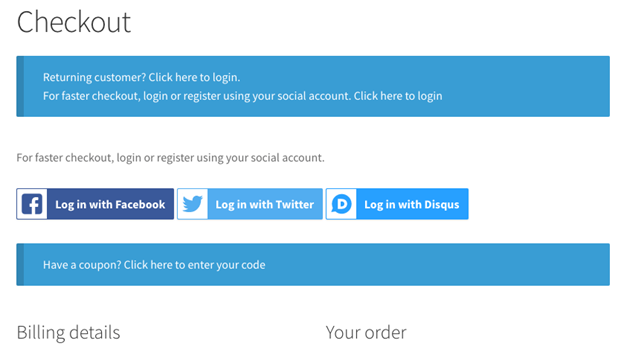
Step 4: Enable Login Buttons on Pages
The plugin allows you to show login buttons in key places:
- Checkout Page: Makes login fast before purchase.
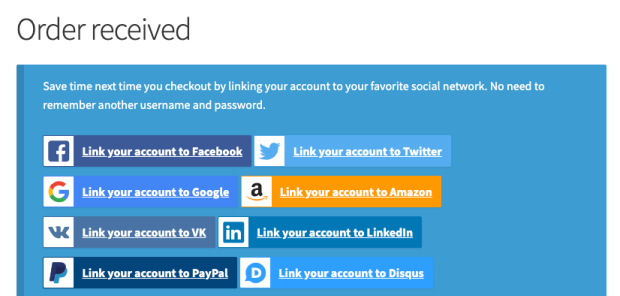
- Thank You Page: Let users link accounts after checkout.
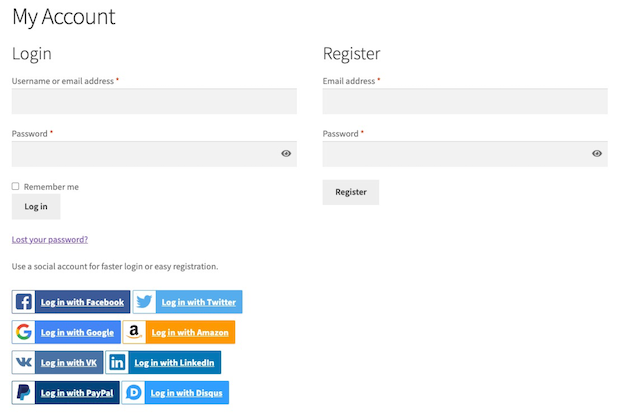
- My Account Page: Perfect for logged-in users to link or manage profiles.
You can turn these on in the plugin settings. Check the boxes where you want buttons to appear.
Step 5: Use the Shortcode or Widget (Optional)
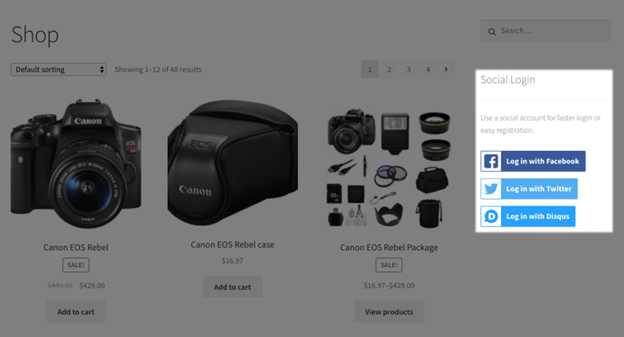
To place login buttons anywhere, use this shortcode:
[woocommerce_social_login_buttons return_url=”/my-account”]
You can also add the Social Login Widget in:
- Sidebars
- Footer
- Custom widget areas
Set the Return URL to send users to a page after login. Common options are “My Account” or “Checkout” pages.
Once done, test everything using a private browser window. Make sure buttons appear and logins work as expected.
Admin Controls, Reporting & Customer Management
Once the Social Login for WooCommerce plugin is active, you’ll have several tools to help manage users and track login activity. These features are easy to use and help you stay in control of your store’s user data.
Track Social Login Activity
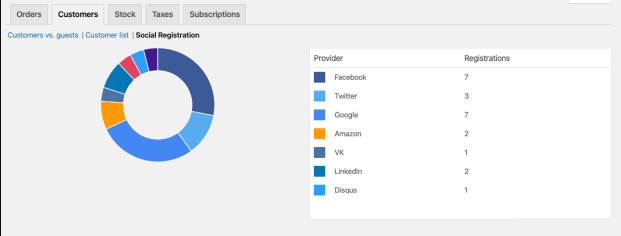
You can monitor which social platforms your customers use to log in. Go to WooCommerce > Reports > Customers > Social Registration. This report shows how many users logged in through each social network, such as Facebook, Google, or Amazon. It helps you see which platforms are most popular with your audience.
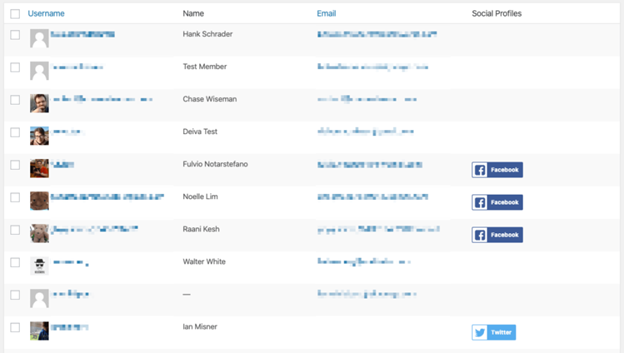
You can also view login data in the Users section of your WordPress dashboard. A new column called Social Profiles appears. This shows which social accounts are linked to each customer. It’s useful for support or account verification.
Customer Account Management
Customers can manage their linked accounts from the My Account page. They can link new social accounts or unlink existing ones at any time. If a customer unlinks all social logins, they can still access their account by resetting the password via email.
There is one special case with Twitter. Twitter’s API does not return the user’s email address. If a user logs in with Twitter but doesn’t provide an email, they may need help logging back in later. Store admins can assist by using the Twitter handle to reset their account or add an email.
Post-Checkout Account Linking
You can also enable social login prompts on the Thank You page after a purchase. This allows guest users to link their new account right after checking out. It’s a simple way to increase account creation without slowing down the buying process.
These admin features give you insight and control while offering convenience to your customers. It’s a win-win. You keep your store organized, and shoppers enjoy a smoother experience.
Conclusion
The Social Login for WooCommerce plugin makes online shopping faster and easier. It allows customers to log in using trusted social accounts like Facebook or Google. This saves time, removes login barriers, and improves user experience. Store owners benefit from better conversions, more account signups, and happier customers. The setup is simple, and the plugin runs smoothly without extra work.
If you need help with setup or customization, the team at WooHelpDesk is always ready to assist. Reach out to us anytime and let’s make your WooCommerce store even better.



