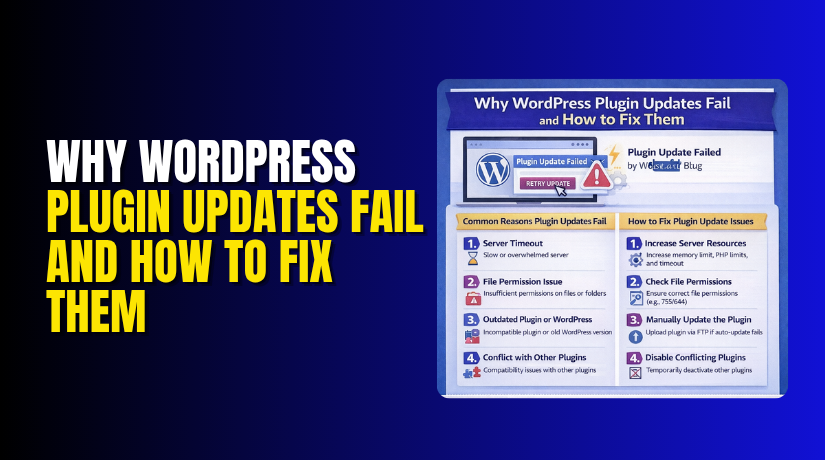
Why WordPress Plugin Updates Fail and How to Fix Them (Complete Guide)
Table of Contents
- Introduction
- Why WordPress Plugin Updates Fail and What Usually Causes the Problem
- Common Signs That Show a WordPress Plugin Update Has Failed on Your Website
- Checks You Should Always Do Before You Start Fixing the Plugin Update Problem
- How to Fix WordPress Plugin Updates Fail (Step By Step Guide)
- How to Recover a Missing Plugin After a Failed WordPress Plugin Update
- How to Prevent WordPress Plugin Update Failures in the Future
- Conclusion
Introduction
A plugin update should be simple and quick. But many website owners face update problems often. You click update, then nothing works as expected. The process may stop, freeze, or show an error. This is where the real trouble begins. A WordPress plugin update failed issue can affect security fast. It can also break features your website needs daily. In some cases, the plugin stops working fully.
In other cases, the whole admin area becomes unstable. That is why this problem needs quick attention. A WordPress plugin update error usually happens for a reason. It may come from low memory or bad permissions. It may also happen because of server limits. Some websites face a WordPress plugin update stuck problem during large updates. Others find the plugin missing after the process ends.
This guide explains the problem in a simple way. It also helps you understand what causes it. Once you know the reason, the fix becomes easier. If your WordPress plugin not updating is blocking work, this guide will help you move forward with the right steps.
Why WordPress Plugin Updates Fail and What Usually Causes the Problem
Low PHP Memory Limit Stops WordPress from Finishing the Update Process
Every plugin update needs server memory to run properly. WordPress must unpack files and replace old plugin data. That work needs enough PHP memory on the server. If the memory limit is too low, the update can fail. This is one of the most common reasons behind a WordPress plugin update failed issue. Bigger plugins usually fail faster because they need more resources during updates.
Wrong File Permissions Prevent WordPress from Replacing Plugin Files
WordPress needs permission to remove old plugin files. It also needs permission to write the new files. If those permissions are wrong, the update cannot complete. The process may begin but stop halfway through. This often creates a WordPress plugin update error during installation. File permission problems are common after migrations, manual server changes, or custom hosting setups.
Server Timeout Issues End the Update Request Before It Completes
Plugin updates need enough server time to finish fully. Slow servers may stop the request too early. Shared hosting plans often have strict limits here. When the process times out, WordPress cannot complete the update safely. This is a major cause of a WordPress plugin update stuck problem. The update may appear active, but it never reaches the final stage.
An Unstable Internet Connection Interrupts the Update from the Browser Side
The update begins from your WordPress dashboard session. If your internet connection drops during that time, the request may fail. Even a short break can stop the process. This may lead to a WordPress plugin not updating issue. Many users overlook this basic cause and only blame hosting. But weak Wi-Fi or unstable internet can interrupt important admin actions.
A Plugin Conflict Blocks the Update Process or Breaks the Plugin Files
Sometimes one plugin causes trouble for another plugin. Security, cache, and optimization plugins often affect file actions. They may block update requests or change how WordPress handles files. This can cause a WordPress plugin update failed problem without warning. The issue may only happen on one website because the plugin setup is different there.
A Theme Conflict Interferes with WordPress Admin Functions During the Update
Some themes include custom code that affects admin behavior. If that code is not written well, plugin updates may break. This is more common with heavily edited themes. A theme conflict can create a hidden WordPress plugin update error during normal update work. The theme may not be the direct cause, but it can still disturb the process.
WordPress Version Compatibility Problems Can Stop the Plugin from Updating Correctly
Not every plugin version works with every WordPress version. If the plugin is too old or too new, problems can start. WordPress may fail during the update or after it. This often creates a WordPress plugin not updating issue on older websites. Compatibility must always be checked before blaming the plugin alone.
PHP Version Compatibility Issues Can Break the Update or the Plugin After Update
Many plugins now require newer PHP versions to work well. If the server runs an older PHP version, the update may fail. The plugin may also update but stop working later. This leads to a WordPress update failed solution case for many users. Server software must match the plugin requirements properly.
Common Signs That Show a WordPress Plugin Update Has Failed on Your Website
The Plugin Update Gets Stuck and Keeps Loading Without Finishing
One common sign is a loading screen that never ends. You click the update button, but nothing completes. The process keeps spinning for a long time. This usually means WordPress started the request but could not finish it. In many cases, this is the first sign of a WordPress plugin update stuck issue. It often happens because of timeout, memory, or server response problems.
A WordPress Plugin Update Failed Message Appears in the Dashboard
Sometimes WordPress shows a clear warning during the update. You may see a message saying the update failed. It may also show a package install problem. This is a direct sign of a WordPress plugin update failed issue. The message may appear small, but the problem behind it can be bigger. It usually means WordPress could not complete one part of the update process safely.
The Website Shows Maintenance Mode for Too Long After the Update Starts
WordPress enters maintenance mode during many plugin updates. This is normal for a short time. But if the message stays too long, something is wrong. It means the update process stopped before cleanup finished. The website may stay blocked longer than expected. This is another common WordPress plugin update error sign. It often happens when the update breaks in the middle.
The Plugin Disappears from the Installed Plugins List After the Update Attempt
A failed update can sometimes remove the plugin from view. You may no longer see it in the plugins area. This usually means WordPress removed old files first. But it failed before placing the new files correctly. This can make the plugin look missing. It is a serious sign that the update did not finish safely. Many users notice this when a WordPress plugin not updating issues becomes worse.
A White Screen or Fatal Error Appears After the Plugin Update
Some failed updates cause stronger website errors. You may see a white screen instead of the normal page. In other cases, WordPress shows a fatal error message. This means the plugin files may now be incomplete or broken. The website cannot load the code properly. This is one of the clearest signs that the update failed badly. It often needs a fast fix WordPress plugin update process.
The WordPress Admin Area or Frontend Stops Working Properly
A failed update can also affect website access. The admin dashboard may load slowly or not open. The frontend may also break or show missing features. This happens when the plugin update changes files halfway. It leaves the site in an unstable state. If both sides of the site behave strangely, the update may be the cause. This often points to a larger WordPress update failed solution.
Checks You Should Always Do Before You Start Fixing the Plugin Update Problem
Before applying fixes, do a few simple checks first. These checks save time and reduce bigger risks. They also help you find the real cause faster. Many users rush into changes without checking the basics. That often makes the problem worse later. A smart troubleshooting process starts with simple review steps. These steps are important for every WordPress plugin update failed case. They also help you choose the safest fix. If your WordPress plugin update stuck issue is urgent, these checks still matter. They give you a cleaner starting point. That makes it easier to fix WordPress plugin update problems without damaging the site further.
Take a Full Website Backup Before Touching Anything Else
A backup is your safety shield during troubleshooting. Plugin updates affect important website files and functions. If something goes wrong, a backup saves time. It also protects your content and settings. Every WordPress update failed should begin with this step. Never test risky fixes without a backup ready.
Note the Exact Error Message Before You Start Making Changes
Error messages often reveal the real problem quickly. A timeout message is different from a permission message. A package download issue needs a different fix. If you ignore the exact wording, you may waste time. This is a smart first step in any WordPress plugin update error case.
Check Whether Only One Plugin Fails or All Plugins Fail
This check helps narrow the cause very fast. If only one plugin fails, that plugin may be incompatible. If all plugins fail, the problem is bigger. Then the issue may involve hosting, permissions, or server limits. This small check helps guide the right fix WordPress plugin update method.
Test Both the Frontend and the Admin Area Properly
A failed update may affect more than the plugin screen. The front end may break while the dashboard still opens. In other cases, the admin side becomes unstable first. Testing both areas helps you see the full impact. It also helps define the urgency of the WordPress plugin update failed issue.
Review Hosting Resources and Plugin Requirements Before Troubleshooting Deeply
Check memory, storage, PHP version, and WordPress version first. Then review the plugin requirements on its update page. Many failures come from simple mismatches here. This check is fast but very useful. It often reveals the best WordPress update failed solution before deeper testing begins.
How to Fix WordPress Plugin Updates Fail (Step By Step Guide)
Step 1: Refresh the Plugins Page and Try the Update One More Time
First, go to your WordPress dashboard and open the Plugins page. Check whether the update button is still visible. If it is still there, refresh the page once and wait a few seconds. After that, click the update button again only one time. Do not click it again and again. Multiple clicks can interrupt the process and create more confusion. This step works well when the failure happens because of a temporary server delay or a short browser issue. If the plugin updates normally after retrying, the problem was likely small. If the same WordPress plugin update failed message appears again, move to the next step.
Step 2: Clear Browser Cache and Log In to WordPress Again
Sometimes the problem is not on the server side. The browser may be showing old dashboard data or using an expired session. This can create a false WordPress plugin update error. Clear your browser cache first. Then log out from the WordPress dashboard fully. Close the browser tab and open it again. After that, log back into the admin area and return to the Plugins page. Now try the update once more. This step is simple, but it often helps when the WordPress plugin not updating issue comes from browser cache or login session problems.
Step 3: Check Whether the Plugin Supports Your WordPress Version
Open the plugin details page and review its version requirements. Many plugins need a newer WordPress version to update properly. If your website uses an older core version, the update may fail. Go to Dashboard > Updates and check whether your WordPress version is current. If a core update is pending, review it first. Then see whether the plugin update requires that version. Compatibility mismatch is a common reason behind a WordPress plugin update failed issue. This step helps you avoid wasting time on fixes that will not work until the version problem is solved.
Step 4: Check Whether Your Website Uses a Supported PHP Version
After checking the WordPress version, review your PHP version too. Many modern plugins need a newer PHP release to run well. If your hosting still uses an old PHP version, the update may stop or break later. You can check the PHP version in your hosting control panel or inside WordPress Site Health. Compare that version with the plugin requirements. If your PHP version is too old, ask your hosting provider to upgrade it safely. A version mismatch here often causes a WordPress plugin update error that looks confusing at first.
Step 5: Increase the PHP Memory Limit Before Trying the Update Again
Low memory is one of the biggest causes of update failures. WordPress needs memory to unpack the plugin package and replace files. If the limit is too low, the update may stop halfway. Check your current memory limit from Site Health or hosting tools. If the value is low, increase it using hosting settings, php.ini, wp-config.php, or by asking your host. After increasing memory, return to the Plugins page and test the update again. This is one of the most useful ways to fix WordPress plugin update problems on busy or resource-limited websites.
Step 6: Check File and Folder Permissions on the Server
WordPress must have permission to remove old plugin files and write new ones. If the file permissions are wrong, the update cannot finish. Open your hosting File Manager or connect through FTP. Then check the wp-content folder and the plugin folder that failed. Make sure the permissions are set correctly for files and directories. If permissions are too strict or broken, WordPress may show a WordPress plugin update stuck or failed message. Correcting permissions often solves repeated update problems, especially after migration or manual server changes.
Step 7: Make Sure Your Hosting Account Has Enough Free Disk Space
Plugin updates need free storage space to work properly. WordPress downloads the update package and creates temporary files first. If your hosting account is full, the process may fail before completion. Check your disk usage from cPanel, Plesk, or your hosting dashboard. Remove old backups, cache folders, unused logs, and unnecessary files if needed. Then try the update again. A full server can easily cause a WordPress plugin not updating issue, even when the plugin itself is completely fine.


Step 8: Deactivate Other Plugins to Test for a Conflict
If the update still fails, test for plugin conflicts. Go to the Plugins page and deactivate other active plugins for a short time. Start with caching, security, optimization, and admin utility plugins first. These are the most common causes of conflict. After deactivating them, try updating the problem plugin again. If the update works, one of the deactivated plugins is blocking the process. Reactivate them one by one to find the exact cause. This method is a practical WordPress update failed solution when no clear error message appears.
Step 9: Switch to a Default WordPress Theme for Testing
If plugin conflict testing does not solve the issue, check the theme next. Activate a default WordPress theme like Twenty Twenty-Four for a short test. Then go back to the Plugins page and retry the update. Some custom or outdated themes include code that affects admin actions. That can silently block plugin updates. If the update works after switching themes, the theme is part of the problem. This step helps you identify hidden theme-related causes behind a WordPress plugin update failed problem.
Step 10: Update the Plugin Manually Using the ZIP Upload Method
If the normal dashboard update fails, try a manual update using the plugin ZIP file. First, download the latest version of the plugin from its official source. Then go to Plugins > Add New Plugin > Upload Plugin. Upload the ZIP file and follow the prompts. If WordPress asks whether to replace the current version, confirm carefully after taking a backup. This method helps when the automatic update request fails, but the plugin files themselves are fine. It is a reliable way to fix WordPress plugin update issues when the dashboard method does not work.
Step 11: Update the Plugin Manually Using FTP or File Manager
If ZIP upload also fails, use FTP or File Manager. Download the latest plugin version and extract it on your computer. Then connect to your website and open the wp-content/plugins folder. Rename the current plugin folder first as a backup. After that, upload the new plugin folder fresh. Once the upload finishes, check the Plugins page in WordPress and activate the plugin if needed. This method is useful when a WordPress plugin update error happens because the dashboard cannot replace files properly.
Step 12: Remove the Stuck Maintenance Mode File if the Site Is Locked
Some failed updates leave the site in maintenance mode. You may see a message saying the site is briefly unavailable for maintenance. To fix this, open your website files using FTP or File Manager. Look in the main WordPress root folder for a file named .maintenance. Delete that file carefully. Then refresh the website and dashboard. If the site loads again, the maintenance lock is removed. This step does not solve the original cause, but it helps restore access after a WordPress plugin update failed process.
Step 13: Turn On Debug Logging to Find the Exact Error
If the problem still continues, enable WordPress debug logging. Open the wp-config.php file and turn on debug mode with logging enabled, but keep display off on the live site. Then try the plugin update again. After that, open the debug log file and review the latest errors. The log may show memory issues, permission errors, fatal errors, or blocked requests. This step helps you find the real reason behind a repeated WordPress plugin not updating issue. It is one of the best ways to stop guessing and fix the correct problem.
Step 14: Contact Hosting Support with the Exact Error Details
If you have tried all the steps and the update still fails, contact your hosting support team. Share the exact plugin name, the full error message, and what steps you already tested. Ask them to check memory limits, timeout limits, ModSecurity rules, file ownership, and blocked requests. Hosting support can often see server-side logs that you cannot access. This is the right final step when a WordPress plugin update stuck or a failed issue comes from deeper server settings.
Step 15: Test the Plugin After the Update Completes
Once the plugin update finishes, do not stop there. Open the plugin settings and test the main features. Also check the frontend and admin area properly. Make sure the website loads well and no errors appear. This final check confirms the update completed safely. It also helps catch hidden problems early. A successful update is not only about removing the error. It is also about making sure the plugin still works correctly after the fix.
A failed plugin update should be fixed in the right order. Start with easy checks, then move to technical fixes. This keeps the website safer during troubleshooting. In many cases, one of these steps will solve the issue. If not, manual updates and debug logs usually reveal the real cause. This step-by-step method is the safest way to handle any WordPress plugin update failed case.
How to Recover a Missing Plugin After a Failed WordPress Plugin Update
Check the Plugin Folder Inside wp-content/plugins First
The first step is checking whether the plugin files still exist. Open your website through FTP or File Manager. Then go to the wp-content/plugins folder. Look for the plugin that disappeared after the failed update. If the folder is still there, the plugin may only be inactive. If the folder is missing, WordPress cannot load it at all. This check helps you understand what happened before you try any fix. It is one of the most important first steps after a WordPress plugin update failed issue.
Confirm Whether the Plugin Files Are Complete or Broken
Sometimes the plugin folder exists, but the files inside are incomplete. A failed update may remove some old files first. Then the new files may not finish uploading. This leaves the plugin in a broken state. Open the plugin folder and check whether it looks normal. If many files are missing, the update likely stopped halfway through. This is a common reason behind a WordPress plugin update error. A broken folder usually means the plugin must be uploaded again cleanly.
Re-Upload the Plugin Using a Clean Copy from the Official Source
If the plugin files are missing or damaged, upload the plugin again. Download the latest clean version from the official plugin source. Do not use random copies from unknown websites. After that, upload the plugin folder through FTP or use the ZIP upload method in WordPress. This step replaces broken or missing files safely. It is one of the best ways to fix WordPress plugin update problems after a plugin disappears. Always use a trusted source so the recovery stays safe.
Rename the Old Plugin Folder Before Uploading a Fresh Version
If the old plugin folder still exists but looks damaged, rename it first. This gives you a small backup copy before replacing anything. It also helps prevent folder name conflicts during upload. After renaming the old folder, upload the fresh plugin version normally. Once the new folder is in place, check the dashboard again. This is a safe recovery method when a WordPress plugin not updating issue leaves broken plugin files behind.
Reactivate the Plugin Carefully After the Files Are Restored
After re-uploading the plugin, go to the WordPress dashboard. Open the Plugins page and check whether the plugin appears again. If it does, activate it carefully. Do not assume the site is fully fixed yet. Activation is only one part of recovery. A WordPress plugin update failed issue can still leave settings or features unstable. That is why careful reactivation matters before normal use begins again.
Test the Plugin Settings and Main Features After Recovery
Once the plugin is active again, test its main functions. Open the plugin settings page and check that it loads properly. Then test the most important feature the plugin handles. For example, test forms, payments, SEO settings, or cache controls depending on the plugin type. This step confirms whether recovery is complete. It also helps catch hidden errors early. A proper WordPress update failed solution is not finished until the plugin works normally again.
Check the Frontend and Admin Area for Any New Errors
A failed update can affect more than the plugin itself. It may also break pages, admin tools, or frontend features. That is why you should check both sides of the website after recovery. Open important pages and test the dashboard properly. If new errors appear, the failed update may have caused deeper issues. This step helps confirm whether the WordPress plugin update error is fully resolved or still affecting the site.
Restore from Backup if the Plugin Still Does Not Work
Sometimes re-uploading the plugin is not enough. The plugin may still fail because settings, files, or related data were damaged. In that case, restoring a backup may be the safest solution. This is especially important on business websites or live stores. A fresh backup can quickly return the site to a stable state. If the WordPress plugin update stuck issue caused serious damage, backup restore is often the safest final recovery step.
How to Prevent WordPress Plugin Update Failures in the Future
Keep WordPress Core Updated Before Updating Important Plugins
Plugins work best when WordPress core is current. If the core version is too old, compatibility problems can begin. Some plugins require newer WordPress functions to update properly. That is why core updates matter before plugin updates. This habit reduces the chance of a WordPress plugin update failed issue. A current core version gives plugins a more stable base to work with.
Keep the PHP Version Updated on Your Hosting Account
Many plugin update problems begin because of old PHP versions. Modern plugins often need newer PHP support for safe updates. If your server uses an outdated version, the update may fail or break later. Check your PHP version often and update it when needed. This is a simple way to reduce WordPress plugin not updating problems on older hosting setups.
Use Only Trusted and Well-Maintained Plugins
Not every plugin is built with the same quality. Some plugins are updated often and supported well. Others are outdated, poorly coded, or abandoned. Weak plugins create more update risks over time. That is why you should choose plugins from trusted developers only. This habit lowers the chance of a WordPress plugin update error caused by poor plugin quality.
Delete Unused and Inactive Plugins Regularly
Inactive plugins may look harmless, but they still create clutter. Some old inactive plugins also create conflicts or security risks. Too many extra plugins make site management harder. They also make troubleshooting slower when an update fails. Removing unused plugins keeps the website cleaner and easier to manage. This is a smart habit for reducing fix WordPress plugin update work later.
Keep Enough Server Memory and Disk Space Available
Plugin updates need memory and storage to complete properly. If resources are too low, updates can stop halfway. This is why you should monitor server space often. Remove old backups, logs, and large cache files when needed. Also make sure your memory limit is not too low. Good resource management helps prevent many WordPress update failed solution cases before they start.
Take a Full Backup Before Every Plugin Update
A backup should always come first before important updates. Even trusted plugins can fail during updates sometimes. A full backup protects your files, settings, and database. If something breaks, you can restore the site quickly. This is one of the best safety habits for WordPress websites. It also reduces panic during a WordPress plugin update failed situation.
Update One Important Plugin at a Time Instead of Everything Together
Many users update all plugins at once to save time. But this can create bigger problems if one update fails. It becomes harder to find the exact cause. A smarter method is updating one important plugin at a time. Then test the site before moving to the next one. This approach makes a WordPress plugin update stuck issue much easier to trace and fix.
Test Plugin Updates on a Staging Site Before Using Them Live
A staging site gives you a safe test environment. You can update plugins there without affecting visitors. If something breaks, your live site stays safe. This is especially useful for business websites and online stores. Staging helps catch conflicts and compatibility issues early. It is one of the best ways to prevent a serious WordPress plugin update error on a live website.
Conclusion
A plugin update failure can look serious at first. But most cases are still fixable with care. The real problem usually comes from memory, permissions, conflicts, storage, or server rules. Some cases also involve theme issues or broken files. That is why proper troubleshooting matters so much. A WordPress plugin update failed issue should be handled step by step. Start with basic checks and move slowly to advanced fixes. Use manual updates, logs, and recovery methods when needed. Keep backups ready and avoid rushed decisions. If your WordPress plugin not updating issues keeps returning, look at your hosting setup closely. With the right process, you can fix WordPress plugin update problems safely and reduce the chance of future failures.
If your plugin update keeps failing and you do not want to risk your website, WooHelpDesk can help. Our team can check the real cause, repair the issue safely, and make sure your website stays stable after the fix. Whether the problem comes from plugin conflict, file permissions, server limits, or a deeper WordPress plugin update error, we can help you resolve it properly.
Frequently Asked Questions
Why do WordPress plugin updates fail?
Plugin updates can fail due to file permission issues, server timeouts, insufficient PHP memory, conflicts with other plugins, corrupted WordPress installation files, or hosting server restrictions. Checking your server error log usually reveals the specific cause.
How do I manually update a WordPress plugin?
Download the latest plugin version from WordPress.org or the developer site, connect to your server via FTP/SFTP, navigate to wp-content/plugins/, delete the old plugin folder, and upload the new version. Then activate it from the WordPress admin.
Is it safe to update all plugins at once?
While WordPress allows bulk updates, it is generally safer to update plugins one at a time. This approach makes it easier to identify which plugin caused an issue if something breaks after updating.
References and Resources
Related Articles



