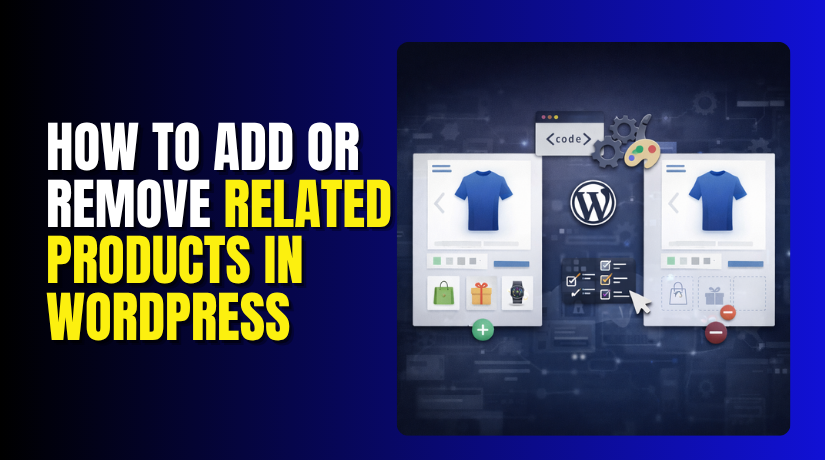
How to Add or Remove Related Products in WordPress (Step-by-Step Guide)
Table of Contents
- Introduction
- What Are Related Products in WordPress?
- How to Add Related Products in WordPress Using a Plugin (Complete Process)
- How to Remove Related Products in WordPress (Step by Step)
- Common Problems When Managing Related Products in WordPress
- Conclusion
Introduction
When customers visit a product page, they often want more options. That is where related products become very useful for online stores. In most cases, this feature comes from WooCommerce, not WordPress alone. It helps shoppers see similar items without leaving your store. This can improve browsing time and increase chances of extra sales. Many store owners want to add related products in WordPress for this reason. Others want better control over which items appear together. Some users also want to edit related products in WordPress for better results.
In some cases, store owners want to turn off related products WordPress pages display. They may want cleaner product pages with fewer distractions for visitors. Some also search for how to customize related products WooCommerce shows automatically. The right setup depends on your store goals, product type, and layout.
What Are Related Products in WordPress?
Related products are product suggestions shown on a single product page. These suggestions usually appear below the main product details section. Their main purpose is to guide shoppers toward similar or useful items. This feature helps customers explore more products with very little effort. It also supports better product discovery across your online store.
In simple terms, related products connect one product with others. These connections are usually based on tags, categories, or custom settings. If you run an online store, this feature can be very helpful. It keeps users engaged and moves them deeper into your catalog. Many store owners later decide to show related products to WooCommerce manually for better control. That is because automatic suggestions may not always match business goals. Still, the basic related products feature is a helpful starting point.
Why Need to Add Related Products in WordPress for Better Sales and User Experience
Related products help customers find more useful items
Related products make shopping easier for your visitors. They show similar or matching items on the same page. This saves time and helps buyers explore more products quickly. Many store owners add related products in WordPress to improve product discovery in a simple way.
Related products can increase the average order value
When customers see more useful items, they may buy more. A shopper looking at one product may also like another. This can increase the cart total without extra sales pressure. That is one strong reason store owners use related products on WooCommerce pages.
Related products support better cross-selling opportunities
Cross-selling works well when products match the buyer’s interest. For example, a phone can be linked with a case. A shirt can be linked with matching pants. This is why many users want to show related products WooCommerce manually for better control and better sales results.
Related products keep visitors active on the website longer
A good related product section can reduce quick exits. Instead of leaving, visitors may click another product. This increases page views and keeps users engaged for longer. It also gives your store more chances to turn visits into sales.
Related products improve product visibility across the store
Some products do not get enough attention on their own. Related products can give those items more exposure. This is useful for new products, low-traffic items, or special offers. Many store owners edit related products in WordPress to push better items in front of shoppers.
Related products make the product page more helpful
A product page should guide the customer clearly. Related products can make the page more useful and complete. They give buyers more options without forcing them to search again. This creates a smoother and more helpful shopping experience.
Related products give store owners more selling control
Many stores do not want fully automatic product suggestions. They want to choose what buyers should see next. That is why users search for how to customize related products WooCommerce. Better control helps store owners match products based on business goals, not only tags or categories.
Related products can improve the overall shopping journey
A strong shopping journey should feel simple and connected. Related products help move buyers from one useful item to another. This can improve both user experience and product flow. When done well, this small section can support better sales and better customer satisfaction.
How to Add Related Products in WordPress Using a Plugin (Complete Process)
Using a plugin is one of the easiest ways to add related products in WordPress. This method works well for store owners who want more control without editing code. It is also useful when the default WooCommerce suggestions do not match your sales plan.
Step 1: Choose a plugin that supports custom related products
- Start by choosing a WooCommerce plugin that lets you control related products.
- Look for features like manual product selection, display control, and easy product matching.
- This is helpful if you want to show related products WooCommerce manually instead of depending on automatic category or tag matching.
Step 2: Install and activate the plugin from your WordPress dashboard
- Go to your WordPress dashboard and open the Plugins section.
- Click Add New and search for a related products plugin.
- Install it, then activate it.
- After activation, the plugin settings will usually appear inside WooCommerce settings or the product edit page.
Step 3: Open the product that you want to edit
- Now go to Products and open any product you want to update.
- Many plugins add a new field or custom box inside the product editor.
- This is where you can edit related products in WordPress more accurately.
Step 4: Select the related products manually
- Inside the plugin section, search for the products you want to connect.
- Add products that are relevant, useful, or likely to increase the cart value.
- This is the best way to customize related products WooCommerce pages show because you are choosing exact items instead of random suggestions.
Step 5: Save the product and check the front end


- After selecting the products, click Update or Publish.
- Then open the product page on the front end.
- Check whether the related products section is showing correctly.
- Make sure the products are useful and the layout looks clean.
Step 6: Repeat the process for important products first
- Do not try to update every product at once.
- Start with best-selling products, high-traffic pages, or key product categories.
- This saves time and gives you better results faster.
- It also helps you test what type of related product suggestions work best.
Step 7: Review the section regularly and improve it
- Related product choices should not stay the same forever.
- Review them when you add new items, change stock, or run promotions.
- This keeps your related product section useful and current.
- A plugin makes this process easier and more flexible.
How to Remove Related Products in WordPress (Step by Step)
Some store owners want a cleaner product page with fewer distractions. In that case, they may want to turn off related products WordPress pages show by default. There are several ways to do this, and the right method depends on your theme, plugin setup, and comfort level.
Step 1: Check your theme settings first
- Before using any plugin or code, check your theme settings.
- Go to Appearance, then Customize, and open your WooCommerce product page settings if available.
- Some themes include a built-in option to hide or disable the related products section.
- This is often the safest and easiest method.
Step 2: Check WooCommerce or builder settings
- If your site uses a page builder or product page builder, check its product layout options.
- Some builders let you hide product recommendations from the layout panel.
- This helps when the related products section is added by design settings instead of WooCommerce alone.
Step 3: Use a plugin if no built-in option is available
- If your theme does not offer a hide option, use a plugin.
- Many store owners prefer a disabled related products WordPress plugin because it is simple and does not require coding.
- Install the plugin, activate it, and follow its settings to hide the section.
- This method works well for beginners.
Step 4: Save the settings and test the product page
- After turning off the setting, open one product page and check the result.
- Make sure the related products section is gone and the page layout still looks correct.
- This step is important because some themes leave empty space after hiding that block.
Step 5: Use custom code when you want stronger control
- If theme settings and plugins do not work well, use custom code.
- This method is common for WooCommerce related products to remove tasks.
- A developer can remove the related products output from WooCommerce hooks.
- This gives better control, but you should always back up the site first.
Step 6: Clear cache and refresh the product page
- After making changes, clear your website cache, plugin cache, and browser cache.
- Some users think the change failed, but the old version is still cached.
- This step is very important after any WooCommerce display change.
Step 7: Decide whether to remove or replace the section
- Sometimes full removal is not the best choice.
- Instead of deleting the section, you may replace it with upsells, bundles, or handpicked products.
- This gives you better control over product suggestions and can improve sales without adding clutter.
Step 8: Review the final layout on desktop and mobile
- After removal, check the page on both desktop and mobile devices.
- Make sure spacing, headings, and product sections still look balanced.
- A clean layout should improve focus, not create design gaps.
Common Problems When Managing Related Products in WordPress
Managing related products looks simple, but many store owners face issues. Sometimes the section does not show at all on product pages. In other cases, wrong items appear under the main product. Some users also notice that changes do not appear after updates. These problems can affect both design and shopping experience badly. If you want to add related products in WordPress, setup matters a lot. If you want to edit related products in WordPress, accuracy also matters. Even small mistakes in product settings can create poor recommendations. That is why store owners should understand the most common issues first.
Related Products May Not Show on Product Pages
One common issue is that related products do not appear. This often happens when products lack proper categories or tags. WooCommerce needs shared product data to match related items correctly. If the product setup is weak, no suggestions may appear. Some themes also hide this section by default without clear notice. A plugin conflict can also stop the section from loading. In some cases, custom templates remove it without the owner knowing. This is why checking product data should be the first step. Proper setup helps WooCommerce show better results on product pages.
Wrong Products May Show When WooCommerce Uses Weak Matching Rules
Another common issue is showing products that do not fit well. This usually happens with broad tags or poor category structure. WooCommerce may match items that share only one weak detail. That can make the section look random and unhelpful to shoppers. Many users then search how to customize related products WooCommerce properly. Some also prefer to show related products WooCommerce manually for better control. Manual selection often gives more useful and stronger product suggestions. Better product grouping can also improve automatic matching over time. Relevance matters because useful suggestions support both trust and sales.
Changes May Not Appear After Updates
Some store owners make changes but see no result on pages. This can happen because old content stays in cache. Browser cache, plugin cache, or CDN cache may delay updates. Theme overrides can also keep loading older related product layouts. This confuses users who expect instant changes after editing products. Some then think the plugin or code failed completely. In many cases, the change worked, but cached files stayed active. Clear all cache layers before checking the final result again. This simple step solves many display problems very quickly.
The Related Products Section May Look Broken
Sometimes the issue is not the product suggestions themselves. The real problem is the way the section looks visually. Products may stack badly or show uneven image sizes. The layout may also break on smaller mobile screens. This creates a poor shopping experience for visitors and buyers. Theme styling, builder settings, or CSS conflicts often cause this. If you turn off related products WordPress layouts show badly, design may improve. If you use a disabled related products WordPress plugin, test the layout after changes. Good design matters because even useful products need a clean presentation.
Conclusion
Related products can improve product discovery and support better store navigation. They can also increase product visibility and support extra sales. At the same time, not every store needs them on every page. Some stores benefit more from a clean and focused layout. That is why the best setup depends on your products and goals. You may want to add related products in WordPress for better browsing. You may want WooCommerce related products to remove methods for cleaner pages. You may even need to edit related products in WordPress for accuracy. The right choice is the one that supports your store strategy. Focus on relevance, layout, and user experience before making changes.
If you need help with related product changes, WooHelpDesk can assist. Our team can help you add, remove, or improve product suggestions. We can also help when sections look broken or work badly. Whether you need to turn off related products WordPress pages show, or want to show related products WooCommerce manually, we can support the setup properly. WooHelpDesk also helps with WooCommerce design, layout, and product page changes. Contact WooHelpDesk for reliable WordPress and WooCommerce support.
Frequently Asked Questions
How do I remove related products in WooCommerce?
You can remove related products by adding a code snippet to your functions.php file using the woocommerce_related_products_args filter and returning an empty array, or by using plugins like Remove Related Products for WooCommerce.
Can I manually choose which related products to display?
Yes, WooCommerce allows you to set up-sells and cross-sells manually on each product edit page under the Linked Products tab. For more advanced control, use plugins like JERF Related Products.
How many related products should I show?
The optimal number is typically 3-4 related products per page. This provides enough variety without overwhelming the customer. You can customize this using the posts_per_page parameter in the related products arguments.
References and Resources



