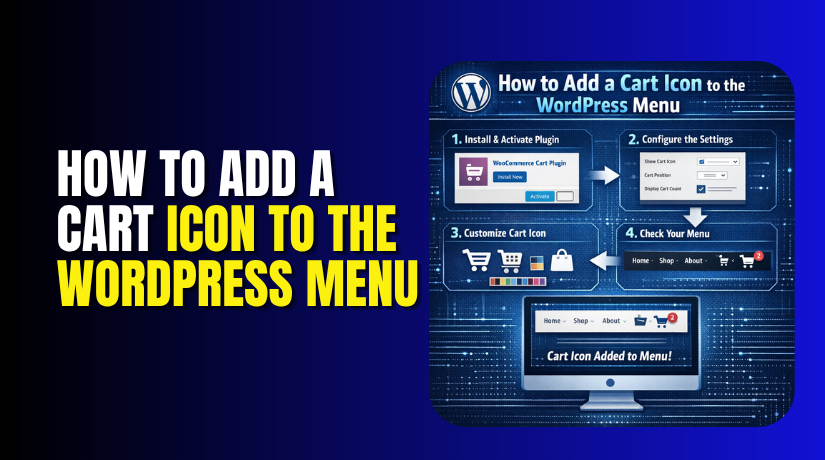
How to Add a Cart Icon to the WordPress Menu (Step-by-Step Guide)
Table of Contents
- Introduction
- Why Adding a Cart Icon to the WordPress Menu Is Useful for Online Stores
- Things You Need Before Adding a Cart Icon to the WordPress Menu
- How to Add a Cart Icon to the WordPress Menu Using a Plugin
- How to Add a Cart Icon Manually in the WordPress Menu (Step by Step)
- Common Problems You May Face When Adding a Cart Icon to the WordPress Menu
- Conclusion
- Frequently Asked Questions
Introduction
A cart icon in the menu is a small shopping symbol. It appears in the top navigation area of your website. Most online stores use it for quick cart access. It helps shoppers open the cart from any page. This saves time during the buying process. It also makes the store look more complete and useful. If you run a WooCommerce store, this feature matters a lot. Many owners want to add a cart icon to the WordPress menu for this reason. A clean WordPress cart icon menu improves both design and function. It gives users a better path from product pages to checkout.
In many cases, a visible WooCommerce cart icon in the menu can reduce confusion. Shoppers do not need to search for the cart page. They can click the icon and continue shopping with ease. Some store owners also add shopping cart icon WordPress header sections to make the top area more useful. In this guide, you will learn why this small feature helps so much. You will also understand why it is common in modern WooCommerce stores.
Why Adding a Cart Icon to the WordPress Menu Is Useful for Online Stores
Cart Icon Makes Shopping Easier for Your Website Visitors
Online shoppers want a smooth and simple buying experience. They do not want extra steps during browsing. A cart icon helps them move faster across the store. They can add products and check the cart anytime. This keeps the process easy from start to finish. When you display cart icon WooCommerce menu areas properly, users feel more in control. They know where their selected products are stored. They also know how to return to the cart quickly. This is helpful for first-time buyers and repeat customers. A good menu structure supports easy shopping decisions.
Visible Cart Icon Helps Visitors Reach Checkout Faster
Every extra click can slow down a buyer’s journey. A visible cart icon removes some of that delay. Users can move toward checkout with less effort. They do not need to search menus or pages. They can see the cart area right away. This helps them review products when needed. It also supports faster checkout decisions on busy stores. When buyers can open the cart quickly, they stay engaged. They are less likely to leave the site. A menu cart icon becomes even more useful on product-heavy websites.
Cart Icon Improves Navigation Across the Whole Store
Good navigation is a big part of online shopping. Visitors should reach important pages without any confusion. The cart page is one of those important pages. It should stay easy to find at all times. A cart icon in the menu solves this problem well. It keeps the cart visible across the website header. This improves movement between products, categories, and checkout pages. Shoppers can browse more freely when navigation feels clear. They know the cart is always one click away. This also supports a cleaner store structure. A simple header with useful options feels more professional.
Store Header Looks More Functional with a Cart Icon
The header is one of the first things visitors notice. It should look clean, useful, and easy to understand. A cart icon adds purpose to that space. It tells shoppers that your website is ready for orders. It also makes the header feel more complete. On WooCommerce websites, this is a standard feature now. Many users expect shopping tools inside the top menu. A visible cart icon meets that expectation clearly. It also balances the design of the navigation bar. Instead of showing only links, the header shows action tools. This can improve both style and function together.
Cart Icon Supports a Better Shopping Experience on WooCommerce Stores
A better shopping experience often comes from small smart features. A cart icon is one of those helpful features. It keeps buyers aware of their shopping activity. They can check the cart while moving through the store. This gives them more confidence during the purchase journey. It also helps them avoid mistakes before checkout. On mobile devices, this feature becomes even more useful. Users want quick access without opening many pages. A clear menu cart icon supports that need very well. It works for small stores and large stores alike.
Things You Need Before Adding a Cart Icon to the WordPress Menu
Before you start, you need a few basic things ready. This helps you avoid setup issues later. It also makes the process faster and easier. Many users try to add cart icons to the WordPress menu too early. Then they face menu errors or missing cart pages. A little preparation can prevent those problems. If your site setup is ready, the cart icon works better. It also becomes easier to manage later. Whether you use a plugin or manual method, these basics matter first. They help you build a clean WordPress cart icon menu without confusion.
A Working WordPress Website Is the First Thing You Need
You need a live WordPress website before doing anything else. The menu system works inside the WordPress dashboard. Your theme, pages, and plugins also work from there. If the site is not ready, the menu cannot help much. A cart icon belongs to your website navigation area. So your website structure must already be active. This includes the theme, header, and menu location. If your site is still under setup, finish that first. Then move to the cart icon step. This gives you a better base for future changes. A working site also helps you test the result correctly. When people add shopping cart icon WordPress header areas, they need a stable website first. That keeps the design and function in balance.
WooCommerce Must Be Installed and Activated on Your Store
A cart icon is most useful on a WooCommerce website. WooCommerce creates the cart, checkout, and product pages. Without it, the cart icon has no real job. That is why this plugin is necessary first. It turns WordPress into an online store. Once active, it adds shopping features to your website. These include the cart page and cart actions. A proper WooCommerce cart icon in the menu depends on this system. If WooCommerce is missing, the cart link may fail. The item count may also not work correctly. So check that WooCommerce is installed and active. Also make sure the cart page exists. This is important before you display cart icon WooCommerce menu areas on the front end.
Navigation Menu Should Already Be Created in WordPress
You also need a menu already created on your site. The cart icon usually appears inside that menu. Some themes place it in the main header menu. Others use a secondary or mobile menu. In both cases, the menu must exist first. Go to the menu settings and confirm this. Check that the menu is assigned to the right location. If no menu is active, the icon may not show. A ready menu makes the next steps much easier. It also helps you test the cart link faster. A strong WordPress cart icon menu starts with a proper navigation setup. This small step is often missed by beginners.
You Need Access to Menu Settings or Header Settings
To place the cart icon correctly, you need editing access. This means access to menu settings or header settings. Some themes show cart options in the customizer. Others place them inside header builder options. Plugin-based methods may also need menu selection access. So you should be able to open these settings. Without access, you may install a plugin but not finish setup. This becomes a common problem for many users. When you plan to add a cart icon to the WordPress menu, check permissions first. Make sure you can edit menus, headers, and plugins. That saves time during the setup process. It also helps you control where the icon appears.
Basic Access to Plugin or Theme Options Helps a Lot
Many cart icon methods depend on plugin or theme controls. Some themes include a ready-made cart option. Some plugins add the feature through simple settings. In both cases, you need access to those options. You do not need advanced skills for this. Basic dashboard access is enough in many cases. This is useful when using a WordPress menu cart icon plugin for faster setup. It is also helpful when you want to test display styles. You may want to show item count or cart total. You may also want to choose icon placement. These changes usually happen in plugin or theme settings. Even users who want to add cart icons without plugin WordPress methods should know theme options first. This helps you choose the right method with less effort.
How to Add a Cart Icon to the WordPress Menu Using a Plugin
Step 1: Choose a Good Plugin That Adds a Cart Icon to the Menu
- Start by choosing a plugin that supports WooCommerce cart display.
- The plugin should work well with your active theme.
- It should also let you choose menu placement easily.
- Many store owners use a WordPress menu cart icon plugin for this job.
- A good plugin can help you add a cart icon to the WordPress menu without coding.
- It may also show item count or cart total.
- Read the plugin details before installing it.
- Check ratings, updates, and support options carefully. This helps you avoid setup issues later.
Step 2: Install the Plugin from Your WordPress Dashboard
- Now open your WordPress dashboard and go to Plugins.
- Click Add New and search for the plugin name.
- When you find the correct plugin, click Install Now.
- Wait a few seconds for the installation to finish.
- This step adds the plugin files to your website. It does not show the cart icon yet.
- You still need to activate and configure it.
- Installing the right tool is the first real step.
- It gives you a simple way to display cart icon WooCommerce menu areas.
Step 3: Activate the Plugin So It Can Start Working
- After installation, click the Activate button right away.
- This turns on the plugin on your website. If you skip this step, nothing will appear.
- Many users install plugins but forget activation.
- That is why the cart icon does not show.
- Once activated, the plugin settings become available.
- Some plugins place settings under WooCommerce.
- Others place them under Settings or Appearance.
- Activation is necessary before any custom changes begin.
- This is how you start building a useful WordPress cart icon menu.
Step 4: Open the Plugin Settings and Select the Menu Location
- Next, open the plugin settings page from the dashboard.
- Look for the option that controls menu placement.
- Choose the main menu or header menu location.
- This tells the plugin where to show the icon.
- Some plugins support desktop and mobile menus separately.
- Select the location that matches your store layout.
- This step is very important for proper display.
- A wrong menu choice can hide the icon completely.
- A correct setup helps you add shopping cart icon WordPress header areas properly.
Step 5: Enable Cart Count or Cart Total If You Want More Detail


- Most plugins give extra display options for the cart.
- You can show only the icon if needed.
- You can also show product count beside the icon.
- Some plugins also show the cart total amount.
- These options make the feature more useful for shoppers.
- Buyers can see cart activity without opening the page.
- This improves the shopping flow in busy stores.
- If your theme supports it well, this looks very clean. A better WooCommerce cart icon in the menu often includes a count display.
Step 6: Save Changes and Test the Cart Icon on the Front End
- After choosing the settings, click Save Changes
- Then visit the front end of your website.
- Check whether the icon appears in the right menu.
- Click it once and make sure the cart page opens.
- Add a test product and check the cart count.
- This confirms the feature is working properly. Also test the icon on mobile devices.
- A cart icon should work well on all screens.
- This method is great for users who do not want code.
- It is one of the easiest ways to add cart icons without plugin WordPress alternatives feeling too hard.
How to Add a Cart Icon Manually in the WordPress Menu (Step by Step)
Step 1: Find the Cart Page Link from Your WooCommerce Settings
- First, you need the correct cart page link.
- Go to your WordPress dashboard and open Pages.
- Look for the page named Cart in the list.
- Open it once and copy its URL carefully.
- This is the page shoppers will open from the menu. If the cart page is missing, check WooCommerce page settings.
- A valid cart page is required before moving ahead.
- This is the base step when you add a cart icon without plugin WordPress methods.
- Without the correct link, the menu item will not work properly.
Step 2: Open the WordPress Menu Settings from the Dashboard
- Now go to Appearance > Menus in WordPress.
- This is where you manage your navigation menus.
- Select the main menu used in your header. If your site has multiple menus, choose carefully.
- The cart icon should appear in the menu shoppers use most.
- In most stores, this is the primary header menu.
- A proper menu choice helps create a better WordPress cart icon menu.
- It also keeps the icon visible across important pages. This step is simple, but it matters a lot.
Step 3: Add the Cart Page to the Menu as a Page Item or Custom Link
- After opening the correct menu, add the cart page next.
- You can add it from the Pages section directly.
- You can also use Custom Links with the cart URL.
- Both methods work well on most WordPress websites.
- The page option is easier for most beginners.
- The custom link option helps in special cases.
- Once added, the cart item appears inside the menu structure.
- This is the main step to add the cart icon to the WordPress menu manually.
- It gives you direct control over placement and order.
Step 4: Rename the Menu Item So It Looks Cleaner in the Header
- After adding the cart page, edit its navigation label.
- You can keep the name as Cart if needed.
- You can also use a shorter label if it fits better.
- A simple label keeps the menu easy to understand.
- Some store owners prefer a clean icon only. Others keep both icons and text together.
- Choose the style that matches your header design.
- A neat label improves the full WooCommerce cart icon in the menu look.
- Keep it short, clear, and useful for shoppers.
Step 5: Add a Cart Icon Through Text, HTML, or Theme Support
- Now add the cart icon to the menu item.
- Some themes support menu icons through built-in settings.
- Some let you use icon classes or small HTML. You can also use a simple cart symbol as text.
- Another option is using a supported icon font.
- Keep the icon clean and easy to notice. It should look good on desktop and mobile.
- This is how many users add shopping cart icon WordPress header areas manually.
- If your theme supports icons well, this step becomes very easy.
- A simple icon can still make the menu more useful.
Step 6: Place the Cart Item in the Right Position in the Menu
- Next, drag the cart menu item to the right spot.
- Most stores place it near the end of the menu.
- This keeps it visible without disturbing main navigation links.
- Do not place it in a hidden submenu.
- The cart should stay easy to find at all times.
- A strong WordPress cart icon menu depends on smart placement.
- When the icon stays visible, shoppers can open the cart faster.
- Good position improves both usability and shopping flow.
Step 7: Save the Menu Changes and Check the Front End
- After everything looks correct, click Save Menu.
- Then open the front end of your website.
- Check whether the cart item appears in the header.
- Click the cart icon once and test the link.
- Make sure it opens the correct cart page.
- If the icon looks broken, review the menu label again.
- This step confirms your manual setup is working properly.
- It is also where you first display cart icon WooCommerce menu areas live.
Step 8: Test the Cart Icon on Mobile and Desktop Carefully
- Finally, test the menu on desktop and mobile devices.
- The icon should stay clear on both screen sizes.
- It should not overlap other menu items.
- It should also remain easy to click or tap.
- Add a product to the cart and test again.
- This helps confirm the shopping path works correctly.
- Manual setup can work very well when tested properly.
- It is a good option for users who want control.
- It also works for store owners who prefer not using a WordPress menu cart icon plugin.
Common Problems You May Face When Adding a Cart Icon to the WordPress Menu
Adding a cart icon looks simple at first. But small issues can appear during setup. These problems usually come from menu settings, theme limits, or cache. Some issues also happen when plugin options are incomplete. The good news is that most problems are easy to fix. You just need to check each part carefully. If you want to add cart icon to the WordPress menu the right way, it helps to know these common issues first. This saves time and avoids confusion later. A clean WordPress cart icon menu works best when the setup is tested well.
Cart Icon Does Not Appear in the WordPress Menu Sometimes
One common problem is that the cart icon does not show. This usually happens because the wrong menu location is selected. Some themes have more than one menu area. You may add the icon to one menu, but the site uses another. In some cases, the plugin is active but not configured fully. The cart icon may also stay hidden if the theme does not support that display area. Another reason can be a mobile menu setting issue. The icon may show on desktop but not on phones. So always check the assigned menu carefully. Also check whether the selected menu is active in the header. If you use a WordPress menu cart icon plugin, confirm its display settings again.
Cart Page Link May Not Work After Adding the Icon
Sometimes the icon shows correctly, but the cart page does not open. This can confuse shoppers and hurt the buying process. In many cases, the cart page link is wrong. The page may have been deleted, renamed, or not assigned properly. WooCommerce usually creates this page during setup, but changes can happen later. A manual menu item may also use an old URL. That creates a broken path for users. If you want a working WooCommerce cart icon in the menu, always test the cart link after setup. Open the cart page and confirm it loads normally. Also check WooCommerce page settings in the dashboard. Make sure the correct page is assigned as a Cart.
Cart Icon Can Look Broken or Misplaced in the Header
Another common issue is poor icon design or placement. The icon may look too small, too large, or badly aligned. It may sit too close to other menu items. In some themes, the icon style may not match the header design. This can make the header look unbalanced. If you add shopping cart icon WordPress header areas without checking style, the final look may feel awkward. Manual methods can show this problem more often. A text symbol may look different from other menu items. A plugin-based icon may also need small style changes.
Theme and Plugin Conflicts Can Affect the Cart Icon Setup
Some cart icon problems come from theme or plugin conflicts. A theme may override menu behavior in its own way. A plugin may try to place the icon where the theme blocks it. This creates display issues or broken menu structure. In some cases, the cart count does not update properly. In others, the icon disappears after saving changes. These issues are common on sites using many plugins together. If you use a WordPress menu cart icon plugin, test it with your theme first. Also check whether another menu plugin is already active. Too many tools affecting the same area can create conflict. This does not mean the method is bad.
Cache Can Stop New Cart Icon Changes from Showing on the Site
Cache is another reason changes may not appear right away. You may add the icon, save the settings, and still see nothing. This often happens because old site files are still loading. Browser cache, plugin cache, or server cache can all cause this. The icon may already be added, but the website shows an older version. This makes users think the setup failed. Always clear cache after changing menu or header settings. Then refresh the page and test again. If your site uses a cache plugin, clear it fully. If your host uses server cache, clear that too.
Conclusion
Adding a cart icon to your WordPress menu is a small change with real value. It helps shoppers find the cart faster from any page. It also makes your store header more useful and shopping-friendly. You can do this with a plugin or manual menu setup. Both methods work well when the setup is done correctly.
The best option depends on your theme, store needs, and comfort level. A plugin is faster for beginners. A manual method gives more control over design and placement. No matter which method you choose, always test the cart icon carefully. Check the icon on desktop and mobile screens. Make sure the cart page opens correctly. Also confirm the icon looks clean inside the header.
A clear cart icon supports better navigation and a smoother buying process. It can also help users move toward checkout with less confusion. If you want expert help to set up, style, or fix your WooCommerce cart menu, visit WooHelpDesk. Their team can help you improve your store layout, fix header issues, and make your WooCommerce navigation work better.
Frequently Asked Questions
How do I add a cart icon to my WordPress navigation menu?
You can add a cart icon using plugins like WooCommerce Menu Cart, by adding a custom menu item with a cart shortcode, or by adding code to your theme functions.php using the wp_nav_menu_items filter hook.
Can I show the cart item count on the menu icon?
Yes, most cart icon plugins display a dynamic item count badge. If coding manually, use WC()->cart->get_cart_contents_count() to get the number of items and display it alongside the cart icon.
Will the cart icon update without page refresh?
With AJAX cart fragments enabled (default in WooCommerce), the cart icon and item count update automatically when products are added without requiring a full page refresh.
References and Resources



