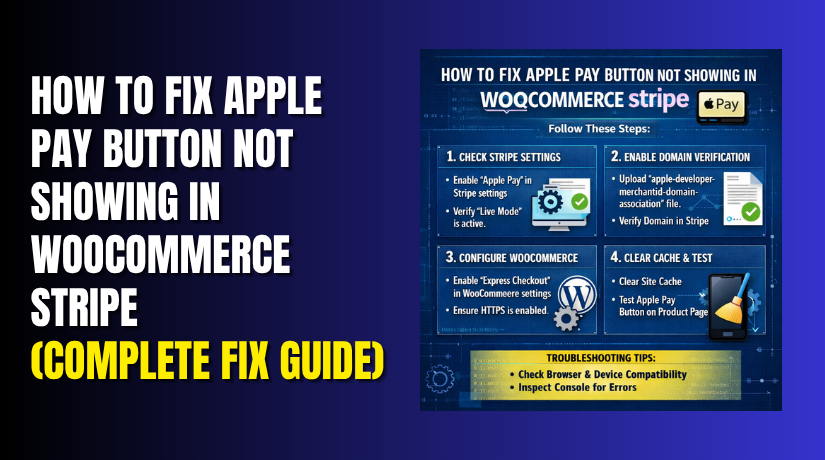
How to Fix Apple Pay Button Not Showing in WooCommerce Stripe (Complete Fix Guide)
Table of Contents
- Introduction
- Common Reasons Why the Apple Pay Button Is Not Showing in WooCommerce Stripe
- Quick Checks You Should Do Before Fixing the Apple Pay Button Problem
- How to Fix Apple Pay Button Not Showing in WooCommerce Stripe (Step By Step Guide)
- Best Practices to Prevent Apple Pay Button Not Showing Issues in the Future
- Conclusion
Introduction
The Apple Pay button not showing in WooCommerce Stripe is a common store problem. It can confuse shoppers and slow down your checkout flow. Many buyers like Apple Pay because it is fast and simple. They can pay without filling many checkout fields. When the button does not appear, some users may leave your store early. This can reduce sales and hurt the buying experience. If you are facing WooCommerce Apple Pay not working, you are not alone. This issue can happen for many small setup reasons. In most cases, the problem is easy to find and fix. You just need to check the right settings in order. This guide will help you understand the main causes clearly. It will also prepare you for the fixes in the next parts.
Apple Pay works through Stripe in a supported WooCommerce setup. It usually appears as a quick payment option. This button may show on the product page, cart page, or checkout page. If it stays hidden, your store may lose fast mobile payments. A missing wallet button can also make your site look incomplete. That is why this Stripe Apple Pay WooCommerce issue needs attention early. The good news is that most causes are technical and simple. You do not need to rebuild your whole payment setup. You only need to review key settings and test properly.
Common Reasons Why the Apple Pay Button Is Not Showing in WooCommerce Stripe
Apple Pay is not enabled in WooCommerce Stripe settings
The first reason is often the most basic one. Apple Pay may not be enabled inside your Stripe settings. If the option is off, the button cannot appear anywhere. Many store owners connect Stripe but skip wallet settings later. This creates an Apple Pay not available Stripe WooCommerce problem quickly.
Express checkout buttons are disabled in the plugin settings
In many setups, Apple Pay works through express checkout buttons. If express checkout is turned off, Apple Pay may stay hidden. This is a common reason behind WooCommerce Stripe payment methods not showing on key pages.
Your domain is not verified or registered correctly
Stripe needs your website domain to be registered correctly. If the domain step is incomplete, Apple Pay may not load. This is one of the most common setup mistakes. Even one missed domain setting can block the button fully.
SSL is missing or not working properly on the site
Apple Pay needs a secure website connection to work. If your site does not use HTTPS, the button may fail. A broken SSL setup can also create loading issues. This often leads to Apple Pay missing WooCommerce checkout pages.
You are testing on an unsupported device or browser
Apple Pay does not show on every browser or device. Some users test it on the wrong system first. Then they think the setup is broken. In reality, the store may be fine.
Apple Pay is not set up on the customer device
The button may also depend on wallet setup. If Apple Pay is not active on the device, it may not appear. This can look like WooCommerce Apple Pay not working, even when the plugin works.
Stripe account is not connected correctly
A weak or incomplete Stripe connection can stop wallet payments. If the account is connected wrongly, Apple Pay may stay hidden. This can also affect other checkout options.
Theme or plugin conflict is hiding the Apple Pay button
Some themes and plugins change WooCommerce page output. They may block Stripe scripts or hide payment buttons. This type of conflict is very common in customized stores.
Cache or speed settings are blocking the payment button
Caching and optimization tools can delay or break Stripe scripts. If that happens, the Apple Pay button may not load. This is another major cause of the Apple Pay button not showing in the WooCommerce Stripe issue.
The button location is not enabled on the correct pages
Sometimes the button is active, but not for the right page. It may be disabled on product, cart, or checkout pages. Then store owners think Apple Pay is fully missing, even when it is only hidden by location settings.
Quick Checks You Should Do Before Fixing the Apple Pay Button Problem
Before you start changing settings, do a few simple checks first. These steps can save time and help you find the real issue faster. In many cases, the problem is not very deep. A small setup error can cause the Apple Pay button not showing in the WooCommerce Stripe issue. That is why basic checks matter before full troubleshooting. They help you avoid random changes that may create more confusion later.
Confirm WooCommerce is updated to the latest stable version
Start by checking your WooCommerce version in the admin panel. An old version can cause payment features to break. Stripe gateways often depend on updated WooCommerce files. If your store runs outdated code, wallet buttons may not load correctly. This can lead to WooCommerce Stripe payment methods not showing on key pages. Update WooCommerce only after taking a proper site backup first.
Confirm the Stripe plugin is updated and active
Next, check the WooCommerce Stripe plugin version carefully. If the plugin is outdated, Apple Pay support may fail. New updates often fix wallet bugs and display problems. Also confirm the plugin is active after recent updates. Sometimes a plugin update fails silently and disables features. This can create a Stripe Apple Pay WooCommerce issue without clear warning.
Check that your website is using HTTPS correctly
Apple Pay needs a secure connection to work properly. Open your website and check for HTTPS in the address bar. Then test product, cart, and checkout pages one by one. If even one page is not secure, Apple Pay may not appear. A mixed content issue can also break payment scripts. This is a common reason for Apple Pay missing WooCommerce checkout pages.
Make sure Stripe is connected to the correct account
Open your Stripe settings inside WooCommerce and review the connection. Make sure the plugin is linked to the right Stripe account. Some store owners connect a test account by mistake. Others connect the wrong business account during setup. This can make Apple Pay not available to Stripe WooCommerce even when settings look fine. Check both live mode and test mode carefully.
Test on a supported Apple device and browser
Do not test Apple Pay on random devices first. Use a supported Apple device and a supported browser. Apple Pay may not show on all systems the same way. Wrong testing conditions can make a working setup look broken. This is one reason many users think WooCommerce Apple Pay is not working when it actually works fine.
Check whether Apple Pay is added to Apple Wallet
Apple Pay also depends on wallet setup on the device. If no card is added in Apple Wallet, the button may not appear. This step is often missed during testing. Store owners focus only on plugin settings and forget the device side. Always test with a fully ready Apple Pay environment.
Review Apple Pay button location settings in the plugin
Now check where the Apple Pay button is allowed to display. It may be enabled only on selected WooCommerce pages. For example, it may show on product pages but not checkout. This can confuse store owners during testing. Review each location setting before moving to advanced fixes.
Clear your website cache and browser cache
Cached files can stop new payment settings from loading properly. Clear your WordPress cache, plugin cache, server cache, and CDN cache. Then clear the browser cache and test again. Old JavaScript files can hide updated wallet buttons. This often causes the Apple Pay button not showing in WooCommerce Stripe issue to continue even after correct changes.
Stop guessing and check the actual setup carefully
Many store owners assume the plugin is broken too early. In reality, the problem is often a missed setting. Go through each check one by one. Do not skip steps or test too quickly. A careful review will help you find the cause faster. It will also make the next fixing steps much easier.
How to Fix Apple Pay Button Not Showing in WooCommerce Stripe (Step By Step Guide)
If the Apple Pay button is missing, do not panic early. This problem usually comes from setup or display issues. You can fix it by checking one area at a time. Follow these steps in the correct order for better results. This approach helps solve the Apple Pay button not showing in WooCommerce Stripe issue faster.
Step 1: Check If Apple Pay Is Enabled in WooCommerce Stripe Settings
Open your WordPress dashboard first. Go to WooCommerce > Settings > Payments. Click on the Stripe payment method settings page. Look for the wallet or express checkout section. Make sure Apple Pay is enabled there. If this option is turned off, the button will not appear. This is the first step to fix the Apple Pay button not showing in the WooCommerce Stripe issue.
Step 2: Enable Express Checkout Buttons in the Stripe Plugin
Apple Pay often works through express checkout settings. If express checkout is disabled, Apple Pay may stay hidden. Open the Stripe settings and find the express checkout option. Turn it on and save the settings properly. Then refresh your site and test again. This step fixes many cases of WooCommerce Apple Pay not working.
Step 3: Confirm Your Stripe Account Is Connected Properly
Now check whether your Stripe account is connected correctly. Stay inside the WooCommerce Stripe settings page. Review the connected account details carefully. Make sure the plugin is linked to the right Stripe account. A wrong or incomplete connection can block wallet payments. This can cause a Stripe Apple Pay WooCommerce issue on your store.
Step 4: Verify and Register Your Domain With Stripe
Stripe requires domain verification for Apple Pay support. If the domain is not registered, the button may stay hidden. Log in to your Stripe account and check domain settings. Make sure your live domain is added correctly there. Also check both www and non-www versions. This step is very important for fixing Apple Pay not available to Stripe WooCommerce.


Step 5: Make Sure Your Site Is Running on HTTPS
Apple Pay needs a secure checkout environment to work. Open your website and check the address bar. Confirm that your site loads with HTTPS on all pages. Then test product, cart, and checkout pages carefully. If SSL is missing or broken, Apple Pay may not load. This often causes Apple Pay missing WooCommerce checkout problems.
Step 6: Test the Button on a Supported Apple Device
Do not test Apple Pay on random devices first. Use a supported Apple device for proper testing. Then open your store in a supported browser. Apple Pay may not show on unsupported systems. Many store owners think the plugin is broken too early. In reality, the test method may be wrong.
Step 7: Check Whether Apple Pay Is Set Up in Apple Wallet
The Apple Pay button depends on wallet setup too. Open the Apple device and go to the Wallet app. Make sure a valid card is already added there. If Apple Pay is not active on the device, the button may not appear. This can look like WooCommerce Apple Pay not working even when settings are fine.
Step 8: Review Button Placement Settings in WooCommerce Stripe
Now check where the button should appear in your store. Open the Stripe settings and review display locations. Make sure the button is enabled on the correct pages. Check these page locations one by one:
- Product page
- Cart page
- Checkout page
If the button is disabled on one page, it will stay hidden there. This can create confusion during testing.
Step 9: Clear WordPress, Plugin, Server, and CDN Cache
Cache can stop new payment settings from loading correctly. Clear your WordPress cache after making any changes. Then clear cache from your performance plugin as well. If your hosting has server cache, clear that too. Also purge your CDN cache if you use one. Old cached files often keep the Apple Pay button not showing in WooCommerce Stripe issue active.
Step 10: Disable Conflicting Plugins Temporarily
Some plugins can block Stripe scripts or wallet buttons. Disable extra plugins one by one and test again. Focus first on checkout, cache, security, and optimization plugins. These plugins often create hidden payment conflicts. After each change, test Apple Pay again properly. This helps find the cause of the Stripe Apple Pay WooCommerce issue.
Step 11: Switch to a Default WooCommerce Theme for Testing
Your active theme may also block the Apple Pay button. Temporarily switch to a default WooCommerce-friendly theme. Then test the product, cart, and checkout pages again. If the button appears, your theme may be the problem. Theme conflicts are common on heavily customized stores.
Step 12: Check WooCommerce and Stripe Logs for Errors
If the button still does not appear, check the logs. Go to WooCommerce > Status > Logs in your dashboard. Open the Stripe-related log files and review recent errors. Look for script errors, domain issues, or connection failures. Logs can help you find the exact problem faster. This is useful when WooCommerce Stripe payment methods not showing a clear reason.
Step 13: Reconnect Stripe If the Setup Looks Incomplete
Sometimes Stripe settings look correct but still fail. In that case, reconnecting Stripe may help. Disconnect the account carefully from WooCommerce settings. Then connect it again using the correct Stripe account. Review all saved payment settings after reconnecting. This can solve Apple Pay not available to Stripe WooCommerce when other fixes do not work.
Step 14: Test Both Live Mode and Test Mode Correctly
Stripe test mode and live mode may act differently. Check which mode is active in the plugin first. Then make sure the correct account is connected for that mode. Test the button in both modes carefully if needed. A setup issue in one mode can hide the button. This final check can solve some WooCommerce Apple Pay not working cases.
Step 15: Test the Full Payment Flow After the Button Appears
Once the button appears, do not stop there. Test the full checkout process from start to finish. Make sure the button works on the right pages. Also confirm the payment goes through without errors. A visible button alone is not enough. The full payment flow must work properly for customers.
Best Practices to Prevent Apple Pay Button Not Showing Issues in the Future
Once the Apple Pay button starts working again, the next step matters too. You should keep the setup stable for future updates and changes. Many stores fix the issue once, then face it again later. That usually happens because basic maintenance steps are ignored. If you want to avoid the Apple Pay button not showing in the WooCommerce Stripe issue again, follow these simple best practices.
Keep WooCommerce, WordPress, and Stripe plugin updated regularly
Old plugin files often create payment display problems. WooCommerce and Stripe need stable compatibility to work well together. If one tool stays outdated, wallet buttons may stop loading. Regular updates help fix bugs and improve payment support. Always take a full backup before any update. This keeps your store safe during maintenance.
Use a trusted WooCommerce-compatible theme for payment pages
Your theme affects how WooCommerce pages load and behave. A poorly coded theme can block payment scripts or styles. This may lead to WooCommerce Apple Pay not working on product or checkout pages. Always choose a theme built for WooCommerce compatibility. If possible, avoid heavy custom theme edits on payment pages. Clean theme code helps wallet buttons load correctly.
Avoid using too many checkout and payment customization plugins
Too many plugins can create script conflicts and slow page loading. Checkout field editors, one-page checkout tools, and design plugins may interfere. They can also cause a hidden Stripe Apple Pay WooCommerce issue over time. Use only the plugins your store really needs. Remove old or inactive tools that no longer add value. A cleaner plugin setup means fewer payment problems later.
Always keep a valid SSL certificate active on your site
Apple Pay needs a secure website to display properly. If your SSL expires, the payment button may disappear. Broken HTTPS settings can also stop Stripe scripts from loading. This can cause Apple Pay missing WooCommerce checkout pages without warning. Check your SSL status often and renew it before expiry. Also test that every important page loads over HTTPS.
Recheck Apple Pay settings after plugin or theme updates
An update can reset or change payment display behavior. That is why you should review Stripe settings after major changes. Check Apple Pay, express checkout, and button placement again. Do not assume old settings always stay unchanged. A quick review can prevent Apple Pay not being available to Stripe WooCommerce after an update. This small habit can save a lot of troubleshooting later.
Clear cache after making payment setting changes
Cached files can keep old payment settings active for visitors. Even correct changes may not appear right away. Clear WordPress cache after each payment update. Then clear your plugin cache, server cache, and CDN cache too. This is one of the easiest ways to avoid display issues. It also helps prevent WooCommerce Stripe payment methods not showing after changes.
Test payment buttons often on real supported devices
Do not test only from your desktop admin system. Apple Pay needs proper testing on supported Apple devices. Check the button after updates, plugin changes, or checkout edits. Real device testing helps you spot issues early. This also confirms whether WooCommerce Apple Pay not working is real or only test-related. Regular testing keeps your payment setup reliable.
Check WooCommerce and Stripe logs from time to time
Logs can reveal hidden errors before customers complain. You may find script issues, domain errors, or account warnings there. This helps you fix small problems before they become bigger. Payment logs are useful for long-term store maintenance. A quick log check every so often can protect your checkout flow.
Avoid delaying or blocking payment scripts on checkout pages
Speed tools often delay JavaScript to improve page performance. This can be useful for general pages, but risky for checkout pages. If Stripe scripts load late, the Apple Pay button may stay hidden. Review optimization settings and exclude payment scripts when needed. This helps prevent the Apple Pay button not showing in WooCommerce Stripe issue from returning.
Keep simple notes about your payment setup for future checks
Document your Stripe connection, Apple Pay settings, and button locations. Note which pages show the button and which tools affect checkout. This makes future troubleshooting much easier. If another developer works on the site later, these notes will help them too. A clear setup record reduces confusion during updates and fixes.
Conclusion
The Apple Pay button not showing in WooCommerce Stripe issue may look serious at first. But in most stores, the cause is simple and fixable. It may come from disabled settings, domain problems, SSL issues, cache, or plugin conflicts. Sometimes the issue is only related to unsupported testing conditions. That is why a step-by-step check works best.
If you follow the right order, you can usually fix the problem fast. Start with the basic checks first. Then move to Stripe settings, domain setup, device testing, and conflicts. After the button appears, test the full payment flow again. Make sure customers can see and use Apple Pay without errors. A working Apple Pay button can improve checkout speed and reduce cart drop-offs.
If you still face WooCommerce Apple Pay not working after trying every step, expert help can save time. Payment issues can directly affect customer trust and store sales. WooHelpDesk can help you fix Stripe setup problems, Apple Pay display issues, checkout conflicts, and other WooCommerce payment errors. If your Apple Pay button is still missing, contact WooHelpDesk for reliable support and faster troubleshooting.



