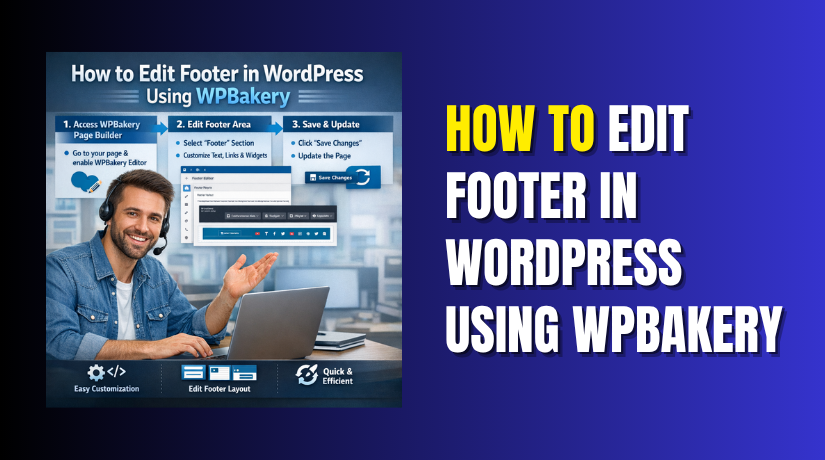
How to Edit Footer in WordPress Using WPBakery
Table of Contents
- Introduction to Editing the Footer the Right Way
- Check How Your Footer Is Built Before You Start
- Start Looking for the Footer Area in WordPress Admin
- How to Find the Footer Area in WordPress Admin
- Steps to Edit the Footer When It Opens in the Builder
- What to Do When the Footer Is Not Editable in WPBakery
- Common Problems While Editing the Footer and How to Fix Them
- Final Footer Checks Before You Finish Editing
- Best Way to Edit the Footer Safely Without Breaking the Site
- Conclusion
Introduction to Editing the Footer the Right Way
Your website footer is more important than many users think. It often shows contact details, copyright text, menu links, social icons, and support information. When this area looks outdated, the whole site can feel less polished. That is why many users search for how to edit footer in WordPress using WPBakery when they want quick changes.
The good news is that footer updates are possible in many cases. You can often edit text, links, icons, spacing, and layout blocks. But there is one important detail you must understand first. WPBakery does not control every footer in the same way. Some websites allow a direct WPBakery footer edit, while others use theme settings or widget areas instead.
So before you try to change anything, you need to know how your footer was built. This will save time and help you avoid editing the wrong area.
Check How Your Footer Is Built Before You Start
Before you try to change footer in WordPress with WPBakery, first check how the footer was created. This step matters because many WordPress themes handle footer sections differently. On some sites, the footer opens like a normal page layout. On others, it is controlled somewhere else.
Your footer may be built in one of these ways:
- A page or template made with WPBakery
- A widget-based footer area
- A footer section inside theme settings
- A custom footer layout added by the developer
- A reusable template connected to the site design
This is the main reason many users say the footer cannot be changed. In reality, the problem is often not WPBakery itself. The real issue is that the footer is managed from another location. That is also why WPBakery footer not editable is such a common problem.
Once you know the footer source, the next step becomes much easier.
Start Looking for the Footer Area in WordPress Admin
Now begin your search inside the WordPress dashboard. Look carefully before making any edits. Start with Pages and check whether a footer template exists. Then review theme options, widget areas, and the Customizer. Some websites also use a separate reusable block for WPBakery footer section edit tasks.
This quick check helps you find the correct footer area first. After that, you can move forward with editing more confidently.
How to Find the Footer Area in WordPress Admin
Before you edit anything, first find the exact footer source. This step saves time and prevents changes in the wrong place. Many users try editing a page first, but the footer may live elsewhere. If you want to learn how to edit footer in WordPress using WPBakery, this is the point where the process really starts.
Open your WordPress dashboard and check these areas carefully:
- Pages: Look for a page named Footer, Global Footer, or Template
- WPBakery Templates: Check whether the footer is saved as a layout
- Appearance > Widgets: See if footer columns are widget-based
- Appearance > Customize: Many themes place footer settings here
- Theme Options Panel: Some themes use their own footer controls
Look for clues inside each area. A footer template may contain text blocks, icons, menus, or contact details. A widget footer often shows columns like About, Links, and Address. Theme options may only allow simple changes, such as copyright text or colors.
Use this quick table to understand where to look:
| Admin Area | What You May Find |
| Pages | A custom footer layout |
| WPBakery Templates | Reusable footer design |
| Widgets | Footer columns and content blocks |
| Customizer | Basic footer text and layout options |
| Theme Options | Theme-controlled footer settings |
Once you find the correct source, editing becomes much easier.
Steps to Edit the Footer When It Opens in the Builder
If your footer opens inside the builder, you can start editing it directly. This is the easiest setup for a smooth WPBakery footer edit workflow. You can update text, links, icons, and spacing without touching code.
Follow these steps in order:
Open the Correct Footer Page or Template
Go to the page, template, or saved layout controlling the footer. Make sure it is the real footer source before editing.
Launch the WPBakery Editor
Click Edit with WPBakery and wait for the layout to load. You should now see rows, columns, and content blocks.
Edit the Needed Footer Elements
Click the pencil icon on the element you want to change. Update only the section you need first.
Common footer items you may edit include:
- Copyright text
- Contact details
- Footer menu links
- Social media icons
- Short business details
- Button labels or calls to action
Adjust the Layout if Needed
Check row spacing, column width, and alignment settings. A small layout change can improve the footer area quickly.
Save and Preview the Changes
Click save, update the template, and open the frontend. Review the footer on desktop and mobile before finishing.
This is the most direct way to change footer in WordPress with WPBakery when the theme allows builder-based footer control.
What to Do When the Footer Is Not Editable in WPBakery
Sometimes, the footer opens nowhere inside the builder. This confuses many users at first. They expect a normal page editor, but the footer is missing. That is when the WPBakery footer not editable issue usually appears.
In most cases, WPBakery is not actually broken. The footer is simply controlled from another place. Many WordPress themes do not connect the footer to the standard page editor. Instead, they manage it through theme settings, widgets, or a separate template system.
Start by checking the most common footer sources again:
- Appearance > Widgets for widget-based footer columns
- Appearance > Customize for copyright text, layout, or footer settings
- Theme Options for theme-built footer controls
- Templates or reusable layouts created by the developer
- Theme files when the footer is hard-coded
If your site uses widgets, edit the content there instead. If the theme uses a footer panel, make the changes from that panel. If a reusable layout controls the footer, open that layout instead of the main page.
Some websites also use custom footer files built by a developer. In that case, the footer may not appear in WPBakery at all. You may only be able to change parts like text, links, or widgets from the admin area. More advanced layout changes may need theme-level editing.


So, before you try random changes, confirm where the footer actually comes from. That one step usually saves the most time.
Common Problems While Editing the Footer and How to Fix Them
Even when you find the right area, problems can still happen. The good news is that most footer issues are simple to fix.
Footer changes are not showing on the live site
This usually happens because of caching. Clear your site cache first. Then clear browser cache and refresh the page again. Also make sure you updated the correct footer template.
Some footer blocks cannot be edited
This happens when the content comes from widgets, shortcodes, or theme options. The visible block may look editable, but the real source may be somewhere else.
The footer layout breaks after saving changes
This often happens after editing rows or columns too quickly. Check spacing, widths, and alignment again. Small changes in one column can affect the whole footer layout.
You edited something, but the wrong footer changed
Some websites use multiple footer templates. One may appear on the homepage, while another appears on inner pages. Always preview several pages after editing.
The builder opens, but the footer section looks incomplete
Part of the design may come from another layout source. This is common during a WPBakery footer section edit when icons, menus, or forms are loaded from separate settings.
When you face any problem, stay calm and check one source at a time. That method gives the best result and helps you understand how to edit footer in WordPress using WPBakery more clearly.
Final Footer Checks Before You Finish Editing
Before you publish the footer, do one last review carefully. This final check helps you catch small issues early. It also keeps your site looking clean and professional.
Start by opening different pages on your website. Some themes use different footer layouts across the site. A homepage footer may not match the inner page footer. This is why checking only one page is not enough.
Also test the footer on mobile and tablet screens. A footer can look fine on desktop but break on smaller devices. Check spacing, icon size, text alignment, and column order.
Use this quick checklist before you finish:
- Open the homepage and inner pages
- Test the footer on mobile view
- Check every link inside the footer
- Review contact details and copyright text
- Make sure icons still display correctly
These small checks make your WPBakery footer edit safer and more complete.
Best Way to Edit the Footer Safely Without Breaking the Site
Footer editing looks simple, but small mistakes can affect the whole layout. That is why you should always make changes carefully. A safe process helps you avoid broken columns, missing text, or wrong links.
Follow these best practices while editing:
Take a Backup Before You Start
Always create a backup before changing footer content. This gives you a safe restore point if something breaks.
Edit One Section at a Time
Do not change everything in one go. Edit one block first, save it, then review the result. This makes problems easier to find.
Keep the Footer Clean and Useful
Avoid adding too much text or too many links. A footer should stay simple, readable, and helpful for visitors.
Check the Real Source Again if Needed
If something feels wrong, stop and recheck the source. Many users try to change footer in WordPress with WPBakery from the wrong area. That creates confusion and wasted time.
Review the Footer After Every Update
Always preview after each major change. This helps you catch layout issues before they affect the live site.
Conclusion
Learning how to edit footer in WordPress using WPBakery becomes easier once you understand your footer setup. Some websites allow direct editing in the builder. Others use widgets, theme settings, or custom templates instead. So the best approach is simple. First find the real footer source. Then make careful updates and test the result on all devices. If your footer still will not update properly, WooHelpDesk can help you fix the issue safely and make your WordPress footer work the right way.



