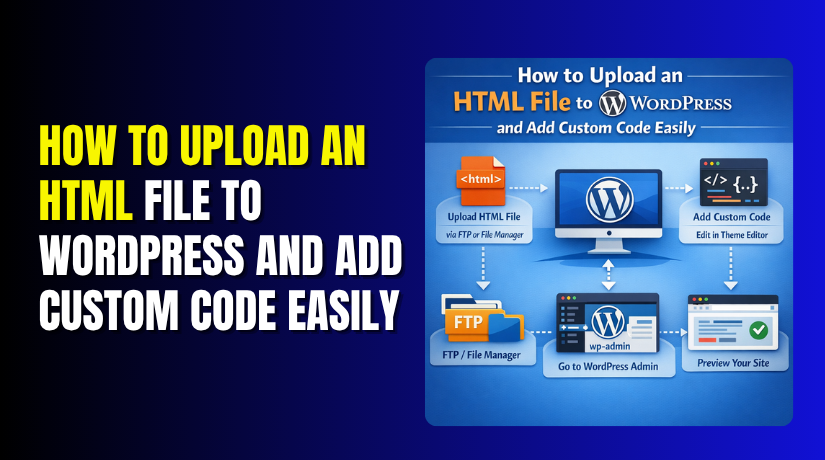
How to Upload an HTML File to WordPress and Add Custom Code Easily
Table of Contents
-
- Introduction
- Understand What You Want to Add Before Starting
- When You Need to Upload a Full HTML File
- How to Upload an HTML File to WordPress Step by Step
- How to Add HTML Inside a WordPress Page or Post
- How to Add a Small Custom Code Section Safely
- Best Way to Add Code Without Breaking Your Site
- Common Problems Users Face After Adding HTML or Custom Code
- Uploading a Full HTML Page vs Adding HTML in the Editor
- Which Method Should You Choose for Your Need?
- Conclusion
Introduction
Many WordPress users need to add HTML for a page, tool, or design section. That sounds simple, but the method depends on what you want to add. Some users want to upload HTML file to WordPress for a separate page. Others only want to add HTML code in WordPress inside an existing post or page. If you choose the wrong method, the layout may break or the code may not work properly.
This guide stays focused on one topic only. It explains how to handle HTML in WordPress the right way. You will learn when to upload a full file and when to place code directly inside the editor. You will also understand where each method works best. This helps you avoid mistakes and save time during setup.
Understand What You Want to Add Before Starting
Before making any change, first identify the type of HTML you have. This step matters because WordPress does not treat every HTML item the same way. A full page, a short snippet, and a custom section each need a different approach.
Here are the most common cases:
- A full standalone HTML page
This is used when you already have a complete page file. In this case, you may need to learn how to upload HTML page to WordPress correctly. - A small code snippet
This works best when you only want to place a form, button, box, or custom element inside a page. - A custom content section in the editor
This is useful when you want to build a section using custom HTML WordPress options. - A block-based code area inside the page editor
WordPress also lets you add custom HTML block in WordPress for small code placement without uploading a full file.
Once you know what type of HTML you want to use, the next steps become much easier. You can then choose the right method with less risk and better results.
When You Need to Upload a Full HTML File
Uploading a full HTML file works best in specific cases. It is not the right choice for every change. This method is useful when you already have a complete static page. That page may include its own structure, text, images, and links. In that case, you may need to upload HTML file to WordPress instead of rebuilding everything in the editor.
This option is helpful when you want to:
- publish a standalone landing page
- keep an old static page design
- add a custom page outside normal post content
- place a separate file on your server for direct access
It is important to understand one thing here. Uploading a file does not place it inside the normal WordPress editor. It also does not automatically match your theme style. The file usually works as a separate page on your website. That is why folder location, file links, and page testing all matter.
If your goal is only to add HTML code in WordPress for a section, this is not the best method. A full file upload is better for complete page-level content.
How to Upload an HTML File to WordPress Step by Step
If you are learning how to upload HTML page to WordPress, follow these steps carefully.
Prepare the HTML File First
Start by checking the file before upload. Make sure the code is clean and complete. Review linked CSS files, JavaScript files, and image paths. If these links are wrong, the page may load without design or images. Also use a simple file name that is easy to read.
Upload the File to the Right Folder
Next, upload the file through your hosting file manager or FTP. Place it in the correct folder on your site. This step is important because the final URL depends on that location. When users upload HTML file to WordPress, the file must sit where the browser can open it properly.
Test the Page in Your Browser
After upload, open the file URL in your browser. Check the layout, links, buttons, and images. See if everything loads correctly.
Fix Broken Paths if Needed
If the page looks broken, review file paths again. Most problems come from missing folders or wrong file links. This step helps your uploaded page work as expected.
How to Add HTML Inside a WordPress Page or Post
Not every HTML task needs a full file upload. Sometimes you only need to place a small section inside an existing page. In that case, it is better to add HTML code in WordPress directly through the editor. This method is faster, easier, and better for small content changes.
It works well for many common needs, such as:
- contact forms
- custom buttons
- pricing tables
- embed codes
- styled content boxes
- simple layout sections
This option is useful when the content should stay inside your normal page or post. It also helps the content remain easier to edit later. If you do not need a separate file URL, this is often the better choice.
WordPress gives you a simple way to handle this. You can use editor-based options made for HTML placement. Many users prefer this approach when working with custom HTML WordPress content because it is direct and easier to manage.
Use the Right Editor Area for Small HTML Code
When adding small code sections, placement matters. Put the code only where it is needed. Do not paste large page structures into normal text areas. That can create layout problems and make editing harder later.
For smaller code sections, WordPress lets you add custom HTML block in WordPress using the block editor. This is a useful choice for short custom sections. It helps keep the code separate from normal text content. It also makes testing easier before publishing.
How to Add a Small Custom Code Section Safely
Small HTML sections should stay simple and controlled. Always preview the page before publishing changes. This helps you catch broken spacing, missing tags, or display issues early.
Follow these simple practices:


- keep the code clean and short
- test one section at a time
- avoid adding full-page code here
- check mobile and desktop view
- remove unused code after testing
If your goal is only to insert a small custom section, this method works best. But if you want a separate full page, then how to upload HTML page to WordPress becomes the better solution.
Best Way to Add Code Without Breaking Your Site
Adding code in WordPress can be simple and safe. You just need the right steps before making changes. Many users rush the process and create layout problems later. A careful setup helps you avoid errors and keep the site stable.
Before you add HTML code in WordPress, follow these basic safety steps:
- create a full backup of your site
- test changes on a draft page first
- review the code before saving it
- avoid editing core WordPress files directly
- use only trusted code sources
These steps matter whether you want to insert a small block or upload HTML file to WordPress for a separate page. Even a small missing tag can affect the layout. A broken script can also stop page elements from loading properly. That is why testing should always come before publishing.
If you are using custom HTML WordPress options inside the editor, keep the code short and focused. Add only the part you need. Do not paste full page structures into a small content area. This reduces conflicts and keeps the page easier to manage.
Common Problems Users Face After Adding HTML or Custom Code
Even correct code can create problems after upload or placement. Most issues happen because the method does not match the goal. Some problems also come from missing files or wrong code placement.
The Page Looks Broken
This often happens after users upload HTML file to WordPress without checking file paths. The structure loads, but the page may lose styling or spacing.
Images or Styling Do Not Load
This usually means the linked files are missing or mislinked. Check image folders, CSS files, and script paths carefully.
The Code Shows as Plain Text
This problem appears when the code is added in the wrong area. If needed, add custom HTML block in WordPress instead of pasting code into a normal text section.
The Layout Does Not Match Your Theme
A full uploaded HTML page works outside the normal theme structure. That is why it may not look like your other WordPress pages.
Scripts Do Not Work Properly
Some scripts need proper placement to run correctly. This is common when learning how to upload HTML page to WordPress or when adding code inside page content.
Careful testing helps you catch these problems early and fix them faster.
Uploading a Full HTML Page vs Adding HTML in the Editor
Both methods work, but they solve different needs. The best option depends on what you want to build. Some users need a full page with its own URL. Others only need to place a small custom section inside existing content. Knowing this difference helps you choose the right path.
| Method | Best For | Main Benefit | Main Limitation |
| Upload a full HTML file | Standalone pages | Full control over page structure | May not match WordPress theme |
| Add HTML in the editor | Small content sections | Easy to manage inside WordPress | Not ideal for full page layouts |
If you want to upload HTML file to WordPress for a separate landing page, a full file upload makes more sense. This method works well when the page already exists and does not need to be rebuilt inside the editor.
If you only need to add HTML code in WordPress for a form, table, or button, the editor is the easier option. This keeps the content inside your page or post and makes future editing simpler.
Which Method Should You Choose for Your Need?
Choose the method based on your actual goal, not just convenience.
Use a full upload when you need:
- a separate standalone page
- direct file access through a custom URL
- an already built HTML page from another source
Use the editor method when you need:
- a small custom section
- embed code inside content
- a simple layout block within a post or page
If you work inside the block editor, you can also add custom HTML block in WordPress for clean code placement. This is often the best choice for small custom sections using custom HTML WordPress tools.
Conclusion
WordPress gives you more than one way to work with HTML. The right option depends on the size and purpose of your code. If your goal is a standalone page, learn how to upload HTML page to WordPress correctly. If your goal is a smaller content section, use editor-based HTML instead. Choosing the right method keeps your site cleaner, safer, and easier to manage. For expert help with WordPress changes, fixes, and custom setup, WooHelpDesk can help you handle it the right way.



