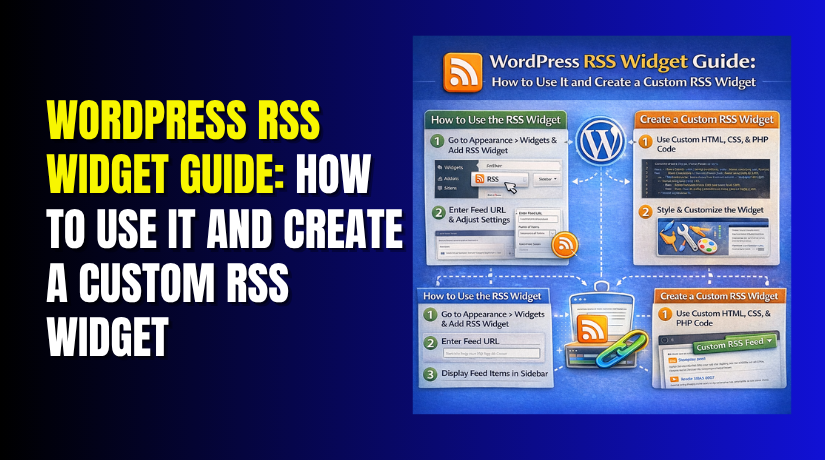
WordPress RSS Widget Guide: How to Use It and Create a Custom RSS Widget
Table of Contents
- Introduction: Why This Guide Matters for WordPress Users
- What a WordPress RSS Widget Does on a Website
- Where You Can Add an RSS Widget in WordPress
- Step-by-Step: How to Add the Built-In RSS Widget
- What You Need Before Adding the Feed
- Why Previewing the RSS Widget Is Important
- What to Configure for a Better RSS Widget Display
- Common Problems When Using an RSS Widget in WordPress
- When the Default RSS Widget Is Not Enough
- How a Custom RSS Widget Works in WordPress
- Key Things to Include in a Custom RSS Widget
- Best Practices Before Publishing an RSS Widget
- Conclusion
Introduction: Why This Guide Matters for WordPress Users
A WordPress RSS widget helps you show feed content on your website. It pulls updates from an RSS feed URL and displays them inside a widget area. This guide stays focused on one topic only. It explains how to use RSS widget in WordPress in a simple way. It also prepares you for the next step if you want more control later. That is useful when you plan to build a custom version for your site. WordPress supports feed display through its RSS block, and widget content can be placed in theme widget areas like sidebars and footers.
What a WordPress RSS Widget Does on a Website
A WordPress RSS feed widget shows content from another feed source. It can display post titles, publish dates, authors, and short excerpts. This makes your website look active and useful for readers. It also helps visitors find fresh content without leaving your site too soon. Many website owners use it to show blog updates, news items, or niche industry posts. It works well when you want to keep one section updated automatically. The official RSS block supports showing title, author, date, excerpt, and list or grid layouts.
Where You Can Add an RSS Widget in WordPress
You can place the RSS widget in any theme area that supports widgets. The most common places are:
- Sidebar
- Footer
- Other widget-ready theme sections
This is important when learning how to add RSS feed to WordPress correctly. The right position improves visibility and keeps the layout clean. A sidebar works well for blog updates. A footer works better for secondary feed content. Your final placement depends on the widget areas your theme provides. WordPress documentation confirms that widgets are added through widget areas defined by the active theme.
Step-by-Step: How to Add the Built-In RSS Widget
If you want to know how to use RSS widget in WordPress, start with the built-in option. WordPress lets you add feed content through the Widgets screen using the RSS block editor. The RSS block can display content from any site’s RSS feed, and it supports title, author, date, excerpt, list view, and grid-style display options.
Follow these simple steps:
- Log in to your WordPress dashboard.
- Open Appearance > Widgets.
- Select the widget area where you want the feed.
- Click the add block option inside that area.
- Search for the RSS
- Add the block to the selected widget area.
- Paste the feed URL into the block field.
- Choose how many feed items to show.
- Turn display options on or off as needed.
- Save your changes and check the front end.
This is the easiest way to add a WordPress RSS feed widget without writing code. It works well for blog sidebars, footer sections, and other widget-ready theme areas. WordPress widget areas depend on your active theme, and they are managed from the Widgets section in the dashboard.
What You Need Before Adding the Feed
Before you begin, make sure you have these basics ready:
- A valid RSS or Atom feed URL
- A theme area that supports widgets
- A clear idea of where the feed should appear
This matters because how to add RSS feed to WordPress depends on both the feed link and the widget area. If the URL is wrong, the feed may not load. If the area is too small, the output may look crowded. WordPress’s RSS widget support is built for RSS or Atom feeds, with settings for URL, item count, summary, author, and date.
Why Previewing the RSS Widget Is Important
Always preview the widget after saving it. This helps you check spacing, title length, and overall layout. It also confirms that the feed is loading correctly. A quick preview can help you catch problems early and keep the widget clean, readable, and useful for visitors.
What to Configure for a Better RSS Widget Display
A WordPress RSS widget works best when the display stays clean. The built-in RSS block lets you show or hide the title, author, date, and excerpt. You can also choose a list layout or a grid layout. These settings help you match the feed output with your page design.
Start with the number of feed items. Showing too many posts can make a sidebar look crowded. In most cases, five to seven items feel easier to scan. After that, decide whether dates should appear. Dates are useful for news or update-based feeds. For evergreen content, they may add less value. Excerpts can also help, but only when space allows. A short title list often works better in smaller widget areas. This is important when setting up a WordPress RSS feed widget for readers who want quick updates.
To improve readability, keep these points in mind:
- Show fewer items in narrow sidebars
- Use excerpts only when space is available
- Keep long titles from taking over the area
- Choose a widget location that fits your layout
- Preview the feed on desktop and mobile screens
These small choices make how to add RSS feed to WordPress more effective. They also help visitors read the feed without feeling lost.
Common Problems When Using an RSS Widget in WordPress
Even a simple RSS setup can fail when one detail is wrong. The most common problem is an invalid feed URL. If the link is broken, the widget cannot pull content. Another issue is an empty feed area. This usually means the source feed is missing, blocked, or not working correctly.
Some users think the feed is broken when it does not refresh fast. In many cases, WordPress caches feed results for 12 hours by default. That means updates may take time to appear on the front end.
You may also see layout problems like these:
- Titles look too long for the widget area
- Excerpts make the section too heavy
- The widget does not fit the theme design
- The selected area does not show widgets properly
When checking how to use RSS widget in WordPress, always test the URL, review the layout, and preview the final output first.


When the Default RSS Widget Is Not Enough
The built-in WordPress RSS widget works well for basic feed display. It is a good starting point for simple blog updates, news links, or content lists. But many websites need more control than the default option gives. The standard RSS block mainly lets you manage display choices like title, author, date, excerpt, and layout style.
You may need to create custom RSS feed widget in WordPress when:
- You want a branded design that matches your theme
- You need a different layout for feed items
- You want better control over title or excerpt output
- You need extra settings beyond the default options
- You want the widget to fit a special sidebar section
This is where a custom RSS widget WordPress setup becomes useful. A custom widget helps you move beyond the simple built-in layout. It gives you more control over the final output. That can improve design, user experience, and content presentation on the page.
How a Custom RSS Widget Works in WordPress
A custom RSS widget is created through code inside WordPress. In most cases, the widget class extends WP_Widget. WordPress says this class must be extended for each widget, and the widget() method must be overridden. If the widget has options, the update() and form() methods should also be overridden.
After that, the widget must be registered with WordPress. WordPress uses the widgets_init hook for widget registration, and register_widget() is used to register a widget class or widget instance.
To pull feed content, developers usually use fetch_feed(). WordPress describes this function as building a SimplePie object from an RSS or Atom feed URL. It also notes that feed results are cached for 12 hours by default.
In simple terms, a custom widget usually does four things:
- accepts widget settings
- saves those settings
- gets feed data from the URL
- displays the feed in a custom format
So, if you want more than a basic WordPress RSS feed widget, a custom build offers more design freedom. It is the better choice when standard feed display settings cannot match your website goals.
Key Things to Include in a Custom RSS Widget
When you create custom RSS feed widget in WordPress, the goal should be simple. The widget must stay useful, clean, and easy to manage. A strong custom widget needs a few core settings from the start. WordPress custom widgets are usually built by extending WP_Widget, and developers normally handle output, settings form, and saved values through the widget methods.
A good custom RSS widget WordPress setup should include:
- A widget title field
- A feed URL field
- A setting for item limit
- Safe and clean output handling
- Layout control for better design
- Basic styling support
- Error handling for failed feeds
These settings matter because every website uses feed content differently. Some sites want a short link list. Others want titles, dates, and short excerpts. The built-in RSS display can show title, author, date, and excerpt, so a custom widget should support the fields your layout really needs.
Best Practices Before Publishing an RSS Widget
Before you publish the widget on a live site, test everything carefully. A broken feed area can make the page look unfinished. A custom widget should work well on both desktop and mobile screens.
Use these checks before going live:
- Test the feed URL first
- Keep the design simple and readable
- Match the widget style with your theme
- Avoid showing too many feed items
- Use trusted and active feed sources
- Check spacing, title length, and mobile view
This step matters whether you use a default WordPress RSS widget or a custom one. Feed content may not update instantly because WordPress caches feed results for about 12 hours by default. That is why testing and previewing are so important before final publishing.
Conclusion
A built-in WordPress RSS feed widget is good for simple needs. It helps when you just want to show feed items quickly. But a custom widget is better when you need more layout control. It is also the better choice when branding and design matter more. So, if you are learning how to add RSS feed to WordPress or want to build a better feed display, start with your goals first. For help with widget setup, feed display, or custom development, WooHelpDesk can support your WordPress site with the right solution.



