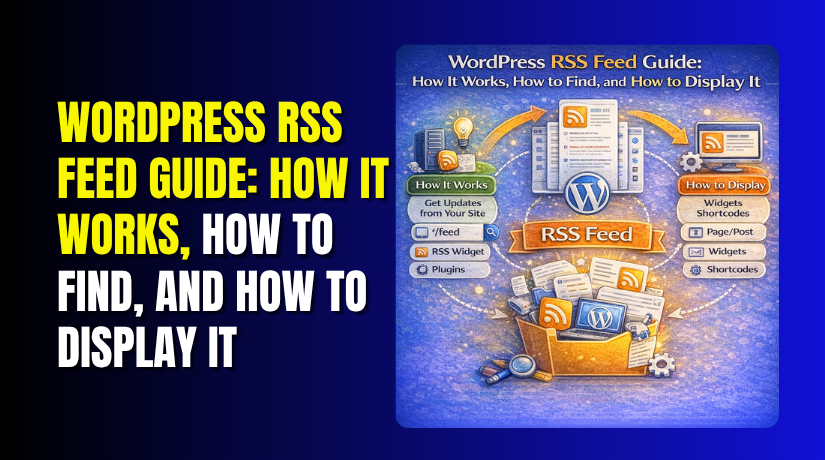
WordPress RSS Feed Guide: How It Works, How to Find, and How to Display It
Table of Contents
- Introduction: What This WordPress RSS Feed Guide Will Help You Do
- What an RSS Feed Means in WordPress and How It Works
- Does WordPress Create an RSS Feed Automatically?
- How to Find the RSS Feed URL on a WordPress Site
- What “Enable RSS” Really Means in WordPress
- How to Add and Display an RSS Feed in WordPress
- Why a WordPress RSS Feed May Not Work
- Conclusion
Introduction: What This WordPress RSS Feed Guide Will Help You Do
A WordPress RSS feed helps your site share new content updates fast. Many site owners see the term RSS, but do not know what it does. Some think it is old or no longer useful. That is not the full picture. RSS still helps readers, apps, and content tools follow new posts without visiting your site every day. WordPress also includes built-in feed support, which is why this topic matters for bloggers, store owners, news sites, and service websites.
In this guide, you will learn the exact basics first. You will understand what an RSS feed means in WordPress and how it works behind the site. Then, in the next parts, you will learn how to find your feed URL, how to show it on your website, and what to check when the feed does not load as expected. This step-by-step flow makes the topic easier for beginners and more useful for website owners who want practical answers.
What an RSS Feed Means in WordPress and How It Works
An RSS feed is a special content file that lists your latest updates. It is not made for design or page styling. It is made for content delivery. When someone uses a feed reader, app, or another system that supports RSS, that tool can pull your newest posts from the feed and show them in one place. This helps readers follow updates from many websites without checking each website manually. WordPress includes several built-in feed types for content and comments, which shows that feeds are a normal part of how WordPress publishes updates.
A WordPress RSS feed usually updates when you publish new content. That means your newest posts can appear in supported readers and feed-based tools automatically. When you open a feed URL in a browser, it often looks plain or code-heavy. That is normal. Feeds are usually shown in XML-style output because they are built for apps and feed readers, not for visual page design. So, if the feed looks simple, it does not mean something is broken. It usually means the feed is working as intended.
This system is useful for blogs, news sections, update pages, and content syndication. It gives visitors another way to follow your content. It also makes your site easier to connect with tools that collect or display published updates. That is why understanding RSS in WordPress is still helpful today.
Does WordPress Create an RSS Feed Automatically?
Many site owners ask the same question first. Does WordPress automatically create RSS feed support by default? In most normal setups, yes. WordPress creates built-in feeds for posts and comments without asking you to build them from scratch. This is why many websites already have a WordPress RSS feed even when the owner never set up a separate feed plugin.
This is where many users get confused. Creating a feed, changing feed settings, and showing a feed on the site are not the same task. WordPress usually creates the feed automatically. After that, you may still choose how many posts appear in the feed, whether it shows full text or excerpts, and whether you want to display that feed anywhere on your website. Those settings are handled separately.
So, the feed often exists before you touch any setting. That makes WordPress easier for bloggers, news sites, and content-heavy websites. It also means you should not assume the feed is missing just because you do not see it linked in your menu, footer, or sidebar. In many cases, the feed is already active in the background and only needs to be found or displayed properly.
How to Find the RSS Feed URL on a WordPress Site
The easiest way to find your main feed is simple. Add /feed/ after your website address. On many sites, that opens the main post feed right away. If your site uses standard WordPress feed rules, this method works quickly and saves time.
You can also find other feed types for specific content areas. WordPress supports comment feeds, category feeds, tag feeds, and author feeds. That means readers can follow only the content they care about instead of everything published on the site. This is useful when your website covers many topics or has several authors.
Here is a simple guide to common feed URL patterns:
| Feed Type | Common URL Pattern |
| Main posts feed | website.com/feed/ |
| Comments feed | website.com/comments/feed/ |
| Category feed | website.com/category/category-name/feed/ |
| Tag feed | website.com/tag/tag-name/feed/ |
| Author feed | website.com/author/author-name/feed/ |
These URL patterns are the most useful starting points for beginners. If one feed does not open, first check the exact slug, category name, tag name, or author archive URL. Small URL mistakes often cause confusion. Once you find the right feed link, the rest of the setup becomes much easier.
What “Enable RSS” Really Means in WordPress
Many users search how to enable RSS feed in WordPress first. That sounds simple, but the actual answer needs one clear note. In most WordPress sites, RSS is already available by default. WordPress creates built-in feeds, so users usually do not turn on a separate RSS feature from scratch. What they normally manage is feed visibility, feed content, and how many posts appear inside that feed.
So, when people ask how to enable RSS, they often mean one of these tasks:
- make sure the site feed is publicly accessible
- control how many posts appear in the feed
- choose full text or excerpt output
- show the feed somewhere on the website
These feed controls are usually handled from Settings → Reading. In the syndication feed settings, WordPress lets you choose the number of recent posts included in the feed. It also lets you choose whether each feed item shows full text or only an excerpt. That means “enable” is often really about adjusting these settings correctly.


How to Add and Display an RSS Feed in WordPress
If you want to learn how to add RSS feed in WordPress, the easiest method is the block editor. WordPress includes a built-in WordPress RSS block for this purpose. You can insert that block, paste the feed URL, and show updates from that feed directly inside a page, post, or widget area. The block also supports display options such as title, author, date, excerpt, list view, grid view, and the number of items shown.
- Display RSS with the WordPress RSS Block
This is the cleanest option for most modern sites. It works well when you want to show:
- your own blog updates
- another website’s news feed
- partner content in a sidebar or page section
If your goal is how to display RSS feed in WordPress, this method is usually the best place to start. It uses native WordPress tools and keeps setup simple for beginners.
- Show RSS in Widget Areas
Some websites still use widget-based layouts. In those cases, the WordPress RSS widget is also relevant. WordPress documentation explains that the RSS widget can pull an external feed into a widget area, such as a sidebar or footer. On newer sites, block-based widget areas often use the RSS block instead, but the purpose stays the same. It helps you place feed content in visible sections without custom coding.
- Add a Simple Feed Link for Visitors
Sometimes the best display method is even simpler. You can add a plain RSS subscription link in the footer, sidebar, or blog page. This approach works well when you want visitors to subscribe without showing full feed items on the page. WordPress feed documentation also notes that feeds are commonly linked from theme areas like the sidebar or footer.
Why a WordPress RSS Feed May Not Work
Sometimes a feed exists, but it still does not load properly. Many users search WordPress RSS feed not working when this happens. In most cases, the problem is not the idea of RSS itself. The issue is usually a wrong feed link, a blocked setting, a conflict, or a feed source problem. WordPress supports built-in feeds by default, so the first step is checking whether the correct feed URL is being used.
A very common issue is a wrong or incomplete feed address. For example, some users paste the homepage URL instead of the actual feed URL. Others use the wrong category, tag, or author slug. If the feed link is incorrect, the browser or feed tool may show an error even when the site itself is fine. WordPress feed documentation shows that different feed types use different URL patterns, so even a small URL mistake can break the result.
Another common reason is site visibility or feed settings. If a site is private, restricted, or controlled by special access rules, outside tools may not read the feed correctly. Feed settings can also change what appears in the feed, such as the number of recent posts and whether users see full text or excerpts. These settings do not usually remove the feed, but they can affect how it behaves.
Plugin, theme, or caching issues can also cause trouble. A security plugin may block feed access. A theme or plugin conflict may change feed output. Caching can sometimes return the wrong content type or an outdated version of the feed, which can make a valid feed appear broken. Support discussions in the WordPress ecosystem also show this kind of caching-related RSS problem.
If you are displaying another website’s feed, the problem may come from that external source. The feed URL may be invalid, the feed may not be publicly readable, or the source may return data in a format the reader cannot use. This is especially important when using the RSS block or widget areas to pull content from another site.
Conclusion
A WordPress RSS feed becomes much easier once you know the basics. WordPress usually creates feeds automatically, and you can often find them using standard feed URLs. You can also display them with built-in WordPress tools like the RSS block or widget areas. If your feed does not work, start by checking the URL, settings, privacy rules, plugins, and cache. In many cases, the issue is small and easy to fix once you test each point carefully.
If you need expert help with your WordPress feed, display setup, or feed errors, WooHelpDesk can help. Our team supports WordPress users with setup, troubleshooting, and technical fixes so your website works the right way. Visit WooHelpDesk for reliable WordPress support.



