WordPress vs Wiki: What’s the Difference and How to Add One
Table of Contents
- Understanding the Topic Before You Build a Wiki in WordPress
- What a Wiki Actually Means on a Website
- What WordPress Does Here and How It Differs From a Wiki
- How WordPress Works in This Use Case
- The Real Difference Between WordPress and a Wiki
- When It Makes Sense to Add a Wiki Section to a WordPress Site
- Why Businesses Add a Wiki-Style Section
- When This Setup Is the Right Choice
- Main Ways to Add This Type of Section on a WordPress Site
- Step-by-Step Process to Set It Up on a WordPress Website
- Important Things to Get Right for User Experience and SEO
- Common Mistakes to Avoid
- Conclusion
Understanding the Topic Before You Build a Wiki in WordPress
Many website owners confuse a normal site with a wiki. Both can publish content, but they serve different goals. A regular website often shares news, services, products, or business details. A wiki is built to organize information in a more structured way.
This difference matters when your website starts growing fast. You may add help guides, tutorials, product steps, or support pages. At that stage, a simple blog layout may not feel enough. You may need a better way to group and manage information.
That is where the idea of a WordPress wiki becomes useful. It helps site owners keep articles in one clear system. Users can move from one topic to another more easily. They can also find answers faster without reading unrelated pages.
In this guide, you will learn the difference between WordPress and wiki in a simple way. You will also understand why many businesses want both on one website. This is useful for support sites, service brands, online tools, and product-based businesses.
What a Wiki Actually Means on a Website
A wiki is a collection of connected information pages. These pages are grouped in a clear and useful structure. The main goal is to help users find knowledge quickly.
A wiki is often used for:
- Product instructions
- Support articles
- Team guides
- Internal company notes
- Help center content
Unlike a normal blog, a wiki focuses more on organization. It is not mainly built for updates or marketing posts. It is built for reference, learning, and repeated use.
This is why many businesses also build a WordPress knowledge base. It works like a help library for visitors and customers. In many cases, a wiki and a knowledge section serve similar needs.
If you are wondering how to create a wiki in WordPress, first understand the purpose. You are not just adding pages. You are building a structured content area that answers questions clearly. That is also the first step in learning how to add a wiki in WordPress the right way.
What WordPress Does Here and How It Differs From a Wiki
WordPress is a content management system. It helps users build many website types. You can create blogs, business sites, stores, landing pages, and support sections. That flexibility is one reason WordPress is so widely used.
In this topic, WordPress is the main platform. It gives you the tools to publish and manage content. You can create pages, posts, menus, categories, tags, and custom layouts. You can also extend the site with themes and plugins.
Still, WordPress does not work as a wiki by default. Its normal setup is made for general website publishing. That is why many site owners use a WordPress wiki plugin when they need a more structured knowledge area. This setup helps turn a regular site section into a useful resource center.
How WordPress Works in This Use Case
When used for support or documentation, WordPress becomes more than a blog. It can hold article libraries, help pages, tutorials, and product instructions. It can also support a WordPress knowledge base for customers or team members.
This makes WordPress a strong option for brands that want both:
- A full website
- A structured information section
That is why many people choose a WordPress wiki instead of using a separate platform.
The Real Difference Between WordPress and a Wiki
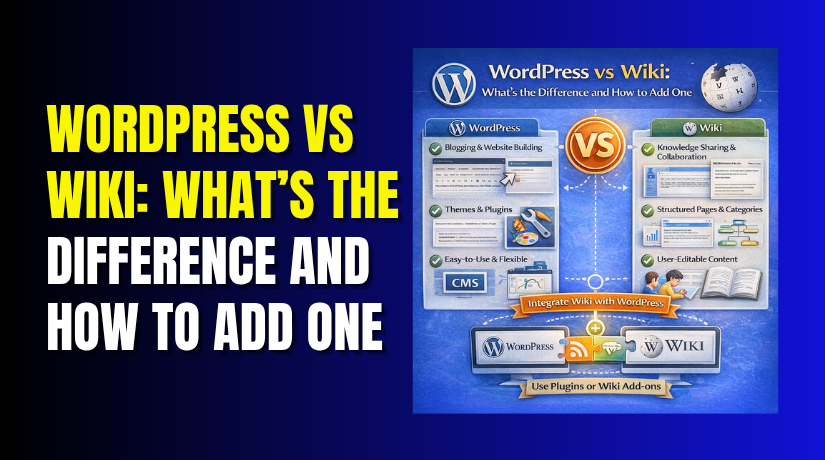
The difference between WordPress and wiki becomes clear when you compare their purpose.
- Main purpose
WordPress is built to run an entire website. A wiki is built to organize information clearly.
- Content structure
WordPress uses pages, posts, menus, and design elements. A wiki focuses more on connected articles and topic flow.
- Editing style
WordPress usually gives content control to site owners and editors. A wiki may allow wider editing and shared content updates.
- Design and branding
WordPress offers stronger design control for branding and marketing. A wiki usually gives more importance to function than appearance.
- Best use case
WordPress works best for full business websites. A wiki works best for guides, manuals, and support content.
So, if you need design, SEO, and content control, WordPress gives more flexibility. If you need organized knowledge sharing, a wiki structure adds that extra layer.
When It Makes Sense to Add a Wiki Section to a WordPress Site
A standard website works well for many business needs. It can show services, pricing, contact details, and blog posts. But sometimes, users need more than basic website pages. They need fast answers, clear steps, and organized support content.
That is when a WordPress wiki becomes useful. It helps you place related information in one structured area. Instead of sending users through random blog posts, you give them a clear path. This improves the reading experience and saves time.
Why Businesses Add a Wiki-Style Section
Many websites grow beyond simple marketing content. They start adding setup guides, account help, product instructions, or feature explanations. Over time, this content becomes hard to manage in a normal blog layout.
A wiki-style section helps organize that information better. It works well for:
- Product documentation
- Setup tutorials
- Troubleshooting guides
- Customer self-service content
- Internal training material
This is also why many site owners build a WordPress knowledge base. It gives users one place to find answers without contacting support first. That can reduce repeated questions and improve customer satisfaction.
When This Setup Is the Right Choice
You should think about this setup when your site has many help articles. It also makes sense when users often ask the same questions. A structured content section helps them solve problems faster.
If you are thinking about how to create a wiki in WordPress, start by checking your content type. If your pages are mainly guides, instructions, or help articles, this setup fits well. If your goal is support and learning, not daily news, it becomes even more useful.
This is also the stage where users begin asking how to add a wiki in WordPress. The answer usually starts with one thing: your site needs a better way to organize useful information.


Main Ways to Add This Type of Section on a WordPress Site
You can build this type of content area in three simple ways. The right option depends on your site size and content needs.
- Use a dedicated plugin
This is the easiest method for most users. A good WordPress wiki plugin can create a clean article structure. It can also add helpful features like search, categories, and linked pages.
This option works well when you want:
- Fast setup
- Better article organization
- A more wiki-like layout
- Easier content management
It is often the best choice for people learning how to create a wiki in WordPress for the first time.
- Build it manually with pages and categories
This method works for smaller websites. You can create parent pages, child pages, menus, and grouped categories. This gives you a simple wiki-style section without adding extra tools.
This option is useful when:
- You have fewer help articles
- Your structure is simple
- You want full layout control
- You do not need advanced wiki features
- Create a help center or knowledge section
Some businesses do not need an open wiki style. They need a structured support area instead. In that case, a WordPress knowledge base setup may work better. It keeps articles clear, searchable, and easy for customers to use.
Step-by-Step Process to Set It Up on a WordPress Website
Step 1: Define the goal
Start by deciding who will use this section. It may serve customers, readers, or internal staff. Your goal will shape the layout and writing style.
Step 2: Plan the content structure
Group your topics before you publish anything. Create clear sections, sub-sections, and article names. This step makes future growth much easier.
Step 3: Choose the setup method
Pick the method that matches your content needs. A plugin works well for larger support libraries. A manual setup works better for smaller content groups.
Step 4: Create the main content areas
Add your main pages and topic groups first. Then create support articles, help guides, and reference pages. Keep titles short, clear, and action-focused.
Step 5: Improve navigation
Make the section easy to browse. Add menus, side links, search tools, and internal links. Good navigation makes a WordPress wiki more useful.
Step 6: Keep the content updated
Review articles often and remove outdated instructions. A strong wiki stays useful because the information stays accurate.
That is the real answer to how to add a wiki in WordPress. You are not only adding pages. You are building a structured system that helps users find the right answers faster.
Important Things to Get Right for User Experience and SEO
A well-made help section should feel simple from the start. Visitors should know where to click and what to read next. Good structure also helps search engines understand your content better.
Focus on these basics:
- Use clear and direct page titles
- Group related articles under the right topics
- Add simple menus and internal links
- Include a search feature for faster access
- Keep every article updated and accurate
These small steps improve trust and usability. They also help a WordPress knowledge base perform better in search. If users can find answers quickly, they stay longer and return again.
Common Mistakes to Avoid
Many site owners create support content without a real structure. That makes the content harder to use and harder to maintain.
Avoid these common mistakes:
- Posting help articles like random blog posts
- Using confusing or broad page titles
- Creating too many sections without clear order
- Ignoring mobile navigation and search
- Leaving old instructions published for too long
These issues weaken the user experience. They also reduce the value of your content over time.
Conclusion
The difference between WordPress and wiki is simple once you understand their purpose. WordPress runs the full website. A wiki organizes useful information in one place. When combined well, they create a stronger support experience.
If you are thinking about how to create a wiki in WordPress or how to add a wiki in WordPress, start with structure first. Then choose the right method for your content. If you need help building a clean support area, WooHelpDesk can help you set it up the right way.



