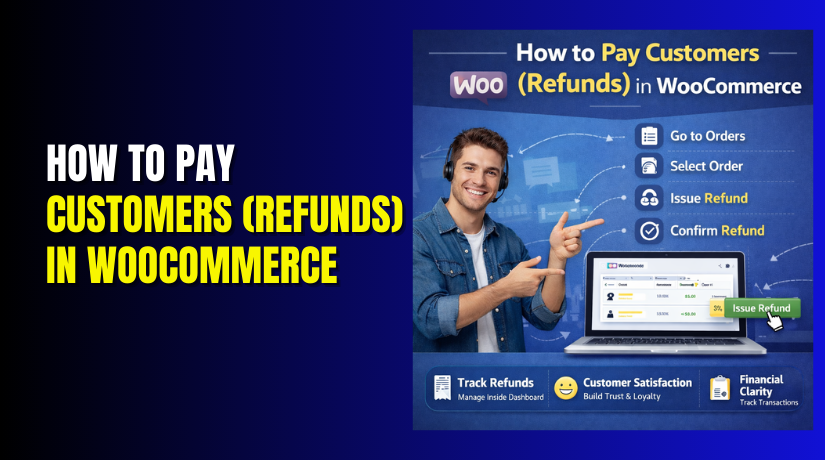
How to Pay Customers (Refunds) in WooCommerce: Complete Guide
Table of Contents
- Introduction
- What “Pay Customers (Refunds)” Mean in WooCommerce?
- Refund Basics You Must Know Before You Start in WooCommerce
- What You Need Set Up for Smooth Refunds in WooCommerce
- How to Pay Customers (Refunds) in WooCommerce: Complete Guide
- Full Refund in WooCommerce Without Missing Anything
- Partial Refund in WooCommerce for One Item or Custom Amount
- Refund Shipping and Taxes in the Correct Way
- Manual Refund When the Gateway Cannot Refund in WooCommerce
- After Refund Checklist to Prevent Future Issues
- Common WooCommerce Refund Problems and How to Fix Them
- Conclusion
Introduction
Refunds protect trust and keep customers coming back to your store. A clean refund experience can reduce complaints and bad reviews. It also lowers the risk of payment disputes and chargebacks. This guide explains WooCommerce refunds in a simple, practical way. You will learn the safest WooCommerce refund process step by step. You will also learn when refunds depend on your gateway setup. Some gateways support refunds inside WooCommerce using their API. Other gateways need manual steps outside WooCommerce to pay back.
What “Pay Customers (Refunds)” Mean in WooCommerce?
In WooCommerce, a refund means returning money for an order. It can be full, partial, or for specific order items. A WooCommerce order refund also creates a refund record in orders. This record helps you track totals, notes, and refund reasons. When you pay customers in WooCommerce, you are reversing charges safely. The refund may go back to the original payment source. That source is the WooCommerce refund payment method used at checkout.
Refund Basics You Must Know Before You Start in WooCommerce
Before you start WooCommerce refunds, learn the basic refund rules first. These basics prevent wrong totals and avoid customer disputes later. They also help you follow a clean WooCommerce refund process every time. When you know the refund types, you refund faster and safer. You also avoid mistakes with taxes, shipping, and discount logic. This section makes How to refund in WooCommerce feel simple.
Full Refund vs Partial Refund in WooCommerce With Clear Examples
A full refund returns the complete paid amount for the order. It usually includes items, shipping, and taxes, when applicable. A partial refund returns only part of the paid total. This is common when one item is returned or damaged. Partial refunds also work for price match or late delivery issues. In both cases, you create a WooCommerce order refund record. That record helps you track what was refunded and why. If the gateway supports it, money returns automatically to customers. That is where WooCommerce automatic refunds can save your time. If the gateway does not support it, you refund manually outside WooCommerce.
Product Refund vs Shipping Refund vs Tax Refund in One Order
Not every refund is only about product prices and quantities. Some stores refund shipping when delivery failed or was delayed. Some stores refund shipping only when customers keep products. Taxes can also be refunded, depending on your store rules. WooCommerce can refund taxes for products and shipping totals. But tax behavior depends on your tax setup and order data. Always check the order summary before confirming the refund. This prevents wrong totals and future support requests from customers. If you refund shipping, confirm whether shipping tax should refund too. If you refund products, confirm each line item tax value shown.
Coupons and Discounts Can Change the Refund Amount Quickly
Coupons reduce the paid amount, so refunds follow the paid amount. This means you usually do not refund the full regular price. A percentage coupon reduces each item price by a percentage. A fixed cart coupon reduces the total across all items. A fixed product coupon reduces specific product line totals only. This makes partial refunds tricky if discounts were applied. When you refund one item, WooCommerce refunds its discounted value. Many store owners miss this and create wrong refund promises. Always review the line item subtotal and total fields carefully. This is an important step in any WooCommerce refund process. It also reduces confusion about “missing refund amount” complaints later.
Restocking and Inventory Handling During WooCommerce Refunds
Refunds can affect inventory, but rules depend on your settings. Some stores restock items when customers return them to stock. Other stores do not restock until the return is received. You must decide how you will handle restocking consistently. In WooCommerce, stock changes can happen with refund actions. But it also depends on your workflow and order status. If you restock too early, you may sell unavailable items. If you restock too late, you may lose sales on popular items. Always confirm stock behavior after each WooCommerce order refund. Also check backorders and low stock alerts after big refunds. If you use bundles or kits, review stock for linked items too. Good inventory handling supports smooth refunds and accurate store reporting.
Refund Timelines: Processing Time vs Bank Settlement Time
Many store owners confuse refund processing with refund arrival time. Processing time means you created the refund and sent it. Settlement time means the bank or card completes the refund credit. Settlement can take a few business days for many payment methods. Some wallets are faster, but banks can still delay posting. This is why customers say, “I do not see my refund.” You should set clear timing in your refund policy page. You should also explain the difference in order of emails or notes. This reduces tickets and helps you pay customers in WooCommerce smoothly. If you use a manual method, timing depends on your transfer method. Always share proof when you refund using offline payments.
Refund Notes, Emails, and Proof You Should Always Keep
A refund is not complete without clear records and communication. Add a short refund reason in the order notes section. Keep notes simple, factual, and easy for your team. WooCommerce can send customer emails for refund updates. Make sure refund emails are enabled and properly branded. Customers want a clear message and the refunded amount stated. Also save proof from the payment gateway or bank transfer. Proof helps if the customer disputes or forgets later. This is vital when the WooCommerce refund payment method is manual. It is also helpful when WooCommerce automatic refunds fail unexpectedly. If you manage a team, limit who can issue refunds. This reduces accidental refunds and protects your store revenue. With clean records, How to refund in WooCommerce becomes repeatable and safe.
What You Need Set Up for Smooth Refunds in WooCommerce
Smooth WooCommerce refunds start with the right setup first. A good setup reduces failed refunds and wrong refund amounts. It also makes the WooCommerce refund process faster for your team.
Make Sure Your Payment Gateway Supports Refunds From WooCommerce
Not every gateway can refund directly from the WooCommerce order screen. Many gateways support refunds only through their own dashboard. If gateway API refunds work, refunds process with fewer steps. That is how WooCommerce automatic refunds usually work for card payments. Always confirm refund support for each WooCommerce refund payment method you offer. This avoids confusion when you try to refund in WooCommerce later.
Check Gateway Keys, Mode, and Account Permissions Carefully
Wrong keys often cause refund errors and refund failures. Make sure you use live keys for live store payments. Make sure you use test keys only in a test environment. Check if your gateway account allows refunds for your region. Some accounts need extra checks before refunds are enabled. Also confirm your store currency matches the gateway currency settings. This helps you pay customers in WooCommerce without avoidable errors.
Confirm Admin Roles So Only Trusted Users Can Issue Refunds
Refund access should be limited to trusted store managers only. Too many users with access increases refund mistakes and risk. Check user roles and limit refund actions to required staff. Add a simple internal rule for refund approval when needed. This protects revenue and keeps every WooCommerce order refund traceable.
Enable Webhooks or IPN So Refund Status Stays Accurate
Some gateways need webhooks to sync refund updates correctly. PayPal often relies on IPN or webhook style callbacks. Stripe commonly uses webhooks for payment and refund events. If webhooks fail, refunds may not update order notes properly. You may see “pending” even after a completed refund. Fixing webhooks keeps your WooCommerce refund process clean and reliable.
Review Tax and Shipping Settings That Affect Refund Totals
Taxes and shipping change the final paid amount on orders. If tax rules are wrong, refund totals can look incorrect. Confirm your tax classes and display settings match your store setup. Confirm shipping methods and shipping taxes are configured correctly. This reduces refund confusion for both you and customers. It also prevents over-refunds during a WooCommerce order refund.
Confirm Stock Settings So Inventory Does Not Break After Refunds
Refunds can impact stock if your store restocks items. Decide when stock should return, and keep it consistent. If you restock too early, you may oversell returned items. If you restock too late, you may lose sales on fast items. Review backorder settings before issuing big refunds. Good stock rules help you pay customers in WooCommerce safely.
Check Refund Emails So Customers Get Clear Updates
Refund emails reduce “where is my refund” support messages. Make sure refund emails are enabled in WooCommerce settings. Confirm the sender name and email match your store brand. Keep the refund message short, clear, and polite. Clear emails support trust after WooCommerce refunds are processed.
Set Simple Security and Access Rules for Safe Refund Handling
Use strong admin passwords and enable login protection when possible. Avoid sharing admin access across multiple team members. Log refund reasons in order notes for future proof. Save gateway refund IDs for quick tracking during disputes. This makes How to refund in WooCommerce safer and repeatable.
How to Pay Customers (Refunds) in WooCommerce: Complete Guide
Most WooCommerce refunds start from the order screen. You can refund items, shipping, taxes, or a custom amount. The exact flow depends on your WooCommerce refund payment method.
Refund Customers From the WooCommerce Order Screen
This section shows the standard way to start WooCommerce refunds. You will refund directly from the order details screen. This method keeps the WooCommerce refund process clean and trackable. It also helps you avoid refund mistakes on live orders.
Step 1: Open the Order in WooCommerce
- Go to WordPress Dashboard → WooCommerce → Orders.
- Find the correct order using the search or filters.
- Click the Order number to open the order details page.
Step 2: Start the Refund Process
- Scroll to the Order items section.
- Click the Refund button under the items table.
- You will now see refund fields for items and amounts.
Step 3: Choose What You Want to Refund
- Use the Qty fields to select item quantities.
- Or enter a value in Refund amount for a custom refund.
- Confirm the totals match what you want to refund.
Step 4: Add a Refund Reason Note
- Find the reason box under the refund section.
- Write a short reason like “Returned item received.”
- Keep it simple for clean tracking later.
Step 5: Send the Refund
- Click Refund via [Payment Gateway] if available.
- If the gateway option is not available, choose manual refund.
- WooCommerce will add a refund record in the order notes.
Full Refund in WooCommerce Without Missing Anything
This section helps you refund the entire paid amount correctly. You will cover items, shipping, and taxes when needed. It is the safest way to complete a full WooCommerce order refund. It also reduces customer complaints about missing refund amounts.
Step 1: Open the Paid Order


- Go to WooCommerce → Orders and open the order.
- Confirm the order shows as paid and not pending.
Step 2: Click Refund and Select All Items
- Click the Refund button under Order items.
- Set each product Qty to the full quantity purchased.
- Ensure each line item refund total is correct.
Step 3: Include Shipping and Tax If Needed
- Check if you should refund shipping charges too.
- Check if you should refund product tax and shipping tax.
- Match the refund total with what the customer actually paid.
Step 4: Add the Full Refund Note
- Add a clear note like “Full refund approved for the order.”
- This helps you track why the refund was given.
Step 5: Process the Refund
- Click Refund via [Gateway] for automatic gateway refunds.
- Or refund manually outside WooCommerce if needed.
- Confirm the refunded amount appears in order totals.
Partial Refund in WooCommerce for One Item or Custom Amount
This section explains partial refunds using item or custom amounts. It is useful when only one product is returned. It also helps when you offer goodwill adjustments or discounts. You will learn how to refund in WooCommerce without over-refunding.
Step 1: Open the Order and Click Refund
- Go to WooCommerce → Orders and open the order.
- Scroll to Order items and click Refund.
Step 2: Refund Only the Returned Item
- Set the Qty only for the product being refunded.
- Leave other product quantities unchanged.
- Verify the line item total reflects any applied discount.
Step 3: Refund a Custom Amount if Needed
- If refunding a price difference, enter a custom refund value.
- Double-check you are not refunding extra tax or shipping.
- Keep custom refunds consistent with your store policy.
Step 4: Add a Partial Refund Note
- Add a note like “Refunded 1 item due to damage.”
- Mention the item name for better tracking.
Step 5: Complete the Refund
- Click Refund via [Gateway] if available.
- If not available, refund in the gateway dashboard and record it.
- Confirm the refunded amount is saved under the order totals.
Refund Shipping and Taxes in the Correct Way
This section focuses on shipping and tax refund handling. Shipping refunds often cause confusion for store owners and buyers. Tax refunds also depend on your order and tax setup. You will keep totals accurate in the WooCommerce refund process.
Step 1: Decide What You Are Refunding
- Refund shipping only when delivery failed or was delayed.
- Refund tax only when it matches your policy and rules.
- Always align with what the customer paid on the order.
Step 2: Open Refund Panel on the Order
- Open the order and click Refund in the Order items section.
- Scroll to the totals refund fields shown below items.
Step 3: Enter Shipping Refund Amount
- Enter the shipping refund value in the shipping refund field.
- Ensure it does not exceed the original shipping amount.
- Check if shipping tax is included, if applicable.
Step 4: Enter Tax Refund Values Correctly
- If refunding tax, ensure the tax lines are selected properly.
- Use WooCommerce’s tax lines to avoid manual calculation mistakes.
- Verify rounding issues before confirming the refund.
Step 5: Finish and Confirm
- Click Refund via [Gateway] if available.
- Review order notes and totals after refund is saved.
- Confirm customer email includes the correct refund total.
Manual Refund When the Gateway Cannot Refund in WooCommerce
This section covers refunds when the gateway option is missing. Some WooCommerce refund payment method types need manual repayment. You will refund outside WooCommerce and record it properly. This keeps your order history correct for support and accounting.
Step 1: Identify Why Automatic Refund Is Not Available
- The gateway may not support API refunds in WooCommerce.
- The order might be paid by bank transfer or COD.
- The gateway refund window may have expired.
Step 2: Refund the Customer Outside WooCommerce
- Refund using the gateway dashboard, bank transfer, or wallet.
- Save proof like transaction ID or receipt screenshot.
- Confirm the customer receives the refund confirmation.
Step 3: Record the Manual Refund Inside WooCommerce
- Open the order and click Refund.
- Enter the refund amount manually in the refund amount field.
- Click Refund manually to log it in the order.
Step 4: Add Proof Notes for Future Safety
- Add a note like “Manual refund done, TXN ID: XXXXX.”
- Mention refund date and payment method used.
- Keep this for disputes and accounting checks.
After Refund Checklist to Prevent Future Issues
Check the refund total and the remaining order balance. Confirm the customer email was sent with correct amounts. Confirm the payment dashboard shows the refund as processed. Confirm stock changes match your store return rules. Save the gateway refund ID in order notes for proof. These checks prevent repeat tickets and speed future refunds.
Common WooCommerce Refund Problems and How to Fix Them
Refund issues are common, but most have simple fixes. Use this section when How to refund in WooCommerce feels stuck.
Refund Button Missing or Not Clickable on Orders
Check you are logged in as an admin or store manager. Check the order has a captured payment, not only authorized. Some gateways hide refunds for unpaid or pending orders. Try switching to the correct payment gateway settings screen. If you use custom roles, allow refund capability properly.
Refund Failed or Stuck After Clicking Refund
First confirm your gateway keys are correct for live mode. Check webhook or IPN setup if your gateway needs it. Check the gateway dashboard for a declined or blocked refund. Some gateways block refunds after a time window ends. Try a smaller partial refund to test the connection. If it still fails, refund in the gateway dashboard manually.
Refund Amount Looks Wrong After Coupons or Discounts
Refunds follow the paid amount, not list prices. Check the line item totals after coupon discounts applied. Verify shipping discounts or free shipping coupon effects. Confirm taxes were calculated on discounted totals, not full totals. Use line item refund when you want clean item math. This prevents wrong totals in your WooCommerce order refund.
Partial Refund Not Updating Totals or Status Properly
Clear cache if you use a cache or performance plugin. Disable conflicting checkout or order plugins for a quick test. Recheck the order notes for the refund record creation. Confirm your gateway shows the refund as completed. If totals still look off, refresh the order page fully.
Customer Says the Refund Is Not Received Yet
Check your gateway dashboard for the refund status first. Many refunds show pending before they fully complete. Banks can take a few business days to post refunds. Tell customers the processing and bank timing are different. Share the refund reference ID for extra confidence. This reduces stress and supports better WooCommerce refunds.
Stock Did Not Return After Refund
Check your WooCommerce inventory settings for stock changes. Decide if your store restocks on refund or on return. Some setups need manual stock adjustment for returned items. Check product stock status and backorder settings after refund. Fixing stock rules prevents overselling after a refund.
Payment Method Mismatch and Refund Goes the Wrong Way
Refunds must match the original payment method used. Confirm the order payment method before issuing a refund. If the customer used wallet or split payments, be careful. Some gateways require refund from their dashboard only. Always align the WooCommerce refund payment method with the order.
Conclusion
Refunds are part of running any serious WooCommerce store today. When you follow a clean WooCommerce refund process, you reduce stress fast. You also keep customers calm and protect your store reputation. Always confirm the original WooCommerce refund payment method before refunding.
Use the order screen when your gateway supports refunds properly. This makes How to refund in WooCommerce quick and reliable. Use manual refunds only when gateway refunds are unavailable. Add notes and proof for every WooCommerce order refund you process. This keeps your records clear and prevents future disputes. If you want faster refunds, check support for WooCommerce automatic refunds.
Gateway setup and plugin conflicts can still break refunds anytime. If refunds fail, totals look wrong, or the button disappears, get help. WooHelpDesk can diagnose refund errors, gateway settings, and checkout conflicts



