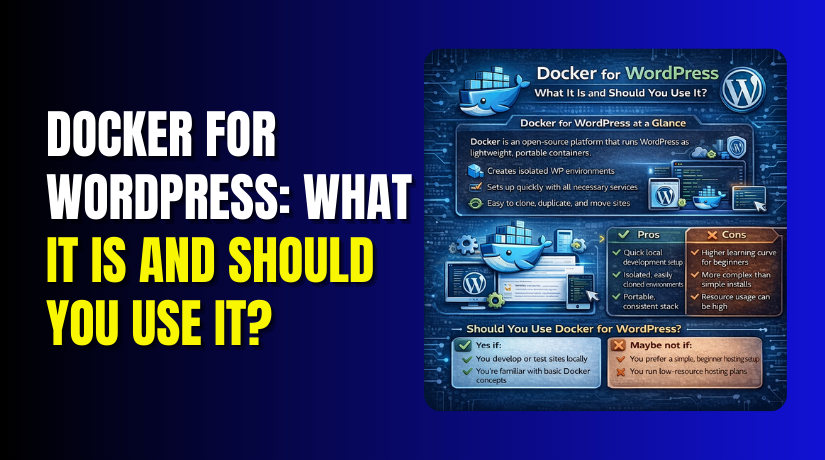
Docker for WordPress: What It Is and Should You Use It?
Table of Contents
- Introduction
- What Docker Is in Simple Terms
- What Docker for WordPress Means
- Common Use Cases: When Docker Makes Sense for WordPress
- Benefits: Why People Choose Docker for WordPress
- Downsides and Limits: When Docker Can Feel Overkill
- Docker for WordPress in Production: Should You Host It That Way?
- Quick Start Overview: How to Run WordPress with Docker (Conceptual Steps)
- Best Practices If You Choose WordPress Docker
- Conclusion
Introduction
WordPress powers millions of sites across the USA and beyond. Many site owners and developers want faster setups. They also want fewer errors during updates and testing. That is where Docker for WordPress becomes a common search. People want a clean way to build and test sites. They also want the same setup on every computer.
Traditional WordPress setups can get messy over time. You install PHP, MySQL, and a web server locally. Then one update breaks another tool. A small version change can create big issues. That is why many people try WordPress Docker setups instead. Docker helps you run WordPress without changing your main system.
Here is why WordPress in Docker feels useful for many users:
- You can start a WordPress site in minutes.
- You can remove everything without leftover files.
- You can test themes and plugins in a safe space.
- You can match your team’s setup more easily.
- You can switch PHP versions without risky changes.
This guide starts from the basics and stays simple. In this post, you will learn what Docker is. You will also learn what is Docker for WordPress in practical terms.
What Docker Is in Simple Terms
Docker is a tool that runs software inside a container. A container is like a ready-made box. It includes the software and the settings it needs. It runs the same way on most computers. That makes Docker very useful for web development work.
Think of Docker like a “mini server” on your machine. It can run WordPress, a database, and other tools. It does this without installing everything the old way. This is why people say they can run WordPress with Docker easily. They are not rebuilding the full stack from scratch.
Docker works with a few simple ideas. You do not need to master them today. But you should know what they mean.
Key Docker Terms You Will Hear Often
- Image: A saved package that includes an app setup.
- Container: A running copy made from an image.
- Docker Engine: The main service that runs containers.
- Docker Compose: A tool to run many containers together.
For WordPress, Compose is very common. WordPress needs a database to work. So Docker often runs two containers together. One is WordPress, and one is MySQL. This is the most common WordPress Docker style setup. It keeps things simple and repeatable.
Why Containers Feel Different Than Normal Installs
A normal install changes your computer system directly. Docker does not work like that. Docker keeps things separated from your system files. This separation is the big reason Docker feels cleaner. It also helps when you troubleshoot problems later.
Here is the main difference in plain words:
- Normal setup installs tools on your computer.
- Docker setup runs tools inside isolated containers.
This is also why many people ask, is Docker good for WordPress. The answer depends on your goal. For learning, testing, and development, Docker is often great. For simple site owners, it may feel extra at first. We will cover that decision in this post.
What Docker for WordPress Means
When people say Docker for WordPress, they mean WordPress runs inside containers. Instead of installing WordPress tools on your computer, Docker runs them in isolated boxes. This setup stays clean and repeatable across machines. It is also easy to rebuild if something breaks.
So, what is Docker for WordPress in practical terms? It is a pre-built WordPress environment you can start quickly. It usually includes WordPress, PHP, a web server, and a database. You can use it for development, testing, and staging-like work. You can also share the same setup with your team.
A typical WordPress Docker setup usually includes these parts:
- WordPress container: Runs WordPress files and PHP processing.
- Database container: Stores posts, users, settings, and orders.
- Optional admin tools: Helpful for quick database work and checks.
- Shared storage: Keeps uploads and database data safe.
Most setups use Docker Compose to manage everything together. Compose lets you define the WordPress and database services. It starts them in the correct order. It also keeps the settings in one place.
What Usually Comes Bundled in a WordPress Docker Setup
A clean WordPress in Docker stack often includes the following:
- WordPress + PHP environment for running the site
- MySQL or MariaDB for WordPress database needs
- phpMyAdmin for database viewing and quick changes
- Mail tools for testing emails without real sending
- Reverse proxy for local HTTPS and clean URLs
You do not need every tool for every project. Most users start with WordPress and a database. Then they add extra tools when needed.
Why People Choose This Setup
Many users choose Docker because it avoids environment mismatch. Your site behaves the same on every machine. That makes testing more reliable. It also helps when you debug plugin conflicts. You can reset the whole setup quickly.
Here are common reasons people pick Docker for WordPress:
- They want a clean local WordPress environment.
- They want the same setup across a whole team.
- They want safe testing without breaking the main system.
- They want quick rebuilds after mistakes and crashes.
How WordPress in Docker Works
To understand WordPress in Docker, think of two main services. One service runs WordPress and PHP. The other service runs the database. Both services talk over a private Docker network. You do not need to set up local database users manually. Docker handles that with settings you define.
Here is the simple flow in most setups:
Browser → WordPress container → PHP runs WordPress → Database container stores data.
WordPress reads and writes to the database many times. It stores users, posts, and settings in tables. It also stores WooCommerce orders and customer data. With Docker, all that data still stays persistent. You just control where it lives.
Where WordPress Files and Uploads Live
WordPress has two main types of content:
- Core files, themes, and plugins
- Media uploads like images, PDFs, and videos
In Docker, you usually store these using volumes. A volume is storage that survives container rebuilds. Without volumes, your uploads could vanish on rebuild. Volumes keep your data safe during restarts.
A typical setup uses volumes for:
- wp-content/uploads media files
- The database data folder
- Sometimes the full WordPress folder for editing
This matters when you run WordPress with Docker for development. You want your code and media to stay available. You also want changes to show instantly in your browser.
How Containers Talk to Each Other
Docker creates a private network for your services. WordPress uses the database service name as the host. This makes the connection stable and simple. You do not need to remember IP addresses. You also avoid port conflicts on your system.
Key points about container networking:
- Containers can talk using service names.
- The database is not exposed unless you allow it.
- You can map WordPress to a local browser port.
For example, you can map WordPress to localhost:8080. Then you open it in your browser and install WordPress. From there, it works like a normal site. The difference is the environment stays isolated.
Common Use Cases: When Docker Makes Sense for WordPress
Many people use Docker for WordPress for one main reason. They want a stable setup they can trust every time. Docker shines when you build, test, and fix WordPress sites. It is also helpful when you work with WooCommerce stores.
Here are the most common situations where WordPress in Docker makes sense.
1) Local Development Without Breaking Your Computer
A local WordPress setup can cause system conflicts over time. PHP versions can clash with other tools you use. MySQL updates can also create surprise errors. With WordPress Docker, you avoid most of these issues. Docker keeps WordPress and its stack inside containers. Your main system stays clean and stable.
You can also remove everything quickly when needed. You do not need to uninstall PHP or MySQL manually. This is very helpful when you switch between projects.
2) Team Development With the Same Environment
Teams often waste time fixing “works on my machine” problems. One person uses a different PHP version. Another person uses a different MySQL version. Small differences create big bugs in WordPress.
Docker solves this by making environments consistent. Everyone runs the same stack using the same config. That is a major reason people prefer Docker for WordPress in agencies. It makes onboarding faster for new team members.
3) Safe Plugin and Theme Testing
WordPress plugins can conflict with each other. Themes can also break layouts after updates. Testing these changes on a live site is risky. Docker makes testing safer because it is isolated.
With WordPress in Docker, you can:
- Install a new plugin without fear of downtime.
- Test updates before pushing them to production.
- Rebuild the site quickly if something breaks.
- Compare plugin behavior across PHP versions.
This is also useful for WooCommerce stores. Checkout and payment bugs are hard to debug on live sites. Docker gives a controlled environment for testing.
4) Debugging Issues With Version Differences
Many WordPress issues depend on server versions. A plugin may fail on PHP 8.2. It may work fine on PHP 8.0. Some issues also depend on database versions.
With WordPress Docker, you can test version changes quickly. You can rebuild with a different PHP image. You can also switch the database image. This helps you confirm the real cause of an error. It saves time during troubleshooting.
5) Creating a Staging-Like Setup on Your Laptop
A staging site should match the live site closely. Docker helps you simulate that environment locally. You can set similar PHP limits and memory settings. You can also use the same WordPress version.
This helps when you test:
- A major theme change
- WooCommerce updates
- New checkout features
- Custom code and hooks
- Complex migrations
Docker is not a full staging replacement for every case. But it is a strong start for most development work.
Benefits: Why People Choose Docker for WordPress
Now let’s focus on the real benefits users care about. These benefits explain why is Docker good for WordPress is a common question. Docker can be very good when your goal is development and testing.
1) Consistent Setup Across Machines
Consistency is the biggest win for Docker for WordPress. The same Compose file runs the same stack everywhere. WordPress behaves the same on Mac and Windows. It also behaves the same across team members.
This reduces time wasted on environment bugs. It also makes support work easier. You can reproduce issues more reliably.
2) Faster Project Setup and Onboarding
A normal local WordPress setup can take hours. You install a server stack and configure it. You fix permission issues and set database users. Then you repeat it for each project.
With Docker, setup becomes faster and simpler. Once you have a basic stack ready, you can reuse it. New team members can start working faster. This is a key reason WordPress Docker is popular in teams.
3) Easy Resets and Clean Rebuilds
Local WordPress installs often become messy over time. You test many plugins and settings changes. Then you forget what you changed and when. Debugging becomes harder.
Docker makes resets much easier. You can stop containers and rebuild them cleanly. You can also remove containers without leaving junk behind. This helps when you run WordPress with Docker for testing. You can reproduce issues from scratch without stress.
4) Safer Experiments and Better Isolation
Docker isolates WordPress from your main system. That means plugin tests and PHP changes stay inside containers. You are less likely to break your computer environment. You also reduce the risk of system-level conflicts.
Isolation also helps when you run multiple projects. Each project can have its own containers and settings. You can switch between projects without reinstalling stacks.
5) Version Switching Without Pain
WordPress sites often run on different PHP versions. One client uses PHP 7.4. Another client uses PHP 8.2. Testing across versions is hard with normal setups.
Docker makes version switching easier. You can change an image version and restart. This helps when debugging plugin issues and warnings. It also helps you prepare for hosting upgrades.
These benefits show why many developers like Docker. But Docker also comes with trade-offs.
Downsides and Limits: When Docker Can Feel Overkill
Docker can be a great tool for testing and development. But it is not perfect for everyone. Many readers ask should i use Docker for WordPress after trying it once. The honest answer depends on your skills and daily workflow.
Docker often feels easy after you learn the basics. Before that, it can feel like extra work. This is one reason people look for WordPress Docker pros and cons. They want the benefits, but without new headaches.
1) Docker Has a Learning Curve for Beginners
If you only manage one site, Docker may feel confusing. You must learn new terms like images and containers. You also deal with Compose files and commands. That is not always friendly for non-technical site owners.


Common beginner pain points include:
- Understanding where WordPress files actually live
- Knowing how to stop, start, and rebuild containers
- Reading error messages that look too technical
- Fixing permission problems on mounted folders
If your goal is simple site management, Docker may be extra. A normal hosting panel may feel easier and faster.
2) Performance Can Feel Slower on Some Computers
Docker runs well on many systems, but not all. On Windows and macOS, file syncing can slow things down. This happens when WordPress reads many files often. Theme builds and plugin scans can feel slower too.
You may notice slower speed when:
- You use heavy themes with many template files
- You run WooCommerce with many plugins active
- You mount large folders and sync them live
- Your computer has limited RAM or CPU power
This does not mean WordPress in Docker is always slow. It means the setup matters. Your machine and storage settings also matter.
3) Extra Setup for Emails, Cron, SSL, and Debugging
A normal hosting server already handles many things. Docker starts with a basic stack. You often need extra steps for “real world” features.
Examples include:
- Email sending in local testing environments
- WP-Cron behavior and scheduled actions
- HTTPS testing with valid certificates
- File permissions for uploads and caching plugins
- Debug logs and error tracking inside containers
These tasks are not hard, but they add complexity. That is why some users feel Docker is “too much” for simple work.
4) Permissions and File Ownership Can Create Annoying Issues
WordPress writes to the uploads folder and cache folders. With Docker volumes, permissions can get tricky. You may see errors like “cannot write to directory.” You may also see failed plugin updates locally.
This often happens because:
- The container user differs from your system user
- Your mounted folder uses strict OS permissions
- A plugin tries to write files during install
- Cache plugins create folders with different ownership
These issues are common in WordPress Docker setups. They are solvable, but they cost time.
5) Docker Does Not Automatically Make WordPress Faster
Many people assume Docker improves WordPress speed by default. That is not true in most cases. Docker is mainly about packaging and consistency. It helps you manage environments better. It does not magically boost page load times on its own.
So if your main goal is “faster website,” Docker is not the first step. Better hosting, caching, and optimization matter more. Docker helps you test those improvements safely. It is not the improvement by itself.
Docker for WordPress in Production: Should You Host It That Way?
Now let’s talk about the big question. People often ask is Docker good for WordPress in production hosting. The answer depends on your hosting style and your experience. Docker in production can work well, but it needs discipline.
First, remember the difference:
- Development Docker is for building and testing safely
- Production Docker is for live hosting with strict requirements
When Production Docker Can Be a Good Choice
Production Docker can make sense for teams that already use container workflows. It can also fit well for businesses with DevOps support. These teams want repeatable deployments and controlled scaling.
Production Docker is a good fit when:
- You have DevOps skills or a technical hosting team
- You use CI/CD pipelines for releases and rollbacks
- You need repeatable deployments across servers
- You run multiple WordPress sites as a platform
- You use container-ready hosting and monitoring tools
In these cases, Docker for WordPress can improve control and stability. It can also reduce “snowflake server” problems.
When Traditional Hosting Is the Better Choice
Many WordPress site owners want simplicity and speed. They want a dashboard, backups, and one-click updates. They do not want to manage containers and networks. For these users, Docker can be extra.
Traditional hosting is better when:
- You use shared hosting or managed WordPress hosting
- You do not have a technical team for server tasks
- You want simple updates and simple maintenance
- You rely on host-level security and caching tools
- You prefer support tickets over DevOps workflows
For most small businesses, managed WordPress hosting is easier. Docker is often best used locally for development and testing.
Production Requirements You Must Not Ignore
If you plan to run WordPress with Docker in production, you must plan well. Live sites need more than just “it runs.” They need safety, backups, and monitoring.
Key production needs include:
- Automated backups for files and database
- Safe update process for WordPress and plugins
- Security hardening and firewall rules
- Monitoring for uptime and resource usage
- Proper logging for PHP and server issues
- A rollback plan when a release fails
Without these, Docker can increase risk instead of reducing it. This is why many users keep Docker for development only. They use normal hosting for live production.
Quick Start Overview: How to Run WordPress with Docker (Conceptual Steps)
If you want to test WordPress in Docker, start with a simple stack. Most users use Docker Compose for this setup. Compose helps you run WordPress and a database together. This approach is common in WordPress Docker workflows.
Here is the basic idea behind how to run WordPress with Docker. These steps are conceptual, not a full tutorial.
Step 1: Install Docker and Docker Compose
You first install Docker Desktop on your computer. Docker Desktop includes the Docker Engine you need. It also supports Docker Compose for multi-container setups.
After install, confirm Docker runs without errors. If Docker is not running, containers will not start. This small check saves a lot of time later.
Step 2: Use a Compose Setup for WordPress + Database
A standard Docker for WordPress setup runs two services:
- WordPress service for your site files and PHP
- Database service for storing WordPress site data
Compose stores service settings in one file. This file defines ports, volumes, and passwords. It also defines how services connect with each other.
This is what makes WordPress Docker repeatable across machines. You can share the setup with your team easily. You can also reuse it for multiple projects.
Step 3: Start Containers and Load WordPress
When you start services, Docker creates containers from images. Then the containers run in the background. WordPress becomes available on a local port you define.
In simple terms, you open a local URL like this:
- http://localhost:PORT
Then you complete the normal WordPress installer. You set site title and admin login. After that, it works like a normal WordPress site.
Step 4: Use Volumes for Data That Must Stay
Volumes are very important in WordPress in Docker setups. Volumes keep uploads and database data persistent. Without volumes, rebuilds can remove your site data.
You usually store these using volumes:
- Database data folder
- WordPress uploads folder
- Sometimes the whole WordPress project folder
This is essential when you run WordPress with Docker for long testing.
Step 5: Know Where to Change Limits and Settings
WordPress often needs memory and upload changes for testing. With Docker, you adjust settings at the container level. You may also adjust WordPress configuration files.
Common tweaks include:
- PHP memory limits and upload size
- Debug mode and error logs
- File permissions for uploads and caching
- Local email testing tools for form emails
Once you understand these basics, Docker feels easier. You also gain control over your environment quickly.
Best Practices If You Choose WordPress Docker
If you decide to use Docker, use it the right way. Good practices keep your setup stable and easy to maintain. They also reduce common mistakes in WordPress in Docker projects.
1) Always Use Volumes for Database and Uploads
Volumes prevent data loss during rebuilds and restarts. They also keep your environment consistent.
Use volumes for:
- Database storage
- WordPress uploads
- Any folder you want to keep long-term
Without volumes, your work can disappear quickly.
2) Keep Your Settings Organized With Environment Variables
Store credentials and service settings in a clean format. This keeps your Compose file easier to read.
Good settings to store include:
- Database name, user, and password
- WordPress site configuration values
- Port values for local testing
This is one of the best habits in WordPress Docker workflows.
3) Separate Development and Production Thinking
Docker is great for local development and testing. Production needs more planning and stronger safety.
For development, focus on:
- Quick rebuilds
- Easy plugin testing
- Clear debugging logs
For production, focus on:
- Backups and restore plans
- Security hardening and monitoring
- Controlled releases and rollbacks
Even if you do not host with Docker, this mindset helps.
4) Document Your Setup for Easy Reuse
Write a simple README file for your project. Include setup steps and the main commands. This helps teammates and future you.
Include notes like:
- Which port the site runs on
- How to rebuild containers safely
- Where logs are located
- How to import database backups
This makes Docker for WordPress easier long-term.
5) Treat Secrets Carefully
Do not store sensitive keys in public files. Do not push secrets into public Git repos. Use local environment files when possible.
This protects your site and client data during development work.
Conclusion
Docker can be a smart way to run WordPress locally. It helps you build, test, and debug safely. It also helps teams keep the same setup everywhere. If you develop plugins or themes, Docker can save time. If you only manage content, it may be extra work.
If you want help setting up Docker for WordPress, we can help. WooHelpDesk can guide you with local setups and testing workflows. We can also help you fix Docker-related WordPress errors fast. Visit WooHelpDesk and get expert support when you need it.



