WooCommerce Google Product Feed: Boost Sales with Google Shopping Integration
Table of Contents
- What is Google Product Feed for WooCommerce?
- Why is Google Merchant Center Important for WooCommerce?
- How Does the Plugin Help WooCommerce Store Owners?
- Key Features & Benefits of Google Product Feed for WooCommerce
- Why Choose Google Product Feed for WooCommerce?
- Step-by-Step Integration Process
- Best Practices for WooCommerce Google Shopping Integration
- Why Google Product Feed for WooCommerce is Important
- Conclusion
What is Google Product Feed for WooCommerce?
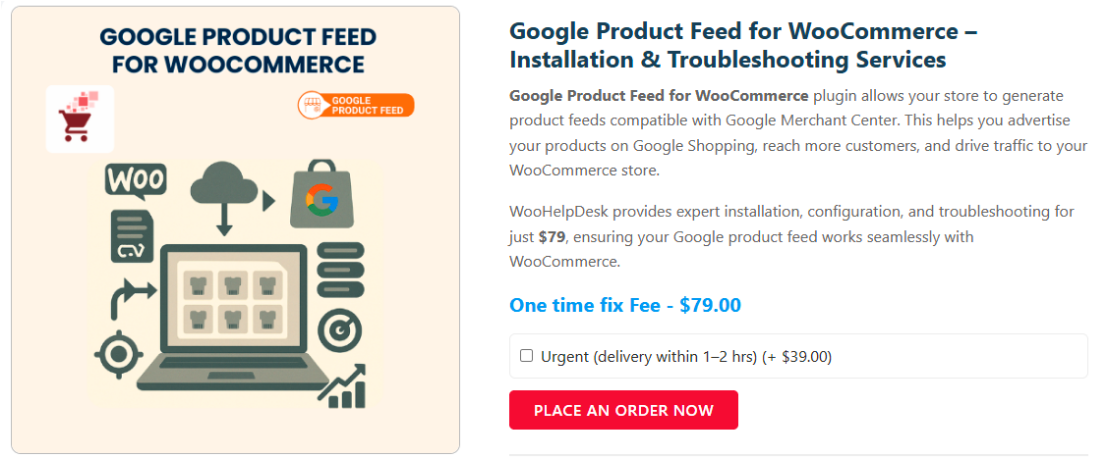
The Google Product Feed for WooCommerce plugin connects your store with Google Merchant Center. It helps create a real-time product feed, ensuring your products appear on Google Shopping and Google Ads. This integration increases your product visibility and helps drive more traffic to your store.
Why is Google Merchant Center Important for WooCommerce?
Google Merchant Center is a platform where store owners upload their product data. It allows businesses to display products on Google Shopping, free listings, and Google Shopping Ads. Without a properly formatted product feed, Google cannot display your items. That is where this plugin helps. It ensures your product data meets Google’s requirements and stays updated.
How Does the Plugin Help WooCommerce Store Owners?
This plugin saves time by automating product updates in Google Merchant Center. You do not need to manually update product prices, descriptions, or stock availability. The feed automatically syncs with Google, ensuring that your ads and listings show accurate and up-to-date information.
Here’s what this plugin does for WooCommerce stores:
- Automates product syncing with Google Merchant Center.
- Reduces feed errors by mapping WooCommerce attributes correctly.
- Improves ad performance by ensuring accurate product data.
- Increases product visibility on Google Shopping and search results.
Who Should Use Google Product Feed for WooCommerce?
This plugin is useful for all WooCommerce store owners who want to:
- Display your products on Google Shopping and free Google listings.
- Run Google Shopping Ads with high-quality product data.
- Reduce manual work and automate product feed updates.
- Improve their Google Shopping integration and product rankings.
Key Features & Benefits of Google Product Feed for WooCommerce
-
Real-Time WooCommerce Product Feed Generation
Keeping product information updated manually can be time-consuming. This plugin seamlessly updates your WooCommerce products in Google Merchant Center. Whenever you update prices, stock levels, or descriptions, the changes reflect in Google Shopping instantly.
A real-time product feed reduces errors and improves approval rates in Google Merchant Center. It ensures that customers see accurate product information, reducing the chances of ad rejections or listing disapprovals.
-
Seamless Google Merchant Center Integration
The plugin provides a direct connection between WooCommerce and Google Merchant Center. This integration helps you:
- List WooCommerce products in Google Shopping, free listings, and Google Ads.
- Automate product feed updates without manual intervention.
- Improve product rankings with accurate and structured data.
Your store can reach more potential clients who are looking for products online by integrating with Google Merchant Center.
-
Advanced Product Feed Management
Managing product data for Google requires correct field mapping. This plugin allows you to match WooCommerce product attributes with Google’s required fields, including:
- Title
- Price
- Availability
- Brand
- GTIN (Global Trade Item Number)
- Product Category
Better product descriptions can also be achieved by creating new attributes. This raises your listings’ quality and makes them more visible in Google Shopping Ads.
-
Multi-Feed Support for Different Google Services
The plugin supports multiple feed types, helping you reach customers in different ways:
- Google Shopping Feed – Products appear in Google Shopping Ads for better visibility.
- Google Local Inventory Feed – Showcases products available for purchase in physical store locations.
- Google Product Reviews Feed – Connects Google Merchant Center and WooCommerce reviews.
- Google Promotions Feed – Shares discounts and special offers with Google Ads.
Businesses can more successfully advertise their items across several Google platforms because to this flexibility.
-
Customization Options for Product Feeds
Every WooCommerce store has unique product details. The plugin offers customization features to help you:
- Set store-wide default values for missing attributes.
- Use category-specific feed settings for different product types.
- Add custom data fields like age group, material, gender, and pattern.
These options ensure that your WooCommerce product feed meets Google’s quality standards, improving ad performance.
-
WooCommerce Extensions Compatibility
This plugin works with many popular WooCommerce extensions, including:
- Product Bundles – Supports grouped product listings.
- Multi-Currency – Displays products in different currencies.
- Product CSV Import Suite – Helps with bulk data import.
Your WooCommerce product feed may be managed and optimized more easily with a smooth interaction with these tools.
-
WooCommerce SEO Benefits & Google Shopping Ads Performance
An optimized product feed can enhance your store’s visibility in search results. Here’s how this plugin helps with WooCommerce SEO:
- Guarantees that product listings adhere to Google’s structured data standards.
- Helps improve Google Shopping Ads rankings with rich data.
- Reduces disapprovals by matching WooCommerce attributes with Google’s requirements.
This leads to improved ad performance and higher click-through rates.
-
Error-Free WooCommerce Product Feed Setup
Many merchants face errors when submitting product feeds. This plugin helps reduce errors by:
- Providing pre-set field mappings for Google’s required attributes.
- Allowing custom rules and filters to exclude unnecessary data.
- Automatically handling missing values with store-wide defaults.
An accurate, error-free product feed boosts approval rates in Google Merchant Center, keeping your products active.
-
Saves Time & Reduces Manual Work
Without a plugin, updating a WooCommerce product feed manually can be difficult. This plugin:
- Automates product data synchronization with Google.
- Reduces the need for manual data entry.
- Provides a dedicated product feed manager for better control.
With these automation features, store owners can focus on growing their business instead of handling feed updates.
Why Choose Google Product Feed for WooCommerce?
- Guarantees a smooth Google Merchant Center integration.
- Helps optimize WooCommerce product feeds for better performance.
- Supports various Google feed types, including Shopping, Local Inventory, and Reviews.
- Reduces errors and increases product approval rates in Google.
- Works with WooCommerce SEO strategies for better visibility.
By using this plugin, WooCommerce store owners can automate product listings, improve ad performance, and drive more traffic to their store.


Step-by-Step Integration Process
Setting up Google Product Feed for WooCommerce is simple. This step-by-step guide will help you integrate WooCommerce with Google Merchant Center and start displaying products on Google Shopping.
Step 1: Install & Activate the Plugin
- Purchase the Google Product Feed plugin from WooCommerce.
- Access your WordPress dashboard and navigate to Plugins > Add New.
- Click Upload Plugin, then select the ZIP file you downloaded.
- After selecting “Install Now,” click “Activate Plugin.”
Once activated, you can access it from WooCommerce > Google Product Feed.
Step 2: Connect WooCommerce to Google Merchant Center
- Go to Google Merchant Center to manage your product listings.
- Sign in with your Google account or create a new one to proceed.
- Go to Settings > Business Information and enter your store details.
- Click on Products > Feeds, then select Add a Primary Feed.
- Select your preferred country and language, then click Continue.
This configuration guarantees that your store is prepared to receive WooCommerce product data.
Step 3: Generate Your WooCommerce Product Feed
- Navigate to your WordPress dashboard and select WooCommerce > Google Product Feed.
- Click on Create a New Feed, then choose Google Shopping as the feed type.
- Choose the products you want to include in the feed.
- Align your WooCommerce product attributes with Google’s required fields.
- Example: Product Title, Description, Price, Availability, Brand, GTIN.
- Set default values for missing fields if needed.
- Click Generate Feed to create an XML feed URL.
This XML feed is what Google Merchant Center will use to fetch your products.
Step 4: Fill out the Google Merchant Center with your product feed.
- Open Google Merchant Center and go to Products > Feeds.
- Click Add Feed, then select Scheduled Fetch.
- Enter a feed name (e.g., “WooCommerce Product Feed”).
- Paste the XML feed URL from your WooCommerce plugin.
- Set a fetch schedule (daily updates are recommended).
- Click Save & Fetch Now to upload the feed to Google.
Google will now start processing your product feed and checking for errors.
Step 5: Troubleshoot Common Errors
After submitting the feed, check for errors in Google Merchant Center > Diagnostics. Common errors include:
- Missing GTIN or MPN
- GTIN (barcode) is required for branded products.
- Add GTIN under Product Data > Inventory & Shipping in WooCommerce.
- Pricing or Availability Mismatch
- Ensure WooCommerce product prices match the feed data.
- Enable automatic updates in Google Merchant Center settings.
- Incorrect Product Category Mapping
- Use Google’s predefined product categories for better search visibility.
- Images Not Approved
- Use high-quality images that meet Google’s guidelines.
- Images with logos, watermarks, or advertising text should be avoided.
Fixing these issues ensures higher product approval rates and better ad performance.
Step 6: Run Google Shopping Ads (Optional)
Once your products are approved, you can start running Google Shopping Ads.
- Link your Google Merchant Center account with your Google Ads account.
- Set up a new Shopping Campaign in Google Ads.
- Select your Merchant Center feed as the product source.
- Choose your target audience, location, and budget.
- Set up bidding strategies to optimize ad spend.
- Launch your campaign and monitor performance in Google Ads dashboard.
You may increase sales and store visitors by running Google Shopping Ads.
Best Practices for WooCommerce Google Shopping Integration
- Keep product data updated to avoid disapprovals.
- Enhance product titles by adding brand, size, and color details.
- Use clear, high-resolution images with a plain white background.
- Ensure accurate shipping and tax information in Google Merchant Center.
- Monitor feed errors regularly and fix issues quickly.
Why Google Product Feed for WooCommerce is Important
The Google Product Feed for WooCommerce plugin simplifies selling on Google Shopping. It helps businesses list products, update inventory, and run ads with minimal effort. Store owners can concentrate on expansion rather than tedious data entry by automating product feed changes.
Product visibility, click-through rates, and sales performance are all enhanced by a well optimized WooCommerce product feed. It ensures products appear correctly in Google Merchant Center, reducing errors and improving ad quality.
Best Practices for WooCommerce Product Feed Optimization
- Optimize Product Titles and Descriptions
- Use clear, keyword-rich titles that include brand, color, and size.
- Keep descriptions concise, informative, and engaging.
- Avoid unnecessary promotional text or misleading information.
- Use High-Quality Images
- Provide crisp, high-quality photos free of text overlays and watermarks.
- Use multiple images to show different product angles.
- Follow Google’s image guidelines to avoid disapprovals.
- Ensure Pricing and Availability Accuracy
- Match product prices and stock levels with WooCommerce data.
- Turn on automatic updates in Google Merchant Center to keep product data current.
- Set up shipping and tax details to prevent listing errors.
- Add GTIN, MPN, and Brand Information
- GTINs (barcodes) help Google identify products accurately.
- If a GTIN is unavailable, add an MPN (Manufacturer Part Number).
- Add the brand name to enhance search visibility and rankings.
- Utilize Custom Labels for Better Ad Targeting
- Use custom labels to categorize products by season, sale, or performance.
- Create separate ad groups for different product categories.
- Regularly Monitor and Fix Feed Errors
- Check Google Merchant Center > Diagnostics for any feed issues.
- Resolve errors related to missing fields, incorrect pricing, or disapproved images.
- Keep product data fresh to maintain high approval rates.
Maintaining a High-Quality WooCommerce Google Shopping Feed
Optimizing your WooCommerce product feed is an ongoing process. Regular updates and error fixes improve product rankings on Google Shopping. By keeping data accurate and aligned with Google’s requirements, businesses can maximize their advertising ROI.
A well-structured product feed ensures higher ad placements, increased conversions, and better customer engagement.
Conclusion
The Google Product Feed for WooCommerce plugin makes listing products on Google Shopping effortless. It automates feed updates, reduces errors, and improves ad performance. Store owners can easily sync products with Google Merchant Center and reach more customers.
Optimizing your feed ensures higher visibility, better rankings, and increased sales. Regular updates and error fixes keep your products approved and performing well.
Using this plugin, WooCommerce businesses can save time, improve marketing, and boost conversions. WooHelpDesk provides expert support to assist you with any issues. Start integrating today and enhance your store’s presence on Google Shopping.



