WooCommerce Zapier Integration
Table of Contents
- Introduction & Overview
- What is WooCommerce Zapier Integration?
- Why is Automation Important for WooCommerce Stores?
- Features & Functionalities
- Benefits of Using WooCommerce Zapier
- How to Set Up WooCommerce Zapier Integration
- Pricing & Compatibility
- Conclusion
Introduction & Overview
Running an online store involves many repetitive tasks. Processing orders, updating stock, and sending emails take time. Automating these tasks can save effort and improve efficiency. That’s where the WooCommerce Zapier Integration plugin helps.
This plugin connects WooCommerce with 8,000+ apps through Zapier. Store owners can use it to automate processes without knowing any code. You can automatically manage store operations, issue notifications, and sync data with a few easy actions.
What is WooCommerce Zapier Integration?
One effective automation tool is the WooCommerce Zapier Integration. It helps store owners connect WooCommerce with other platforms. Google Sheets, MailChimp, Slack, QuickBooks, and other programs can be linked to your store. This guarantees seamless operations and does away with the necessity for manual updates.
For example, when a customer places an order, Zapier can:
- Add the order details to Google Sheets.
- Send a confirmation email via Gmail.
- Notify your team in Slack.
This automation reduces errors and speeds up store management. Once set up, tasks run without human intervention.
Why is Automation Important for WooCommerce Stores?
Manual procedures might result in errors and consume time. Automating key tasks improves accuracy and frees up time for growth. Here’s how:
- Saves Time and Effort
Instead of entering data manually, Zapier automates it instantly. No need to copy and paste customer details or order numbers.
- Reduces Human Errors
Mistakes in order processing or stock updates can cost sales. Automation ensures accurate and consistent data flow.
- Improves Customer Experience
Quick responses make customers happy. Automated emails and SMS updates keep them informed about their orders.
- Boosts Team Productivity
Your team focuses on important work instead of repeating tasks. Notifications keep them updated without checking the dashboard constantly.
Features & Functionalities
The WooCommerce Zapier Integration plugin helps store owners automate daily tasks. It connects WooCommerce with over 8,000 apps through Zapier. This enables coding-free workflow automation and smooth data transfer.
Triggers and Actions are how the plugin functions. In WooCommerce, a trigger is an occurrence that initiates an automation. What occurs next in another app is called an action. Together, these automate store operations and reduce manual work.
-
Triggers & Actions in WooCommerce Zapier
What Are Triggers?
In WooCommerce, a trigger is an occurrence that initiates an automation. When something happens in your store, Zapier detects it and performs an action.
Common WooCommerce Triggers:
- New Order Created – Initiates an automated process upon placing an order.
- Order Status Changed – Triggers when an order moves to another stage.
- New Customer Added – Fires when a customer registers on your store.
- Product Stock Updated – Alerts when stock quantity changes.
- Subscription Renewed – Starts as soon as a subscription payment is completed.
For example, when an order is placed, Zapier can notify your sales team.
What Are Actions?
An Action is what happens in response to a trigger. When an event occurs in WooCommerce, Zapier performs an automated task.
Common WooCommerce Actions:
- Create a New Order – Creates an order in WooCommerce automatically.
- Update Customer Information – Modifies customer details in your CRM.
- Send an Email Notification – Sends order confirmation emails to customers.
- Add Order to Google Sheets – Logs order details in a spreadsheet.
- Update Product Stock – Adjusts stock levels when sales occur.
For example, when a product’s stock is low, Zapier sends a Slack alert.
-
Supported WooCommerce Resources
WooCommerce Zapier supports various store resources. These include orders, products, customers, and more. Below are the key resources that can be automated:
- Orders & Order Notes
- Automate order creation and updates.
- Send notifications when orders change status.
- Add order details to third-party apps.
- Products & Variations
- Track product stock levels in real time.
- Update product details from external sources.
- Customers
- Include new clients in your email list or CRM.
- Update customer details across different platforms.
- Coupons
- Create, find, and update discount codes.
- Send exclusive offers to customers automatically.
- Subscriptions & Memberships
- Automate subscription renewals and cancellations.
- Send reminders for upcoming payments.
- Bookings (One-Way Sync)
- Sync reservation information with third-party apps.
- Set up email or SMS reminders for appointments automatically.
-
One-Way vs. Two-Way Automation
The WooCommerce Zapier Integration supports both one-way and two-way automation.
One-Way Automation:
Data flows from WooCommerce to another app, but not back.
- Example: WooCommerce sends order details to Google Sheets.
Two-Way Automation:
Data flows between WooCommerce and another app in both directions.
- Example: Updating a product price in Google Sheets updates WooCommerce.
Two-way automation provides real-time synchronization between platforms.
-
Examples of WooCommerce Zapier Workflows
Here are a few real-world applications for WooCommerce Zapier:
- Automate Order Management
Trigger: They put a new order.
Action: Order details are added to Google Sheets.
- Improve Customer Communication
Trigger: An order status changes to “Shipped.”
Action: The customer receives an email with tracking information.
- Reduce Cart Abandonment
Trigger: A customer abandons their cart.
Action: A follow-up email with a discount is sent by Zapier.
- Sync Inventory with Accounting Software
Trigger: Stock level updates in WooCommerce.
Action: The update is recorded in QuickBooks or Xero.
- Enhance Team Notifications
Trigger: A high-value order is placed.
Action: Slack notifies the sales team immediately.
Benefits of Using WooCommerce Zapier
The WooCommerce Zapier Integration plugin helps store owners save time and increase efficiency. Businesses can concentrate on expansion rather than physical labor by automating repetitive operations. This integration improves customer experience, reduces errors, and enhances productivity.
Let’s explore the key benefits of WooCommerce Zapier and how it can streamline store management.
-
Automate Time-Consuming Tasks
Manual work slows down business operations. Store owners spend hours updating orders, adding customer details, and tracking stock. Automation eliminates these repetitive tasks and saves time.
Examples of Automated Tasks:
- Log new orders in Google Sheets without manual entry.
- Use Mailchimp or Gmail to automatically send order confirmation emails.
- Update customer records in CRM platforms like HubSpot or Salesforce.
Once a Zap is set up, tasks run automatically without human effort.
-
Reduce Human Errors
Mistakes in data entry can cause incorrect orders, missing inventory, or wrong emails. Automation ensures that information is transferred accurately across platforms.
How WooCommerce Zapier Reduces Errors:
- Orders are synced instantly and correctly with inventory tools.
- Customer details are updated without duplicate entries.
- Shipping addresses are auto-filled, preventing delivery issues.
By removing manual input, businesses can avoid costly errors and improve accuracy.


-
Improve Customer Experience
Fast and accurate service keeps customers happy. Automated workflows enhance communication and ensure quick responses.
Ways to Improve Customer Experience:
- Instant Order Confirmations: Customers receive emails immediately after a purchase.
- Automated Shipping Updates: Send tracking details via SMS or email.
- Personalized Follow-Ups: Make product recommendations or offer discounts based on past purchases.
A smooth experience builds trust and increases customer loyalty.
-
Optimize Order & Inventory Management
Handling inventory by hand may result in overselling or out-of-stock situations. Automation keeps stock levels updated and prevents errors.
Examples of Inventory Automation:
- When a product is sold, stock updates in Google Sheets.
- Low stock triggers an alert via Slack or Email.
- New products sync automatically with accounting software like QuickBooks.
Businesses may effectively manage inventories by using real-time inventory tracking.
-
Enhance Team Communication
Keeping teams informed is essential for smooth operations. Zapier notifies team members instantly about important events.
Team Notification Examples:
- High-value orders trigger an alert in Slack.
- Canceled orders notify customer service for immediate follow-up.
- Payment failures create a support ticket in Zendesk.
Instant communication helps teams take quick action and resolve issues faster.
How to Set Up WooCommerce Zapier Integration
Setting up the WooCommerce Zapier Integration plugin is simple and requires no coding. Once installed, it automates tasks and connects WooCommerce with over 8,000 apps. Installing, configuring, and creating automated workflows (Zaps) for your store are covered in this section.
Follow these step-by-step instructions to get started.
-
Install & Activate the Plugin
Before using Zapier with WooCommerce, you need to install the plugin.
Steps to Install the Plugin:
- Purchase the WooCommerce Zapier Integration plugin from WooCommerce.
- The plugin’s ZIP file can be downloaded from your WooCommerce account.
- Log in to WordPress Dashboard → Go to Plugins → Click Add New.
- Click Install Now after uploading the ZIP file.
- After installation, click Activate Plugin.
Now, WooCommerce is ready to connect with Zapier.
-
Connect WooCommerce to Zapier
To automate tasks, WooCommerce must be linked to Zapier.
Steps to Connect WooCommerce:
- Go to Zapier.com and log in or create a free account.
- Click Create a Zap (top-right corner of your dashboard).
- Look for WooCommerce as the app that triggers the action.
- Click Sign in to WooCommerce and enter your site URL.
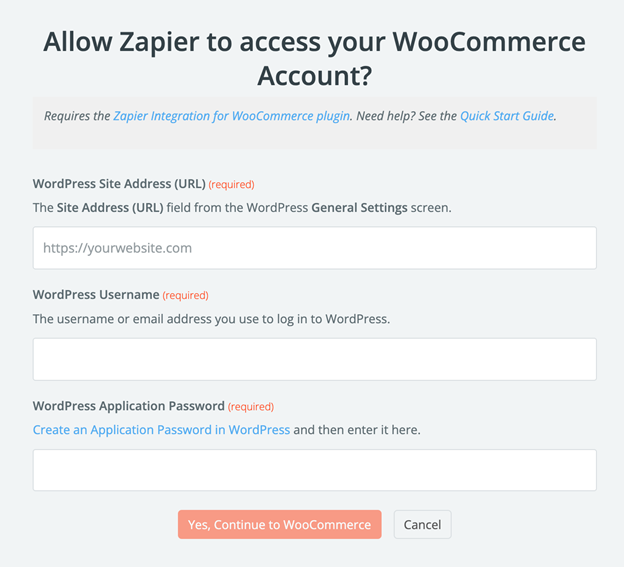
- Enter your password and WordPress admin username.
- To approve the connection, click Yes, Continue.
Once connected, Zapier can fetch WooCommerce data in real-time.
-
Create a Zap in Zapier
An automated process connecting WooCommerce and another app is called a Zap. It consists of:
- Trigger (event in WooCommerce that starts automation).
- Action: A task carried out in reaction to the trigger.
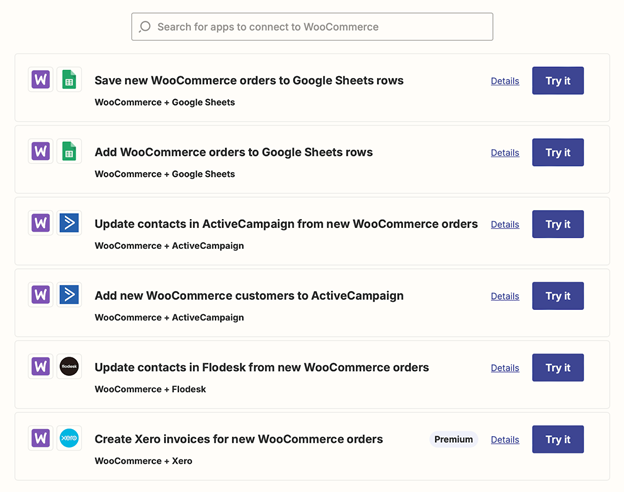
How to Make a Zap in WooCommerce:
- Click Create a Zap in Zapier.
- Choose WooCommerce as the Trigger App.
- Select a Trigger Event (e.g., “New Order Created”).
- After selecting your WooCommerce account, click Continue.
- Select an Action App (e.g., “Google Sheets”).
- Choose an Action Event (e.g., “Add Row to Spreadsheet”).
- Map WooCommerce data fields to match the Action fields.
- Click Test & Continue to check the Zap.
- Turn on Zap if the test is successful.
Your WooCommerce Zap is now active, running in the background.
-
Examples of WooCommerce Zapier Automations
Here are some common Zaps store owners use to automate tasks:
- Automate Order Management
- Trigger: They put a new order.
- Action: Order details are added to Google Sheets for tracking.
- Improve Customer Engagement
- Trigger: An order status changes to “Shipped”.
- Action: The customer receives an email with tracking information.
- Reduce Cart Abandonment
- Trigger: A customer abandons their cart.
- Action: Zapier provides a discount code in a follow-up email.
- Sync Inventory with Accounting Software
- Trigger: Stock quantity updates in WooCommerce.
- Action: The update is recorded in QuickBooks or Xero.
- Enhance Team Communication
- Trigger: A high-value order is placed.
- Action: Slack sends an alert to the sales team.
These Zaps help businesses save time and manage operations efficiently.
-
Troubleshooting WooCommerce Zapier Setup
If you face issues connecting WooCommerce with Zapier, try these fixes:
- Ensure WooCommerce REST API is Enabled
- Go to WordPress Dashboard → WooCommerce → Settings → Advanced.
- Under REST API, enable API access.
- Use a Valid Site URL
- Ensure your WordPress Site URL is correct (must start with https://).
- Check WordPress Permalinks
- Choose Post Name under Settings → Permalinks.
- Verify WooCommerce Version
- Ensure WooCommerce meets the plugin requirements (8.3 or later).
- Test the Connection Again
- Disconnect WooCommerce from Zapier and reconnect using fresh credentials.
Pricing & Compatibility
The WooCommerce Zapier Integration plugin is a valuable tool for automation. Businesses benefit from time savings and a decrease in manual labor. Before using the plugin, it’s important to understand its pricing, compatibility, and system requirements.
This section covers how much the plugin costs, supported platforms, and why it’s worth using.
-
Pricing & Subscription Details
The WooCommerce Zapier Integration plugin is a premium extension. It requires an annual subscription for updates and support.
Pricing Breakdown:
- Cost: $99 per year (billed annually).
- Subscription Includes:
- One year of updates & customer support.
- Access to new features & improvements.
- 30-day money-back guarantee.
While Zapier offers a free plan, some features require a paid plan. Free accounts have task limits and do not support multi-step Zaps. Paid Zapier plans start at $19.99/month for advanced automation.
-
Compatibility & System Requirements
Before installing WooCommerce Zapier, ensure your store meets the technical requirements.
WooCommerce Plugin Requirements:
- WordPress Version: 6.4 or later.
- WooCommerce Version: 8.3 or later.
- PHP Version: 7.4 or later.
- Secure HTTPS Connection: Required for Zapier API access.
Supported WooCommerce Extensions:
- WooCommerce Subscriptions (for recurring payments).
- WooCommerce Bookings (for appointment-based businesses).
- WooCommerce Memberships (for exclusive content access).
This ensures the plugin works smoothly with other WooCommerce tools.
Conclusion
The WooCommerce Zapier Integration plugin is a powerful automation tool. It reduces physical labor and saves time for store owners. By connecting WooCommerce with 8,000+ apps, businesses can streamline operations effortlessly.
Automating orders, inventory, and customer communication boosts efficiency and prevents errors. Additionally, it boosts customer satisfaction and teamwork.
This plugin is a great investment for anyone looking to expand their eCommerce business because it is simple to set up and requires no coding, allowing anyone to automate their store.
Start using WooCommerce Zapier today and simplify your workflow!



