
Zoom Feature Not Working on WooCommerce Product Page
Table of Contents
- Introduction
- Why the Zoom Feature Matters for WooCommerce Stores
- Common Causes of Zoom Not Working
- Step-by-Step Troubleshooting Guide
- Solutions – Fixing the WooCommerce Zoom Problem
- When to Contact Support or Hire a Developer
- How to Prevent Zoom Issues in the Future
- How WooHelpDesk Can Support You
- Conclusion
Introduction
One of the most widely used eCommerce platforms nowadays is WooCommerce. It powers thousands of online stores, especially for small to mid-sized businesses. The platform is easy to customize and use. One feature many store owners rely on is the product image zoom. This feature helps customers see product details more clearly. When it stops working, it can cause major problems.
A broken zoom feature can make your product pages look incomplete. Consumers might not believe what they see. This frequently results in lower sales and higher bounce rates. Many users face issues like the WooCommerce product image zoom not working or the zoom not functioning at all.
This article will assist you in resolving those issues. We’ll show why Zoom matters, what causes issues, and how to solve them.
Why the Zoom Feature Matters for WooCommerce Stores
Products cannot be handled or felt by online buyers. So images are their only way to examine items. Customers may examine textures, patterns, and features up close thanks to the zoom capability. Without zoom, product images may look flat or unclear.
Here’s why the image zoom matters:
- Builds trust: Customers can see small details clearly.
- Reduces returns: Better image clarity leads to better purchase decisions.
- Boosts sales: A better shopping experience often increases conversions.
Most themes in WooCommerce offer a built-in zoom. It usually works when you hover over a product image. This is called the WooCommerce image zoom hover feature. It’s a small feature, but very powerful.
However, many store owners report the WooCommerce zoom feature not displaying correctly. The gallery zoom occasionally doesn’t function at all. Other times, it works on some products but not others. These issues can be caused by settings, themes, or plugins.
If your store has WooCommerce product image zoom problems, don’t worry. You’re not alone. Many users across the US and beyond face the same issue.
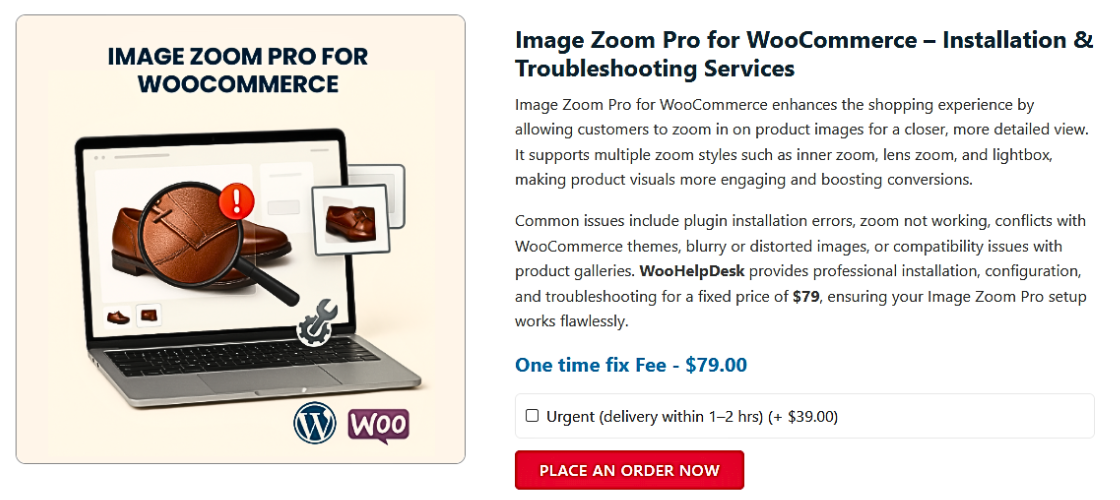
Common Causes of Zoom Not Working
There are several reasons why your WooCommerce image zoom hover or magnifier might not work. Below are the most likely ones.
- Theme Incompatibility
Some WooCommerce themes do not support zoom by default. Others might disable it or override the built-in gallery scripts. A custom or outdated theme is often the reason behind the WooCommerce zoom feature not displaying correctly.
- Disabled Product Gallery Features
WooCommerce includes image zoom, lightbox, and slider scripts. These must be enabled in your settings. If these options are turned off, your product image zoom will fail to load.
- Plugin Conflicts
Many store owners install caching, optimization, or gallery plugins. Some of these may block or override zoom scripts. This often leads to WooCommerce product image zoom problems or the zoom not loading at all.
- Custom CSS or JavaScript Errors
Custom code added to your theme can conflict with WooCommerce. If JavaScript breaks or CSS hides elements, the zoom may stop functioning.
Step-by-Step Troubleshooting Guide
Let’s go over how to test each one now that you know what might be the problem. Follow this checklist to diagnose the WooCommerce zoom not functioning problem.
- Check Theme Compatibility
-
- Switch to the default Storefront theme.
- Visit a product page and hover over the image.
- If zoom works, your theme is likely the problem.
- Verify Gallery Settings
- Go to Appearance > Customize > WooCommerce > Product Images.
- Make sure these options are turned on:
- Enable zoom
- Enable lightbox
- Enable slider
If your WooCommerce product gallery zoom problem started after a theme update, this setting may have reset.
- Deactivate Conflicting Plugins
-
- Turn off all plugins except WooCommerce for the time being.
- Check if zoom starts working.
- If it does, activate other plugins one at a time.
This is the easiest way to find plugin conflicts.
- Clear Caches
-
- Clear browser cache.
- W3 Total Cache and WP Rocket are two examples of clear WordPress caching plugins.
- If using a CDN, clear that cache too.
- Check for Custom Code Errors
-
- Temporarily remove any added CSS/JavaScript.
- Open the browser’s Developer Tools > Console tab.
- Look for JavaScript errors related to product images or zoom.
Solutions – Fixing the WooCommerce Zoom Problem
After troubleshooting the zoom issue, it’s time to fix it. Here, we’ll walk you through real solutions to get your WooCommerce zoom feature working again. Whether you’re a developer or store owner, these techniques are easy to use.
Enable Zoom Features in WooCommerce Settings
Sometimes, the zoom and lightbox options get turned off. This may happen after theme or plugin updates.
To turn them back on, take these actions:
- Go to Appearance > Customize in your dashboard.
- Click on WooCommerce > Product Images.
- Make sure these three features are enabled:
- Zoom
- Lightbox
- Image slider
These options control how product images behave. Enabling them can fix the WooCommerce zoom feature not displaying correctly.
Use Code to Re-Enable Zoom (For Developers)
If your theme doesn’t support zoom by default, you can enable it with code. Include the following excerpt in the functions.php file for your theme:
add_theme_support( ‘wc-product-gallery-zoom’ );
add_theme_support( ‘wc-product-gallery-lightbox’ );
add_theme_support( ‘wc-product-gallery-slider’ );
This tells WooCommerce to activate its built-in gallery tools. It’s a fast fix for the WooCommerce product gallery zoom issue.
Make sure you back up your site before editing code.


Fix Image Sizes and Regenerate Thumbnails
If your product images are too small, the zoom might not work. WooCommerce needs images to be large enough to zoom in on.
Steps to fix:
- Go to WooCommerce > Settings > Products > Display.
- Set your main image size to at least 800×800 pixels.
- To restore picture sizes, use a plugin such as Regenerate Thumbnails.
This helps resolve WooCommerce product image zoom problems related to small or broken images.
Install a Zoom Plugin for More Control
If the built-in zoom isn’t working well, try a plugin. Plugins give more features and often work better with custom themes.
Here are some top picks:
- YITH WooCommerce Zoom Magnifier: Adds zoom on hover with lightbox. Free and easy to use.
- WP Image Zoom: Lightweight and customizable. Great for mobile support.
- WooCommerce Zoomifier: A premium plugin with smooth zoom and transition effects.
These tools fix the WooCommerce product image magnifier issue and give advanced zoom options. Some even support zoom on mobile.
Before choosing, check:
- Plugin compatibility with your theme
- Mobile support
- Customization options
- Active development and updates
If you’re uncomfortable making changes to code, this is a perfect solution.
Restore to Default Theme (If Needed)
If all else fails, switch back to the Storefront theme. It’s the official theme built for WooCommerce. It supports zoom, lightbox, and sliders by default.
Use this method briefly to identify if the theme is at fault.
If the zoom works in Storefront, contact your theme’s developer. Ask them how to add support for the zoom feature.
When to Contact Support or Hire a Developer
There are cases when troubleshooting and plugins aren’t enough. If your store uses a custom-built theme or advanced scripts, zoom problems may require developer support.
Here are some indicators that it’s time to get help:
- Zoom still doesn’t work after testing all fixes.
- Product galleries behave oddly or images are missing.
- You don’t know how to update or add code.
- Other parts of your site break when trying to fix zoom.
In these cases, a skilled WooCommerce developer can quickly find the problem. You’ll save hours of frustration and avoid breaking your live site.
How to Prevent Zoom Issues in the Future
Once your zoom feature is fixed, it’s smart to keep it that way. Here are a few simple tips to avoid future problems:
- Avoid bloated themes: Choose WooCommerce-compatible themes that support default zoom features.
- Update regularly: Keep WooCommerce, plugins, and themes up to date.
- Use trusted plugins only: Don’t install random gallery or image tools. Stick with reputable ones.
- Check compatibility before updates: New versions can sometimes break features. Use a staging site to test updates.
- Back up your site: Before making any significant changes, always make a complete backup.
How WooHelpDesk Can Support You
At WooHelpDesk, we help store owners fix WooCommerce problems fast. Whether your WooCommerce image zoom is not working or your theme needs adjustments — we’ve got your back.
What we offer:
- Fast diagnosis of zoom and gallery issues
- Plugin recommendations or setup
- Theme compatibility fixes
- Custom development or CSS tweaks
You can contact us anytime for support. We’re based in the USA and work with WooCommerce stores of all sizes.
🔗 Contact WooHelpDesk Now
Conclusion
The image zoom feature may seem small, but it matters. It gives customers confidence in their purchasing decisions and helps them trust your store.
If your store is facing:
- WooCommerce product image zoom not working
- WooCommerce product gallery zoom problem
- Zoom not functioning properly on hover
Then the steps in this guide should help you solve it.
Fixing the zoom feature improves user experience and boosts sales. You don’t have to be a developer to fix it — just follow the steps, and reach out if you need help.



