
WooCommerce Variation Dropdown Not Working
Table of Contents
- Introduction
- Understanding WooCommerce Variable Products
- Common Signs and User Complaints
- Top Reasons Why the WooCommerce Variation Dropdown Is Not Working
- Step-by-Step Solutions to Fix the Issue
- Developer Tips for Advanced Troubleshooting
- Preventing Future Variation Dropdown Issues
- Conclusion
Introduction
WooCommerce is a powerful platform used by many online stores. It helps sellers manage products, payments, and shipping with ease. One of its most helpful features is product variations. Store owners may now sell products in a variety of sizes, colors, and styles thanks to this.
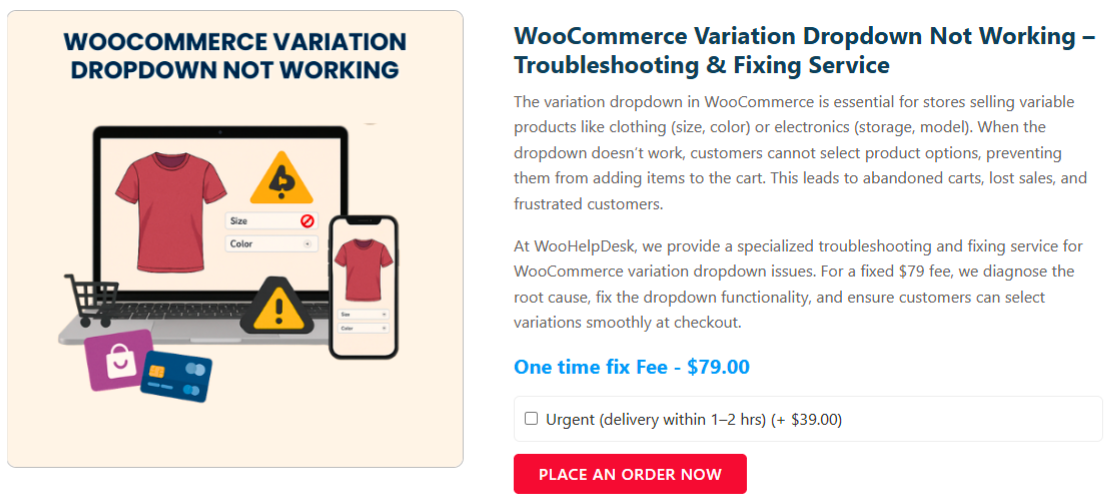
But what if the variation dropdown suddenly stops working? It’s a typical issue that could impact your sales. When customers can’t choose a size or color, they often leave the site. This means lost revenue and a poor user experience.
Many store owners search online with terms like:
- Woocommerce variation dropdown not working
- Product variation not working in WooCommerce
- Woocommerce dropdown not working
This post will help you fix that issue. We’ll outline the issue, discuss the most typical causes, and provide you with detailed fixes. You can discover useful advice here whether you’re a developer or a store owner.
Understanding WooCommerce Variable Products
WooCommerce lets you create different types of products. One of them is called a variable product. These are goods that offer a variety of choices in terms of material, color, and size.
For example, a T-shirt might have:
- Sizes: Small, Medium, Large
- Colors: Red, Blue, Green
A variant is any combination of color and size. Customers use a dropdown menu to select the variation they want.
This dropdown is created using variation attributes. When everything works well, users can select their options smoothly. But if there is a problem, this dropdown may:
- Not show any options
- Appear but not respond to clicks
- Reset after selection
This causes frustration and may stop people from buying.
Here’s how variable products normally work:
- You create global or custom attributes (like size or color)
- You add those attributes to a product
- You then link variations to those attributes
- WooCommerce shows a dropdown on the product page
If any step is skipped or misconfigured, the variation dropdown may not work. Also, themes and plugins can interfere with how dropdowns load or behave.
Common Signs and User Complaints
When the WooCommerce variation dropdown stops working, users often feel confused. Many store owners aren’t immediately aware of the problem. But for customers, it’s a major problem that breaks the buying experience.
Here are some common signs that your variation dropdown isn’t working:
- The product page does not display the dropdown menu
- The dropdown appears but does not load any options
- The dropdown resets after selecting a variation
- The “Add to cart” button stays disabled after selecting a variation
- Users click, but nothing happens
Your website may be losing customers if you notice any of these issues. The longer the issue remains, the more traffic and conversions you may lose.
Top Reasons Why the WooCommerce Variation Dropdown Is Not Working
This issue may seem random, but it’s often caused by specific problems. Let’s take a closer look at the most typical.
- Theme Conflicts
Some WordPress themes override WooCommerce files. These files control how variations display. If your theme has an outdated or poorly-coded template, it can break the dropdown.
Try using the default Storefront theme to test this. Your theme is the issue if the dropdown menu functions properly.
- Outdated Plugins or WooCommerce Version
Updates for WooCommerce frequently address issues and enhance compatibility. If your plugin is outdated, the dropdown may not function as expected. Conflicts may arise from other out-of-date plugins as well.
Ensure that these are updated at all times:
- WooCommerce plugin
- All variation-related plugins
- Your WordPress core
Before updating, always back up your site.
- JavaScript or jQuery Conflicts
WooCommerce uses JavaScript to power its variation dropdowns. If another plugin or theme includes broken scripts, they can block this function.
To check:
- Use F12 or right-click → Inspect to bring up the developer console in your browser.
- Check the product page for any JavaScript issues.
If you see red error messages, something is likely conflicting with WooCommerce.
- Caching Issues
Too much caching can prevent dynamic content like dropdowns from working. This includes:
- Page caching by plugins
- Browser caching
- CDN (like Cloudflare) settings
Clear all caches and check again. Sometimes, clearing transients in WooCommerce also helps.
- Incorrect Product Configuration
This is among the most frequent reasons. Even a small mistake in setting up variations can break the dropdown.
Double-check the following:
- Attributes are saved properly
- Variations are linked to those attributes
- Prices and stock are set for each variation
- No missing fields in variations
If even one variation is incomplete, the whole dropdown can fail.
- Template Overrides or Custom Code
Sometimes themes or developers override WooCommerce templates. If those templates are outdated, it may stop variation features from working.
To check:
- Go to WooCommerce > Status > Templates
- See if any templates are marked “outdated.”
If yes, update or remove those files from your theme.
- Plugin Conflicts
Some third-party plugins interfere with product pages. This includes:
- Quick view plugins
- Product filter plugins
- Page builders such as WPBakery or Elementor
To test:
- Disable all plugins except WooCommerce
- Refresh the product page
- Reactivate each plugin individually to determine the reason.
These are the most likely causes behind your variation dropdown not working. Now that you know what to look for, you’re ready to fix it.
Step-by-Step Solutions to Fix the Issue
Once you know what’s causing the dropdown problem, it’s time to fix it. Below are step-by-step methods to help you restore your WooCommerce variation dropdown. These are easy to follow and safe to apply, even if you’re not a developer.
- Check Theme Compatibility
Many variation dropdown issues come from theme conflicts. Custom themes often override WooCommerce templates. If those templates are outdated, the dropdown may stop working.
Here’s how to check theme compatibility:
- Use the Storefront theme by default.
- Go to your product page and test the variation dropdown
- If it works, your active theme is the issue
In this case, reach out to the theme developer for support. Or think about moving to a theme that works with WooCommerce.
- Update WooCommerce, Plugins, and WordPress
Running outdated versions can cause serious problems. WooCommerce often releases updates that fix bugs and improve compatibility.
Follow these steps:
- Make a backup of your entire website.
- Update to the most recent version of WooCommerce.
- Update all plugins, especially those related to product variations
- Update WordPress if it’s outdated
After updates, clear your cache and test the product page again.
- Troubleshoot Plugin Conflicts
Many users install multiple plugins to add features. But some plugins interfere with how WooCommerce loads variations.
To test for plugin conflicts:
- All plugins should be deactivated except WooCommerce.
- Verify your variation dropdown.
- If it functions, the problem is with one of the other plugins.
- Reactivate each plugin individually.
- Make sure to verify the dropdown menu after every switch.
When the dropdown stops working again, you’ve found the conflicting plugin. Choose another option or get in touch with the plugin’s creator.
- Inspect JavaScript Errors Using the Browser Console
The variation dropdown uses JavaScript and jQuery. If a script fails, the dropdown may stop responding.
To check for JavaScript errors:
- Open the product page in Google Chrome
- Right-click the page and click Inspect
- Go to the Console tab
- Look for red error messages
If you see errors, a script from your theme or a plugin might be failing. Disable the problematic plugin or send a developer the error notice.


- Recheck and Rebuild Product Variations
Even a small mistake in the variation setup can break the dropdown. It’s always worth double-checking.
Go through these steps:
- Go to your product edit screen
- Ensure that properties (such as color or size) are generated and stored.
- Ensure each variation is added and linked to those attributes
- Set a price for each variation
- Make sure variations are in stock
- Save the product and refresh the page
If you’ve skipped a step, fix it and test the dropdown again.
- Set a Default Variation (Optional but Helpful)
Sometimes, WooCommerce works better when a default variation is set. This also improves user experience.
How to set it:
- Make changes to your variable product.
- Go to the “Variations” tab
- Choose a default size, color, or both
- Save changes
This helps prevent issues where customers don’t select a variation before clicking “Add to cart.”
- Clear Cache and WooCommerce Transients
Caching is great for speed, but can break dynamic features like dropdowns. Both page and browser caches can affect how your site behaves.
What to do:
- Clear your website cache using your caching plugin
- Try using incognito mode or clearing the cache in your browser.
- Additionally, clear the cache if you utilize a CDN, such as Cloudflare.
- Go to WooCommerce > Status > Tools
- Click Clear transients and Clear template cache
Now refresh your product page and test the dropdown.
- Remove or Update Outdated Template Overrides
Themes can override WooCommerce templates. If these files are outdated, the dropdown features might not work.
To check for this:
- Go to WooCommerce > Status > Templates
- Look for templates marked as “Outdated.”
- If found, either update them or remove them from your theme folder
Always apply custom changes in a child theme to keep them safe during updates.
By carefully following each step above, most dropdown issues can be solved. Even if you’re not technical, these methods are safe and beginner-friendly.
Developer Tips for Advanced Troubleshooting
If you’ve tried every simple solution and the dropdown still doesn’t work, there might be more serious problems. Developers can use several advanced methods to find the root cause.
Use Browser Tools to Monitor AJAX Calls
WooCommerce uses AJAX to load variation data when a user selects options. If AJAX calls are blocked or broken, the variation dropdown won’t function correctly.
Steps to inspect AJAX behavior:
- Choose Inspect with a right-click on your product page.
- Select the XHR filter after going to the Network tab.
- Select a variation on the product page and watch for admin-ajax.php calls
- Check if the status is 200 (OK). If it fails (like 500 or 403), there’s an issue.
Common causes of failed AJAX calls include:
- Plugin conflicts
- Server misconfiguration
- Nonce verification errors
Enable WP_DEBUG to View Hidden Errors
Some errors don’t appear on the front end. Enabling debugging in WordPress reveals PHP errors that might be affecting variation functionality.
How to enable debugging:
- Open your wp-config.php file
- Add or update these lines:
define(‘WP_DEBUG’, true);
define(‘WP_DEBUG_LOG’, true);
define(‘WP_DEBUG_DISPLAY’, false);
- Errors will now be logged in /wp-content/debug.log
Look for issues related to WooCommerce templates, hooks, or missing function calls.
Check for Broken WooCommerce Hooks
Custom code may override or remove WooCommerce hooks needed for dropdowns.
Key hooks to inspect:
- woocommerce_before_single_variation
- woocommerce_single_variation
- woocommerce_after_single_variation
Make sure these aren’t removed or overridden in your theme or plugins. They are required to display and process variation data.
Review JavaScript and Enqueue Order
Sometimes, JavaScript files load in the wrong order, causing scripts to fail.
What to look for:
- Check if wc-add-to-cart-variation.js is loading properly
- Make sure jQuery loads before WooCommerce scripts
- Disable minification or combine features temporarily (if using a performance plugin)
You can enqueue required scripts manually in your functions.php if needed.
Test Template Files in the Child Theme
WooCommerce allows themes to override template files. But if they’re outdated, they can cause major issues with dropdowns and variation logic.
Steps to check template overrides:
- Go to WooCommerce > Status > Templates
- Look for templates marked as Outdated
- Compare your overridden files with the latest ones from the WooCommerce plugin
- Replace or update them as needed
Keep overrides inside a child theme, not the parent theme, to avoid losing changes during updates.
Preventing Future Variation Dropdown Issues
Fixing the dropdown is only part of the solution. Additionally, you want to make sure that this doesn’t happen again.
Follow these best practices:
- Use themes that are fully compatible with WooCommerce
- Do not install an excessive number of third-party plugins.
- Changes should always be tested on a staging site first.
- Keep WooCommerce, WordPress, and all plugins updated
- Set default variations for variable products
- Clear caches regularly, especially after updates
Taking these steps will reduce future conflicts and help your store run smoothly.
Conclusion
When your WooCommerce variation dropdown is not working, it can be stressful. You risk losing customers and seeing a decline in sales. The good news is that, with a few easy actions, it can generally be rectified.
Start by checking your theme, plugins, and variation setup. Work through the steps slowly, and test after each change. Most of the time, the problem is a small configuration or plugin conflict.
Still stuck or don’t want to risk breaking your site?
Let the experts help you.
📞 Call WooHelpDesk at +1 888 602 0119 (US & Canada) for fast support.
We’re here to get your store back on track—quickly and safely.
Your WooCommerce store deserves to work perfectly. Don’t let a broken dropdown stand in the way of success.



