What Is a WooCommerce Marketplace? Requirements, Setup, and Key Features
Table of Contents
- Introduction
- What is a WooCommerce Marketplace?
- What are the Key Features of a WooCommerce Marketplace?
- What are the Benefits of a WooCommerce Marketplace?
- What are the Requirements for a WooCommerce Marketplace?
- How to Setup a WooCommerce Marketplace?
- Final Verdict
Introduction
Imagine running a website where hundreds of sellers list their products, and you earn money from every sale they make. You hold no inventory. You handle no shipping. You simply provide the platform.
This is the marketplace model. It powers giants like Amazon, Etsy, and eBay. And now it is accessible to anyone with a WooCommerce store.
A multi-vendor marketplace generated over $3.8 trillion in global sales in 2025 . The model shows no signs of slowing down. Why? Because it scales without requiring you to hold inventory or manage fulfillment directly . You earn through commissions, listing fees, or vendor subscriptions.
WooCommerce is the perfect foundation for building your own marketplace. It powers over 36% of all online stores worldwide . Its real strength lies in extensibility. With the right multi-vendor plugin, you can transform a simple store into a thriving platform.
This guide covers everything you need. You will learn what a WooCommerce marketplace actually is. You will understand key features, pros, and cons. You will discover the technical requirements. You will follow step-by-step setup instructions.
By the end, you will know exactly how to build your own marketplace.
What is a WooCommerce Marketplace?
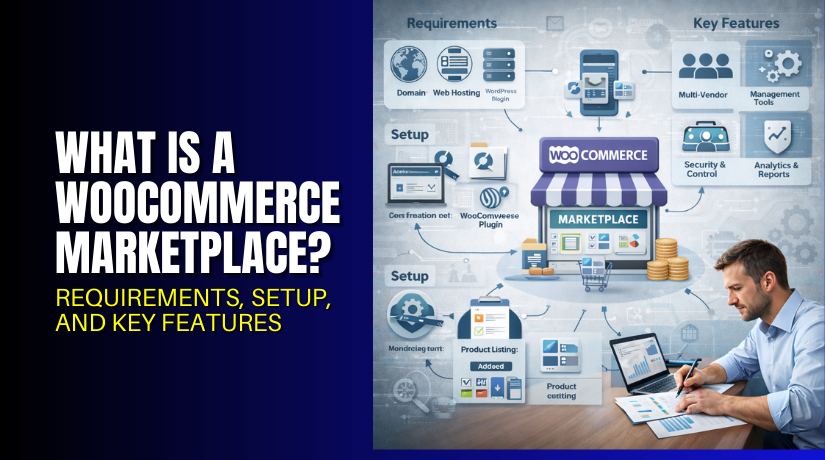
A WooCommerce marketplace is an online store where multiple independent vendors sell their products through a single platform . Unlike a traditional eCommerce store where you sell your own inventory, a marketplace allows third-party sellers to list items.
Think of Amazon or Etsy. The website owner (that’s you) manages the platform, handles marketing, and processes payments. Individual vendors manage their own products, inventory, and fulfillment .
You earn revenue through commissions on each sale. You might also charge listing fees or monthly subscription fees from vendors . This model scales infinitely because you never hold physical inventory.
How Does It Work Technically?
A standard WooCommerce store supports one seller—you. A marketplace adds a layer of permissions and interfaces for multiple vendors . Specialized plugins introduce:
- Vendor registration forms for sellers to apply
- Frontend dashboards where vendors manage products and orders
- Commission systems that automatically calculate your earnings
- Split payment handling that sends funds to the right vendors
When a customer buys products from different vendors in one order, the system splits the payment. Each vendor receives their share. You receive your commission .
Marketplace User Roles
A WooCommerce marketplace has three primary user types :
- Marketplace Owner (Admin): You control everything. Manage vendors, set commissions, approve products, handle payouts.
- Vendors: Independent sellers who list products, manage inventory, and fulfill orders through their dashboard.
- Customers: Shoppers who browse and buy across multiple vendor stores in one seamless experience.
What are the Key Features of a WooCommerce Marketplace?
Understanding the features and trade-offs helps you decide if this model fits your goals.
Key Features
- Vendor Dashboard: A robust vendor dashboard is the heart of any successful marketplace. Vendors need a dedicated space to manage products, view orders, track earnings, and handle customer inquiries. The best dashboards are frontend-based, meaning vendors never access your WordPress admin area.
- Commission Management: You need flexible commission rules. Set global percentages, category-based rates, or vendor-specific commissions. Some plugins support tiered commissions that reward high-volume sellers with lower rates.
- Vendor Registration and Approval: Automated registration workflows let vendors sign up easily. You can approve applications manually or automatically. Collect store details, business information, and required documents during signup.
- Split Payment Processing: When customers buy from multiple vendors, payments must split automatically. Stripe Connect and PayPal Marketplace enable direct payments to vendor accounts while deducting your commission.
- Vendor Shipping Management: Each vendor should set their own shipping zones, rates, and methods. Complex marketplaces need table rate shipping and per-vendor carrier integrations.
- Product Approval Workflow: Maintain quality by reviewing products before they go live. You can require approval for all new listings or trust established vendors.
- Vendor Storefronts: Each vendor gets their own branded store page with unique URL, banner, logo, and bio. This builds their brand while keeping them on your platform.
- Customer Reviews and Ratings: Shoppers need to rate vendors, not just products. This builds trust and helps good sellers stand out.
- Withdrawal and Payout Management: Vendors should request payouts when they reach minimum thresholds. You need systems to track earnings, process payments, and maintain history.
- Analytics and Reporting: Both you and your vendors need sales data. Vendors track their performance. You monitor overall marketplace health.
What are the Benefits of a WooCommerce Marketplace?
- Full Ownership and Control: Your marketplace data lives on your server. No platform dependency. No data export limitations. No vendor lock-in. You own everything.
- Lower Total Cost: WooCommerce is free. Multi-vendor plugins cost $49-$499 one-time or $49-$249/year. Compared to SaaS platforms charging $900-$7,200/year.
- Unlimited Vendors and Products: No per-vendor or per-listing charges from the platform itself. Your only limits are server capacity.
- WordPress Ecosystem: Access to over 60,000 plugins for SEO, marketing, analytics, and social features. Extend functionality as you grow.
- Scalable Revenue Model: Earn through commissions, listing fees, and subscriptions. Your income grows as your vendors succeed.
- Diverse Product Catalog: Offer thousands of products without ever touching inventory. Vendors handle stocking and fulfillment.
- Reduced Risk: You don’t buy inventory that might not sell. Vendors take that risk.
- Community Building: Niche marketplaces attract passionate buyers and sellers. Loyal communities form around shared interests.
What are the Requirements for a WooCommerce Marketplace?
Building a successful marketplace requires the right foundation. Here are the technical and business requirements.
1. Technical Requirements
Hosting Requirements. Marketplace hosting needs significantly more resources than a standard store. Multiple vendors uploading products and accessing dashboards simultaneously demands robust infrastructure .
Minimum server requirements:
- PHP 8.2+ with 512MB memory limit (1GB recommended)
- MySQL 8.0+ or MariaDB 10.6+ with optimized query caching
- 4GB RAM minimum (8GB recommended for 100+ vendors)
- NVMe SSD storage for database performance
- Redis or Memcached for object caching
- CDN for media assets (vendors upload large product images)
Recommended hosting providers:
- Cloudways: Managed cloud hosting on DigitalOcean, AWS, or Google Cloud. Excellent PHP performance, built-in Redis, server-level caching. From $14/month.
- SiteGround: WordPress-optimized hosting with SuperCacher technology and free CDN. Good for marketplaces up to 50 vendors.
- Kinsta: Google Cloud infrastructure with edge caching and automatic scaling. Best for high-traffic marketplaces requiring enterprise reliability.
WordPress and WooCommerce Requirements:
- WordPress 6.7+
- WooCommerce 9.x
- Enable High-Performance Order Storage (HPOS) under WooCommerce > Settings > Advanced > Features. Critical for marketplace performance where hundreds of orders are processed daily.
2. Multi-Vendor Plugin Requirements
Your choice of multi-vendor plugin is the most consequential decision you will make . It determines vendor experience, commission structure, shipping options, and customization possibilities.
| Feature | Dokan Pro | WCFM Marketplace | WC Vendors Pro | MarketKing |
| Free version | Yes (Dokan Lite) | Yes (WCFM Free) | Yes | Yes |
| Pro pricing (2026) | $149-499/year | $49/year | $99-399/year | $129-249/year |
| Active installations | 80,000+ | 10,000+ | 8,000+ | 5,000+ |
| Vendor dashboard | Custom frontend | Rich frontend | Frontend | Modern frontend |
| Commission types | Flat, %, category-based | Flat, %, by vendor, category | %, fixed, fixed+fee | Flat, %, mixed, category |
| Shipping per vendor | Yes (zone-based) | Yes (advanced) | Yes | Yes |
| Vendor subscriptions | Built-in | Via Groups | Via Subscriptions | Built-in |
| Split payments | Stripe Connect | Stripe Connect | Stripe Connect | Stripe Connect |
| Mobile app | Yes | Yes | No | No |
| Best for | Feature-rich needs | Budget, customization | Simplicity | Modern UX |
- Dokan Multivendor is the most popular option with over 80,000 active installations. Its polished vendor dashboard, comprehensive commission management, and large module ecosystem make it ideal for most marketplaces.
- WCFM Marketplace is the most feature-rich free option. The free version includes vendor-specific shipping, store-level chat, advanced commission structures, and detailed analytics. The trade-off is complexity—it has a steeper learning curve.
- WC Vendors takes a minimalist approach. It is the best choice for straightforward marketplaces where admin handles most operations and vendors primarily list products. The codebase is lighter and easier to customize.
- MarketKing offers the most modern vendor experience with stunning UX and a split-cart system that maximizes conversions . It includes 137+ features and dozens of integrations.
How to Setup a WooCommerce Marketplace?
Follow these comprehensive steps to launch your marketplace. This guide uses Dokan as the example plugin, but the general process applies to all solutions .
Step 1: Choose and Configure Hosting
Hosting Provider Control Panel → Server Setup
- Select a hosting plan from recommended providers (Cloudways, SiteGround, or Kinsta)
- Configure server with PHP 8.2+, MySQL 8.0+, and adequate RAM
- Enable Redis or Memcached for object caching
- Set up CDN for media delivery
- Point your domain to the hosting server
Step 2: Install WordPress and WooCommerce
Hosting Control Panel → WordPress Installer
- Install WordPress 6.7+
- Access your WordPress admin dashboard
- Go to Plugins → Add New
- Search for “WooCommerce”
- Install and activate WooCommerce
- Complete the WooCommerce setup wizard:
- Set store location and currency
- Choose industry (relevant for marketplace)
- Configure payment gateways (start with PayPal and Stripe)
- Set shipping zones (global defaults for now)
- Enable High-Performance Order Storage: WooCommerce > Settings > Advanced > Features
Step 3: Install Your Multi-Vendor Plugin
Plugins → Add New


For Dokan:
- Search for “Dokan”
- Install and activate Dokan Lite
- Purchase Dokan Pro from wedevs.com
- Upload and activate Dokan Pro
- Dokan automatically creates essential marketplace pages:
- Vendor Dashboard
- My Orders
- Store List
- Store Page
For WCFM:
- Install “WCFM – WooCommerce Frontend Manager”
- Install “WCFM Marketplace”
- Both free plugins provide core marketplace functionality
For WC Vendors:
- Install “WC Vendors Marketplace”
- Run the setup wizard for quick configuration
For MarketKing:
- Install “MarketKing” from WordPress repository
- Upload premium version if purchased
Step 4: Configure Core Marketplace Settings
WooCommerce → Settings → Your Plugin Tab
General Settings:
- Enable vendor registration
- Choose vendor approval method (automatic or manual)
- Set store URL structure (e.g., /store/vendor-name/)
- Configure email notifications for new vendors
Commission Settings:
| Setting | Recommended | Description |
| Commission Mode | Percent | How you earn from sales |
| Admin Commission | 10-20% | Your percentage of each sale |
| Commission Tax | Include Tax | Calculate commission with tax |
| Commission Include Shipping | No | Don’t take commission on shipping |
| Commission Include Coupon | Yes | Calculate on discounted price |
Vendor Settings:
- Enable “New Vendors Need Admin Approval” for quality control
- Enable “Product Approval” to review items before publishing
- Configure default product limits for new vendors
Withdrawal Settings:
| Setting | Recommended | Description |
| Withdrawal Mode | Threshold | Based on amount, not schedule |
| Minimum Withdrawal | $100 | Prevents frequent small payouts |
| Withdrawal Tax | Deducted | Remove tax from withdrawals |
| Auto Approval | No | Manual review recommended |
Step 5: Configure Payment Split
WooCommerce → Settings → Payments
Set up Stripe Connect:
- Install “Stripe Connect” addon for your multi-vendor plugin
- Connect your Stripe account
- Configure commission deduction settings
- Enable automatic payouts or manual withdrawal
- Test with small transaction to verify splitting
Alternative: PayPal Marketplace
- Configure PayPal Payouts addon
- Connect PayPal business account
- Set up vendor onboarding flow
Step 6: Design Vendor Storefronts
Your Theme Customizer → Marketplace Settings
- Configure default store header layout
- Set store page sidebar position (left, right, or none)
- Choose products per row (3-4 recommended for marketplaces)
- Enable store social media profiles
- Configure store banner dimensions (1920×400px typical)
- Set logo size (300×300px typical)
Store Page Elements to Include:
- Store banner and logo
- Vendor rating and review count
- Product count
- Store location and map
- Business hours
- Contact vendor button
- Product filters (categories, price)
Step 7: Create Store Directory
Pages → Add New
- Create new page titled “Vendors” or “Our Sellers”
- Add your plugin’s store list shortcode:
- Dokan: [dokan-stores]
- WCFM: [wcfm_stores]
- WC Vendors: [wcv_vendor_list]
- MarketKing: [marketking_stores]
- Configure shortcode parameters:
- per_row=”3″ – Stores per row
- per_page=”12″ – Stores per page
- search=”yes” – Show search box
- category=”yes” – Show category filter
- Publish page and add to navigation menu
Step 8: Test the Complete Flow
Test as Customer:
- Browse store directory
- Visit vendor store pages
- Add products from different vendors to cart
- Verify cart splits items by vendor
- Complete checkout
- Check order confirmation email
Test as Vendor:
- Register as new vendor
- Check approval email
- Log in to vendor dashboard
- Add test product with images
- Submit for approval
- Approve product as admin
- Test order fulfillment
Test as Admin:
- Review commission calculations
- Process vendor withdrawal
- Check analytics and reports
- Verify email notifications
Final Verdict
Building a WooCommerce marketplace is a transformative opportunity that puts enterprise-level ecommerce capabilities within reach of any entrepreneur. With multi-vendor marketplaces generating over $3.8 trillion in global sales, the model offers infinite scalability without requiring you to hold inventory or manage fulfillment.
Your revenue grows through commissions as your vendors succeed, creating a true passive income stream. The technical requirements are significant—robust hosting, careful plugin selection, and thoughtful vendor management systems are essential. But the WordPress ecosystem provides everything you need, from powerful multi-vendor plugins like Dokan with 80,000+ installations to payment solutions like Stripe Connect that automate split payments.
Your success depends on choosing the right foundation and starting strategically. Dokan leads the market with polished vendor experience and comprehensive features. WCFM offers incredible value through its feature-rich free version. WC Vendors provides simplicity for straightforward needs.
Launch with a few trusted vendors, perfect your workflows, and scale gradually. The marketplace model has created billion-dollar businesses from humble beginnings. With WooCommerce, you have the tools to build yours today. Start with proper hosting, select your plugin wisely, and take the first step toward building your own thriving ecommerce ecosystem.
Have questions before starting with WooCommerce & WordPress? Get support here at WooHelpDesk.