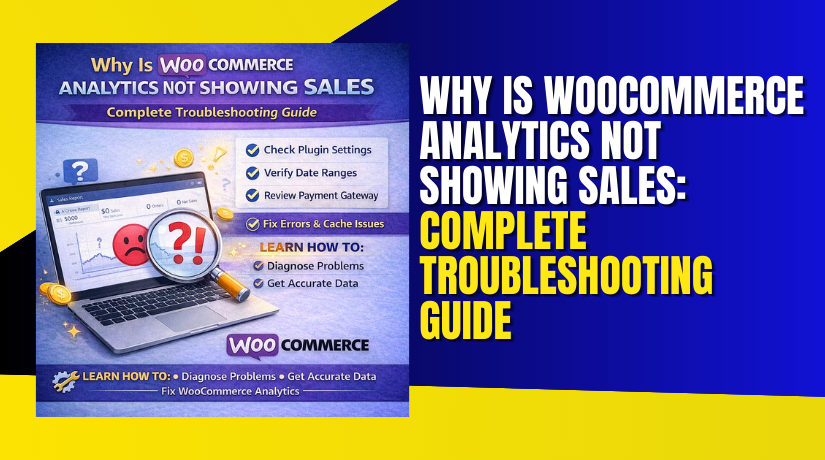
Why Is WooCommerce Analytics Not Showing Sales: Complete Troubleshooting Guide
Table of Contents
- Introduction
- What WooCommerce Analytics Actually Tracks and Where It Gets Data
- Things to Check Before Performing Advanced Troubleshooting
- Common Core Reasons WooCommerce Analytics Does Not Show Sales
- How to Fix WooCommerce Analytics Not Displaying Sales (Step-by-Step Troubleshooting)
- How to Rebuild WooCommerce Analytics Data Safely When Needed
- How to Prevent WooCommerce Analytics From Breaking Again
- Conclusion
Introduction
You log in and check your store performance today. You know sales happened, but the chart shows nothing. This can feel scary and confusing for store owners. The good news is this issue is usually fixable. Many stores face the same WooCommerce analytics not showing sales problems.
It can happen after an update, a plugin change, or migration work. Sometimes it happens without any big change. The result looks like WooCommerce sales not showing in the dashboard. It may also look like WooCommerce reports not working at all.
In most cases, the orders are safe and still exist. The reporting layer is the part that breaks or lags. In this guide, you will start with simple checks first. These steps help you avoid wasting time on complex fixes. Once the basics look correct, you can move to deeper causes later.
What WooCommerce Analytics Actually Tracks and Where It Gets Data
WooCommerce has more than one place that shows sales. The Orders screen shows real orders in your database. Payment gateways may also show their own transactions. WooCommerce Analytics is a reporting dashboard that reads data differently. It uses order data and then builds report tables for charts. That is why orders can exist, but charts stay blank. This is a common WooCommerce analytics issue for many stores. It can look like WooCommerce sales are missing even when orders exist.
It can also look like WooCommerce reports not showing orders in analytics screens. This does not always mean sales are gone. It often means analytics data is not synced or updated. That is why people call it WooCommerce analytics not updating. Analytics depends on background tasks and stored report data. If those tasks stop, the charts stop too. If report tables do not update, results look empty. So the first job is to confirm what is missing. Are orders missing, or only analytics is missing.
If orders exist in the Orders list, the issue is mostly reporting. If orders are also missing, then it is a bigger store issue. In most cases, it is only a WooCommerce sales report problem.
Things to Check Before Performing Advanced Troubleshooting
Before you change anything, run these quick checks. These checks solve many cases in minutes. They also help you confirm the exact problem fast.
Check the date range and filters in analytics
Analytics screens often use custom date filters. A wrong range can hide sales completely. Switch to “Last 7 days” and check again. Then try “This month” and compare the totals. Also check if you selected a specific status filter. Some views can limit what orders are counted. If filters are wrong, it looks like WooCommerce sales are not showing. This is the fastest check and often fixes confusion.
Confirm your store timezone and time settings
Timezone settings can shift sales into another day. This makes today look empty or lower than expected. Go to WordPress Settings and confirm your timezone. Then check WooCommerce settings if you changed the time display. If the timezone is wrong, reports may look delayed. This may feel like WooCommerce analytics not updating. Fixing the timezone can align reports with your real sales day.
Make sure you are checking the correct site environment
Many stores have a staging site and a live site. It is easy to open the wrong admin link. Staging sites often have old data or no new orders. If you check staging, it looks like WooCommerce analytics are not showing sales. Confirm your site URL in the browser bar carefully. Also check if your admin login is for production. This single mistake causes many “missing sales” reports.
Verify orders exist in WooCommerce Orders list
Go to WooCommerce → Orders and search recent orders. Check if the expected sales are listed there. If orders are present, the store data is fine. Then the issue is only reporting and analytics. If orders are missing there too, stop and investigate order flow. Many times, orders exist but analytics are blank. That points to a WooCommerce sales report problem only.
Confirm order status for recent sales
Analytics usually counts orders with key statuses like Processing. It may not count Pending or Failed as sales. If many orders are stuck in Pending, analytics looks empty. This can appear like WooCommerce sales missing in charts. Open a recent order and check its status carefully. If status is wrong, analytics numbers may not appear. This can also make WooCommerce reports not showing orders properly.
Create a test order to confirm reporting behavior
Create a small test order using a simple product. Complete the checkout and set the order to Processing. Then wait a short time and refresh the analytics screens. If the test order appears, analytics is working now. If it does not appear, the issue is still active. This confirms a real WooCommerce analytics issue and not confusion.
Hard refresh the analytics page and try another browser
Sometimes the analytics screen loads cached data in the browser. Do a hard refresh and reload the page again. You can also try the same report on another browser. This helps rule out browser cache problems quickly. It is simple but can fix a “blank report” view. It can reduce false WooCommerce reports not working complaints.
Compare Analytics with WooCommerce Reports or dashboard widgets
Some stores still use older report screens or widgets. Compare totals between different report areas if available. If one report shows data and analytics shows nothing, sync is likely stuck. If both areas show nothing, the issue may be broader. This comparison helps you narrow the cause fast. It also confirms if WooCommerce analytics not updating is the real issue.
Common Core Reasons WooCommerce Analytics Does Not Show Sales
If previous checks looked fine, the issue is likely deeper. Your orders may exist, but analytics cannot count them. This often creates a clear WooCommerce sales report problem. You may see charts as zero or blank. You may also see totals missing in key reports. This is the stage where WooCommerce analytics not showing sales becomes a real system issue. The good thing is most causes are common and fixable. Start with the points below in the same order. Each point targets a high-impact root cause.
Orders Are Not in the Right Status for Sales Counting
WooCommerce Analytics counts sales based on order status rules. It does not treat every order as a completed sale. If orders sit in Pending, they may not count. If payment fails, they may not count either. This makes WooCommerce sales not showing in analytics charts. It also causes WooCommerce reports not showing orders correctly. Open a few recent orders and check their statuses.
Most stores count Processing and Completed as sales. If your gateway leaves orders on hold, analytics may lag. If you use manual payment methods, status may stay pending. Change one test order to Processing and recheck reports. If it appears later, status was the blocker. This is one of the most common reasons for WooCommerce sales missing.
Analytics Data Sync Is Stuck, Delayed, or Failed
WooCommerce Analytics uses background syncing to build report data. It creates analytics tables for faster reporting and filtering. If syncing stops, reports stop updating too. This is the classic WooCommerce analytics not updating issue. You may still see orders in the Orders list. But the analytics dashboard stays blank or outdated. Check WooCommerce scheduled actions if you can.
Many stores have a backlog of pending actions. If the action queue is blocked, analytics cannot catch up. This creates a persistent WooCommerce analytics issue. A failed cron job can also break syncing silently. After fixing the queue, analytics often starts filling again. If you recently migrated hosting, cron may be blocked. If you change caching, scheduled actions may fail too. This is why sync issues are so common in real stores.
WooCommerce Admin Analytics Component Is Outdated or Broken
WooCommerce Analytics depends on the WooCommerce Admin features. Modern WooCommerce bundles these dashboard tools in core. If versions mismatch, the analytics screen can break. You may notice missing charts or blank widgets. This can look like WooCommerce reports not working. It often happens after partial updates or failed updates. For example, WooCommerce updates but WordPress stays old. Or the theme triggers errors after updates.
Sometimes a plugin conflict blocks Admin assets from loading. Then the analytics screen cannot render the data. You may also see console errors in the browser. A quick test is to open analytics in an incognito window. If it loads there, cache or plugin assets may be blocked. Keeping WooCommerce and WordPress updated helps avoid this. This is a core cause when WooCommerce sales are not showing suddenly after updates.
HPOS Compatibility Issues Can Break Analytics Reporting
HPOS means High-Performance Order Storage in WooCommerce. It changes how orders are stored and read. HPOS can improve speed on large stores. But it needs plugin compatibility to work smoothly. If a plugin is not compatible, orders may store oddly. Analytics can fail to read those orders correctly. This can cause WooCommerce analytics not showing sales for new orders only.
Older orders may show fine, but new orders vanish. Store owners then report WooCommerce sales missing in recent date ranges. This can also appear as WooCommerce reports not showing orders for specific periods. Check if HPOS is enabled in your WooCommerce settings. If enabled, verify your key plugins support HPOS properly. Payment, subscription, and order editing plugins matter most. If a plugin writes order data in older formats, analytics can miss it. Disabling HPOS is not always required, but compatibility matters. When HPOS is the culprit, analytics fixes often need plugin updates.
Database Tables Are Missing, Empty, or Not Updating
WooCommerce Analytics stores report data in database tables. These tables help load charts fast and reduce load. If tables are missing, analytics cannot show results. If tables are empty, it looks like WooCommerce sales are missing. This commonly happens after migration or restore work. It can also happen after a failed WooCommerce update.
Some hosts also block long database tasks during updates. When that happens, report tables never finish building. The Orders list still shows real orders though. But analytics shows zero and keeps staying zero. This becomes a stubborn WooCommerce analytics issue on many sites. If you recently changed servers, suspect this early. Also check if you imported orders from another system. Imported orders may not rebuild analytics data automatically. This can cause WooCommerce analytics not updating for older orders too.
WP-Cron Is Not Running, So Analytics Jobs Never Finish
WooCommerce relies on WP-Cron for background tasks. Analytics syncing and updates often run through scheduled jobs. If WP-Cron is blocked, report jobs never run. This creates a long-lasting WooCommerce sales report problem. You will keep seeing zero sales in analytics charts. You may also see delayed email notifications and stuck tasks. Some hosts disable WP-Cron by default for performance.
Some security settings also block cron calls. When cron fails, your store can still accept orders. But analytics cannot process them into reports. That is why you see WooCommerce sales not showing in analytics. If you notice scheduled actions stuck, cron is a strong suspect. Fixing cron often fixes analytics within a short time.
Caching or Server Optimization Is Preventing Analytics Updates
Caching improves speed, but it can break dynamic dashboards. Page caching can cache admin widgets in rare cases. Object caching can store stale values for reports. Redis or Memcached can also keep old report results. This makes analytics look frozen and outdated. Store owners then say WooCommerce analytics not updating for days. It can also cause partial data showing in charts. You may see old numbers but not new orders. This looks like WooCommerce reports not showing orders for recent dates.
Also check hosting dashboards with built-in caching layers. Some managed hosts add extra caching without warning. Clearing cache safely can refresh analytics screens. It can also unblock report queries stuck in cache. This is a common reason for a sudden WooCommerce analytics issue.
Security or Firewall Rules Are Blocking REST API Requests
Many WooCommerce admin features use the REST API. Some analytics screens also call REST endpoints for data. If a firewall blocks those calls, charts can fail to load. Then it looks like WooCommerce reports not working. Security plugins may block WP-JSON endpoints. Some WAF rules block admin-ajax requests too. Cloudflare settings can also block API calls sometimes. If API calls fail, analytics cannot fetch updated metrics.
Orders still exist, but charts show blank blocks. Users then think WooCommerce analytics not showing sales again. If you see “failed to fetch” style errors, suspect this. Whitelisting WooCommerce endpoints often solves it quickly.
Plugin or Theme Conflicts Are Breaking Analytics Pages
WooCommerce analytics pages load many scripts and components. A plugin conflict can break those scripts silently. A theme conflict can also inject errors into the admin area. This can cause charts not to render at all. It can also block syncing jobs from running. Then you see WooCommerce sales not showing in dashboards. Some plugins that change order statuses can also confuse reports.
Some checkout plugins store order meta in unusual ways. Some optimization plugins minify scripts and break admin pages. Any of these can trigger a WooCommerce analytics issue quickly. The best test is a safe conflict check. Disable non-needed plugins one by one on staging. Switch to a default theme for testing too. If analytics starts working, the last change is the cause. This is a classic WooCommerce sales report problem pattern.
Store Is a Staging Copy or Cloned Site With Broken Scheduled Tasks


Cloned sites often create hidden analytics problems. The database has old scheduled actions and old site URLs. After cloning, background jobs may still point to old domains. Analytics syncing can break because scheduled actions fail. This makes WooCommerce analytics not updating on the new site. It also makes WooCommerce reports not showing orders after a migration.
Staging sites also have different payment flows and test orders. So reports can look empty in staging while live has sales. If you cloned production into staging, analytics may not rebuild correctly. If you move staging to production, old tasks may remain. This is why migrations often trigger WooCommerce sales missing complaints. Fixing scheduled actions and cron usually solves it.
How to Fix WooCommerce Analytics Not Displaying Sales (Step-by-Step Troubleshooting)
At this point, you know the issue is not simple. You may have a real WooCommerce analytics issue in your store. The key is to fix things in the right order. Random changes can waste time and create new errors. Use the steps below in the same sequence. This approach fixes most cases of WooCommerce analytics not showing sales. It also helps when WooCommerce reports not working across multiple screens.
Step 1: Confirm Orders Exist and Check the Right Status
First, open WooCommerce and check the Orders list again. Make sure recent orders exist in the admin area. Next, open two to three recent orders carefully. Confirm they are Processing or Completed, not Pending.
Wrong statuses make WooCommerce sales not showing in analytics. This is a fast win for many store owners. If statuses are wrong, fix the payment flow first. Then recheck if the WooCommerce sales report problem improves.
Step 2: Check Scheduled Actions and Clear the Backlog
Next, check WooCommerce scheduled actions in the status area. A blocked queue stops analytics syncing jobs from running. When jobs fail, WooCommerce analytics not updating becomes the result. Look for many pending, failed, or canceled actions. A huge backlog usually means cron issues or server limits.
Canceling or retrying failed actions can help reduce load. Once actions start running, analytics often update again. This step helps when WooCommerce reports not showing orders for recent days.
Step 3: Run WooCommerce Analytics Tools to Trigger Updates
WooCommerce provides safe tools for reporting data updates. These tools can rebuild data and fix stuck report states. Use the tools only after confirming orders exist. If you run them too early, you may miss root causes.
After running the tool, check analytics with a fresh date range. This can fix a persistent WooCommerce sales missing dashboard. It can also solve a long-running WooCommerce sales report problem. Always keep a backup before running major tools.
Step 4: Verify WP-Cron Is Working for Background Jobs
Now, confirm WP-Cron is actually running properly. WooCommerce analytics depends on background scheduled tasks. If cron is blocked, sync jobs never complete. That makes WooCommerce analytics not showing sales feel permanent.
If your host disables WP-Cron, switch to a real cron job. This helps run scheduled actions on time and reliably. Once cron runs properly, reports often start filling again. This step is critical when WooCommerce analytics are not updating for days.
Step 5: Clear Cache Layers That Can Freeze Analytics Screens
Clear cache at every layer you are using today. Clear plugin cache and hosting cache if available. Clear object cache if Redis or Memcached is enabled. Then hard refresh your analytics screen in the browser.
Cached admin data can make WooCommerce sales not showing look worse. It can also make WooCommerce reports not work in a confusing way. After clearing cache, check analytics again with a new range. This step often fixes “stuck numbers” problems quickly.
Step 6: Do a Safe Plugin and Theme Conflict Test
If reports still look blank, test for conflicts next. Conflicts are a major reason for WooCommerce analytics issue complaints. Use a staging site for safe testing if possible. Disable non-essential plugins and recheck analytics each time.
Focus first on optimization, security, and order management plugins. Also switch to a default theme for a quick test. If analytics starts working, the last change is your cause. Conflicts can cause WooCommerce reports not showing orders and broken charts.
Step 7: Check Database Health and Report Table Integrity
Now check database health at a basic level. Report tables can break during migrations and restores. Missing tables can cause WooCommerce sales missing in analytics. Corrupt tables can cause partial reporting and wrong totals. A database repair from hosting can fix table issues sometimes. If you suspect migration problems, confirm tables were created fully. This step is key when WooCommerce reports not working after a server move.
Step 8: Review HPOS Settings and Plugin Compatibility
Finally, check if HPOS is enabled in your store. HPOS is helpful, but needs compatibility from key plugins. Incompatibility can cause WooCommerce sales report problem patterns. New orders may not appear in analytics even though they exist.
Update WooCommerce and update all key plugins. Then retest analytics after a new test order. If needed, disable HPOS temporarily for testing only. This can confirm HPOS as the cause of WooCommerce analytics not showing sales.
How to Rebuild WooCommerce Analytics Data Safely When Needed
Sometimes the best fix is a rebuild of analytics data. This is needed when report tables are missing or empty. It is also needed after large imports and migrations. Before rebuilding, create a full backup of files and database. Then ensure cron is working and no large actions are stuck.
After that, rebuild analytics data using safe WooCommerce tools. Expect some delay, especially with many orders. During rebuild, dashboards may show partial numbers briefly. This process fixes many cases of WooCommerce analytics not updating. It also solves repeated WooCommerce sales not showing complaints. If rebuild fails again, server limits are likely blocking it.
How to Prevent WooCommerce Analytics From Breaking Again
Keep WordPress and WooCommerce Updated in a Safe Routine
Updates fix bugs that can break reporting and syncing jobs. Avoid skipping updates for months, then updating everything together. That big jump often triggers a WooCommerce analytics issue. Update WordPress first, then WooCommerce, then other plugins. Test updates on staging when possible before live changes. This reduces chances of WooCommerce analytics not showing sales after updates. It also keeps your reports stable and accurate over time.
Avoid Bulk Updates on the Same Day to Reduce Conflicts
When you update many plugins together, you cannot find the real cause. A single bad update can trigger WooCommerce analytics not updating. Space your updates across different days for safer control. Update your payment, cache, and security plugins carefully first. Then monitor analytics for one day after changes. This simple habit prevents surprise WooCommerce reports not working issues later.
Use a Reliable Cron Setup for Scheduled Background Jobs
Analytics depends on background jobs like scheduled actions and syncing. If WP-Cron is blocked, reports cannot update on time. This often creates the WooCommerce sales report problem feeling. Use real server cron if your host supports it. Real cron runs on schedule and does not depend on site visits. This keeps analytics syncing stable and avoids WooCommerce sales missing in reports.
Monitor Scheduled Actions Weekly to Catch Problems Early
Scheduled actions can silently fail and build a backlog. When the queue grows, WooCommerce sales not showing becomes common. Check the scheduled actions list at least once a week. Look for failed actions and repeated errors. Fix them early before they grow into a bigger issue. This weekly check helps stop WooCommerce analytics not updating in the future.
Keep Caching Settings Safe for Admin and Dynamic Reports
Caching helps speed but can break dashboards when too aggressive. Object cache can hold stale report data for long periods. That can look like WooCommerce reports not showing orders properly. Exclude WooCommerce admin pages from page cache when possible. Flush object cache after major updates and migrations too. Safe caching settings reduce the risk of frozen analytics screens.
Configure Security Plugins to Allow WooCommerce REST API Calls
Analytics screens depend on REST API calls and admin scripts. Security plugins can block these calls and break charts. That can look like WooCommerce reports not working suddenly. Whitelist the WP-JSON endpoints and WooCommerce admin URLs. Also review firewall rules after enabling new security features. This prevents hidden blocks that cause WooCommerce analytics not showing sales.
Limit the Number of Reporting and Order-Editing Plugins
Too many plugins touching orders can confuse analytics reporting rules. Some plugins create custom statuses or rewrite order meta fields. That can lead to WooCommerce sales missing in reports. Use only trusted plugins that clearly support WooCommerce reporting. Remove unused reporting plugins to reduce overlap and confusion. Fewer plugins means fewer risks for a WooCommerce analytics issue.
Test Migrations and Restores on Staging Before Going Live
Migrations can break analytics tables and scheduled jobs. That is why many stores face WooCommerce analytics not updating after moving servers. Always test the migrated site on staging first. Confirm orders, reports, and cron tasks work before switching DNS. This prevents last-minute surprises and keeps reports stable post-migration.
Keep Database Healthy to Protect Analytics Report Tables
Analytics relies on database tables that can corrupt or go missing. Database issues often happen after large imports or failed updates. That can cause WooCommerce sales to report problem complaints later. Use regular backups and periodic database optimization. Avoid interrupting updates or restores during table creation. A stable database reduces chances of WooCommerce sales not showing in analytics.
Check HPOS Compatibility Before Enabling It on a Live Store
HPOS can speed up stores but needs plugin compatibility. If plugins are not compatible, reports can miss orders. That creates a painful WooCommerce analytics not showing the sales situation. Before enabling HPOS, check key plugins for compatibility support. Test on staging first and place sample orders for confirmation. This helps avoid unexpected WooCommerce analytics issue cases later.
Conclusion
When WooCommerce Analytics breaks, sales data usually still exists. The dashboard fails due to sync, cron, cache, or conflicts. A simple prevention routine keeps reports stable and accurate. Update safely, monitor scheduled actions, and keep cron reliable. Use careful caching and avoid aggressive security blocks. Test big changes on staging before going live. These steps reduce future reporting issues and save time.
If you are still seeing missing sales in Analytics, get help fast. WooHelpDesk can find the exact cause without guesswork. We troubleshoot cron, sync jobs, cache layers, conflicts, and database issues. We also make sure reports stay stable after fixes. Visit WooHelpDesk and share your store details to get started.