How to Use WooCommerce Analytics to Boost Sales & Conversions
Table of Contents
- Introduction to WooCommerce Analytics
- Key Features of WooCommerce Analytics
- Setting Up WooCommerce Analytics & Dashboard Overview
- WooCommerce Analytics Dashboard Overview
- Advanced Reporting & Benefits of WooCommerce Analytics
- Benefits of Using WooCommerce Analytics
- WooCommerce Analytics vs. Other Reporting Tools
- Common Issues & Troubleshooting
- Conclusion
Introduction to WooCommerce Analytics
Adding products is not enough to run an online store. Tracking sales, customer behavior, and product performance is crucial. This is where WooCommerce Analytics helps.
WooCommerce Analytics is a reporting tool for WooCommerce users. It provides detailed insights into store performance. Store owners can track revenue, orders, customers, and product trends. The analytics dashboard presents data in a simple format. It is easy to understand.
Store owners can use WooCommerce Analytics for data-driven decisions. They are able to observe what is effective and what requires enhancement. This boosts sales, improves customer experience, and increases profits.
Key Features of WooCommerce Analytics
WooCommerce Analytics offers a range of reporting tools. These help store owners monitor their business performance effectively.
- Sales Reports & Revenue Tracking
Understanding store revenue is critical for growth. WooCommerce Analytics provides detailed sales reports. Store owners can track:
- Total revenue – The entire revenue received from every order.
- Net revenue – Earnings after refunds, discounts, and taxes.
- Order trends – Patterns in sales over days, weeks, or months.
- Refund tracking – Monitoring returned orders and refunds issued.
Sales reports help identify trends and optimize pricing. Owners can see which periods bring higher sales and when demand drops.
- Order Attribution Report
Knowing where sales come from helps in improving marketing strategies. The Order Attribution Report in WooCommerce Analytics tracks:
- Which advertising platforms attract the greatest number of clients.
- How visitors find the store (organic, paid, social, email, etc.).
- Which traffic sources drive higher conversions and revenue.
This report helps store owners allocate marketing budgets wisely. Understanding customer journeys focuses on top traffic sources.
- Customer Insights & Purchase Behavior
Knowing your customers is key to business growth. Comprehensive customer insights are offered by WooCommerce Analytics, including:
- New vs. returning customers – See how many customers return to buy again.
- Customer retention rate – Recognize recurring business and loyalty.
- Average order value (AOV) – Track how much customers spend per order.
- Lifetime customer value – Track customer spend over time.
Businesses may improve consumer experiences by using these insights. Store owners can launch loyalty programs, offer discounts, and boost engagement.
- Product Performance Tracking
Not all products perform the same. Some sell well, while others struggle. WooCommerce Analytics helps track:
- Top-selling products – Learn which goods generate the most revenue.
- Underperforming products – Identify products with low sales.
- Product revenue contribution – See top revenue-generating items.
- Stock levels – Monitor inventory and avoid stock shortages.
By using these reports, store owners can focus on profitable products. They can also improve or remove slow-moving items.
- Conversion Tracking & Store Performance Metrics
Visitors don’t always make a purchase. Store owners can learn more by using conversion tracking.
- How many visitors become customers
- Which pages generate the highest revenue
- Where buyers stop during the purchasing process.
This helps improve website design, checkout, and marketing strategies.
- Inventory Reporting & Stock Management
Stock shortages might reduce sales. WooCommerce Analytics offers real-time inventory reports. It helps store owners manage stock:
- Track current stock levels.
- Identify best-selling and low-stock products.
- Before the product runs out, plan to restock.
Accurate inventory records prevent missed sales. It also helps businesses avoid overstocking slow-moving products.
- Google Analytics Integration
WooCommerce Analytics works great on its own. But it gets even better with Google Analytics integration. Store owners can:
- Monitor visitor activity and website traffic.
- Find out which marketing initiatives increase sales and traffic.
- Understand bounce rates and time spent on product pages.
Google Analytics offers a broader view of store performance. Businesses can improve content, SEO, and advertising strategies with it.
Setting Up WooCommerce Analytics & Dashboard Overview
How to Enable WooCommerce Analytics
WooCommerce Analytics is available in WooCommerce 4.0 and later. There is no need for additional plugins because it comes pre-installed. However, it must be enabled and configured correctly.
Step 1: Check Your WooCommerce Version
- Go to WordPress Dashboard > Plugins > Installed Plugins.
- Find WooCommerce and check its version.
- If your version is below 4.0, update it to access WooCommerce Analytics.
Step 2: Access WooCommerce Analytics
- Go to WooCommerce > Analytics on your WordPress dashboard.
- The Analytics dashboard will open, showing reports and key metrics.
- If WooCommerce Analytics is missing, ensure your store is updated.
Step 3: Configure Settings for Accurate Tracking
- Go to WooCommerce > Settings > Advanced > Analytics.
- Enable tracking to collect and display sales data.
- Set up your default date range for reports.
- Configure permissions for store managers to access analytics.
Step 4: Allow Data Syncing
- WooCommerce Analytics may take time to sync data.
- If reports seem incomplete, allow a few hours for processing.
- For faster syncing, go to Analytics > Settings > Import Historical Data.
Once set up, WooCommerce Analytics tracks store performance.
WooCommerce Analytics Dashboard Overview
Store performance is visually summarized by the WooCommerce Analytics dashboard. It helps store owners track revenue, orders, and customer behavior.
- Navigating the WooCommerce Analytics Dashboard
The dashboard is located under WooCommerce > Analytics. It consists of:
- Summary Cards – Quick insights into sales, orders, and customers.
- Reports Section – In-depth reports on revenue, customers, and products.
- Filters and Date Ranges – Customize reports by time period and category.
- Key Metrics Displayed on the Dashboard
WooCommerce Analytics presents critical store data in a structured way.
Total Revenue
- Shows the total earnings from store sales.
- Includes refunds, discounts, and taxes.
Net Revenue
- Displays store earnings after deductions.
- Helps track actual profit margins.
Orders & Sales Trends
- Tracks completed, canceled, and refunded orders.
- Helps understand sales patterns over time.
Top-Selling Products
- Shows best-performing products based on sales.
- Helps store owners focus on high-demand items.
Customer Data
- Highlights new and returning customers.
- Shows customer purchase frequency and retention.
Average Order Value (AOV)
- Determines how much clients spend on average for each order.
- Helps businesses create pricing and discount strategies.
Using Filters to Analyze Data


Filters allow store owners to view specific data points.
- Date Range Filters
- Choose from Today, Last 7 Days, Last 30 Days, or Custom Date.
- Helps track performance over specific periods.
- Product-Based Filters
- View sales and performance by individual products.
- Identify which items need better marketing or promotions.
- Customer Segmentation
- Filter reports by new vs. returning customers.
- Helps in understanding customer retention.
- Order Status Filters
- See reports based on completed, pending, or refunded orders.
- Helps monitor sales fulfillment efficiency.
Advanced Reporting & Benefits of WooCommerce Analytics
Order Attribution Report in WooCommerce Analytics
Understanding where your sales come from is essential for growth. The Order Attribution Report tracks channel performance. It is available in WooCommerce Analytics. The sources that generate the most traffic and conversions are identified. Store owners can also see which devices contribute to higher sales.
This report categorizes orders. It simplifies customer behavior analysis.. Moreover, it optimizes marketing initiatives for improved sales results.
- What is Order Attribution?
- It demonstrates how people find and buy from your store.
- It tracks whether orders come from email, social media, ads, or search.
- Helps companies figure out which marketing bring in the most money.
- Breakdown of Order Attribution Reports
WooCommerce Analytics categorizes order attribution into different sections. Each component provides insights on how shoppers engage before purchasing.
A. Orders by Channel
-
- Tracks orders from direct visitors, social media, ads, search, and referrals.
- It helps identify marketing channels that impact sales the most.
- Store owners can adjust weak channels. They can focus on the strong ones.

B. Orders by Source
-
- Displays the particular platforms or websites that are used to refer clients.
- Example: Google, Facebook, Instagram, YouTube, or affiliate websites.
- Helps businesses invest more in sources that drive higher conversions.
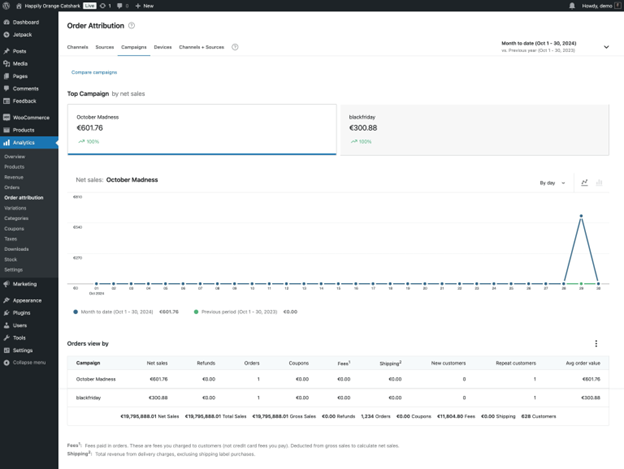
C. Orders by Campaign
-
- Monitors how particular marketing initiatives affect sales.
- Useful for analyzing Google Ads, Facebook Ads, and email promotions.
- Helps businesses adjust ad spending and improve campaign effectiveness.
D. Orders by Device
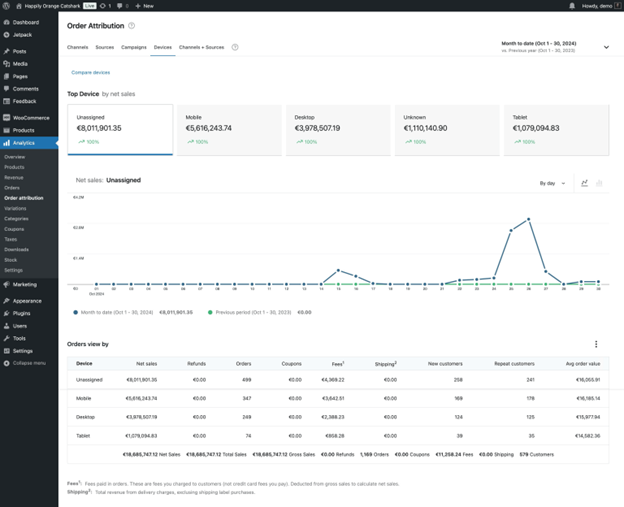
-
- Breaks down orders based on desktop, mobile, and tablet users.
- Shows which device types have higher conversion rates.
- Helps optimize the store for better mobile shopping experiences.
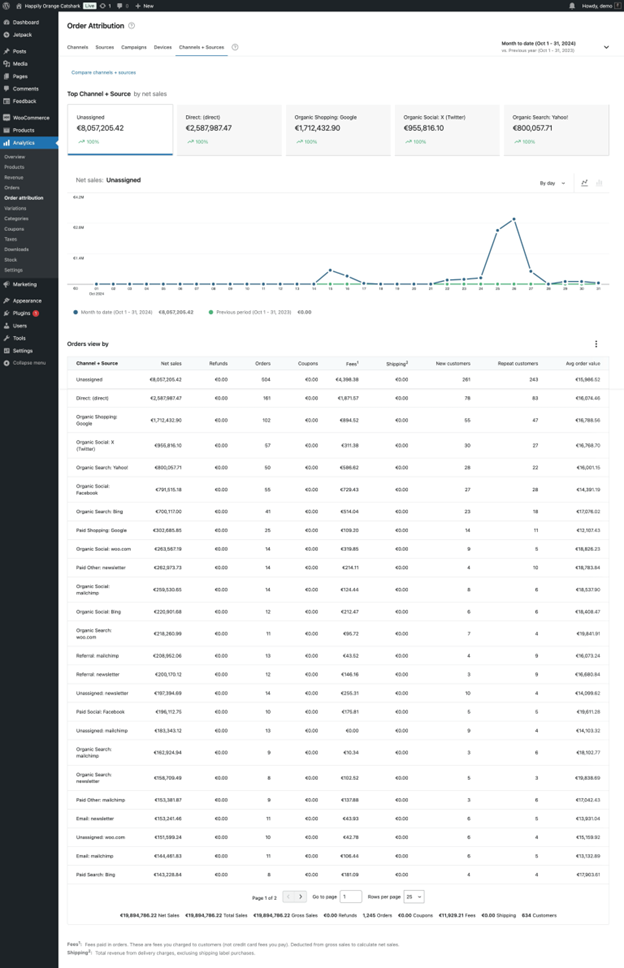
E. Orders by Channel and Source
-
- A combined view of marketing channels and traffic sources.
- Example: Organic search (Google), Paid ads (Facebook), or Social media (Instagram).
- Helps businesses create better-targeted marketing strategies.
- Optimizing Marketing Spend with Order Attribution
- Spend less on underperforming marketing channels and more on lucrative ones.
- Improve SEO strategies if organic search brings more sales.
- Increase ad budget on platforms that drive high-value customers.
Store owners may boost sales and make more informed marketing decisions by using this report.
Benefits of Using WooCommerce Analytics
WooCommerce Analytics provides insightful information that enhances company performance. These are the main advantages for shop owners.
- Data-Driven Decision-Making
-
- Business growth depends on understanding store performance.
- Reports help in making informed pricing, marketing, and inventory decisions.
- Store owners can plan strategies based on real sales data, not guesswork.
- Profit & Revenue Tracking
-
- Monitor total and net revenue to understand financial health.
- Identify which months or seasons generate the highest sales.
- Use revenue trends to set realistic business goals.
- Better Customer Targeting & Retention
-
- Identify new vs. returning customers using customer insights reports.
- Create personalized marketing campaigns for better engagement.
- Offer discounts or loyalty rewards to increase customer retention.
- Optimizing Product Listings for More Sales
-
- Keep track of the best-selling and underperforming products.
- Adjust pricing or marketing for slow-moving inventory.
- Focus on products with higher demand to maximize profit.
- Improved Inventory Management
-
- Keep an eye on inventory levels in real time to avoid stockouts.
- Avoid overstocking items that aren’t selling well.
- Use inventory data to plan restocking at the right time.
- Higher Conversion Rates
-
- Track conversion rates to see how many visitors become buyers.
- Determine the checkout process’s drop-off places.
- Improve checkout and website to increase completed purchases.
WooCommerce Analytics vs. Other Reporting Tools
WooCommerce Analytics provides powerful built-in reporting features. However, some store owners may consider third-party reporting tools. Let’s compare WooCommerce Analytics with other popular reporting solutions.
- WooCommerce Analytics vs. Standard WooCommerce Reports
Before WooCommerce 4.0, WooCommerce had basic reporting features. The older reports lacked detailed insights and customization options. WooCommerce Analytics offers:
-
- A modern dashboard with visual charts and filters.
- Order Attribution Reports to track customer sources.
- Advanced sales tracking with real-time data.
- WooCommerce Analytics vs. Google Analytics
WooCommerce and Google Analytics offer valuable business insights. However, they serve different purposes based on tracking needs. WooCommerce Analytics tracks store performance and sales data. Google Analytics offers a comprehensive view of website traffic. It also tracks visitor activity. Here is a comparison between them:
- Revenue & Order Tracking: WooCommerce and Google Analytics track sales and revenue. They also monitor completed orders to help analyze store performance. WooCommerce Analytics provides detailed insights on product performance.
- Traffic Source Analysis: Google Analytics is excellent at determining the origins of visitors. WooCommerce Analytics focuses only on order sources to track customer purchases. It helps store owners identify which channels generate the most sales.
- Customer Behavior Insights: Google Analytics tracks user behavior in detail, including bounce rates. It also monitors session duration to analyze visitor engagement. It also monitors page views to analyze visitor engagement and interactions. WooCommerce Analytics focuses on consumer behavior. It tracks average order value and new vs. returning customers.
- eCommerce Tracking Features: Google Analytics offers detailed reports on shopping behavior and trends. Enhanced eCommerce Tracking helps monitor customer interactions and purchase activity. It tracks checkout steps, abandoned carts, and overall customer purchasing patterns. WooCommerce Analytics does not have advanced tracking for abandoned carts. However, it still provides order attribution and insights into product sales performance.
- Ease of Use: WooCommerce Analytics is built into WooCommerce and requires no extra setup. Google Analytics needs manual integration using tracking codes or plugins.
- Best Use Case: If you want detailed sales and product performance reports, WooCommerce Analytics is ideal. If you want a full view of website traffic and visitor behavior, use Google Analytics. It also helps track marketing performance and campaign effectiveness in detail.
Store owners should combine Google and WooCommerce Analytics for best results. This combination shows store performance and visitor behavior. 🚀
- WooCommerce Analytics vs. Third-Party Reporting Plugins
Some store owners use paid plugins for enhanced reporting. Popular options include:
- Metorik – Offers automation tools and real-time information.
- MonsterInsights – Connects Google Analytics with WooCommerce.
- Putler – Offers sales forecasting and customer segmentation.
WooCommerce Analytics is ideal for most consumers. It is free and integrated.
Common Issues & Troubleshooting
WooCommerce Analytics is reliable, but some users may face issues. Common issues and solutions are listed below.
- WooCommerce Analytics Data Not Showing
If reports show incomplete or missing data, try these solutions:
- Make sure the most recent version of WooCommerce is installed.
- Go to WooCommerce > Status > Tools > Clear Analytics Cache.
- Check if data tracking is enabled in WooCommerce settings.
- Reports Show Incorrect Sales or Orders
If sales figures don’t match actual store sales, check:
- If historical data is fully imported under Analytics > Settings.
- Whether refunds, discounts, or canceled orders are affecting reports.
- If timezone settings match your store’s actual time zone.
- Missing Order Attribution Data
If Order Attribution Reports are blank or missing:
- Ensure tracking is enabled for orders and customer sessions.
- Check for conflicts with Google Analytics or other tracking plugins.
- Allow time for data syncing, as some reports update overnight.
- Dashboard Loading Issues
If the analytics dashboard is slow or not loading:
- Clear the browser cache and refresh the page.
- Turn off any incompatible third-party plugins and check again.
- Increase server memory limit if using a shared hosting plan.
Most WooCommerce Analytics issues are fixed with settings and updates.
Conclusion
WooCommerce Analytics is an essential tool for online store owners. It provides insights into sales, customer behavior, and marketing.
The Order Attribution Report tracks which channels drive the most sales. Store owners use tracking and reports to grow their business.
WooCommerce Analytics is an effective, cost-free reporting solution. In comparison to other analytics tools, it is also user-friendly. Regular updates and integrations make it a top choice for store owners.
If you haven’t explored WooCommerce Analytics yet, start using it today! It helps increase profitability and inform business decisions.



