What Servers Does WordPress Use, and Where Are They Located? WordPress.com vs Self-Hosted
Table of Contents
- Introduction: Why Server Location Matters for WordPress
- Quick Clarity: WordPress.com vs Self-Hosted WordPress
- Does WordPress Have Its Own Servers? The Real Answer
- Where Is WordPress Hosted? Two Different Meanings
- WordPress.com Server Location: How It Works in Practice
- Self-Hosted WordPress: Choosing Your Host and Server Region
- How to Check Where My WordPress Site Is Hosted (Step-by-Step)
- WordPress.com vs Self-Hosted: Which Fits Your Site Best?
- Best Practices to Improve Speed Regardless of Server Location
- Conclusion
Introduction: Why Server Location Matters for WordPress
Your website runs on a server that stores site files. A server is a powerful computer in a data center. When someone visits your site, their device requests data. The server sends pages, images, and scripts back fast. This is why WordPress server location matters for real users. A closer server usually responds faster and feels smoother. A far server may add delay during every page load. This delay can hurt the visitor experience over time. It can also affect how search engines view performance signals. Many site owners ask where is WordPress hosted because it impacts speed. They also want fewer timeouts during busy traffic hours. Server location is not the only factor, though. Your theme, plugins, and caching also matter a lot. Still, location is a strong starting point for performance planning.
Server location can affect many practical site areas, like:
- Page load time for new visitors and repeat visitors
- Checkout, login, and form submission response time
- Media delivery, like images, PDFs, and video previews
- Stability during traffic spikes and campaign launches
Quick Clarity: WordPress.com vs Self-Hosted WordPress
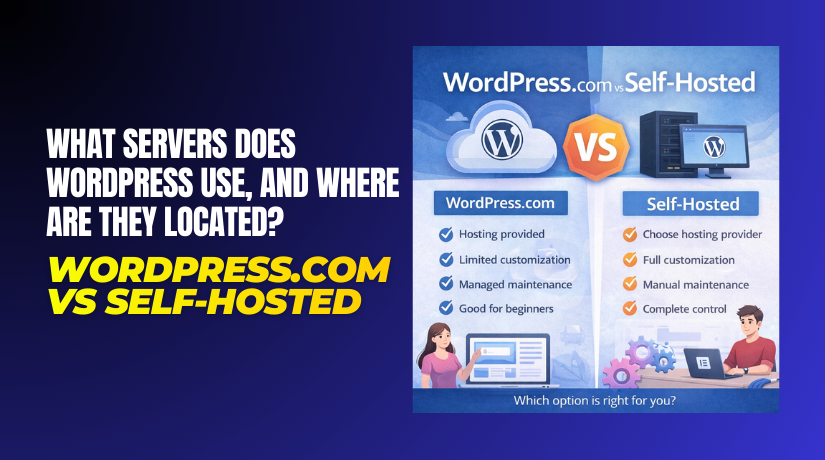
Many people mix up WordPress.com and self-hosted WordPress. Both can look similar on the front end. But they run on different hosting setups behind the scenes. This is why people ask does WordPress have its own servers. The answer depends on which WordPress you use. WordPress.com is a hosted platform with managed infrastructure. You create a site, and hosting is handled for you. You do not pick a host or manage server settings. The platform controls updates, security, and core tuning.
Self-hosted WordPress uses the WordPress software you install. This setup is often explained as WordPress.org hosting vs WordPress.com. WordPress.org provides the software, not a hosting service. You choose a hosting provider and pick a server plan. Your host decides the data center options and resources.
Here is the simplest way to compare both choices:
- WordPress.com: hosting included, fewer setup tasks, less control
- Self-hosted: hosting chosen by you, more control, more responsibility
Does WordPress Have Its Own Servers? The Real Answer
Many beginners ask, does WordPress have its own servers. The confusion happens because “WordPress” means two things. One is the WordPress software you install yourself. The other is the WordPress.com service that hosts sites for you. If you use the software on your own hosting, WordPress does not provide servers. Your hosting company provides the server, storage, and network. You rent those resources as part of your hosting plan. In this case, WordPress is only the tool running on it.
If you use WordPress.com, the platform handles hosting for you. That means WordPress.com runs your site on its managed systems. You do not need to buy hosting separately. You also do not manage server settings, updates, or security rules. This is why some people think WordPress always owns servers. The truth is simple and depends on your setup choice.
Where Is WordPress Hosted? Two Different Meanings
People also ask where is WordPress hosted for a clear reason. They want to know where their site actually lives online. But “hosted” can mean two different things here. So you must first confirm what type of WordPress you use.
Hosted for WordPress.com Sites
If your site is on WordPress.com, hosting is part of the service. That includes your WordPress.com server location handling behind the scenes. You focus on content, design, and basic settings.
Hosted for Self-Hosted WordPress Sites
If your site is self-hosted, hosting depends on your provider. Your WordPress server location depends on the data center you choose. Some hosts let you select a region during setup. Others assign a location based on your plan.
Here is the quick way to remember it:
- WordPress.com: hosted by the platform, location handled for you
- Self-hosted: hosted by your provider, location depends on your choice
WordPress.com Server Location: How It Works in Practice
Many site owners ask about WordPress.com server location for speed reasons. They want to know how close the server is. They also want to reduce loading delay for visitors. The truth is slightly different from simple hosting plans. WordPress.com works like a managed hosting platform at scale. It is built to serve traffic from different places smoothly. Because of this setup, the “server location” is not always one fixed point. Your site content can be delivered through multiple layers.
So, where are WordPress.com servers located in real use? WordPress.com runs on large infrastructure designed for uptime. It uses distributed systems that can route visitors efficiently. That routing may send a visitor to the nearest available path. It can also send requests through performance networks for faster delivery. This is why exact locations are not always shown clearly. Still, the platform aims to deliver quick responses worldwide.
What “Server Location” Means on a Hosted Platform
With WordPress.com, you do not select a data center manually. The platform manages resources based on need and load. It may also move workloads to keep things stable. That is normal for large hosted services. Your site can still feel fast without a fixed server city. The key is how the platform delivers your pages.
This delivery often includes:
- Smart routing to reduce delay and improve response time
- Caching to serve repeat requests much faster
- Content delivery layers that speed up images and scripts
- Load handling during traffic spikes and busy launch days
Why Caching and CDN Can Change Location Results
If you run a location check tool, results may confuse you. A tool may show a nearby network point instead. It may not show the original server each time. That happens when caching or a delivery network serves the page. In simple terms, your content can be stored closer to visitors. This reduces time, even if the main origin is farther. That is why WordPress server location checks can show mixed results. It depends on what layer responded to the request.
What You Should Expect From WordPress.com Hosting
WordPress.com focuses on managed performance and stability. You get hosting without server setup work. You also get platform decisions made for speed and security. If your main goal is simple hosting, it fits well. If you need full control over regions, self-hosted works better.
Self-Hosted WordPress: Choosing Your Host and Server Region
Self-hosted WordPress gives you more control over hosting choices. You install WordPress on a hosting plan you buy. Your hosting company provides the server, storage, and network. This is a key difference in WordPress.org hosting vs WordPress.com. With self-hosting, you can often select a server region. Some hosts show this during checkout or account setup. Others let you change regions using support or migration tools.
Choosing a good region is not about guessing a city. It is about reducing delay for most visitors. If your audience is spread out, a central region can help. If most visitors are in one area, a closer region helps more. This is why people search best server location for WordPress website. They want faster load times and better user experience.
When Choosing a Closer Region Helps Most
A closer origin server can make your site feel quicker. It can reduce time during each request and response. You may notice this more on dynamic pages and forms. It can also help during checkout and account actions.
A closer region helps most when your site has:
- Login pages with frequent user sessions and checks
- Checkout pages with cart updates and payment requests
- Membership dashboards with many dynamic sections
- Booking forms, quote forms, and file upload forms
When a CDN Matters More Than the Origin Location
Many sites use a CDN to speed up content delivery. A CDN stores copies of assets closer to visitors. It can deliver images, CSS, and JavaScript much faster. This reduces the work your origin server must do. It also reduces load time for new visitors.


A CDN is very helpful when:
- Your visitors come from many places worldwide
- Your site has many images and large media files
- You want faster load times without changing your host
- You run campaigns that create sudden traffic spikes
Even with a CDN, origin location still matters for dynamic tasks. Things like login, checkout, and database queries still hit the origin. So you should balance both for the best results.
Common Scenarios to Pick a Smart Region
You can choose a region using your visitor pattern and site type. Start by checking where most traffic comes from. Use your analytics and server logs if available. Then choose the closest region to your main traffic cluster.
Here are simple, common decision patterns:
- Local business site: choose the closest region to customers
- Global blog site: choose a stable region plus a CDN
- Online store: choose a close region for faster checkout actions
- Membership site: choose a close region for smoother dashboards
How to Check Where My WordPress Site Is Hosted (Step-by-Step)
Many owners want quick proof of their hosting provider. They also want to confirm the real server region. This is why people search how to check where my WordPress site is hosted. The steps below work for most WordPress sites. You do not need deep technical skills to start. You only need access to your WordPress login and domain settings.
- Check Your Account and Billing Details
The easiest clue is your account and payment history. If you pay WordPress.com for your plan, that is hosting. In that case, where is WordPress hosted is answered by WordPress.com. Your site runs on the WordPress.com platform infrastructure. You may not see a simple server city in settings. But you will see plan and site ownership clearly.
If you use self-hosted WordPress, check your hosting invoices. Look for the company name, plan name, and login URL. Hosting dashboards usually show the server product you own. Some dashboards also show data center or region information.
Quick places to check first:
- Your email inbox for hosting welcome messages
- Your payment records for monthly or yearly hosting charges
- Your hosting control panel for server and plan details
- Your domain registrar account for connected services
- Check DNS and Nameservers
Nameservers often reveal who manages your DNS setup. They can also hint at your hosting provider. Open your domain registrar dashboard and find nameserver settings. If nameservers point to a hosting brand, that brand may host the site. Sometimes nameservers point to a DNS service instead. That is still helpful, but not final proof.
Nameservers help you identify:
- The DNS provider handling your domain records
- The service controlling DNS changes and routing
- A strong clue about hosting in many common setups
Nameservers do not always show:
- The exact server region or data center
- The real origin server if a CDN sits in front
- The hosting provider when DNS and hosting are separate
So, treat nameservers as a clue, not a final answer.
- Use a Hosting Lookup Tool
If you want a faster check, use a hosting lookup tool. These tools test your domain and show the IP address. They also show the network owner and server provider hints. This can help confirm WordPress server location details at a high level. It can also show whether a CDN is in use.
When you run a lookup, you may see:
- An IP address linked to your domain
- The network name or organization owning that IP
- A rough region guess based on network routing
- CDN detection that explains mixed location results
Important note: a CDN can hide the origin server. If a CDN serves your pages, the IP may belong to it. That does not mean your host is the same company. It only means the CDN is responding to visitors. This is common for performance and security.
- Confirm the Real Server Region With Your Host
If you need the exact answer, ask your host directly. This is the best way to confirm the origin region. Ask a short, clear question and request a direct reply. This also helps if you plan to change regions later.
Use this message with support:
- “Please confirm my site’s server region and data center.”
- “Can you tell me the origin server location for my domain?”
- “Is my site using any proxy or CDN layer right now?”
This step removes guesswork and avoids wrong assumptions. It also helps you plan the best server location for WordPress website goals.
WordPress.com vs Self-Hosted: Which Fits Your Site Best?
Now you can compare both options with more clarity. The choice depends on control, budget, and effort level. WordPress.com is a hosted platform with managed systems. You get setup speed and fewer technical tasks to handle. Self-hosted WordPress gives you freedom and deep control. You choose the hosting plan, server power, and region options. This is the core difference in WordPress.org hosting vs WordPress.com. If you want full control over settings, self-hosting wins. If you want fewer tasks, WordPress.com feels easier.
Choose WordPress.com when you want:
- Simple setup with hosting included and managed updates
- Less server work and fewer technical decisions
- A stable platform with built-in performance layers
Choose self-hosted WordPress when you need:
- More control over plugins, themes, and server tools
- Region selection for best server location for WordPress website goals
- Better flexibility for custom features and special setups
Best Practices to Improve Speed Regardless of Server Location
Server distance matters, but your site setup matters too. You can improve speed on both hosting types using smart steps. Focus on reducing page weight and server work per request. Keep your site clean and avoid heavy features you do not need.
Use these practical speed improvements:
- Enable caching to reduce repeated server processing
- Compress images and use modern image formats when possible
- Limit plugins and remove unused tools from the dashboard
- Keep themes, plugins, and WordPress core updated regularly
- Use a CDN if visitors come from many regions
These steps support a healthier WordPress server location impact overall. They also improve stability during traffic spikes and busy hours.
Conclusion
So, where is WordPress hosted depends on your WordPress choice. WordPress.com hosting is handled by the platform automatically. Self-hosted WordPress depends on your chosen hosting provider. If server control matters most, pick self-hosted WordPress. If simplicity matters most, WordPress.com is a strong option. Still unsure about hosting, regions, or performance fixes? WooHelpDesk can help you check your setup and improve speed. We can guide you with clear steps and real solutions.