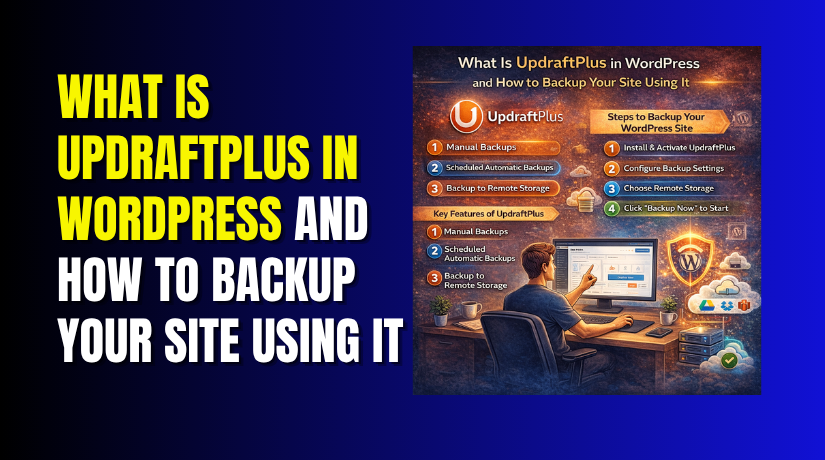
What Is UpdraftPlus in WordPress and How to Backup Your Site Using It
Table of Contents
- Introduction to UpdraftPlus in WordPress
- What Is UpdraftPlus in WordPress?
- What UpdraftPlus Is Used for on a WordPress Website
- Why Using a Backup Plugin Like This Matters Before You Touch Your Site
- How to Install and Open the Plugin in WordPress
- Step-by-Step: How to Back Up Your WordPress Site Using the Plugin
- How to Restore a Backup When Something Goes Wrong
- Best Practices to Follow When Backing Up a WordPress Site
- Conclusion
Introduction to UpdraftPlus in WordPress
Running a WordPress site without backups is always a risk. A small update can fail and break key pages. A plugin conflict can affect design, speed, or login access. In some cases, server errors or file damage can also cause trouble. That is why every website owner should keep regular backups. A working backup gives you a safe copy of your site. You can use it when something goes wrong and restore normal website function faster.
If you are looking for an easy backup plugin, UpdraftPlus is a popular choice. Many website owners use it to protect their content, media files, themes, plugins, and database. It helps reduce stress before updates and major website changes. This is why UpdraftPlus WordPress backup searches are so common among WordPress users today. In this guide, you will learn what is UpdraftPlus in WordPress and why many users trust it for website protection.
What Is UpdraftPlus in WordPress?
So, what is UpdraftPlus in WordPress? It is a WordPress plugin made for backups and restores. It helps you save a copy of your website data. That copy can be used later if your site breaks. This makes it useful for both small blogs and business websites.
UpdraftPlus is designed to make backups simple for regular users. You do not need deep technical skills to use it. The plugin works from your WordPress dashboard and gives you clear backup options. It also helps users understand how to use UpdraftPlus in WordPress without a confusing setup process.
A backup created by this plugin can include important website parts such as:
- WordPress database
- Themes
- Plugins
- Media uploads
- Other site files
This means your backup can cover both content and settings. That is very helpful when you need full website recovery. Many users also look for UpdraftPlus backup and restore WordPress solutions because the plugin supports both backup creation and restore actions in one place.
In simple words, UpdraftPlus is a safety tool for WordPress websites. It helps you prepare before problems happen. It also gives you a better chance to recover your site quickly. Before learning how to backup WordPress using UpdraftPlus, it is important to understand that this plugin is made to protect your website from unexpected loss.
What UpdraftPlus Is Used for on a WordPress Website
After learning what is UpdraftPlus in WordPress, the next step is understanding its real use. This plugin is not only for one-time backups. It helps website owners protect their site before changes, store safe copies, and recover faster after problems. That is why many users search for how to use UpdraftPlus in WordPress when managing their website safely.
One common use is creating a manual backup before important work. For example, you may update WordPress core, install a new plugin, change your theme, or edit important settings. These changes can sometimes create errors. A backup gives you a safe version of the site before the change starts. This is one reason UpdraftPlus WordPress backup is useful for daily website maintenance.
Another important use is scheduled backups. Instead of creating every backup by hand, you can set a backup schedule. This helps your website stay protected on a regular basis. It is very helpful for business websites, blogs, and WooCommerce stores that change often.
UpdraftPlus is also used for safer backup storage. You can keep backup files in a remote location instead of only your server. This adds more protection if the server has a problem.
Website owners often use UpdraftPlus for these tasks:
- Manual backups before updates or edits
- Automatic backups on a schedule
- Backup storage in a safer location
- Site restore after an error or failed change
- Protection before plugin or theme installation
These uses make UpdraftPlus backup and restore WordPress support very practical for real users. It is not only about saving files. It is about keeping your website recoverable when problems happen.
Why Using a Backup Plugin Like This Matters Before You Touch Your Site
Many website problems start during small changes. A plugin update may break features. A theme edit may affect layout. A wrong setting may block pages or login access. Even a small mistake can create a bigger issue.
That is why using a backup plugin before changes is a smart habit. A fresh backup gives you a recovery point. If something goes wrong, you do not need to rebuild the site from nothing. You can go back to a working version faster.
This is also why people ask how to backup WordPress using UpdraftPlus before doing updates. Backups reduce risk, save time, and protect your work. For any WordPress website, that kind of safety is always worth having.
How to Install and Open the Plugin in WordPress
Before you start the backup process, you need to install the plugin. This step is simple and takes only a few minutes. If you are learning how to use UpdraftPlus in WordPress, this is the first thing to do. Once the plugin is active, you can open its settings and begin creating backups for your website.
Start by logging in to your WordPress dashboard. On the left side menu, click Plugins and then click Add New Plugin. In the search box, type UpdraftPlus. When the plugin appears in the list, click Install Now. After installation finishes, click Activate.
Once the plugin is active, you can open it from the dashboard. In most cases, you can go to Settings and then click UpdraftPlus Backups. This will open the main area where you manage backups, restore points, storage settings, and schedules.
This setup process is important because it gives you access to the full UpdraftPlus WordPress backup system from one place. You do not need to edit files or use complex hosting tools. Everything works from the WordPress admin area, which makes the plugin beginner-friendly and practical for daily website care.
Step-by-Step: How to Back Up Your WordPress Site Using the Plugin
If you want to learn how to backup WordPress using UpdraftPlus, follow these steps carefully. The process is simple, but each step matters. A correct setup helps make sure your backup is complete and ready when you need it.
Step 1: Open the Backup Settings
Go to your WordPress dashboard and open the plugin settings page. This is where you control backup options. You will see tabs for current status, settings, restore, and existing backups. Start from the settings area so you can prepare the backup correctly.
Step 2: Choose Where to Store the Backup
Next, choose the location where the backup will be saved. This step is very important. If you keep the only backup on the same server, it may not help during server problems. A remote storage location gives better safety.
A backup can be stored in places such as:


- Google Drive
- Dropbox
- Other remote storage options
This is one reason many users trust UpdraftPlus backup and restore WordPress tasks through this plugin. It gives more than one way to protect backup files.
Step 3: Set the Backup Schedule
Now choose how often the plugin should create backups. You can set a schedule for files and another schedule for the database. This is useful because website files and database content may change at different times.
For example:
- Files may change when you upload media or change themes
- Database changes happen with posts, pages, orders, and comments
Also choose how many backup copies you want to keep. This helps you maintain recent recovery points without saving too many old files.
Step 4: Save the Settings
After selecting storage and schedule options, click the save button. This step makes sure your preferences are stored correctly. Do not skip it. If the settings are not saved, the backup may not run the way you expect.
Step 5: Create a Manual Backup
Now it is time to create your first backup. On the main backup screen, click Backup Now. A popup will appear with backup choices. Make sure the needed items are included, then start the backup process.
This is the main action people mean when they ask what is UpdraftPlus in WordPress and how it helps. It gives users a direct way to protect their site before anything risky happens.
Step 6: Check That the Backup Finished Properly
After the process ends, scroll to the Existing Backups section. Here you can confirm that the backup appears in the list. This means the backup was created and is available later if needed.
Once this is done, you have completed a basic UpdraftPlus WordPress backup successfully.
How to Restore a Backup When Something Goes Wrong
Knowing how to backup WordPress using UpdraftPlus is important. But knowing how to restore a backup matters just as much. A backup is only helpful when you can use it during a problem. If your website breaks after an update, theme change, plugin install, or file error, UpdraftPlus gives you a simple restore path.
To begin, open your WordPress dashboard and go to the UpdraftPlus backup area. Scroll down to the Existing Backups section. This area shows the backups you created earlier. Choose the correct backup version based on the time and date. Try to pick the version made before the issue started.
Next, click the Restore button beside that backup. The plugin will ask what you want to restore. You can choose the parts that match your problem.
Common restore options include:
- Plugins
- Themes
- Uploads
- Database
- Other files
This makes UpdraftPlus backup and restore WordPress tasks more flexible. You do not always need to restore the whole site. In some cases, restoring only the database or plugins is enough.
After choosing the needed items, continue the restore process. Let the plugin finish fully before leaving the page. Once it is done, visit your website and check the affected pages. Also test login, forms, menus, and key functions. This helps confirm the restore worked properly.
Best Practices to Follow When Backing Up a WordPress Site
If you want to understand how to use UpdraftPlus in WordPress the right way, follow a few smart habits. Good backup practice reduces stress and helps you recover faster.
Use these simple backup habits:
- Create a manual backup before updates or major changes
- Store backups in a remote location, not only on hosting
- Keep more than one recent backup copy
- Check that each backup finishes without errors
- Review backup dates so you know which one to restore
These habits make your UpdraftPlus WordPress backup process safer and more useful over time.
Conclusion
Now you know what is UpdraftPlus in WordPress and why it matters. You also understand the basics of backup and restore. A reliable backup gives your website a safety net before problems grow. If you want help setting up backups, fixing restore issues, or protecting your WordPress site, WooHelpDesk can support you with practical WordPress help.