What Is the WordPress Admin Dashboard and How Do You Access It?
Table of Contents
- Introduction: Why the Dashboard Matters
- WordPress Admin Dashboard: What It Is and What You Can Do There
- WP-Admin Explained: What It Is and Why It Exists
- WordPress Dashboard vs Admin Panel: Are They the Same Thing?
- How to Access the WordPress Admin Dashboard (Step-by-Step)
- Common Problems When Logging In (And Quick Fixes)
- Basic Security Tips for Admin Access
- Conclusion
- FAQs
Introduction: Why the Dashboard Matters
Running a WordPress website becomes easier with the right tools. The most important tool is the admin area where you manage everything. This is where you edit pages, publish posts, and control site settings. You also use it to install plugins and change your site design. This section saves time every day if you manage a business website. It helps you keep content updated and your site running smoothly. Many beginners feel confused on the first login. That is normal, because WordPress offers many options at once. Once you understand the dashboard, your work becomes faster and simpler. In this guide, you will learn the WordPress dashboard meaning in a clear way. You will also understand what is WordPress admin dashboard and why it matters.
WordPress Admin Dashboard: What It Is and What You Can Do There
The “Control Center” of Your WordPress Website
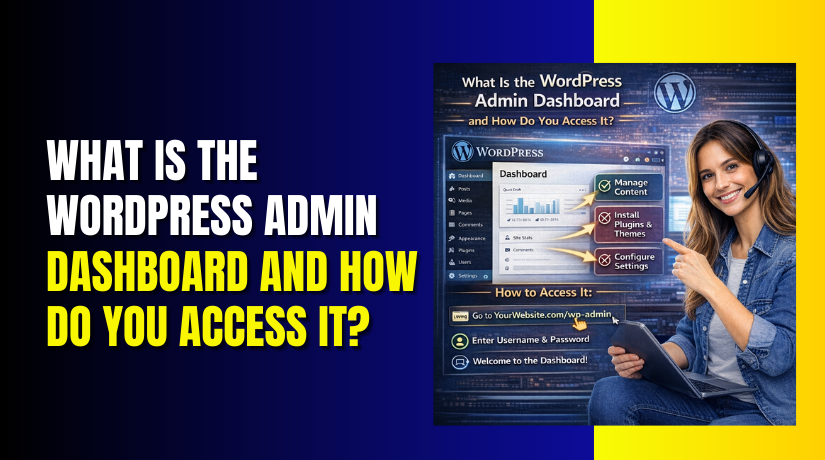
The WordPress admin dashboard is the private control room of your site. It is only accessible by authorized users that are logged in. When people ask what is WordPress admin dashboard, the simple answer is this. It is the backend area where you manage your whole website. You can use it effectively without knowing how to code. Most tasks happen with clicks, menus, and simple settings.
The WordPress dashboard meaning is easy when you think of it like this. Your website is a store, and the dashboard is your staff room. Customers see the front area, but you run everything from inside. You can update content, review performance, and fix issues from one place.
What You Can Manage from One Place
Inside the admin dashboard, you can control almost every part of WordPress. This includes content, layout, features, and user access. You can also check updates and protect your website security.
The primary functions of the dashboard are as follows:
- Create and publish blog posts for your audience.
- Build pages like Home, About, and Contact easily.
- Use the media library to upload movies, PDFs, and pictures.
- To add additional features without writing custom code, use plugins.
- Change themes to update your website design quickly.
- Manage menus, widgets, and basic site layout settings.
- Add users and control roles like Editor or Administrator.
- For improved security, update WordPress, themes, and plugins.
This is why the WordPress admin dashboard is so important. It keeps your work organized and helps you manage everything faster.
Main Areas You’ll See After Login
After you log in, WordPress opens the Dashboard screen first. This screen shows an overview of your website status. You may see widgets that show updates, activity, and quick drafts. Different sites may show different widgets based on themes and plugins.
You will usually notice these areas right away:
- Left Admin Menu: The main navigation for all sections.
- Top Admin Bar: Quick links for editing and viewing your site.
- Dashboard Widgets: Small boxes showing updates and activity.
- Notices and Alerts: Messages about updates, errors, or plugin needs.
The left admin menu is where most of your work happens. It includes important sections like Posts, Pages, Media, and Plugins. It also includes Settings and Appearance for site control. The top bar helps you switch between frontend and backend quickly. It also shows the “+ New” option for quick content creation.
Common Tasks Beginners Do First in the Dashboard
When you are new, it helps to start with basic tasks. These tasks teach you how WordPress works step by step. After a few tries, the admin area feels very simple.
Here are common beginner tasks inside the dashboard:
- In Settings, modify the site’s tagline and title.
- Set your homepage and blog page display options.
- Create your first page and add simple text.
- Publish your first blog post with a featured image.
- Install a needed plugin like SEO or security.
- Select a theme that reflects your company’s style.
- Create a menu and add pages in the right order.
Each task teaches a new dashboard feature without stress. You also learn where settings are located and how changes apply. This helps you become confident with the admin area.
Quick Tip: Learn the Dashboard Like a Map
The fastest way to learn is simple and practical. Open each menu item and check what it contains. Do not change important settings unless you understand them. Start with Posts, Pages, and Media first. Then explore Appearance, Plugins, and Settings slowly. With this approach, the WordPress dashboard meaning becomes clear quickly. You will also understand what is WordPress admin dashboard with real use, not theory.
WP-Admin Explained: What It Is and Why It Exists
What “wp-admin” Actually Refers To
Many WordPress guides mention “wp-admin” during login steps. Beginners often think it is a plugin or special tool. But it is not a plugin and not an extra feature. It is simply the main admin area path used by WordPress. When someone asks what is wp-admin in WordPress, the answer is simple. It is the backend section where you manage your website settings. It also includes files and folders that support the admin screens.
In most WordPress sites, your admin URL looks like this:
- yourdomain.com/wp-admin/
When you open this URL, WordPress checks if you are logged in. If you are not logged in, it redirects you to the login page. After login, it sends you back to the admin dashboard area.
WP-Admin vs the Public Website
Your WordPress site has two sides that work together. One side is for visitors and customers. The other side is for you and your team members. WP-Admin is the private side, also called the backend. Your public site is the frontend that everyone can see.
Here is a simple difference to remember:
- Frontend: What visitors see on your website pages.
- Backend (wp-admin): Where you manage content and settings.
For example, visitors can read your blog posts and buy products. But they cannot edit pages or install plugins. Only logged-in users with proper roles can do that. This separation keeps the site safer and more controlled.
When You’ll Hear People Say “wp-admin”
You will hear “wp-admin” in many common WordPress situations. It is mostly used in support guides and quick instructions. Hosting companies also use it in tutorials.
You may see “wp-admin” mentioned when:
- You need to log in to your WordPress website.
- A developer asks for an admin login test link.
- A plugin guide says “Go to wp-admin and open Plugins.”
- You troubleshoot login errors or access problems.
- You set up security rules for admin protection.
So, what is wp-admin in WordPress in daily use? It is the main entry point to manage WordPress from the backend. Once you know this, many tutorials become easier to follow.
WordPress Dashboard vs Admin Panel: Are They the Same Thing?
Clear Meaning of “Dashboard” Inside WordPress
In WordPress, the “Dashboard” is also a specific screen. It is the first screen you usually see after login. It shows an overview of your site and quick shortcuts. This is where WordPress displays site activity and alerts.
The Dashboard screen may show things like:
- Quick Draft for fast post ideas.
- Activity widget with recent posts and comments.
- WordPress events and news section.
- Update notices for plugins and themes.
So, the dashboard is a part of the admin area. It is not the full admin area itself.
What People Mean by “Admin Panel” in WordPress
The “admin panel” usually means the full backend interface. It includes all menus and all management pages. It covers everything from writing posts to changing settings. It also includes theme editing, plugin control, and user management.
The admin panel includes:
- Dashboard
- Posts and Pages
- Media Library
- Comments
- Appearance
- Plugins
- Users
- Tools and Settings
So, the admin panel is the complete control area. The dashboard is one screen inside that control area.
WordPress Dashboard vs Admin Panel: Simple Comparison
Many beginners search this comparison when learning WordPress. The confusion happens because both terms feel similar. But they have different meanings in real use. The best way to understand WordPress dashboard vs admin panel is to compare their scope.
Here is a simple comparison you can remember:
- Dashboard: The “home screen” after you log in.
- Admin Panel: The full backend system with all menus.
Another way to think about it is this:
- The dashboard is like a welcome page with quick updates.
- The admin panel is the whole office with every tool.
How to Access the WordPress Admin Dashboard (Step-by-Step)
Accessing your admin area is usually quick and simple. Still, many beginners get stuck on the first try. The good news is that WordPress offers a few easy ways. Once you learn the right method, you can log in anytime. In this part, you will learn how to access WordPress admin dashboard safely. You will also learn what to do if the login link changes.
Standard Login URLs Most WordPress Sites Use
Most WordPress websites use the same default login paths. These URLs work on almost every normal setup. You only need your domain name and the correct ending path.
The two most common WordPress admin URLs are:
- https://yourdomain.com/wp-admin/
- https://yourdomain.com/wp-login.php
Both URLs usually reach the same login system. But they work a little differently. The /wp-admin/ link is the admin area entry point. If you are not logged in, it redirects to the login page. The /wp-login.php link opens the login page directly.
Access Method 1: Use the Direct URL in Your Browser
This is the fastest and most common way to log in. It works on desktop, laptop, and mobile browsers. You only need your website address and login details.
Follow these steps:
- Open Chrome, Safari, Edge, or any trusted browser.
- Type yourdomain.com/wp-admin/ in the address bar.
- Press Enter and wait for the login page to load.
- Enter your username or email address in the first field.
- Enter your password in the second field carefully.
- Click the Log In button to continue.
- You will land inside the WordPress admin dashboard area.
If your login details are correct, you will see the backend menu. You will also see the Dashboard screen and admin toolbar. This confirms you logged in successfully.
Access Method 2: Use a Hosting Dashboard Shortcut
Many hosting companies offer a WordPress login button. This shortcut is helpful for new site owners. It also helps when you forget the exact admin link. In the USA, many hosts include a one-click admin login option.
The exact steps depend on your hosting company. But the flow is usually similar on most hosts.
Typical steps look like this:
- Log in to your hosting account dashboard.
- Open your website or hosting control panel area.
- Find a section like WordPress, Websites, or Site Tools.
- Click WordPress Admin or Log in to WordPress.
- Your host may log you in automatically or open login.
- You will reach the WordPress admin dashboard screen.
Important note:
Your hosting dashboard is not the WordPress dashboard. Hosting controls servers, domains, and backups. WordPress controls pages, posts, and site features.
Access Method 3: Use “Remember Me” and Password Managers Safely
WordPress shows a “Remember Me” option on the login screen. It keeps you signed in for longer sessions. This can save time if you log in many times daily. But you should use it only on personal devices.
Use “Remember Me” when:
- You use your own laptop or work computer daily.
- No one else uses the same browser profile.
- You already use strong passwords and basic security.
Avoid “Remember Me” when:
- You use a public computer or shared device.
- You are logging in from a café or coworking space.
- Your browser is not protected with a password.
A password manager is often a better choice than saving passwords. It stores strong passwords safely and fills them quickly. It also reduces typing mistakes that cause login failures.
Best practice:
Use a password manager and enable two-factor login if possible.
If the WordPress Login URL Was Changed
Sometimes, the default wp-admin login does not work. This often happens due to security reasons. Many site owners change the login URL to reduce attack attempts. Security plugins commonly offer this feature.
If you open /wp-admin/ and it shows an error, the URL may be changed. You might see a 404 page, redirect loop, or blocked access message.
Here are common reasons the login URL changes:
- A security plugin changed the login path.
- A developer customized the admin access route.
- A firewall rule blocks the default login page.
- A hosting security system limits repeated login attempts.
To find the correct login URL, try these options:


- Check your hosting dashboard WordPress login shortcut.
- Search old emails from your developer or support team.
- Review security plugin settings if you still have access.
- Ask your website admin team for the correct link.
If you are fully locked out:
Use hosting file manager access to review plugin setup. You can also contact your hosting support for guidance. In many cases, they can help you regain access quickly.
Quick Checklist to Access the Dashboard Without Stress
Use this checklist each time you log in for clean results:
- Always use https:// if your site uses SSL.
- Start with /wp-admin/ for the easiest entry route.
- Keep your username and password saved securely.
- Use hosting login shortcuts if you manage multiple sites.
- If login fails, check for a changed login URL.
Once you learn these steps, login becomes a routine task. Now you know how to access WordPress admin dashboard using the safest methods.
Common Problems When Logging In (And Quick Fixes)
Login issues can happen on any WordPress website. Sometimes the issue is minor and simple to resolve. Other times, one setting change blocks admin access fully. The best approach is to stay calm and test one thing at a time. The most frequent login issues and their solutions are covered in this section. These steps work well for most WordPress sites used in the USA.
Wrong Username or Password
The most frequent cause of unsuccessful login attempts is this. It often happens due to typing mistakes or saved old passwords. It also happens when a team member changes the login details.
Try these quick fixes first:
- Check Caps Lock and keyboard language before typing.
- Re-type the password slowly instead of copy-paste.
- Try logging in using your admin email if allowed.
- Click Lost your password? and reset it safely.
- Check if your browser saved an old password version.
Check the spam folder if the reset email does not show up. Also check if your site email system is working. Many sites fail to send emails due to SMTP issues. In that case, you may need hosting support or SMTP setup help.
Login Loop or Too Many Redirects
A login loop means WordPress keeps sending you back to login. You enter details but never reach the dashboard. A “too many redirects” error can also appear in the browser. This issue is often caused by cookies, caching, or URL settings.
Start with these quick steps:
- Clear your browser cache and cookies for the site.
- Try an incognito or private browsing window.
- Disable browser extensions that block scripts or cookies.
- Check if your site loads on HTTP but redirects to HTTPS.
- Confirm WordPress Address and Site Address match properly.
If you recently changed SSL settings, this issue can appear. Mixed settings can cause redirect loops. A CDN or caching plugin can also cause repeated redirects. If you suspect caching, clear plugin cache from hosting tools if possible.
WP-Admin Shows 404 or “This Site Can’t Be Reached”
Sometimes you open the admin URL and see a 404 page. In other cases, the page does not load at all. This can happen due to a changed login URL, DNS issues, or server blocks. It may also occur if the website is down.
Here are quick checks that help:
- Confirm your domain opens on the frontend first.
- Try yourdomain.com/wp-login.php in the browser.
- Remove extra slashes and spaces from the admin link.
- Check if a security plugin changed the login URL.
- Try from another network to rule out IP blocking.
If the site loads for others but not you, it may be IP blocked. Security plugins and firewalls often block repeated failed attempts. In that case, wait a little and try again carefully. You can also ask hosting support to remove the block.
Locked Out After Updates or Security Rules
Some users get locked out right after an update. A plugin update can cause a conflict. A security rule can also block access suddenly. You may see a blank page, “Forbidden,” or an error message.
Try these safe recovery options:
- Use your hosting WordPress login shortcut if available.
- Check if your host has a security dashboard for blocks.
- Restore a recent backup if the update caused the issue.
- Disable the last plugin using file manager if needed.
If you can access hosting file manager, you can disable a plugin. You do this by renaming the plugin folder inside wp-content/plugins. WordPress will stop loading that plugin after the rename. This method often brings back admin access quickly.
Important caution:
Do not delete files unless you know the exact impact. Renaming is safer than deleting, because you can undo it.
Quick “Do This First” Checklist
If you want a simple order to follow, use this checklist. It helps you avoid wasting time and guessing.
Follow this order for most login issues:
- Test login in an incognito browser window first.
- Clear cache and cookies if the loop continues.
- Try both /wp-admin/ and /wp-login.php URLs.
- Check if your login URL was changed by security.
- Use hosting tools for blocks, backups, and quick login.
These steps solve most login problems quickly and safely. If none of these work, the issue may be deeper. It could be server rules, database errors, or security cleanup needs.
Basic Security Tips for Admin Access
Your admin area controls your entire WordPress website. If someone breaks in, they can change anything quickly. That is why admin access security matters from day one. Small security steps can stop most common attacks and login abuse. You do not need advanced skills to follow these best practices. You just need consistency and a few smart settings.
Use Strong Passwords and Enable Two-Factor Login
Weak passwords are the easiest target for attackers online. Many bots try common password lists every day. A strong password reduces this risk almost completely. Two-factor login adds another layer for better protection.
Follow these simple password rules:
- Use at least 12 characters for better strength.
- Mix uppercase, lowercase, numbers, and symbols together.
- Avoid names, birthdays, and easy words like “admin123.”
- Use a password manager to store passwords safely.
Two-factor login helps even if your password gets leaked. After your password, it requests a second code. Most security plugins support this option easily.
Limit Admin Accounts and Use Correct User Roles
Many sites have too many admin users without a reason. This increases risk because one weak account can get attacked. You should keep admin access limited to only trusted people. Other team members can work with lower roles safely.
Use roles like these when needed:
- Editor: Can publish and manage content only.
- Author: Can publish their own posts only.
- Contributor: Can write posts but cannot publish.
- Subscriber: Can only manage profile and basic access.
Only give Administrator role when someone truly needs it. Remove old accounts when a person stops working with you. This reduces risk and keeps your site clean.
Keep WordPress, Themes, and Plugins Updated
Updates are not only for new features and design changes. Updates also fix security bugs and compatibility problems. Outdated plugins are one of the biggest hacking reasons. The same is true for old WordPress core versions.
A simple update routine helps a lot:
- Check updates at least one time every week.
- Update plugins first, then themes, then WordPress core.
- Take a backup before major updates for safety.
- Remove plugins you do not use anymore.
If you run a busy business site, set a monthly schedule. This keeps your admin area stable and safer long term.
Avoid Public Wi-Fi Logins Without Protection
Public Wi-Fi networks can be risky for admin access. Some networks can expose your data if not secured well. Logging in without protection can leak session details in rare cases. It is safer to log in using your mobile data or VPN.
Use these safe habits:
- Avoid logging in on airport or café Wi-Fi.
- Use a trusted VPN when you must use public Wi-Fi.
- Always log out after work on shared networks.
- Never save passwords on public or shared devices.
These steps help protect your admin session from unwanted access.
Change the Login URL Only If Needed
Some site owners change the login URL to reduce attacks. This can help if your site gets constant login attempts. But it can also cause confusion for team members. If you change it, save the new link in a secure place.
If you decide to change it, do this safely:
- Use a trusted security plugin with login URL option.
- Save the new login URL in your password manager.
- Keep hosting login access as a backup method.
- Inform your team so no one gets locked out.
This method is helpful, but it is not required for every site.
Getting Help When You Can’t Access the Dashboard
Sometimes login issues go beyond simple fixes and settings. The site may be hacked, blocked, or broken after updates. In those cases, expert help saves time and prevents data loss. If your business depends on your website, delays can cost money.
If you have problems like these, you should get help:
- You cannot access admin even after password reset.
- Your login page shows errors, malware, or strange redirects.
- Your site keeps locking you out without any reason.
- The admin area loads blank after updates or plugin changes.
- Security tools block you and you cannot remove the block.
For third-party support in such cases, you can reach out to WooHelpDesk for guided troubleshooting and recovery help. They can help you regain access and stabilize the site safely.
Conclusion
The WordPress admin area is where you control your full website. It helps you manage content, plugins, users, and key settings daily. Once you understand the dashboard and login methods, work becomes faster. Basic security steps also keep your admin access protected long term. If you are stuck with access issues or admin errors, expert help can save time. Need support with dashboard access, login problems, or security hardening? Contact WooHelpDesk and get quick help from WordPress specialists.
FAQs
1) What is the difference between wp-admin and wp-login.php?
Wp-admin is the admin area entry point for WordPress. It reroutes you to log in if you are not already. The wp-login.php file opens the login page directly. After you sign in, WordPress sends you into wp-admin automatically. Both are normal and safe in default setups. If a site changes login settings, these paths may behave differently.
2) Why does wp-admin redirect me back to the login page?
This usually happens due to cookies or caching issues. It can also happen when site URLs mismatch. Clear browser cookies and try an incognito window. Also confirm your site uses the correct HTTPS version. Security plugins may also force extra login checks. If it still loops, a plugin conflict may be involved.
3) What if I forgot my WordPress admin username?
You can often log in using your admin email address instead. If email login is not enabled, use the password reset link. The reset email may show your username in some setups. You can also check your hosting panel user list sometimes. If you have database access, the username exists in users table. Hosting support can also help you locate it safely.
4) Can I access the dashboard from my phone?
Yes, you can log in through your mobile browser easily. Use the same wp-admin URL and login details. WordPress is responsive and works on most modern phones. You can also use the WordPress mobile app for basic tasks. Still, plugin settings and design changes are easier on desktop. For quick edits, phone access works well.
5) Why is my WordPress admin URL different from other sites?
Many sites change the login URL for security reasons. Security plugins can replace wp-admin access with a custom path. Some developers also set custom rules using server settings. This helps reduce bot attacks on default login pages. If you do not know the new URL, check hosting shortcuts. You can also ask the site admin or developer for the correct link.
6) Is it safe to stay logged into the WordPress dashboard?
It is safe on your personal device with good security. Use strong passwords and two-factor login for better protection. Avoid staying logged in on shared or public computers. Also avoid saving passwords in public browsers. For security, utilize a VPN when using public Wi-Fi. Logging out after work is always a smart habit.