What is the Difference Between a WordPress Page and a Template?
Table of Contents
- Introduction
- What Is a WordPress Page?
- What Is a WordPress Template?
- How Templates Fit into WordPress
- Key Difference Between a WordPress Page and Template
- Visual Comparison Example
- How to Use Templates in WordPress
- How to Create a Custom Page Template in WordPress
- Common Mistakes and How to Avoid Them
- Conclusion
Introduction
Many WordPress beginners get confused when they hear about pages and templates. Although the two phrases have a similar sound, they have quite different functions in the operation of a website. You can create, maintain, and update your website more effectively if you understand what each component does.
Your content, such as your About or Contact page, is published on a WordPress page. A WordPress template defines how that content appears on the screen. In simple terms, if the page displays your message, the template determines how that message appears. You have more influence over the layout and appearance of your website when you are aware of this distinction.
Both ideas are explained in an easy-to-understand manner in this handbook. You’ll learn what a WordPress page is, what a template does, and how they connect. By the end, you’ll know exactly when to create a new page and when to use or edit a template.
What Is a WordPress Page?
A WordPress page is a static section of your website that displays information that doesn’t change often. Unlike posts, which appear in a blog feed and are arranged by date, pages stay in one place and serve a long-term purpose.
Typical WordPress page examples are as follows:
- Home Page – Your website’s primary entry point.
- About Page – Describes your brand or business.
- Contact Page – Provides contact information or a form.
- Services or Products Page – Explains what you have to offer.
Pages help organize essential information on your site. They usually appear in your website’s main navigation menu and don’t show author names or publication dates like posts do. Each page can have its own title, layout, and design, depending on your theme or template settings.
To clarify, posts are time-based and used for articles or updates, while pages are for permanent content. In short:
- Pages don’t change over time.
- Posts are updated frequently and are dynamic.
Understanding this difference lays the foundation for managing your website better
What Is a WordPress Template?
A WordPress template controls how a page or post looks on your website. The design framework that presents the material is more important than the content itself. A template can be compared to a web page’s “blueprint.” It tells WordPress where to place the header, sidebar, and main content area.
Templates are part of a WordPress theme. Each theme contains several template files that decide how different parts of your site appear. For example, one template may define how your homepage looks, while another controls your blog posts.
Here are a few common template files you may find in most themes:
- page.php – Controls the layout for standard pages.
- single.php – Defines the layout for single blog posts.
- archive.php – Displays lists of posts, such as categories or tags.
- header.php and footer.php – Manage the top and bottom portions of your website.
Every WordPress page uses a template, even if you have never changed one. The template ensures your site looks consistent and professional. When you switch your theme, the templates change too, giving your website a new design without altering your content.
Some templates are simple and show only text and images. Others are more complex and include custom layouts or widgets. Many themes also allow you to assign different templates to different pages. For example, you might use a full-width template for your home page and a sidebar template for your blog posts.
Templates are essential because they control your site’s design while keeping your content safe. You can edit templates using a code editor, or you can use a page builder like Elementor to change the layout visually.
How Templates Fit into WordPress
WordPress follows something called the template hierarchy. This is the sequence in which WordPress selects the template file. For example, if a custom page template is not available, WordPress will use the default page.php file instead. Understanding this system helps you fix layout issues and design pages the right way.
Key Difference Between a WordPress Page and Template
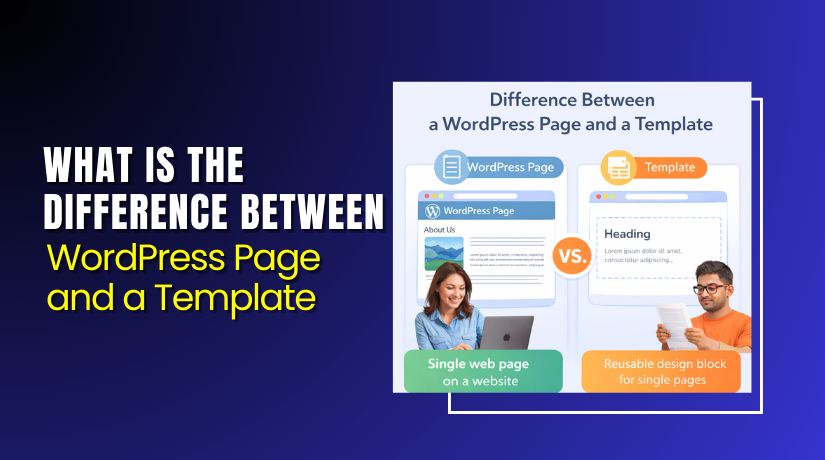
Now that you understand what a page and a template are, it’s time to see how they differ. Although they work together, each one serves a very specific purpose. A WordPress page holds the content you create, while a WordPress template controls how that content is displayed.
You can think of a page as the “what” and the template as the “how.” The page contains your text, images, and videos, but the template decides the layout, colors, and design. For example, your “About” page may look different from your “Contact” page because each can use a different template.
Here are some simple comparisons to make it clear:
- WordPress Page: It’s the content container. You create and edit it inside the WordPress editor.
- WordPress Template: It’s the layout file that defines how that page appears.
- Page Example: About Us, Services, or Contact page.
- Template Example: Full-width layout, Sidebar layout, or Custom landing page layout.
Every time you create a page, WordPress automatically applies a default template from your theme. If you want a different look, you can choose another template from the “Page Attributes” section when editing the page. This allows you to create different kinds of pages without having to code each one individually.
Visual Comparison Example
Here’s a quick example to understand the relationship between a page and a template:
| Aspect | WordPress Page | WordPress Template |
| Purpose | Holds written and visual content | Defines structure and layout |
| Edited By | WordPress editor | Theme files or page builder |
| Changes Affect | That specific page only | All pages using that template |
| Example | “Contact Us” page | “Full-width” layout template |
In simple words, your page is the content, and your template is the design. They make up your website’s overall appearance.
You may better manage your website by being aware of this connection. A page’s appearance can be altered without affecting its content. Likewise, you can reuse one template for multiple pages to keep a consistent design.


How to Use Templates in WordPress
Using templates in WordPress is simple once you understand where to look. Every page you create uses a template to decide how it appears on your website. Templates control the structure, not the content itself.
You can select the template to use when creating or editing a page in WordPress. This option may be found in your editor’s Page Attributes section on the right. It might be located in the sidebar’s “Template” setting if you’re using the block editor (Gutenberg).
Here’s a step-by-step guide on using a template:
- Log in to your WordPress dashboard.
- Go to Pages > Add New or edit an existing page.
- Look for the Template option in the settings panel.
- Choose from the list of available templates, such as “Default” or “Full Width.”
- Update or publish your page to apply the change.
Each template creates a different layout. For example, the default template might include a sidebar, while the full-width template removes it for a clean look. This helps you design pages that match their purpose.
You can experiment with different templates without affecting your content. If you change the template, only the design updates — your text and images stay safe. This flexibility lets you adjust your website design quickly without using code.
If your theme includes multiple templates, try each one to see which layout fits best. Some premium themes offer dozens of templates for blogs, portfolios, or landing pages. Many modern themes also support block templates, which let you design custom sections visually using blocks.
How to Create a Custom Page Template in WordPress
You have even more control over the design of your website when you create a custom page template. You can create a special page that differs from the rest of your website. This is useful for landing pages, product pages, or custom designs for clients.
To make your own unique template, follow these steps:
- Access your WordPress theme folder using FTP or File Manager.
- Inside the theme folder, create a new file and name it something like template-custom.php.
- Open the file and add this line at the very top:
- <?php
- /* Template Name: Custom Page */
- ?>
- Add your HTML and PHP structure to define the layout.
- Save the file and upload it back to your theme folder.
Now, when you create or edit a page, your new “Custom Page” template will appear in the Template dropdown. Select it and publish your page to apply the new layout.
Important tips:
- Always use a child theme before editing templates. This protects your modifications when the theme is updated.
- To prevent errors, keep your code simple and clear.
- Test your new template on different devices for proper display.
Use a page builder plugin like Divi, Beaver Builder, or Elementor if you would rather not write code. These tools let you design custom layouts visually with drag-and-drop features.
You may create distinctive, adaptable designs by making and utilizing custom templates. You can tailor every page to fit its purpose while keeping a consistent look across your site.
Common Mistakes and How to Avoid Them
Working with WordPress templates can be easy, but beginners often face small issues. These problems usually happen when templates are not applied or coded correctly. Understanding these mistakes helps you avoid frustration and save time while designing your site.
One common mistake is when a template does not appear in the dropdown menu. This frequently occurs when the file name or template header comment is inaccurate or missing. Always check that your template file includes the line /* Template Name: Custom Page */ at the top. WordPress won’t identify it as a new template without this.
Another frequent issue is editing theme files directly. Changes you make to your primary theme files may be lost when the theme is updated. To prevent this, always create and use a child theme. This keeps your custom templates safe even after updates.
Beginners also confuse themes and templates. A theme is a complete design package that includes multiple templates, while a template is only a single layout file within that theme. Understanding this distinction helps you manage your website’s design more confidently.
Some users also struggle with the template hierarchy. When selecting which template file to load, WordPress adheres to a particular order. For example, if there is no custom page template, WordPress uses page.php as the default layout. Knowing this order helps you identify why your page might not display as expected.
Conclusion
A WordPress page and a WordPress template serve different but connected roles. Pages hold your content, while templates control how that content looks. Together, they create the structure and design of your website.
When you learn how to use and customize templates, you gain full control over your site’s layout. If you ever need help with creating or fixing templates, the WooHelpDesk team can guide you step by step.