What Are WordPress Widgets and How to Add Them to Your Site
Table of Contents
- What Are WordPress Widgets?
- How WordPress Widgets Help in Customizations
- WordPress Widget Area Explained
- How to Add Widgets in WordPress: Step-by-Step Process?
- How to Create Widgets in WordPress
- Custom Widgets in WordPress
- Best Practices for Creating Custom Widgets
- Organizing and Managing Widgets in WordPress
- Best Practices for Using Widgets
- How to Maintain Your Widgets Over Time
- Troubleshooting Common Widget Issues in WordPress
- Best Practices for Widgets That Convert Better
- Conclusion
What Are WordPress Widgets?
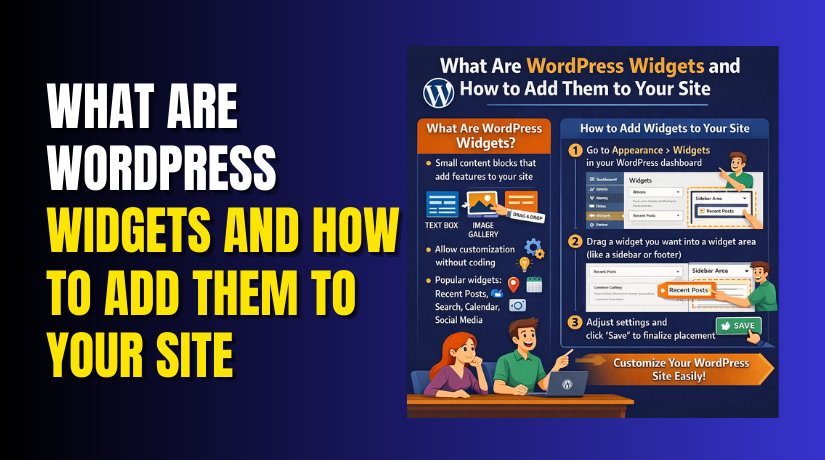
WordPress widgets are little building components that give your website particular functionality and content. They help enhance your site’s functionality without needing to write complex code. Widgets allow users to add elements like search bars, recent posts, calendars, and more to different areas of their site. These elements are often placed in areas like sidebars, footers, or other widget-ready areas.
WordPress has a number of built-in widgets, and using plugins to increase your widget selection is simple. Widgets can be added and arranged using a simple drag-and-drop interface in the WordPress dashboard
How WordPress Widgets Help in Customizations
Widgets are essential for making WordPress websites customizable. They allow you to modify your site’s appearance and functionality quickly. By adding widgets, you can provide your visitors with a personalized experience. Some common uses of widgets include:
- Displaying recent posts, comments, or categories
- Adding social media feeds or sharing buttons
- Including search bars or custom forms
- Adding custom HTML, text, or images
Widgets provide flexibility and ease of use for users without coding knowledge. They are one of the simplest ways to customize your site’s sidebar or footer to meet your design needs.
WordPress Widget Area Explained
The widget area in WordPress refers to specific sections on your site where widgets can be added. Usually located in the header, footer, or sidebar, these sections are made to house widgets.
Some themes come with multiple widget areas, allowing you to place widgets in various parts of your website. For example, a typical WordPress theme might have a left sidebar widget area and a footer widget area. You can customize these areas to add the widgets you need, enhancing the user experience and making your site more interactive.
The widget area is often referred to as a “sidebar,” but it can be any section on the site that supports widget placement. You can choose where and how your widgets show thanks to this flexibility.
How to Add Widgets in WordPress: Step-by-Step Process?
With WordPress, adding widgets is easy. No prior knowledge of coding is required. Follow these easy steps to start using widgets on your site:
- Go to Your WordPress Dashboard
Open your WordPress dashboard and log in. From there, navigate to the “Appearance” tab on the left sidebar. - Click on “Widgets”
Under the “Appearance” tab, you’ll see a menu called “Widgets.” Click on it to open the widgets management page. - Choose a Widget
A list of the available widgets will be displayed to you. These could be default WordPress widgets like “Recent Posts,” “Search,” or “Calendar,” or they may include widgets added by plugins. - Drag and Drop a Widget
Locate the widget you wish to include. Drag it to your preferred widget area, such the bottom or sidebar. - Customize the Widget
After dragging the widget into the area, you can customize its settings. For instance, you can decide how many posts to show when adding a “Recent Posts” widget. After customization, select “Save.” - Check Your Website
After saving, visit your site to see the
How to Create Widgets in WordPress
Custom widgets in WordPress allow you to add unique functionality tailored to your site. Creating a widget gives you complete control over its appearance and content. Here’s how to create your own widget:
- Access the Functions.php File
You must modify the functions.php file in your theme in order to build custom widgets. Navigate to “Appearance” in the WordPress dashboard, then choose “Theme Editor.” On the right side, look for the functions.php file. - Define Your Widget Class
In the functions.php file, you will need to write the class for your widget. This class will contain all the settings and display options. Here’s a simple example:
class Custom_Widget extends WP_Widget {
function __construct() {
parent::__construct(
‘custom_widget’,
‘Custom Widget’,
array( ‘description’ => ‘A Custom WordPress Widget’ )
);
}
public function widget( $args, $instance ) {
echo ‘Your custom content here’;
}
}
- Register the Widget
You must register your widget class after defining it. Add the following code to register your custom widget:
function register_custom_widget() {
register_widget( ‘Custom_Widget’ );
}
add_action( ‘widgets_init’, ‘register_custom_widget’ );
- Display the Widget on Your Site
After saving the changes to functions.php, go to the WordPress dashboard. Navigate to “Appearance” > “Widgets,” and you’ll see your custom widget listed among the available widgets. Drag it to a widget area, and it will appear on your site.
Custom Widgets in WordPress
Custom widgets are especially useful when you want specific features on your site. Unlike default widgets, custom widgets give you the freedom to include content that fits your unique needs.
Here are some examples of what you can do with custom widgets:
- Display Custom Forms
You can create custom contact forms or newsletter signup forms as widgets. Simply add the form code into your widget’s PHP code. - Social Media Feeds
Show real-time social media feeds from Facebook, Instagram, or Twitter. These feeds can be shown in a widget area using a plugin or custom code. - Product Listings for WooCommerce
If you run an online store, you can create a custom widget to display your best-selling or latest products. - Dynamic Content Widgets
Use custom widgets to display dynamic content, such as featured posts or events, based on user interaction or conditions.
Best Practices for Creating Custom Widgets
When creating custom widgets, keep these best practices in mind:
- User Experience
Ensure your widget is easy to use and doesn’t clutter the website. A well-designed and useful widget enhances the user experience. - Performance
Custom widgets can affect website performance if they are not optimized. Make sure the widget doesn’t slow down the website by testing it frequently. - Responsive Design
Make sure your custom widget is mobile-friendly. Regardless of the device—desktop, tablet, or smartphone—widgets should look excellent. - Clear Descriptions
Add clear descriptions and labels for users when creating custom widgets. This helps both developers and site administrators use the widget properly.
Organizing and Managing Widgets in WordPress
Managing widgets effectively ensures that your WordPress site remains clean, organized, and user-friendly. For both website managers and users, effective administration reduces clutter and enhances navigation. Here’s how to organize and manage widgets:


- Use Widget Areas Wisely
WordPress themes typically offer multiple widget areas like the sidebar, footer, or header. Assign widgets to the areas where they’ll be most useful. For instance, place navigation widgets in the sidebar and contact information or links to social media in the footer. - Rearrange Widgets
You can easily change the order of widgets in your widget areas. Just navigate to your WordPress dashboard’s “Widgets” section under “Appearance.” Drag and drop widgets to rearrange them, ensuring the most important widgets are placed at the top or in the most visible areas. - Remove Unused Widgets
Over time, you may install widgets that aren’t being used. It’s a good practice to remove these widgets to keep your dashboard clean. If necessary, you can easily add them back later. - Widget Visibility Settings
Some widgets allow you to set visibility rules, like showing them only on specific pages or posts. Use this feature to avoid displaying widgets where they don’t add value. - Preview Changes
Always preview the changes before finalizing them. This ensures that widgets display correctly and improve user experience.
Best Practices for Using Widgets
Widgets can greatly enhance your WordPress site when used correctly. To ensure you’re getting the most out of your widgets, adhere to these recommended practices:
- Limit the Number of Widgets
Don’t overcrowd your website with widgets. While it’s tempting to add several features, too many widgets can make your site look crowded and overwhelming. Pay attention to what your visitors will find most important. - Maintain Consistent Design
Keep the design of your widgets consistent with your website’s overall look and feel. Custom widgets should match your theme’s colors, fonts, and design elements. A cohesive design enhances user experience. - Focus on Functionality
Widgets should enhance your website’s functionality. Only use widgets that offer value to your visitors, such as adding a recent posts widget, contact form, or newsletter signup. - Test Widget Performance
Before adding a widget to your site, test it to ensure it works properly. Poorly coded or outdated widgets can slow down your website and cause other issues. - Keep Widgets Updated
Regularly check and update your widgets to ensure they remain compatible with your WordPress version. Some plugins or themes may provide new versions of their widgets with improved features.
How to Maintain Your Widgets Over Time
Maintaining widgets is key to ensuring your WordPress site runs smoothly. Here are a few tips for widget maintenance:
- Review Widget Performance Periodically
Regularly check how well your widgets are performing. If certain widgets aren’t being used or aren’t adding value, consider removing them. - Update Widgets When Necessary
Keep your widgets up to date, especially if they are third-party widgets from plugins. To keep functionality, look for and install updates. - Monitor Compatibility
Make sure your widgets remain compatible with updates to WordPress, themes, or other plugins. Incompatible widgets can cause issues on your site.
Troubleshooting Common Widget Issues in WordPress
Widgets are crucial components that improve your WordPress site’s appearance and usability. However, like any feature, they can encounter issues. If you’re having problems with widgets, don’t worry—this section will guide you through common widget problems and provide detailed solutions to fix them.
- Widgets Not Displaying Properly
One of the most common issues is widgets not showing up on your site. There could be several reasons for this:
- Theme Compatibility Issues
Not all themes support every widget. If your widget isn’t showing, it could be due to the theme you’re using not being fully compatible with certain widgets.- Fix: Temporarily switch to a default WordPress theme, such as Twenty Twenty-One. If the widget appears, the issue is with your theme. Consider switching themes or using a plugin to make it compatible.
- Widget Area Restrictions
Some widgets are designed to appear only in specific widget areas like the sidebar or footer. If you’ve added a widget to an unsupported area, it may not display.- Fix: Ensure you’re placing widgets in supported areas, like sidebars, footers, or custom widget areas defined by your theme.
- Caching Problems
Cached content may cause widgets not to appear as expected. This happens if your browser or website cache isn’t updated with recent changes.- Fix: To ensure that the most recent updates show up, clear the cache on both your browser and your website. You can use plugins like W3 Total Cache or WP Super Cache to manage your WordPress cache.
- Plugin Conflicts
Sometimes, plugins can interfere with widgets, preventing them from displaying correctly.- Fix: Deactivate all plugins temporarily. To find the conflict, reactivate each plugin individually if the widget shows up.
- Widgets Not Saving Their Settings
If your widget settings are not saving, it can be frustrating. Here are a few reasons this might be happening:
- Insufficient PHP Memory
Low memory limits on your server can prevent WordPress from saving widget settings.- Fix: Raise the PHP memory limit. You can do this by editing the wp-config.php file and adding the following code:
- define(‘WP_MEMORY_LIMIT’, ‘256M’);
- Plugin or Theme Conflicts
As with widgets not displaying, conflicts between plugins or themes can prevent settings from saving.- Fix: Turn off every plugin and use the default theme instead. To identify the problem’s origin, reactivate each plugin and theme individually if the widget saves.
- Outdated WordPress Version
Certain widgets may not work properly if you are using an outdated version of WordPress.- Fix: Ensure your WordPress installation, themes, and plugins are up-to-date.
- Browser Issues
Widgets may occasionally not save due to browser settings or addons.- Fix: Try saving the widget settings in a different browser or clear your browser’s cache to ensure there are no issues on your end.
- Widgets Not Showing Content Correctly
Widgets sometimes display content incorrectly. This can be due to a variety of issues, such as coding errors, missing elements, or improper widget configuration.
- HTML or Code Errors
If you’re using custom HTML widgets, incorrect code could break the display.- Fix: Double-check the widget’s code. Ensure that it’s properly formatted and doesn’t contain any errors. If you’re using a plugin for custom code, make sure the plugin is up-to-date and compatible with your WordPress version.
- Conflicting CSS
Custom CSS or styling in your theme may conflict with widget content.- Fix: Use the developer tools in the browser to examine the widget area (right-click > Inspect). Check for any CSS conflicts that might be influencing the layout of the widget and make the necessary adjustments.
- Widget Size Mismatch
If the widget’s content doesn’t fit within its container, it may overflow or break the layout.- Fix: Ensure that your widget is sized correctly for the area where it’s placed. You can adjust this using CSS or by customizing the widget settings.
- Widgets Missing After WordPress Update
After a WordPress update, some widgets may disappear from your site. This can happen for several reasons:
- Widget Area Reset
Sometimes, updating WordPress or a theme can reset widget areas. This results in missing widgets.- Fix: Go to the WordPress dashboard, navigate to Appearance > Widgets, and check if your widgets are still in place. It could be necessary to add them to the widget sections once more.
- Theme or Plugin Compatibility
If your theme or plugins haven’t been updated to be compatible with the latest version of WordPress, widgets may not display or function properly.- Fix: Make sure you have the most recent versions of your theme and plugins installed. If a theme or plugin isn’t compatible, you may need to contact the developer or find an alternative.
- Widget Plugin Compatibility
Some widget plugins may stop functioning properly following a WordPress upgrade.- Fix: Deactivate all widget-related plugins to check if the issue persists. To find out which plugin is the source of the problem, reactivate each one individually.
- Widgets Not Displaying on Mobile Devices
On desktop computers, widgets might show up properly, but on mobile devices, they might not. This could be due to mobile responsiveness issues.
- Responsive Design Problems
Widgets not designed to be responsive may not adjust properly on mobile devices.- Fix: Ensure your widgets are responsive. If not, you may need to use custom CSS to adjust the layout for smaller screens.
- CSS Media Queries
Some themes or widgets use media queries that hide widgets on mobile.- Fix: Check your theme’s CSS for media queries that might be hiding widgets on mobile. Adjust these rules as needed to make sure widgets display on mobile devices.
Best Practices for Widgets That Convert Better
To ensure your widgets are not just functional, but also effective in converting visitors, follow these best practices:
- Clear Calls-to-Action (CTAs)
Widgets are a great way to include CTAs, like newsletter signups, product recommendations, or special offers. To promote user participation, make sure the call to action is appealing and unambiguous. - Use Relevant and Targeted Widgets
Avoid using irrelevant widgets that may confuse visitors. For example, use a “Recent Posts” widget on a blog and a “Product Categories” widget on an e-commerce site. This helps keep the user experience focused and relevant. - Keep It Simple
If you have too many elements in your widget areas, visitors may become overwhelmed. Minimize the number of widgets and make sure each one has a distinct function. - Mobile Optimization
Ensure that your widgets look good on mobile devices. Make necessary adjustments after testing your widgets on a range of screen sizes. This ensures that your widgets are fully functional on all devices. - Test Widget Performance
Regularly test the performance of your widgets. The user experience may be adversely affected by widgets that load slowly or break. To keep an eye on widget performance, use tools such as Google PageSpeed Insights.
Conclusion
Widgets are effective tools for improving the look and feel of your WordPress website. While common issues like widgets not displaying, saving, or showing content correctly can occur, most problems can be fixed with simple troubleshooting steps. By regularly maintaining your widgets and keeping them up to date, you can ensure a smooth and user-friendly experience for your visitors.
If you’re still facing difficulties or need further assistance with widgets or any other WordPress-related issues, don’t hesitate to contact WooHelpDesk. Our team of experts is here to provide professional support and help you resolve any challenges, ensuring your website runs smoothly and efficiently. Reach out to us today for assistance!