What Are the Default Tabs in WooCommerce?
Table of Contents
- Introduction to WooCommerce Product Tabs
- What Are Default Tabs in WooCommerce?
- List of Default WooCommerce Product Tabs
- Why Default Tabs Matter for Your Store
- How Default Tabs Work for Different Product Types and Settings in WooCommerce
- Common Issues With Default WooCommerce Tabs and How to Fix Them
- Best Practices to Avoid Tab Issues
- Final Thoughts on Managing Default Tabs
Introduction to WooCommerce Product Tabs
WooCommerce product tabs help organize information on product pages. They display important details in a clean layout. Customers can quickly find what they need without scrolling too much. Tabs improve readability and keep product pages easy to understand. They also help store owners present details in a structured way. By default, WooCommerce adds a few built-in tabs to every product page. These tabs appear automatically when relevant content exists. Understanding these tabs helps you manage product information better. It also improves the overall shopping experience for customers.
What Are Default Tabs in WooCommerce?
Default tabs are built-in sections shown on WooCommerce product pages. They come with WooCommerce without adding extra plugins. These tabs organize content into separate sections. Each tab serves a specific purpose for customers. WooCommerce shows or hides tabs based on available data. If a tab has no content, it may not appear. This keeps product pages clean and relevant. Default tabs work with all standard WooCommerce product types.
List of Default WooCommerce Product Tabs
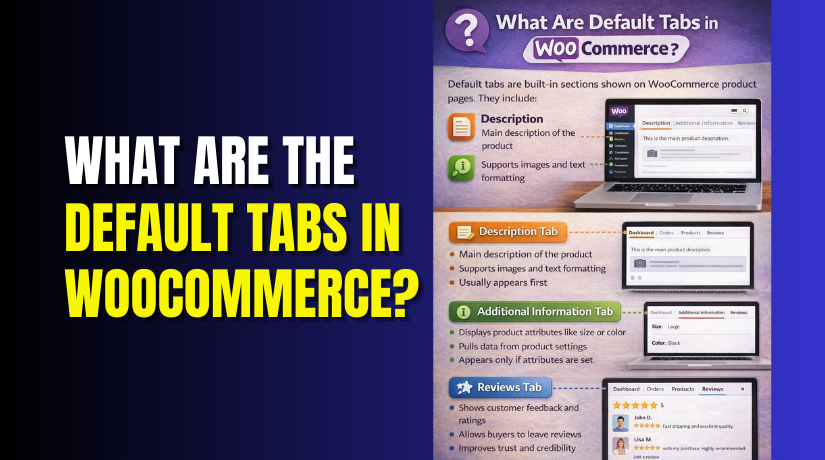
WooCommerce includes three main default tabs. These tabs appear on most product pages. Each tab has a clear role.
- Description
- Additional Information
- Reviews
These tabs help customers understand products before buying. They reduce confusion and support better decisions.
Description Tab Explained
The Description tab shows the main product description. This content comes from the product editor. It explains what the product is and how it helps users. Store owners often add detailed explanations here. This tab supports images, text, and formatting. It is usually the first tab customers see. A clear description improves trust and increases conversions.
Additional Information Tab Explained
The Additional Information tab displays product attributes. These include size, weight, color, or material. WooCommerce pulls this data automatically from product settings. This tab only appears if attributes are added. It helps customers compare products easily. Technical or specification-based items benefit most from this tab.
Reviews Tab Explained
The Reviews tab shows customer feedback and ratings. It allows buyers to share their experience. This tab appears only when reviews are enabled. Reviews help build trust and confidence. Many customers read reviews before purchasing. A strong reviews section improves credibility and sales.
Why Default Tabs Matter for Your Store
Default tabs keep product pages organized and user-friendly. They help customers find information quickly. This reduces questions and increases satisfaction. Proper use of default tabs improves store professionalism. Understanding these tabs helps you manage products more effectively.
How Default Tabs Work for Different Product Types and Settings in WooCommerce
Default Tabs for Simple Products
Simple products use all default tabs when relevant content exists. The Description tab shows the main product details and explains what the product offers. The Additional Information tab appears only if attributes are added to the product. The Reviews tab is visible when reviews are enabled in WooCommerce settings. If no attributes exist, the Additional Information tab stays hidden automatically. This behavior makes simple products easy to manage and display without unnecessary sections.
Default Tabs for Variable Products
Variable products also support all default WooCommerce tabs. The Description tab explains the product as a whole instead of focusing on individual variations. The Additional Information tab lists shared attributes such as size or color that apply across variations. Variation-specific details appear inside dropdown selections rather than tabs. The Reviews tab works the same way as it does for simple products. This setup helps customers understand available options clearly before making a choice.
Default Tabs for Downloadable and Virtual Products
Downloadable and virtual products use the same tab system as physical products. The Description tab explains the digital or service-based item in detail. The Additional Information tab may include file type, access details, or technical specifications if attributes are added. If no attributes exist, this tab stays hidden automatically. The Reviews tab appears only when reviews are enabled. This structure keeps digital products simple and well organized.
How Attributes Control the Additional Information Tab
The Additional Information tab depends completely on product attributes. Attributes added under product settings directly control whether this tab appears. When attributes are marked as visible, they display automatically inside the tab. If attributes are hidden, the tab does not show at all. This gives store owners full control over the tab without requiring extra settings or plugins.
How Review Settings Affect the Reviews Tab
The Reviews tab depends on WooCommerce review settings. Reviews can be enabled globally for all products or individually at the product level. If reviews are disabled, the Reviews tab disappears completely from the product page. Ratings and customer comments appear only after users submit reviews. This allows store owners to control customer feedback visibility effectively.
Global vs Product-Level Tab Behavior


WooCommerce allows global control over reviews and attributes from the main settings area. In some cases, product-level settings can override these global behaviors. This flexibility helps stores manage different product requirements without affecting the entire catalog. Understanding these controls prevents missing tabs or empty sections on product pages.
Why Understanding Tab Behavior Is Important
Knowing how WooCommerce tabs behave helps avoid layout confusion and missing information. It ensures customers always see relevant product details. Proper tab behavior improves shopping clarity, builds trust, and reduces customer questions. This ultimately leads to a better user experience and higher conversions.
Common Issues With Default WooCommerce Tabs and How to Fix Them
Additional Information Tab Not Showing
This issue usually happens when no attributes are added to the product. The Additional Information tab only appears if attributes exist and are marked visible. Open the product edit page and add relevant attributes. Make sure visibility is enabled, then save changes and refresh the product page. The tab should now appear correctly.
Reviews Tab Missing on Product Pages
The Reviews tab depends entirely on review settings. First, check WooCommerce settings and confirm reviews are enabled globally. Then open the product editor and ensure reviews are allowed for that product. If reviews are disabled, the tab stays hidden. Once enabled, the Reviews tab appears automatically.
Description Tab Appears Empty
An empty Description tab can confuse customers. This happens when no content is added to the main description field. Edit the product and add clear, helpful information in the description editor. Avoid leaving this section blank, as a proper description improves clarity and trust.
Tabs Showing but Containing No Useful Content
Sometimes tabs appear but do not provide helpful information. This usually happens due to unused attributes or very short descriptions. Review each tab carefully and improve content quality where needed. Remove unnecessary attributes to keep tabs meaningful. Clean content improves the overall shopping experience.
Theme Conflicts With Default Tabs
Some themes modify WooCommerce layouts, which can hide or reorder default tabs. Switch temporarily to a default WordPress theme to test the behavior. If tabs appear correctly, the issue is theme-related. In such cases, contact the theme developer for a fix.
Plugin Conflicts Affecting Tabs
Certain plugins may change product page behavior and interfere with tabs. Disable plugins one by one to identify conflicts. Check whether tabs return after disabling a plugin. Once identified, update the plugin or switch to a compatible alternative.
Caching Issues After Tab Changes
Caching can prevent recent tab changes from appearing immediately. Clear the site cache and browser cache after making updates. If you use a caching plugin, purge its cache as well. This ensures the latest tab settings display correctly.
Best Practices to Avoid Tab Issues
Always add complete product information before publishing. Test products thoroughly before making them live. Avoid unnecessary plugins that affect layouts. Use themes that follow WooCommerce standards. Regular checks prevent customer confusion and layout issues.
Final Thoughts on Managing Default Tabs
Default WooCommerce tabs work smoothly when configured correctly. Most issues occur due to missing data, theme conflicts, or plugin interference. Understanding tab behavior saves time and prevents display problems. Well-managed tabs improve clarity, trust, and conversions.
Need Help Customizing WooCommerce Tabs?
Whether you’re fixing missing tabs or optimizing your product pages, our WooCommerce experts are ready to assist.
💬 Start a live chat or 📞 Call us now — let’s make your store work smarter!