Easily Apply Discounts via Link: URL Coupons for WooCommerce Explained, Integration & Setup
Table of Contents
- Introduction
- What Is URL Coupons for WooCommerce?
- Key Features That Make It Stand Out
- Real-World Use Cases
- URL Coupons for WooCommerce Plugin Integration & Setup Guide
- Important Notes & Best Practices
- Conclusion
Introduction
Discount codes are common in online stores. But not every customer enjoys using them. Typing a code during checkout can feel annoying or confusing. Some shoppers even leave the site to search for a working code. Many never return. This means lost sales and lower conversions.
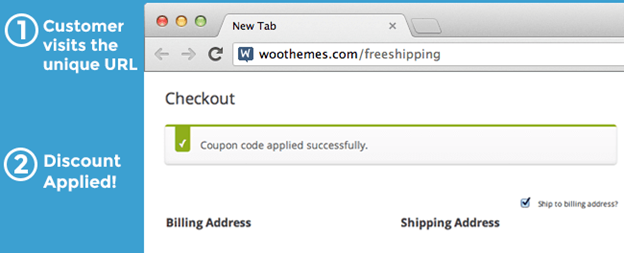
That’s where URL Coupons for WooCommerce comes in. It removes the need to enter a coupon code. Customers just click a link and get the discount. It’s fast, smooth, and keeps shoppers focused on buying.
This plugin is made for WooCommerce stores. It turns your coupons into clickable links. These links can also add products to the cart. It’s a simple upgrade that improves user experience and increases sales.
What Is URL Coupons for WooCommerce?
URL Coupons for WooCommerce is a plugin built by SkyVerge. It lets store owners create special links that apply discounts automatically. These links can be used in emails, ads, blog posts, or social media.
You don’t need any coding skills to use it. You just create a coupon as usual in WooCommerce. Then you assign a unique URL to it. When someone clicks that URL, the coupon gets applied. You can also choose to add products to the customer’s cart simultaneously.
The plugin also supports redirects. After clicking the link, users can go straight to the cart or checkout, which speeds up and simplifies the buying process.
The URLs are flexible. You can create clean and branded links like yourstore.com/coupon/sale20. You can even make personal ones like yourstore.com/coupon/thanksjohn.
You also have the option to hide the normal coupon field on the cart page. This helps reduce distractions. Shoppers won’t go hunting for other codes. Instead, they get their discount instantly through the link.
This plugin is great for store owners who want to:
- Simplify the buying process
- Improve marketing campaigns
- Avoid abandoned carts due to coupon hunting
- Reward loyal readers or subscribers
Key Features That Make It Stand Out
- Auto-Apply Discounts via Link
Customers no longer need to type a code. The discount is applied when they click a special URL. It saves time and keeps them focused on checkout. This improves the user experience and reduces cart abandonment. - Add Products to Cart Automatically
You can add one or more products to the cart. This happens when a customer visits the coupon link. It’s great for promoting bundles or limited-time offers. It also helps you guide customers toward specific products. - Hide Manual Coupon Fields
You can hide the coupon field on the cart or checkout page. This stops customers from looking elsewhere for codes. It keeps them on your site and increases the chance of a purchase.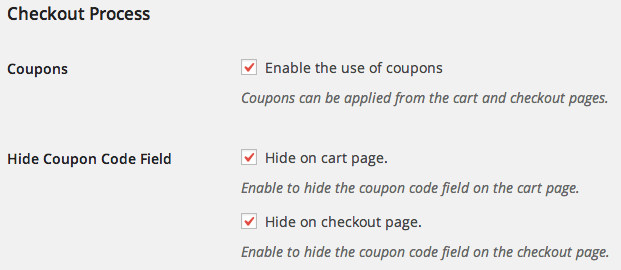
- Redirect After Coupon is Applied
After clicking the coupon link, you can choose where customers go. Send them to the cart, checkout, or any custom page. This helps speed up the buying process and improves conversions. - Personalized URL Support
The plugin supports flexible URLs. For example, yourstore.com/coupon/thanks applies the same coupon as yourstore.com/coupon/thanksjohn. This allows you to send personal links to customers or subscribers. - Integration with Other WooCommerce Tools
The plugin works well with Smart Coupons, One Page Checkout, and CSV import tools. You can manage bulk coupons and improve the checkout flow easily. - Defer Coupon Application (Optional)
If a customer doesn’t meet the coupon rules yet, the coupon is saved. It applies automatically once the cart meets the conditions.
Real-World Use Cases
- Blog Readers Get Instant Discounts
You can reward readers by auto-applying a discount on blog pages. No code is needed. Just visiting the post applies the coupon. - QR Codes in Print Ads
Add the coupon URL to flyers or posters using a QR code. When scanned, it applies the discount and opens your store. - Personalized Email Offers
Send custom discount links in newsletters. For example, a birthday coupon like /coupon/happyjohn. - Social Media Campaigns
Share direct discount links on social platforms. Track clicks and conversions easily. - Product Launches with Preloaded Deals
Launch a new item with a URL that adds it to the cart. A discount is applied too, making it a smooth shopping experience. - Affiliate and Influencer Marketing
Give affiliates special coupon links. Their followers get discounts instantly by just clicking.
URL Coupons for WooCommerce Plugin Integration & Setup Guide
Getting started with the URL Coupons for WooCommerce plugin is quick and easy. You don’t need to be a developer or have technical skills. Just follow these steps to install, configure, and create your first coupon link.
- Install the Plugin
First, you need to install the plugin on your WooCommerce store.
- Go to your WooCommerce account and download the plugin ZIP file.
- In your WordPress dashboard, go to:
Plugins > Add New > Upload Plugin - Upload the ZIP file.
- Click Install Now, then click Activate once the installation is done.
Your plugin is now active and ready to use.
- Configure General Settings
After activation, go to the plugin settings to set up defaults.
- Navigate to: WooCommerce > Settings > General
- Scroll to the General Options section.
You’ll see two helpful settings:
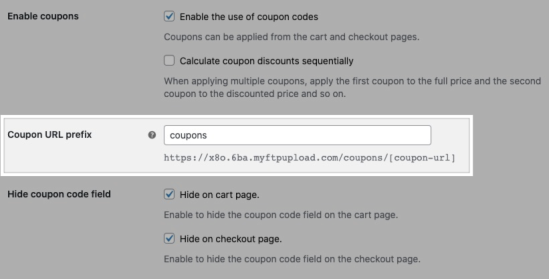
Coupon URL Prefix
- Add a prefix to all your coupon links.
- Example: yourstore.com/coupon/summerdeal
- This makes it easier to manage URLs.
- It also helps with caching issues.
Hide Coupon Fields
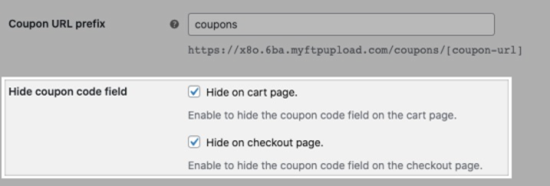
- You can choose to hide the manual coupon box:
- On the Cart page
- On the Checkout page
- Or both
- This stops users from leaving to find other coupon codes.
- Create Your First URL Coupon
Now it’s time to create your first working URL coupon.
- Go to: Marketing > Coupons
- Click Add Coupon or edit an existing one.
- Set the discount rules as usual (amount, expiry, limits, etc.)
- Go to the Discount Links tab.
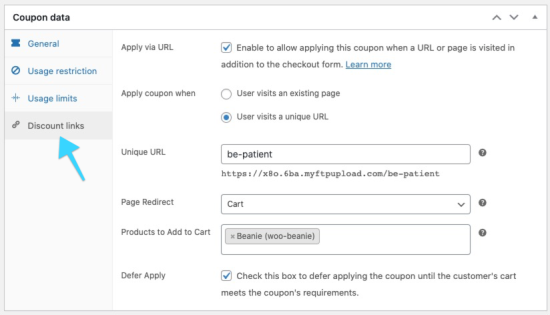
There you’ll find the URL coupon options:


Apply via URL
- Enable this to turn the coupon into a clickable link.
Choose How to Apply
- Apply the coupon when:
- A user visits a unique URL
- Or visits an existing page on your site
Set the Unique URL
- Add the custom slug at the end of your domain.
Example: coupon/spring10
Select Redirect Page (Optional)
- Decide where users go after clicking the link:
- Cart
- Checkout
- Any custom page
Add Products to Cart (Optional)
- Preload specific products into the cart with the coupon.
- Works well for bundles or time-sensitive offers.
Enable Defer Apply (Optional)
- If the cart doesn’t meet the coupon’s rules yet, the coupon is saved.
- It gets applied later when the conditions are met.
- Copy and Share the Link
Once done, copy the full URL and use it in your campaigns:
- Emails
- Blog posts
- Landing pages
- Social media
- Ads or QR codes
The customer clicks the link. The discount is applied. No code is needed.
Important Notes & Best Practices
To get the most out of the URL Coupons for WooCommerce plugin, follow these practical tips. They help avoid issues and keep your store running smoothly.
- Handle Caching the Right Way
Caching can stop coupons from working if URLs are saved in memory.
- Use a custom prefix like /coupon/ for all coupon URLs.
- Ask your hosting provider to exclude that prefix from caching.
- This ensures your links apply discounts every time they’re used.
- Watch the Trailing Slash
The plugin treats URLs differently with and without a slash.
- /coupon/thanks will apply to all URLs starting with that.
- /coupon/thanks/ will only work for that exact link.
Use trailing slashes if you want full control over which links work.
- URLs Are Not Case-Sensitive
Don’t worry about capital letters in your coupon links.
- yourstore.com/coupon/SALE20 and yourstore.com/coupon/sale20 do the same thing.
This helps avoid broken links due to typing errors.
- Choose the Right Products for Auto-Add
If you plan to add products to the cart automatically:
- Make sure they are in stock.
- Select product variations if needed, not just parent products.
If the product isn’t available, it won’t be added to the cart.
- Show the “Coupon Applied” Message
Redirect users to pages that support coupon notices:
- Cart or Checkout pages are ideal.
- This gives users visual confirmation that the deal worked.
Conclusion
URL Coupons for WooCommerce is a smart way to boost sales. It makes discounting simple and seamless for your customers. You can use it for blogs, emails, ads, or even offline campaigns.
With a flexible setup and clear links, it improves conversions without needing code. Whether you’re running a big store or just starting out, this plugin can help you sell more with less effort.
If you’re still looking for help setting it up or making the most of WooCommerce coupon links, feel free to reach out to WooHelpDesk — we’re here to support your success.