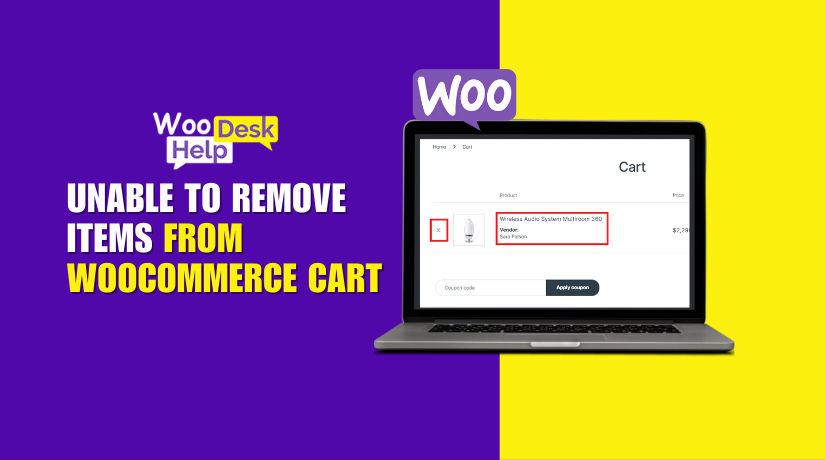
Unable to remove items from WooCommerce cart
Table of Contents
- Understanding the Problem
- Common Signs of the Cart Removal Problem
- Why This Problem Matters
- What Causes the Cart Item Removal Issue?
- Step-by-Step Solutions to Fix the Cart Removal Problem
- Advanced Fixes and Expert Help
- Preventing Cart Errors in the Future
- Conclusion
Understanding the Problem
WooCommerce is a popular plugin for WordPress eCommerce stores. It allows business owners to manage products, carts, and checkout with ease. However, issues sometimes arise that impact the user experience. One common issue is when customers cannot remove items from the WooCommerce cart.
Both customers and store owners may find this annoying. Users might be unable to finish transactions as a result. A broken cart can lead to cart abandonment, poor customer trust, and lost sales.
Let’s explore what this problem looks like and why it happens.
Common Signs of the Cart Removal Problem
If your WooCommerce remove item from cart is not working, you’re not alone. Many store owners face this issue. The symptoms are often easy to spot. Here are some indicators that something is wrong:
- The remove icon or button does not respond
- The cart reloads, but the product remains
- Clicking “Remove” does nothing
- Users try to delete items but fail
- Cart totals do not update correctly
These issues may show up on desktop or mobile. Sometimes the WooCommerce cart remove icon is not functioning only on mobile devices. In other cases, the issue is across all devices and browsers.
Why This Problem Matters
One of the most crucial components of an online store is the cart. If customers cannot delete products from the WooCommerce cart, they may not continue shopping. Shoppers expect fast and smooth checkout experiences. A small error like this can cause:
- Abandoned carts
- Low conversion rates
- Bad reviews
- Customer support complaints
Search engines also pay attention to usability. A broken cart can reduce your website’s SEO ranking. It can signal poor user experience, especially on mobile.
What Causes the Cart Item Removal Issue?
The WooCommerce cart removal action frequently fails for a few reasons. These problems can come from themes, plugins, or browser settings. Let’s look at the most likely causes.
- Theme Conflicts
Some themes override default WooCommerce cart templates. If the theme is outdated or poorly coded, it may break the remove function.
- Plugin Conflicts
Other plugins may affect cart behavior. These include security, caching, or optimization plugins. They may block or rewrite cart actions.
- JavaScript Errors
JavaScript helps run cart functions. If a script fails, the WooCommerce cart remove link might not work. This often shows up when you check the browser console for errors.
- Caching Issues
Cached cart pages can prevent updates from showing. Users can see outdated info if the cache is not cleared. This makes it look like items are not removed.
- Broken Remove Link
In some cases, the remove link or button may be broken. If the WooCommerce cart remove product link is broken, clicking it will do nothing.
Step-by-Step Solutions to Fix the Cart Removal Problem
If your WooCommerce cart remove action is failing, don’t worry. Usually, a theme, plugin, or cache issue is the cause. In this section, we’ll guide you through simple steps to fix it.
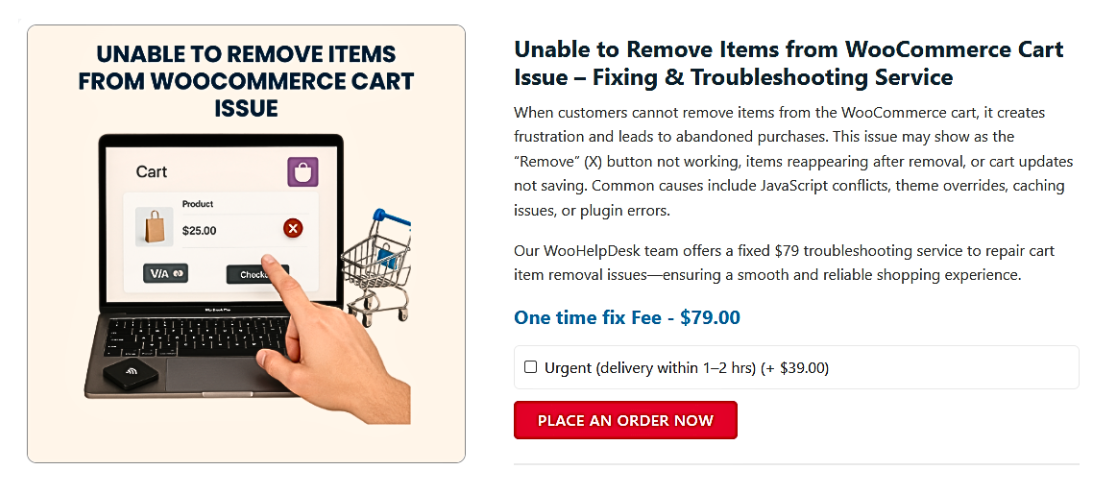
Before making any changes, make sure you have a backup of your website.
- Switch to a Default Theme (Like Storefront)
Sometimes, the issue comes from your WordPress theme. Custom themes may override WooCommerce templates. These changes may cause the WooCommerce cart remove link to stop working.
To test if your theme is the issue:
- Go to Appearance > Themes
- Activate the Storefront theme
- Try deleting an item after refreshing your cart page.
If the remove button works now, the problem is with your theme. You may need a developer to update or fix your theme files.
- Disable All Other Plugins
Other plugins may break cart functions. Security, caching, or optimization plugins are common causes.
Follow these steps:
- Go to Plugins > Installed Plugins
- Deactivate all plugins except WooCommerce
- Clear your cache and test the cart
One plugin is the source of the issue if the cart functions properly working now. Reactivate each plugin individually. Test after activating each to find the one that’s breaking the cart.
- Check for JavaScript Errors
JavaScript helps run many cart features. If it breaks, the WooCommerce cart remove icon won’t function.
To check for errors:
- Right-click your site and select Inspect
- Go to the Console tab
- Reload your cart page
- Look for red error messages
Errors here mean a script is breaking the page. Your theme or another plugin can be the source of the problem. Fixing this may require a developer if you’re not familiar with JavaScript.
- Clear Site and Browser Cache
Cached pages can stop cart updates from showing. This can make it look like products are not removable.
Here’s what to do:
- Clear browser cache
- Clear cache from any caching plugin (like W3 Total Cache, WP Rocket)
- If you use a CDN (like Cloudflare), clear its cache too
Once done, reload your cart page. Try to remove items again. If the WooCommerce cart item removal problem disappears, it was just a caching issue.
- Check Cart Template Overrides
WooCommerce uses template files for the cart page. Your theme may override these files. If these overrides are outdated, they can cause errors.
To check this:
- Go to WooCommerce > Status
- Scroll to the Templates section
- Look for warnings about outdated cart files
If there are warnings, the WooCommerce cart delete function may be failing due to these outdated templates. Updating the theme or restoring default WooCommerce templates can solve this.
- Test the Remove Link Manually
The remove link is part of each cart item. If this link is broken, the product won’t be removed.
You can test this:
- Right-click the remove icon in the cart
- Copy the link address
- Paste it in a new tab and press Enter
If nothing happens, the WooCommerce cart remove product link is broken. This usually means something is blocking the action.
Advanced Fixes and Expert Help
If the basic fixes didn’t solve the problem, don’t worry. Some cart issues require a deeper look. Advanced users and developers can find more clues using tools and error logs. We will examine these more complex steps in this section. We’ll also share when it’s time to get expert help.
- Use Browser Developer Tools
Developer tools help you find issues on your site. They show hidden errors that affect cart functions.
Here’s how to check:


- Open your cart page
- Right-click and choose Inspect
- Go to the Network tab
- Click the remove link or icon
You’ll see if WooCommerce is sending the request. If you don’t see a network call, the WooCommerce cart remove action is unresponsive.
Also, check the Console tab for red error messages. These show if JavaScript is broken.
- Check WooCommerce AJAX Requests
WooCommerce uses AJAX to remove items from the cart. If this fails, the item won’t be deleted.
To check:
- Visit the cart page
- Click the remove link
- Check the network request labeled admin-ajax.php
- Review the response
If you see an error, the WooCommerce cart remove function is failing. This can happen due to missing hooks or blocked scripts.
- Debug with WP_DEBUG Mode
WordPress has a built-in debug mode. It helps track down hidden problems.
To enable it:
- Open the wp-config.php file
- Set define( ‘WP_DEBUG’, true );
- Visit your cart and try removing an item
- Check your site’s debug log
You may see messages pointing to a faulty plugin or theme. This helps narrow down the root cause.
- Look for Hook Conflicts
WooCommerce uses hooks like woocommerce_cart_item_remove_link. Other code may block or override this hook.
If another plugin uses the same hook, it may break the removal action. Developers can trace this using filters and custom functions. This step may need advanced knowledge of WooCommerce functions.
- Time to Call an Expert
It’s time for assistance if you’ve tried everything and are still unable to solve it. You should consider hiring a WooCommerce expert or using a trusted service.
At WooHelpDesk, our experts can:
- Identify theme and plugin conflicts
- Fix broken remove links or AJAX issues
- Restore full cart functionality quickly
Don’t let a simple cart issue hurt your business. Get the right help fast.
Preventing Cart Errors in the Future
Fixing cart issues is important. Even better, though, is avoiding them. If your WooCommerce cart can’t delete products, it can affect your sales and customer trust. We’ll discuss how to prevent this issue in the future in this concluding section. We’ll also wrap up the guide with key takeaways.
- Keep WooCommerce and Plugins Updated
Updates increase security and address bugs. Outdated software can cause cart errors.
To stay safe:
- Always use the latest WooCommerce version
- Keep all plugins updated regularly
- Check compatibility before updating themes
Using trusted plugins also helps. Avoid using too many at once. This lowers the risk of conflicts.
- Use Quality Themes Only
Themes affect your cart layout and functions. A poor-quality theme may cause the WooCommerce cart remove product link to break.
Choose a theme that:
- Fully supports WooCommerce
- Receives regular updates
- Has good support and reviews
If you must customize, use a child theme. This keeps your changes safe during updates.
- Test After Every Major Change
Always test your cart after installing or updating anything. This includes:
- Plugins
- Themes
- WooCommerce core files
Visit the cart page and try adding and removing items. Check for errors. This helps you catch problems early.
- Use a Staging Site for Testing
Never test on a live site. Use a staging site instead. Many hosting providers offer this feature.
Benefits of using a staging site:
- Safe testing without affecting real customers
- Ability to check for remove cart item issues
- Easier to roll back changes
- Monitor WooCommerce Logs Regularly
WooCommerce logs help you catch issues before they grow. You can find them here:
- WooCommerce > Status > Logs
Look for errors linked to cart functions. Fixing these early can save time and sales.
Conclusion
A working cart is key to a good shopping experience. If customers cannot clear items from the WooCommerce cart, it hurts your store’s reputation.
By following this guide, you now know:
- Why the cart remove issue happens
- How to fix it step by step
- When to seek help
- How to prevent future problems
Need help fast? WooHelpDesk is ready to support your WooCommerce store anytime.
💡 Need WooCommerce Help? Call the Experts at WooHelpDesk!
If your cart still won’t behave, our WooCommerce specialists are ready to assist. Whether it’s plugin conflicts, theme errors, or deep technical bugs, we’ll help fix it fast.
📞 Call WooHelpDesk Support at +1 888 602 0119 (US & Canada)
✅ Fast response.
✅ U.S.-based support.
✅ Trusted by WooCommerce store owners.
Let WooHelpDesk take the stress out of troubleshooting so you can focus on growing your business.



