What is the Tax Switch in WooCommerce? Complete Guide
Table of Contents
- Introduction
- What is the Tax Switch in WooCommerce?
- Prerequisites for Using the Tax Switch
- How to Install and Configure the Tax Switch Plugin?
- What are the Top 3 Best Tax Switch Plugins?
- Final Verdict
Introduction
Imagine walking into a store where price tags show one amount, but at the register you pay another. Frustrating, right?
This happens often in ecommerce. Some customers expect prices with tax included. Others want to see the base price before tax. B2B buyers especially need net prices for accounting. Regular shoppers prefer knowing the final cost upfront.
WooCommerce handles this with a global setting. You choose either “Prices entered with tax” or “Prices entered without tax.” One setting applies to everyone. This works for simple stores but creates problems for diverse audiences.
The Tax Switch solves this dilemma. It is not a built-in WooCommerce feature. It is a third-party plugin that adds a customer-facing toggle . Visitors choose how they see prices. The store remembers their preference.
This small addition transforms the shopping experience. International customers understand pricing instantly. Wholesale buyers get the net prices they need. Regular shoppers see final costs without mental math.
This guide covers everything about the Tax Switch. You will learn what it does and why it matters. You will understand how to set it up. You will discover customization options. You will know when it is the right choice.
By the end, you will decide if the Tax Switch belongs in your WooCommerce store.
What is the Tax Switch in WooCommerce?
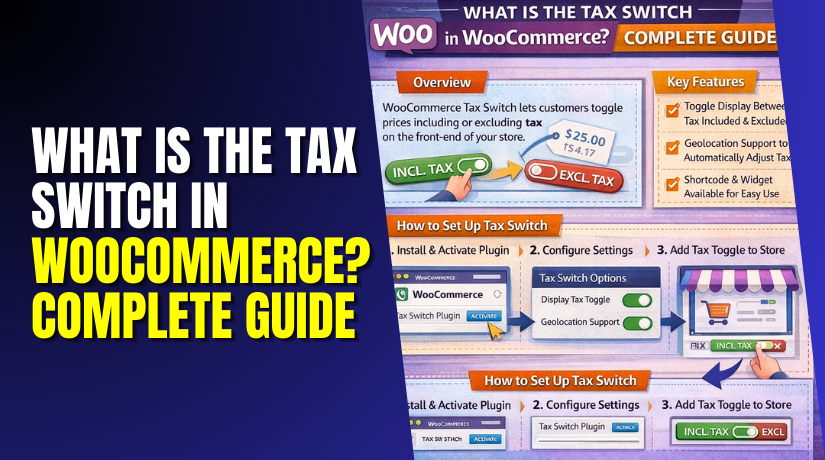
The Tax Switch is a third-party plugin that lets customers toggle between inclusive and exclusive VAT pricing . It adds a customizable switch component to your store frontend.
The Tax Switch allows visitors to choose how prices display. They can view prices with tax included or without tax. The switch remembers their preference for future visits .
This is fundamentally different from WooCommerce’s default behavior. Normally, tax display is a global setting controlled by the store admin. All customers see the same price format.
Key Features
- Customizable Switch Display: You can choose between a toggle switch or buttons. Both options blend seamlessly with your theme.
- Gutenberg Block Support: Add the switch anywhere using the dedicated block editor. No shortcodes needed for modern themes.
- Shortcode Integration: For classic editors, use [wdevs_tax_switch] to place the switch. A separate shortcode [wdevs_tax_switch_label] shows the current tax status text.
- Flexible Display Options: Configure colors, labels, and styling to match your brand. The switch supports custom CSS classes for advanced customization.
- User Preference Storage: The plugin remembers each visitor’s choice across sessions. No need to toggle every time.
- JavaScript Events: Developers can listen for toggle events and execute custom code. This enables advanced integrations.
- Price Updates in Mini Cart: Recent versions added support for price switching in the mini cart. The experience is seamless everywhere.
Who Needs It?
- B2B and Wholesale Stores: Business customers often need net prices for accounting. The switch lets them see prices without tax while regular shoppers see final costs.
- International Stores: Different countries have different pricing expectations. European shoppers expect VAT included. Some international buyers prefer net prices.
- Mixed Audience Stores: If you serve both consumers and businesses, one price display frustrates someone. The switch lets each customer choose.
- Transparency-Focused Merchants: Some stores simply want customers to understand pricing completely. The switch provides clarity without forcing one format.
Prerequisites for Using the Tax Switch
Before installing the plugin, ensure your WooCommerce tax settings are correct. The switch only works when taxes are properly configured .
Step 1: Enable Tax Calculations
WooCommerce → Settings → General
- Verify your shop address is complete
- Check “Enable tax rates and calculations”
- Set “Default customer location” to “Shop base address” for instant tax display
Step 2: Configure Tax Rates
WooCommerce → Settings → Tax → Standard Rates
- Add your regional tax rates manually
- Or use automated tax plugin like WooCommerce Tax
Step 3: Set Calculation Method
WooCommerce → Settings → Tax
- Set “Calculate tax based on” to “Shop base address”
- This provides instant tax calculation without requiring customer address
- Alternative methods require customers to enter address first
Step 4: Configure Individual Products
Products → [Edit Product] → Product Data → General
- For taxable products, set “Tax status” to “Taxable”
- Assign appropriate tax class
How to Install and Configure the Tax Switch Plugin?
Installing the Tax Switch takes minutes. Follow these steps carefully.
Step 1: Install the Plugin
WordPress Dashboard → Plugins → Add New
- Search for “Tax Switch for WooCommerce”
- Find the plugin by wijnbergdevelopments
- Click “Install Now”
- Click “Activate”
Step 2: Access Plugin Settings
WooCommerce → Settings → Tax Switch
- The plugin adds its own settings tab
- Configure your preferred text values for inclusive and exclusive labels
- Set your default switch state
Step 3: Configure Display Options
- Choose whether the switch remembers user preference
- Optionally restrict where the switch appears
- Set visibility rules for specific pages or products
Step 4: Generate Shortcode (Optional)
WooCommerce → Settings → Tax Switch → Shortcode
- Use the built-in generator to create custom shortcode
- Copy the generated code for use in pages
Step 5: Add Switch to Your Store
Option A: Using Gutenberg Block
- Edit any page or post
- Click the plus icon to add block
- Search for “Tax Switch for WooCommerce”
- Insert the block at desired location
Option B: Using Shortcode
- Place [wdevs_tax_switch] anywhere in your content
- Use attributes for customization:
[wdevs_tax_switch class-name=”is-style-inline” switch-type=”switch” switch-label-incl=”Incl. tax” switch-label-excl=”Excl. tax”]
“` [citation:1]


Option C: Add Text Label Separately
- Use [wdevs_tax_switch_label] to show current tax status
- Displays text like “Prices include VAT” that updates when toggled
Step 6: Test Thoroughly
- View your store in incognito mode
- Toggle the switch and verify price changes
- Check product pages, shop archives, and cart
- Confirm preference saves across sessions
What are the Top 3 Best Tax Switch Plugins?
Based on actual installation numbers and user reviews from the WordPress plugin directory and CodeCanyon marketplace, here are the top three tax switch plugins for WooCommerce in 2026.
1. Tax Switch for WooCommerce by Wijnberg Developments
This is the most popular and actively maintained free tax switch plugin in the WordPress repository. It allows customers to toggle between inclusive and exclusive VAT pricing with a customizable switch component.
Key Features:
- Flexible Placement: Offers a Gutenberg block, a customizable shortcode [wdevs_tax_switch], and PHP functions for theme integration.
- Extensive Customization: Allows detailed styling of the switch (colors, labels, type) via shortcode attributes, with options for a toggle switch or buttons.
- User Preference Storage: Remembers the user’s choice for future visits via a cookie.
- Dynamic Text Label: Provides a separate shortcode [wdevs_tax_switch_label] to display the current tax status text that updates automatically when toggled.
- Developer Events: Includes JavaScript events for developers to execute custom code when the tax display is toggled.
- High Compatibility: Officially tested and compatible with over 30 popular plugins (like YITH, B2BKing, FacetWP) and 7+ major themes (including GeneratePress, Flatsome, Woodmart).
- Translation Ready: Supports multilingual sites with WPML compatibility.
Pros:
- Completely Free: No premium version or upsells; all features are accessible at no cost .
- Excellent Support: Users consistently praise the fast and effective support from the developer, often resolving issues within minutes.
- Lightweight & Open Source: The code is open-source and focuses on being lightweight without impacting site performance.
- Actively Maintained: Regular updates ensure compatibility with the latest WooCommerce and WordPress versions (last updated February 2026).
Cons:
- Known Incompatibilities: Does not work with “Unlimited Elements for Elementor” and “Barn2: WooCommerce Product Options”.
- WooCommerce Blocks Limitation: Some WooCommerce Blocks are not fully compatible as they don’t use standard price filters. The recommended fix is to use WooCommerce shortcodes instead of blocks.
- No Cart/Checkout Toggle: By design, the plugin does not update prices in the cart and checkout to maintain customer clarity and technical simplicity.
Download Link: Tax Switch for WooCommerce by Wijnberg Developments
2. WooCommerce Tax Toggle by ymmv
This is the leading premium tax toggle plugin on CodeCanyon with over 1,200 sales. It provides comprehensive tax switching functionality with professional support.
Key Features:
- Multiple Display Modes: Can be displayed as a floating button on the left, as a widget in sidebars, or inserted anywhere using the [wootax] shortcode or PHP code.
- No Page Refresh: Uses JavaScript to toggle prices without reloading the page, providing a smooth user experience.
- Cart and Checkout Behavior: On the cart page, it shows/hides tax in the order summary. It is automatically hidden on the checkout page to avoid confusion with address-based tax calculations.
- Gutenberg Block: Includes a dedicated block for the new WordPress Block Editor (Full Site Editing).
- Theme Override Setting: Includes an experimental “Theme Override” setting to force compatibility with themes that don’t follow standard WooCommerce coding practices.
- HPOS Compatible: Fully supports WooCommerce’s High-Performance Order Storage.
Pros:
- Extremely Broad Compatibility: Tested with over 50 themes and page builders like Elementor, Oxygen, Beaver, and Bricks. It is actively used on over 10,000 websites.
- No-Refresh Technology: The price toggling is seamless without a page reload, which is a significant advantage over some other solutions.
- Premium Support: Offers direct developer support through a personal ticket system.
- Cart Page Integration: One of the few plugins that actively manage tax display on the cart page.
Cons:
- Paid Plugin: Requires a one-time purchase, whereas the other top options are free.
- Mixed User Feedback: While generally positive, some users in the comments have reported issues with variable products, zero-price items, or the toggle state not persisting, though the developer is often responsive in fixing them.
- Support Response Time: The author states that response time can be up to 1 business day, which may be slower than the instant support offered for the free plugin.
Download Link: WooCommerce Tax Toggle by ymmv
3. Toggle Tax For WooCommerce
This plugin offers a simpler approach with a floating toggle button that appears on the left side of your site. It has been tested and works well with standard WooCommerce installations.
Key Features:
- Floating Toggle Button: Displays as a simple, pre-styled floating button on the left-hand side of the site for quick customer access.
- Cart Summary Integration: Toggling the button shows or hides the tax and order total in the cart summary.
- Dedicated Settings Tab: Includes its own ‘Toggle Tax’ tab in the WooCommerce settings for easy configuration of style and behavior.
- Visibility Control: Provides options to easily show or hide the toggle button as needed.
- Label Customization (Pro): The free version allows basic styling, while the pro version adds the ability to modify the tax text itself (e.g., TAX, VAT, BTW).
Pros:
- Ease of Use: Simple to install and configure; it works out of the box with minimal setup.
- Free: The base plugin is free to download and use from the WordPress repository.
Cons:
- Limited Features: Lacks advanced features like Gutenberg blocks, shortcode flexibility, and extensive styling options found in the other plugins.
- Lower Popularity: With significantly fewer active installations than the other two, community support and third-party compatibility are less proven.
- Basic Free Version: The most useful customization (changing the tax text) is locked behind a paid pro version.
- Lack of Placement Flexibility: Primarily relies on a fixed-position floating button, offering less control over where the toggle appears on the page.
Download Link: Toggle Tax For WooCommerce
Final Verdict
The Tax Switch plugin addresses a critical need for WooCommerce stores serving diverse customer bases. By allowing customers to toggle between tax-inclusive and tax-exclusive pricing, it eliminates confusion and creates a transparent shopping experience.
This is particularly valuable for stores with both B2B and B2C customers, where business buyers need net prices for accounting while regular shoppers prefer seeing the final cost upfront. The plugin transforms a one-size-fits-all tax display into a customer-centric feature that adapts to individual preferences.
Installation and setup are remarkably simple, with both Gutenberg block and shortcode options for placement. The extensive customization options let you match the switch perfectly to your brand’s design. With over 5,000 active installations and perfect 5-star ratings, the plugin has proven reliable and well-maintained.
While some WooCommerce Blocks have compatibility limitations, shortcodes provide an effective workaround. For stores where customers ever ask “Does this price include tax?” or where you serve mixed audiences, the Tax Switch plugin delivers exceptional value at no cost. Install it today and let your customers choose how they see prices.
Have questions before starting with WooCommerce & WordPress? Get support here at WooHelpDesk.