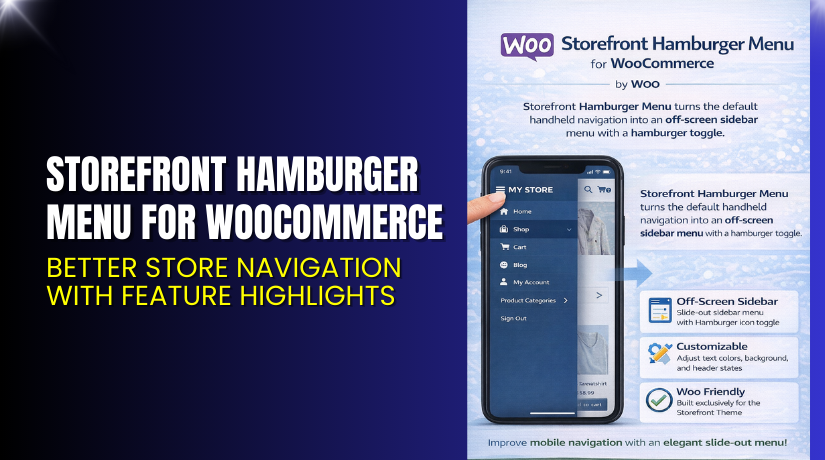
Storefront Hamburger Menu for WooCommerce – Better Store Navigation with Feature Highlights
Table of Contents
- Introduction
- What is Storefront Hamburger Menu for WooCommerce?
- Features of Storefront Hamburger Menu for WooCommerce
- How to Install and Configure Storefront Hamburger Menu for WooCommerce
- Storefront Hamburger Menu for WooCommerce – Pricing & Plans
- My Experience with Storefront Hamburger Menu for WooCommerce
- Who Should Use This Plugin?
- Final Verdict
- FAQ
Introduction
Running a WooCommerce store means handling many tasks each day. Store owners manage products, customers, shipping, payments, and design changes. They also manage dozens of plugins that affect store speed and performance. With so many extensions installed, the navigation system often becomes confusing for users. A cluttered menu can reduce sales and increase bounce rates. Many store owners face issues with poor mobile navigation. Customers struggle to find products on small screens. They leave the site because the menu is difficult to browse. This creates a real loss for the business.
A clean and simple navigation menu is important for every store. Customers want clear categories and smooth browsing. They expect quick access to important pages without extra steps. The Storefront Hamburger Menu for WooCommerce helps solve these navigation issues. It gives a modern mobile menu that simplifies the user journey. It also improves browsing speed and increases conversions.
In this article, we explore Storefront Hamburger Menu for WooCommerce, its features, installation steps, pricing, pros and cons, and who should use it. The goal is to help you decide if this plugin will improve your store.
👉 If you ever need help installing or troubleshooting any plugin, try our Installation & Troubleshooting Services.
What is Storefront Hamburger Menu for WooCommerce?
Storefront Hamburger Menu for WooCommerce is a simple navigation plugin designed for WooCommerce stores. It replaces the default menu with a clean hamburger-style menu icon. The icon opens a slide-out menu on mobile and desktop screens. This makes navigation easy for customers on all devices. The plugin focuses on creating a modern layout that improves user experience. It removes clutter and keeps the design lightweight.
This plugin is developed by WooCommerce / Automattic, the official team behind the WooCommerce ecosystem. It is built specifically for the Storefront theme, but it also works well with other standard themes. The plugin uses clean code and follows WordPress standards. This ensures better stability, speed, and compatibility.
Store owners use this plugin to create a simple and quick navigation experience. The plugin helps users find categories, pages, and products with fewer clicks. It’s helpful for large stores with many menu items. The hamburger menu creates a compact design that saves space on the header.
Features of Storefront Hamburger Menu for WooCommerce
| Feature | Description | Why It Matters |
| Compact Hamburger Menu | Creates a small icon that opens the main menu. | Helps store owners keep the header clean. |
| Mobile-Ready Layout | Works smoothly on all mobile screens. | Saves time by offering fast navigation. |
| Lightweight Code Design | Uses simple code without heavy scripts. | Improves speed, UX, and conversions. |
| Storefront Theme Compatible | Fully matches the Storefront theme styling. | Ensures stable performance without conflicts. |
| Easy One-Click Setup | Quick setup without complex options. | Helps beginners configure the store easily. |
How to Install and Configure Storefront Hamburger Menu for WooCommerce
- Download the plugin from the link.
- Go to WordPress Dashboard → Plugins → Add New → Upload Plugin.
- Install and activate the plugin after upload.
- Navigate to Appearance → Customize → Header → Navigation.
- Enable the hamburger menu option to activate the design.
- Save changes and reload your site.
- Test the menu on mobile and desktop screens.
- Check compatibility with your theme and third-party extensions.
💡 If you face any configuration or compatibility issues, try our Installation & Troubleshooting Services. We handle plugin conflicts, CSS issues, theme mismatches, and performance errors.
Storefront Hamburger Menu for WooCommerce – Pricing & Plans
Storefront Hamburger Menu for WooCommerce is free to install, with free updates and free customer support included.
Buy Storefront Hamburger Menu for WooCommerce Now
Purchase Here → Buy Storefront Hamburger Menu Premium Now
💡 Your purchase supports the developer team and helps us create more helpful tutorials.


My Experience with Storefront Hamburger Menu for WooCommerce
After testing this plugin on a live WooCommerce store, here is what I found:
Pros
- Very easy to install and configure.
- Works smoothly with the Storefront theme.
- Lightweight and does not slow down the site.
- Clean design that improves user experience.
- Great mobile-friendly layout.
- Official support from the WooCommerce team.
Cons
- Limited customization options.
- Only ideal for Storefront-based stores.
- No advanced styling without custom CSS.
- Premium price may feel high for small stores.
Who Should Use This Plugin?
This plugin is ideal for:
- WooCommerce store owners want a clean and mobile-friendly menu
- Agencies managing multiple Storefront-based client sites
- Beginners who want simple navigation without complex settings
- Store owners are facing high bounce rates due to poor navigation
- Any business needing a modern hamburger-style navigation system
Useful Resources
- Official Plugin Page
- Official Plugin Support Page
- Developer Documentation
- WooHelpDesk Installation & Troubleshooting Services
Final Verdict
If you need a clean and modern navigation menu for your WooCommerce store, Storefront Hamburger Menu for WooCommerce is a solid choice. It improves mobile navigation, reduces header clutter, and delivers a smooth browsing experience. The plugin works best for stores using the Storefront theme. It is lightweight, simple, and highly reliable.
Use the link below to get started and unlock premium features today.
👉 Buy Storefront Hamburger Menu Premium Now
💡 Need help installing or fixing it? Try our Installation & Troubleshooting Services.
FAQ Section
Q1. Is Storefront Hamburger Menu for WooCommerce compatible with all themes?
Yes, it works with most WooCommerce themes. However, the Storefront theme offers full compatibility.
Q2. Can I use both free and premium versions?
No. You must deactivate the free version before installing the premium version.
Q3. How do I get support for this plugin?
You can open a support ticket on the official WooCommerce Support Page.



