How to Set Up WooCommerce Cart Abandonment Recovery
Table of Contents
What is Cart Abandonment?
Cart abandonment occurs when customers add items to their carts but do not finish the checkout process. For online retailers, this is a typical problem. Studies show that 55–80% of carts remain abandoned across industries.
Customers may depart without purchasing a variety of reasons. They may get distracted or change their minds. Unexpected shipping costs or complicated checkout processes also cause drop-offs.
Every abandoned cart means lost revenue for businesses. Without action, these potential sales disappear. That’s where abandoned cart recovery strategies help.
Why WooCommerce Stores Need an Abandoned Cart Recovery Plugin
Cart abandonment directly affects an online store’s revenue. Losing potential customers means fewer conversions and lower profits. However, a large number of these lost sales are recoverable.
According to research, approximately 30% of abandoned carts can be recovered by follow-up emails. Customers are encouraged to finish their purchases when they receive timely reminders. Offering discounts and incentives further increases the chances of conversion.
Manually reaching out to each lost customer is time-consuming. That’s why automated recovery tools are essential. They track abandoned carts and send personalized follow-up emails. This improves sales without extra effort from store owners.
An abandoned cart recovery plugin is revolutionary for WooCommerce users. It automates the recovery process and helps regain lost revenue.
Introduction to the Abandoned Cart Recovery for WooCommerce Plugin
The Abandoned Cart Recovery for WooCommerce plugin is designed to reduce lost sales. It streamlines follow-ups with customers who leave their carts unfinished.
Owners of WooCommerce stores can use this plugin to:
- Automated follow-up emails should be sent at predetermined times.
- Offer discounts and incentives to encourage purchases.
- Track cart abandonment trends and measure recovery success.
- Capture guest emails before checkout to improve engagement.
With an intuitive dashboard, store owners can monitor abandoned carts. The plugin provides real-time insights into recovery performance. It is a must-have tool for any WooCommerce store looking to recover lost sales effortlessly.

Features & Benefits of the Abandoned Cart Recovery Plugin
Store owners may recover lost sales with the Abandoned Cart Recovery for WooCommerce plugin. It automates follow-up emails, tracks abandoned carts, and improves conversions. Here are some of its main attributes and advantages.
-
Automated Abandoned Cart Emails
It takes time to manually follow up with abandoned carts. Email reminders are automated by this plugin to entice clients to return.
- Create multiple email templates for different types of customers.
- Set custom email schedules to send reminders at specific intervals.
- Track email open rates and click-through performance to improve results.
- Choose between manual or automated email sending.
Automated emails ensure no potential sale is forgotten. They remind clients to finish their purchases and maintain their interest.
-
Abandoned Cart Tracking & Analytics
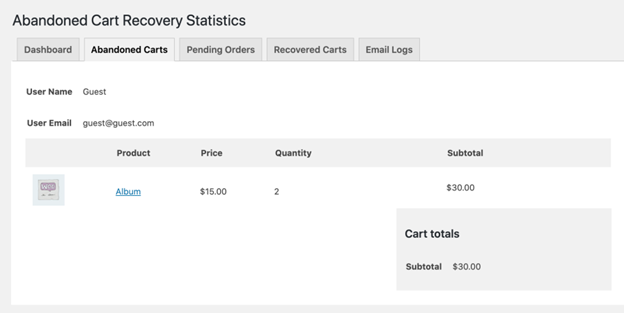
Understanding customer behavior is key to increasing sales. This plugin provides a detailed dashboard for tracking cart abandonments.
- View all abandoned carts with product details and customer information.
- Track recovered carts and measure conversion success.
- Monitor pending orders and follow up with reminders.
- Analyze cart recovery trends to optimize email strategies.
Businesses can use this tool to make data-driven decisions. It guarantees increased effectiveness in cart recovery operations.
-
Guest Email Capture
Many visitors abandon their carts before entering their email. This plugin captures guest emails early to prevent lost sales.
- Show a popup form to collect emails before checkout.
- Offer privacy text options to ensure compliance.
- Store guest emails for future marketing campaigns.
Capturing emails early increases the chances of successful follow-ups. Store owners can utilize it to remind customers even if they are gone.
-
Pending Order Recovery
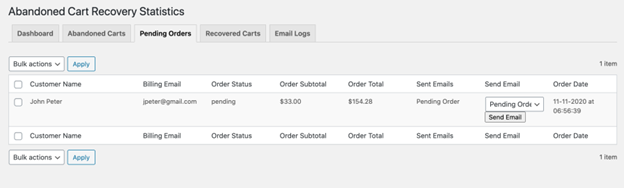
Some buyers put things in their carts but never pay for them. These pending orders are recovered with the help of the plugin.
- Remind clients about unfinished orders by sending follow-up emails.
- Choose which order statuses to recover.
- Restrict pending order recovery emails to specific user roles.
This feature ensures fewer abandoned checkouts and more completed transactions.
-
Discount & Incentives Management
Offering discounts can convince customers to complete their purchase. This plugin allows customized coupon creation in recovery emails.
- Include fixed or percentage-based discounts in emails.
- Set coupon expiration dates to create urgency.
- Customize discount rules for specific customers or products.
Discounts persuade reluctant buyers to complete their transaction. They also help in increasing customer loyalty.
-
Advanced Email Customization
Personalized emails perform better than generic ones. This plugin allows store owners to customize emails for better engagement.
- Add customer details like name, cart subtotal, and product list.
- Include a direct cart link to make checkout easy.
- Add a recovery button for quick access to the abandoned cart.
- Customize email subjects for higher open rates.
A well-designed email increases the likelihood that the recipient will come back and finish the transaction.
-
Product & Category Exclusion
Not all products need recovery emails. This plugin allows exclusions for better targeting.
- Prevent emails for specific products or categories.
- Avoid unnecessary reminders for low-stock or limited-time items.
This ensures customers only receive relevant recovery emails. It prevents sending emails for products that should not be promoted again.


Step-by-Step Setup & Configuration
Setting up the Abandoned Cart Recovery for WooCommerce plugin is simple. Take these actions to begin recouping lost sales.
-
Installing & Activating the Plugin
You must install and activate the plugin before you can use it.
- Download the plugin from your WooCommerce account.
- In WordPress, go to Plugins > Add New > Upload Plugin.
- Press “Choose File” and pick the downloaded .zip file.
- Select “Install Now,” then click “Activate” to enable the plugin.
Once activated, a Cart Recovery option appears in your WordPress dashboard.
-
Configuring General Settings
After activation, adjust the general settings for cart recovery functionality.
- Go to Cart Recovery > Settings in your WordPress admin panel.
- Enable Abandoned Cart Recovery to start tracking lost carts.
- Set the cart abandonment time (e.g., 30 minutes, 1 hour).
- Enable auto-deletion of old abandoned carts.
- Customize the recovery button included in email templates.
These settings ensure that abandoned carts are detected and managed efficiently.
-
Setting Up Email Recovery System
The plugin allows you to send personalized emails to recover carts.
- Go to Cart Recovery > Email Templates.
- Click Add New Template to create a recovery email.
- Customize the email subject and content.
- Use variables like {first-name}, {cart-subtotal}, and {recovery-link}.
- Include a discount code (fixed or percentage-based).
- Set email schedules (e.g., send after 1 hour, 24 hours).
Customers are more likely to return and finish purchases when they receive personalized communications.
-
Guest Email Capture & User Role Restrictions
Some customers abandon carts before entering their email. The plugin helps capture guest emails early.
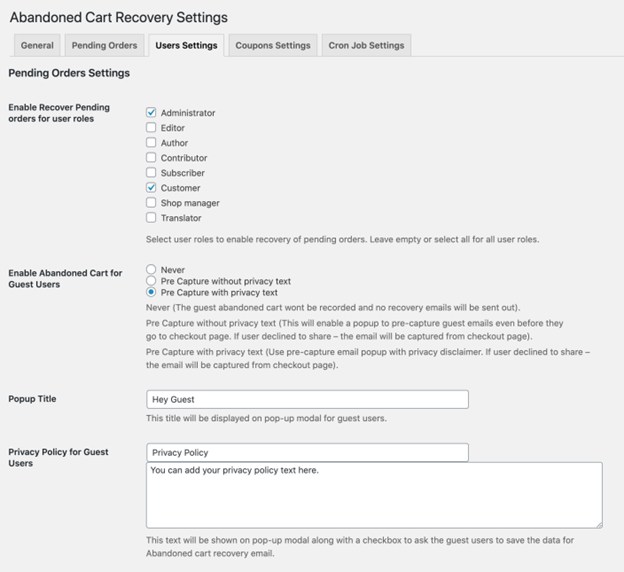
- Go to Cart Recovery > User Settings.
- Enable Guest Email Capture to collect emails before checkout.
- Choose one of three options:
- Never – No email collection from guest users.
- Pre-Capture Without Privacy Text – A pop-up collects emails early.
- Pre-Capture With Privacy Text – A pop-up collects emails with a privacy disclaimer.
- Restrict cart recovery emails by user roles if needed.
This feature ensures you can follow up even if the user leaves early.
-
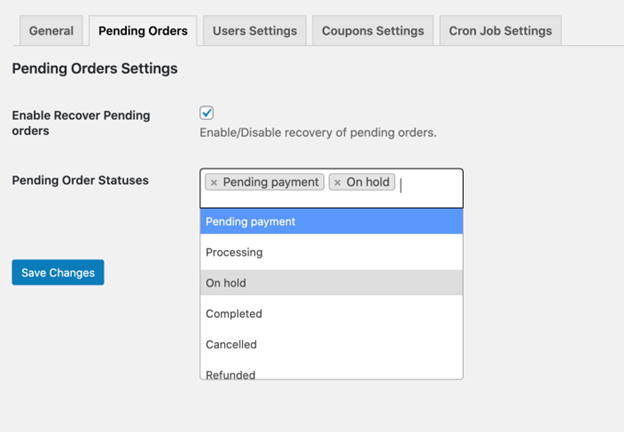
Managing Pending Order Recovery
Some customers add products to their cart but don’t complete payment. You can send reminders to recover these orders.
- Navigate to Cart Recovery > Pending Orders.
- Enable Pending Order Recovery emails.
- Choose which order statuses to recover (e.g., “On Hold”, “Failed”).
- Schedule emails to remind users to complete their payment.
Pending order recovery helps increase successful checkouts.
-
Excluding Products & Categories from Recovery Emails
Not all products need recovery emails. You can exclude specific products.
- Go to Cart Recovery > Settings > Exclusions.
- Select products or categories to exclude from recovery emails.
This ensures that customers only receive relevant and valuable emails.
-
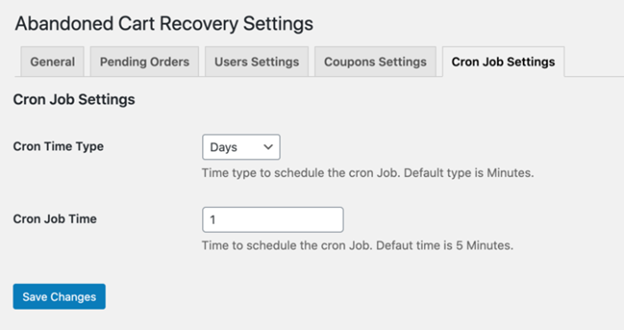
Setting Up Cron Jobs for Automated Emails
Automating email delivery improves recovery rates. You can schedule cron jobs to send emails.
- Navigate to Cart Recovery > Settings > Email Scheduling.
- Configure the cron job to execute at predetermined times.
- Choose minutes, hours, or days for email automation.
Automated emails ensure consistent engagement without manual effort.
Performance Tracking
Once the Abandoned Cart Recovery for WooCommerce plugin is set up, tracking performance is crucial. Monitoring results helps store owners improve recovery strategies and maximize conversions.
-
Monitoring Recovery Performance
Tracking abandoned cart data helps businesses understand customer behavior. The plugin provides a detailed dashboard for performance analysis.
- Go to Cart Recovery > Dashboard to view real-time stats.
- Check the total number of abandoned carts over time.
- Track how many carts were recovered through email follow-ups.
- Review the email logs to see which emails were opened.
- Analyze click-through rates to measure customer engagement.
Using this data, store owners can adjust email timing and content to improve recovery rates.
-
Best Practices for Maximizing Cart Recovery
Even with automation, optimizing strategies boosts cart recovery success. Follow these best practices:
- Use Persuasive Email Subject Lines – Catch customer attention instantly.
- Offer Time-Sensitive Discounts – Create urgency to encourage purchases.
- Send Multiple Reminders – One email is not always enough. Use a sequence.
- Simplify the Checkout Process – To make it easier, cut down on extra steps.
- Personalize Recovery Emails – Use customer names and cart details.
Testing different email templates and discount offers improves long-term success.
Conclusion
One effective solution for recouping lost revenues is the Abandoned Cart Recovery for WooCommerce plugin. It automates email follow-ups, tracks abandoned carts and provides insights for optimization.
WooCommerce store owners can increase revenue by using its advanced features. Setting up email automation, guest capture, and tracking tools ensures higher conversion rates.
If you still face issues, WooHelpDesk is here to assist you.



