How to Set Up Tiered Pricing Table in WooCommerce
Table of Contents
- Introduction
- Key Features of Tiered Pricing Table for WooCommerce
- Installation & Product-Level Setup
- Setting Up Global Tiered Pricing Rules
- Role-Based Pricing
- How Pricing Appears to Customers
- Import and Export Tiered Pricing Data
- Compatibility With Popular Plugins
- Conclusion
Introduction
Selling more is every store owner’s goal. But how do you encourage customers to buy more at once?
Tiered pricing is a smart way to do that. It offers discounts based on the quantity customers buy. The more they buy, the lower the price per unit.
This pricing method is common in wholesale stores. But now, even small shops can use it.
The Tiered Pricing Table for WooCommerce plugin makes it simple. It lets you offer bulk discounts and show them clearly on product pages.
This helps increase order sizes and boost profits. It also builds trust with your buyers by showing pricing upfront.
In this post series, we’ll walk you through how to use it. You’ll learn about features, setup, pricing options, and more.
Key Features of Tiered Pricing Table for WooCommerce
- Quantity-Based Pricing (Fixed or Percentage)
You can set different prices for different quantities.
For example:
- Buy 1–9 units: $10 each
- Buy 10–19 units: $9 each
- Buy 20+ units: $8 each
You can also offer percentage-based discounts.
For example:
- Buy 10 units: 10% off
- Buy 20 units: 20% off
This works great for encouraging bulk purchases.
- Role-Based Pricing
You can give special pricing to specific user roles.
Example: wholesale buyers, logged-in users, or VIP customers.
Each role can have its own pricing tiers. This makes it easy to serve different customer types.
- Global and Product-Level Rules
You can set pricing per product or apply global rules.
Global rules are useful when you want to set bulk discounts across many products.
You can apply them to categories or user roles.
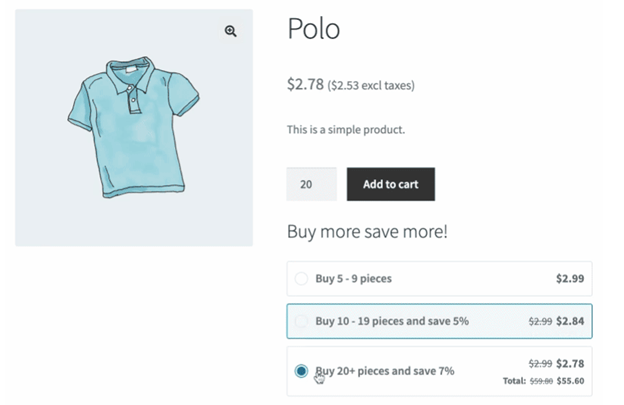
- Real-Time Pricing Updates
When users select a quantity, the price updates instantly.
They can see the discount and cost per unit right away.
This makes the shopping experience smoother and more transparent.
- Multiple Layout Options
You can show the pricing table in different styles:
- Table view
- Block view
- Dropdown
- Tooltip
- Horizontal layout
You can also place it anywhere using shortcodes or Elementor widgets.
- Minimum and Maximum Quantity Settings
Set rules for the minimum and maximum quantity allowed.
You can also create “group-of” rules for items sold in packs.
This is useful for products that must be sold in bulk. - Catalog and Cart Price Display
Show discounted prices or price ranges on category pages.
In the cart, regular prices appear crossed out next to the discount.
This reinforces savings and builds trust with your customers. - Works with Variable Products
You can apply tiered pricing to variable products easily.
Set rules for all variations or customize each variation separately.
It gives full control over complex product pricing structures. - Built-In Upsell Prompts
Encourage users to add more to unlock the next discount tier.
The plugin shows how many more units are needed to save.
This improves cart value and increases total order size. - Compatible with Other Popular Plugins
Works smoothly with Elementor, WPML, Subscriptions, Product Bundles, and more.
You can also import/export data using WP All Import support.
Installation & Product-Level Setup
How to Install the Plugin
Installing the Tiered Pricing Table for WooCommerce is quick and simple. Follow these steps to get started:
- Go to your WordPress dashboard.
- Navigate to Plugins > Add New.
- Click the Upload Plugin button at the top.
- Upload the ZIP file you downloaded from WooCommerce.com.
- Click Install Now, then activate the plugin.
Once activated, you’ll see new options under WooCommerce settings. You’re now ready to create pricing rules for your products.
Setting Up Tiered Pricing (Product-Level)
This plugin lets you create tiered pricing directly on each product page. You can use this method for simple or variable products.
For Simple Products
- Edit the product from your WooCommerce dashboard.
- Go to the General tab.
- Scroll to the Tiered Pricing section.
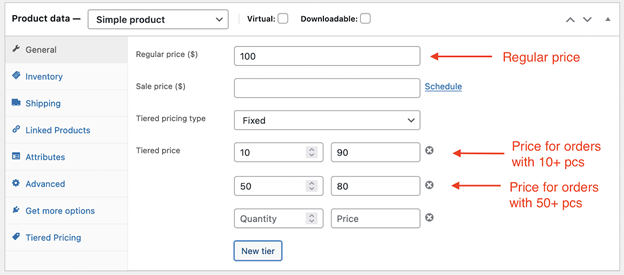
- Choose your pricing type:
- Fixed pricing (example: 10 units for $90 each)
- Percentage discount (example: 10 units = 10% off)
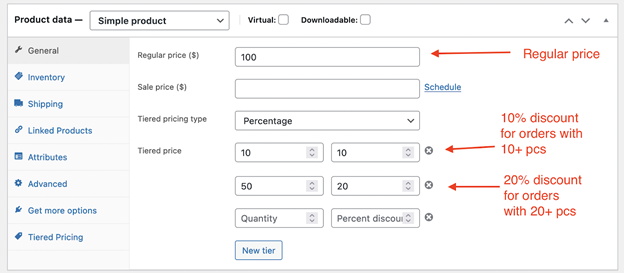
- Add the quantity ranges and set prices or discounts.
- Add as many tiers as needed.
You can also define:
- Minimum quantity (e.g., must buy at least 5 units)
- Maximum quantity (e.g., no more than 100 units)
- Group-of quantity (e.g., buy in multiples of 10 only)
These rules are helpful for bulk or wholesale products.
For Variable Products
You can add pricing rules in two ways:
- Global Rules for All Variations
- Use the Tiered Pricing tab on the product page.
- This applies the same rules to every variation.

- Individual Rules for Each Variation
- Open each variation under the Variations tab.
- Add unique pricing tiers for each variation.
If a variation has its own rule, it overrides the global setting. This gives you full control over detailed product pricing.
Setting Up Global Tiered Pricing Rules
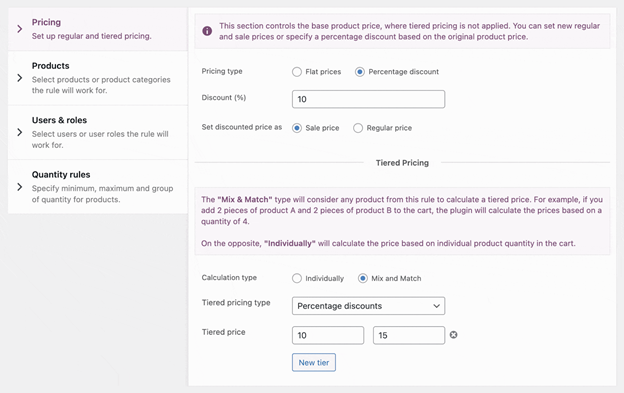
Global pricing rules help you apply tiered discounts across multiple products. Instead of setting prices one by one, you can create one rule that works for many products or entire categories.
To create a global rule, go to WooCommerce > Pricing Rules and click Create a Pricing Rule. Here, you’ll choose which products and users the rule will apply to.


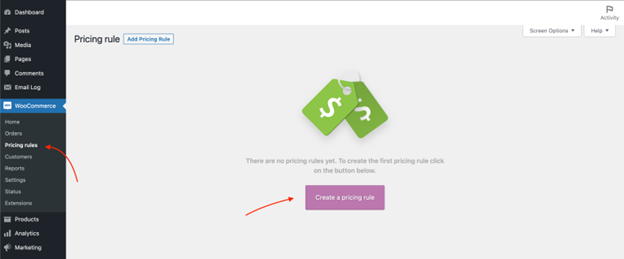
You can target:
- Individual products
- Entire product categories
- Specific user roles (like wholesale or logged-in users)
- Specific customers
After choosing the products and users, set the pricing type:
- Fixed pricing: set a new price per quantity
- Percentage discount: Apply a percentage off the regular price
You can also decide how the quantity is counted:
- Cross-product: Combines quantities of different products for one discount
- Per product: applies the rule to each product separately
For example, if a customer buys 5 units of Product A and 5 of Product B, the cross-product rule will treat that as 10 units total. That triggers the 10-unit discount. This feature is helpful for “mix and match” product bundles.
Global rules are ideal for storewide promotions, seasonal discounts, or wholesale pricing that applies to multiple products at once.
Role-Based Pricing
Role-based pricing lets you create special discounts for different user groups. You can set different prices for wholesalers, retailers, or logged-in users.
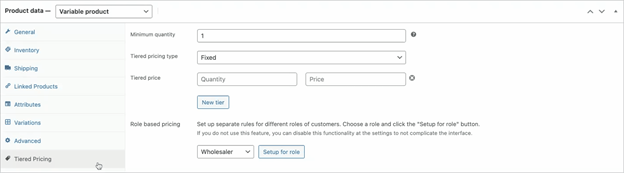
To set this up, edit any product and go to the Tiered Pricing tab. Select a user role and click Setup for Role.
Now you can:
- Set a custom regular price
- Set a sale price
- Create tiered pricing just for that role
- Define a role-specific minimum order quantity
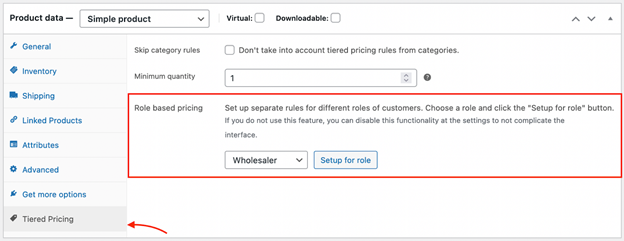
If no role-specific pricing is added, the plugin will use the default pricing. If you want the same pricing tiers for all users, you’ll need to duplicate those settings under each role.
Role-based pricing is helpful for stores that sell to both retail and wholesale customers. You can keep your store public while offering special deals to approved users.
How Pricing Appears to Customers
One of the best features of this plugin is how it displays pricing on the front end. Customers see clear pricing changes as they adjust the quantity.
The plugin offers several display layout options:
- Table view (default and most popular)
- Block layout
- Dropdown
- Tooltip
- Horizontal table
You can choose how the pricing table appears on product pages. It updates in real time when the quantity changes. Customers instantly see the per-unit price and the total cost.
On category pages, you can show pricing as a range (e.g., $10–$8) or display the lowest price with a “From” prefix.
In the cart, regular prices appear crossed out next to the discounted total. You can also show messages encouraging users to add more to unlock the next discount tier.
This clear display builds trust and encourages larger orders.
Import and Export Tiered Pricing Data
Managing pricing data can take time, especially for large stores. The Tiered Pricing Table plugin makes this easier with import and export support.
You can use CSV files to bulk-upload pricing rules. This is helpful when setting up many products at once or updating prices in bulk.
The plugin supports the following fields:
- Tiered pricing type (fixed or percentage)
- Minimum quantity
- Fixed tiered prices (e.g., 10:50, 20:40)
- Percentage discounts (e.g., 10:10%, 20:20%)
If you’re using WP All Import, you can import both regular and role-based pricing. You simply map the CSV fields to the plugin’s data during the import process.
Exporting works just as smoothly. You can generate a CSV that includes all pricing rules and reuse it later. This is useful for backups or moving pricing data to another store.
Compatibility With Popular Plugins
This plugin is designed to work with many WooCommerce extensions. It plays well with tools that store owners already use.
Here are some supported plugins:
- Elementor: Add pricing tables using widgets
- WooCommerce Subscriptions: Apply tiered pricing to subscription products
- Product Bundles and Add-ons: Keep discounts even with custom product setups
- WPML and Multicurrency Tools: Show pricing correctly in different languages and currencies
- WooCommerce Deposits: Offer flexible payments alongside tiered pricing
You also get support for Mix & Match products, which is great for bundled items or wholesale kits.
These integrations make the plugin more powerful without extra setup. You can grow your store without worrying about compatibility issues.
Conclusion
Tiered pricing is a smart way to boost order value. This plugin makes it easy for any WooCommerce store owner to add dynamic pricing.
It works with simple and complex products. You can create role-based offers, mix-and-match discounts, and more—all with flexible control.
Setup is quick, and the display is user-friendly. Even non-technical users can manage it with ease.
If you need help setting up or troubleshooting the plugin, our team at WooHelpDesk is ready to assist you. We provide fast, reliable support for WooCommerce users.



