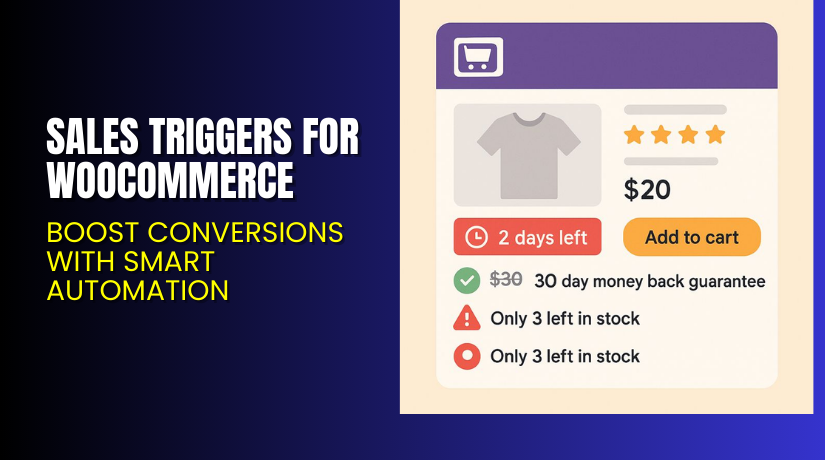
Sales Triggers for WooCommerce – Boost Conversions with Smart Automation
Table of Contents
- Introduction
- What is Sales Triggers for WooCommerce?
- Features of Sales Triggers for WooCommerce
- How to Install and Configure Sales Triggers for WooCommerce?
- Sales Triggers for WooCommerce – Pricing & Plans
- My Experience with Sales Triggers for WooCommerce
- Who Should Use This Plugin?
- Final Verdict
- FAQ
Introduction
Running a WooCommerce store means juggling many plugins. You want to drive sales and improve conversions. But you often face problems. Some extensions add complexity and slow your site. Others promise results but fail to deliver.
It’s hard to know which plugins truly help your business grow. Many store owners struggle with cart abandonment, low trust, and overlooked urgency triggers. Visitors browse and leave without buying. They don’t feel compelled to act now. You want to create urgency, display social proof, show stock warnings, and highlight savings. That’s where the right plugin becomes essential.
In this article, we’ll explore Sales Triggers for WooCommerce, its features, installation process, pros & cons, pricing, and how it compares to alternatives.
👉If you ever need help installing or troubleshooting any plugin or extension, please try our Installation & Troubleshooting Services.
What is Sales Triggers for WooCommerce?
Sales Triggers for WooCommerce is a powerful plugin built for WooCommerce stores. It’s developed by Flintop. The plugin uses psychological triggers to encourage more purchases. It displays features like deal-expiration timers, low-stock alerts, savings notices, guarantee badges, and best reviews badges.
These triggers work together to turn hesitant visitors into buyers. The plugin offers both free and premium versions. The free version covers basic functionality. The premium version unlocks all triggers and advanced controls.
With this plugin, you can add urgency and credibility to product pages. You can set rules so triggers show only for specific products, user roles, or categories. WooCommerce integrates into your shop without heavy custom code. That means your store gets smart sales cues without major setup. When used well, it can help boost conversions and reduce abandoned carts.
Features of Sales Triggers for WooCommerce
| Feature | Description | Why It Matters |
| Deal Expiration Trigger | Displays time left for a sale (days, date, countdown). | Creates urgency so visitors buy now, not later. |
| Low-Stock Trigger | Shows a notice when stock is low. | Encourages purchase due to the scarcity effect. |
| Savings Trigger | Displays the amount saved or discount. | Highlights value and makes buying feel smarter. |
| Guarantee Trigger | Displays assurances like free shipping or return policies. | Builds trust, reduces hesitation before purchase. |
| Best Reviews Trigger | Shows the satisfaction rate or the customer reviews badge. | Adds social proof, makes the buyer confident. |
Each of these features matters because they tap into proven marketing psychology. Urgency and scarcity push visitors to act now. Savings and guarantees reassure shoppers. Reviews and social proof help build trust. Together, they turn casual visits into conversions.
How to Install and Configure Sales Triggers for WooCommerce?
- Download the plugin from the purchase URL.
- Go to WordPress Dashboard → Plugins → Add New → Upload Plugin.
- Activate the plugin after installation.
- Open Settings → Sales Triggers → Configure basic options.
- Choose which triggers to enable (deal expiry, low stock, savings, guarantee, reviews).
- Define positions: specify where on product pages triggers will appear.
- Set criteria: specify user roles, products, or categories where triggers apply.
- Test your store to ensure compatibility with your theme and other extensions.
💡 If you face any configuration or compatibility issues, you can try our Installation & Troubleshooting Services.
Sales Triggers for WooCommerce – Pricing & Plans
| 1 Year Plan | 2 Year Plan |
| $49 | $78.40 |
Subscription includes
|
Subscription includes
|
Buy Sales Triggers for WooCommerce Now
Purchase Here → Buy Sales Triggers Premium Now


💡Your purchase supports the development team and helps me create more tutorials like this.
My Experience with Sales Triggers for WooCommerce
After testing Sales Triggers for WooCommerce on a live store, here’s what I found:
Pros
- Setup was quick and simple.
- The plugin didn’t slow down the site noticeably.
- Triggers are flexible and customizable.
- Works well on product pages and shop/category pages.
- Good support documentation is available.
Cons
- Some advanced styling options require CSS knowledge.
- Price may seem high for small stores.
- Few trigger types may be missing compared to some competitors.
- Free version is quite limited.
- Certain themes may require extra tweaks for perfect display.
Overall, it delivered what it promised: added urgency and trust signals that led to measurable conversion uplift.
Who Should Use This Plugin?
- WooCommerce store owners want to boost conversions with minimal fuss.
- Agencies managing multiple WordPress client stores.
- Beginners who want a simple yet powerful solution.
- Stores with decent traffic but low conversion rates.
- Sellers offering limited-time deals or low stock inventory.
Useful Resources
- Official Plugin Page.
- Official Plugin Support Page.
- Developer Documentation.
- WooHelpDesk Installation & Troubleshooting Services.
Final Verdict
If you’re looking for a reliable WooCommerce plugin that delivers results without breaking your site, Sales Triggers for WooCommerce is definitely worth trying. It adds urgency, scarcity, value signals, and trust elements with minimal effort. Use the link below to get started and unlock premium features today.
👉 Buy Sales Triggers for WooCommerce Premium Now
💡 Need help installing or fixing it? Try our Installation & Troubleshooting Services.
FAQ
Q1. Is Sales Triggers for WooCommerce compatible with all WooCommerce themes?
Yes, it works with most standard WooCommerce themes. Always test before going live.
Q2. Can I use both free and premium versions?
You’ll need to deactivate the free version before installing the premium to avoid conflicts.
Q3. How do I get support?
Contact the official team via the Plugin Support Page.



