PayPal Checkout Not Working in WooCommerce? Causes and Fixes Explained
Table of Contents
- Introduction
- Common Issues with PayPal Checkout in WooCommerce
- How to Fix PayPal Checkout Not Working in WooCommerce
- How to Prevent PayPal Checkout Issues in the Future
- Conclusion
Introduction
PayPal is one of the most popular payment gateways used by WooCommerce stores. It provides a secure and easy way for customers to pay online. As an eCommerce business owner, having PayPal integrated into your store ensures your customers have a trusted option for payment.
However, issues like PayPal checkout error WooCommerce can disrupt this seamless experience. When WooCommerce PayPal is not working, it can impact sales and frustrate customers. In this guide, we will walk you through some common reasons why PayPal checkout is not working for WooCommerce and how to fix it effectively.
Common Issues with PayPal Checkout in WooCommerce
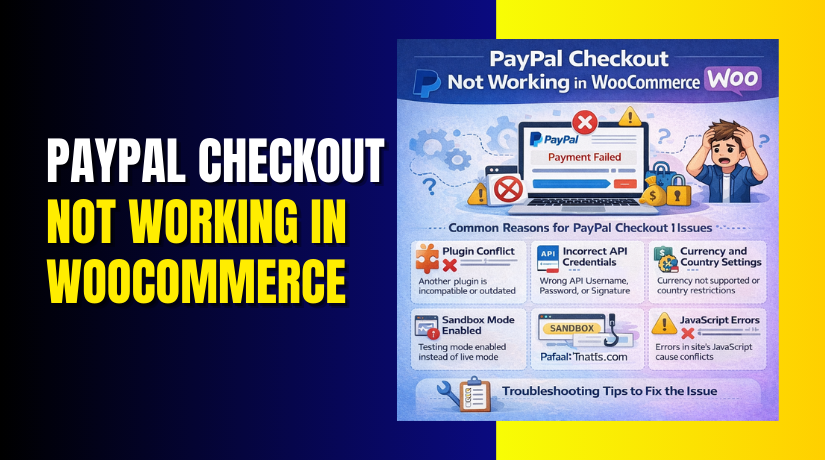
Incorrect PayPal API Credentials: Why PayPal Won’t Connect
One of the most common reasons for PayPal payment failing WooCommerce is incorrect API credentials. Without proper authentication, PayPal cannot process payments on your WooCommerce site. It’s essential to ensure that your PayPal API username, password, and signature are correctly entered in the WooCommerce PayPal configuration settings. If any of these credentials are incorrect or outdated, PayPal will not work, and transactions will fail. Always double-check these details in the WooCommerce settings to ensure smooth payment processing.
Plugin or Theme Conflicts That Cause PayPal Checkout to Fail
Another reason for WooCommerce PayPal gateway issue could be conflicts between plugins or themes installed on your site. Certain plugins, especially security or caching plugins, can interfere with the PayPal checkout WooCommerce process. If you notice that PayPal checkout error WooCommerce occurs after installing a new plugin or updating your theme, you may be facing a compatibility issue. The best way to troubleshoot this is by disabling all plugins except WooCommerce and PayPal, and then testing the checkout. If it works, reactivate each plugin one by one to find the culprit.
Outdated PayPal or WooCommerce Plugins
Using outdated versions of WooCommerce or the PayPal plugin can lead to issues, including PayPal payment failed WooCommerce. Developers frequently release updates that address bugs, improve compatibility, and add security patches. Make sure that both WooCommerce and PayPal plugins are updated regularly. You can easily check for updates in the WordPress dashboard under the “Plugins” section. Keeping both plugins up to date ensures that your store is running on the latest features and fixes.
Mismatched Currency or Country Settings
If the currency on your WooCommerce store doesn’t match the currency supported by your PayPal account, the WooCommerce PayPal gateway issue may arise. PayPal supports specific currencies, and if your store’s currency isn’t supported, it can cause transactions to fail. Additionally, ensure that the country settings in your WooCommerce store are configured correctly to match your PayPal account’s region. This alignment is crucial for smooth payment processing.
How to Fix PayPal Checkout Not Working in WooCommerce
Step 1: Re-enter PayPal API Credentials: Fixing Authentication Issues
A common reason for WooCommerce PayPal not working is incorrect or outdated API credentials. When the credentials in WooCommerce don’t match PayPal’s API information, it causes the payment process to fail. To fix this, follow these steps:
- Log in to your PayPal account and navigate to the API Access section.
- Find your API Username, Password, and Signature under the NVP/SOAP API integration option.
- In your WordPress dashboard, go to WooCommerce > Settings > Payments.
- Click on PayPal and input your correct API credentials in the settings.
- Save the settings and test the checkout process again.
By ensuring the correct credentials are entered, you’ll restore the connection between WooCommerce and PayPal.
Step 2: Enable Debugging in WooCommerce: Capture Error Logs for Troubleshooting
Sometimes, PayPal checkout error WooCommerce can be traced to more specific issues that may not be immediately visible. Enabling debugging in WooCommerce allows you to capture detailed logs of PayPal transactions. These logs can give you insight into what’s causing the issue.
To enable debugging:
- Go to WooCommerce > Settings > Payments.
- Click on PayPal and scroll down to the Advanced Settings.
- Check the box next to Enable PayPal debug mode.
- Save the changes and attempt a transaction.
- Navigate to WooCommerce > Status > Logs and view the PayPal log for any errors.
These logs will show if there are any issues with the PayPal API or other aspects of the transaction process.
Step 3: Clear Caching and Cookies: Resolve Cache-Related Problems
Browser caching and cookies can sometimes cause issues with PayPal checkout. If the cached information is outdated or corrupted, it can prevent PayPal from functioning correctly. To fix this:
- Clear your browser cache and cookies.
- Ensure that your website isn’t caching outdated data on the client side.
- If you’re using a caching plugin, try clearing the cache from the plugin’s settings or temporarily disable it to test the checkout.
After clearing the cache, revisit the checkout page and test the PayPal gateway again.
Step 4: Test the Checkout Process: Identify Transaction Issues
Testing the checkout process with a live transaction can help pinpoint the issue. By making a test purchase, you can confirm if the PayPal gateway is functioning properly or if the issue persists.
- To test without making a real payment, you can use the PayPal Sandbox mode.
- Enable Sandbox mode by going to WooCommerce > Settings > Payments > PayPal and selecting the Enable PayPal Sandbox option.
- Use sandbox credentials to complete a test transaction.
If the test transaction works, the problem might be specific to live payments, and further troubleshooting will be required.
Step 5: Disable PayPal Sandbox Mode: Fixing Live Transaction Failures
If your store is still in PayPal Sandbox mode, it may prevent live transactions from going through. PayPal Sandbox is meant for testing, but when you’re ready for real payments, you need to switch to live mode.
To disable the sandbox:
- Go to WooCommerce > Settings > Payments and select PayPal.
- Scroll to the PayPal settings section and uncheck the Enable PayPal Sandbox option.
- Enter your live PayPal API credentials (if not already entered).
- Save the changes and perform a live transaction.
Disabling the sandbox and enabling live mode should allow you to process real payments.
Step 6: Reinstall or Update the PayPal Plugin: Fix Compatibility Issues
If PayPal still isn’t working, try updating or reinstalling the PayPal plugin. An outdated or corrupted plugin can cause compatibility issues.
To update the plugin:
- Navigate to Plugins > Installed Plugins in your WordPress dashboard.
- Check if there’s an update available for the PayPal plugin for WooCommerce.
- If there is, click Update Now.
If updating doesn’t resolve the issue, uninstall the plugin and reinstall it. Sometimes, a fresh installation can clear any glitches that may be causing the issue.
Step 7: Check Server Configurations: Ensure PayPal Compatibility
Server issues like missing SSL certificates or misconfigured server settings can prevent PayPal from working in WooCommerce. PayPal requires SSL for secure transactions. If your server doesn’t support SSL, it can lead to a WooCommerce PayPal gateway issue.


To check your server:
- Ensure that SSL is enabled on your site by checking for the HTTPS in the URL.
- Confirm that your server supports cURL and is running the required version of PHP (PayPal requires PHP 5.6 or higher).
- If you’re unsure, contact your hosting provider to verify the server settings.
Ensuring your server is configured correctly will prevent PayPal errors caused by server incompatibilities.
Step 8: Use Alternative PayPal Gateway Plugins: Resolve Persistent Issues
If the default PayPal plugin still fails to work despite troubleshooting, consider using an alternative PayPal gateway plugin for WooCommerce. Plugins like PayPal Pro for WooCommerce or WooCommerce PayPal Checkout Gateway might offer more features and better compatibility.
- Navigate to Plugins > Add New and search for an alternative PayPal plugin.
- Install and configure the new plugin using the same PayPal API credentials.
Using an alternative plugin can resolve persistent issues and offer enhanced features, improving the overall checkout experience.
How to Prevent PayPal Checkout Issues in the Future
Regularly Update WooCommerce and PayPal Plugin: Keep Your Store Up to Date
To ensure that PayPal checkout not working WooCommerce doesn’t happen in the future, it’s essential to keep both WooCommerce and the PayPal plugin updated. Developers frequently release updates to address bugs, security issues, and compatibility problems. By using outdated versions, your store may run into unexpected issues, such as WooCommerce PayPal gateway issues or payment failures.
Here’s how to stay up to date:
- Enable automatic updates in your WordPress dashboard under Settings > General.
- Regularly check the Plugins section for any available updates.
- Schedule periodic checks to ensure you’re running the latest versions of both WooCommerce and the PayPal plugin.
Staying up to date ensures better compatibility and reduces the risk of issues arising with future PayPal transactions.
Monitor for Plugin and Theme Conflicts: Prevent Compatibility Issues
Plugin or theme conflicts are a common cause of PayPal issues. Over time, new plugins or theme updates may interfere with how PayPal works in WooCommerce. To avoid these conflicts in the future, it’s important to:
- Test new plugins or theme updates on a staging site before applying them to the live store.
- Monitor your store after installing updates to check if PayPal still works smoothly.
- If an issue arises, disable newly added plugins and test PayPal again to identify the conflicting plugin.
- Always keep a backup of your store before making major updates to plugins or themes.
This proactive approach helps prevent potential conflicts that could disrupt PayPal functionality.
Verify API Credentials After Changes: Avoid PayPal API Issues
Whenever you make changes to your PayPal account, verify the API credentials in WooCommerce. Whether you update your PayPal account details, switch to a different PayPal account, or modify your credentials for any reason, it’s essential to:
- Re-enter the correct API credentials into WooCommerce settings.
- Double-check that your PayPal API username, password, and signature are accurate after any changes.
- Periodically verify your credentials to ensure they are still valid and up-to-date.
By keeping your PayPal credentials accurate, you reduce the risk of encountering PayPal payment failed WooCommerce errors in the future.
Maintain a Staging Site: Test Updates and New Features Before Going Live
To avoid disruptions in the live store, always maintain a staging site where you can test changes before they affect the actual store. This is particularly useful when updating WooCommerce, installing new plugins, or making changes to your PayPal integration. A staging site allows you to:
- Test WooCommerce updates and check if PayPal still functions correctly.
- Check for conflicts with new plugins or themes.
- Resolve any issues on the staging site before they affect the live store.
By regularly testing on a staging site, you can fix issues before they impact customers, ensuring smooth PayPal transactions every time.
Utilize a Reliable Hosting Provider: Ensure Server Compatibility
PayPal checkout can fail due to server misconfigurations, such as missing SSL certificates or improper PHP settings. To ensure PayPal works without interruption:
- Choose a reliable hosting provider that offers SSL certificates and supports the necessary PHP versions (PayPal requires PHP 5.6 or higher).
- Ensure that cURL is enabled on the server to facilitate secure communication between PayPal and your store.
- Regularly check your server settings or contact your hosting provider if you suspect server-related issues.
A reliable hosting provider that supports these essential settings will help prevent future PayPal gateway issues and ensure smooth payment processing.
Set Up Automatic Backups: Safeguard Your WooCommerce Store
While updating plugins and making changes to your PayPal settings, unexpected issues can arise. To avoid losing valuable data or breaking the PayPal checkout process, make sure to set up automatic backups of your store. Here’s how:
- Use a plugin like UpdraftPlus or BackupBuddy to automate daily or weekly backups.
- Store backups in a secure location, such as cloud storage or an external server.
- Always keep a backup from before any major updates or changes so you can restore your site if something goes wrong.
Having a backup ensures you can quickly recover from any issues without losing important data, reducing the impact of PayPal-related problems.
Monitor Your PayPal Account Regularly: Prevent Account-Related Issues
PayPal may introduce changes or security features that affect your account, which can disrupt payments in WooCommerce. To prevent this, regularly log into your PayPal account and check for:
- Security alerts or account holds that may block payments.
- Changes to PayPal policies that could affect WooCommerce compatibility.
- Ensure that your PayPal account is in good standing and free of any restrictions.
By monitoring your PayPal account regularly, you can address any issues before they impact transactions on your WooCommerce store.
Conclusion
PayPal is a trusted payment gateway that many WooCommerce store owners rely on to process transactions smoothly. While PayPal payment failed WooCommerce errors can occur from time to time, most of the issues can be resolved by following the troubleshooting steps outlined in this guide. Whether it’s updating credentials, troubleshooting conflicts, or ensuring your server is configured correctly, these actions will go a long way in preventing future issues.
By regularly updating your store, monitoring for plugin conflicts, and taking proactive steps to maintain your PayPal integration, you can ensure a seamless checkout experience for your customers. Implementing these solutions not only resolves current issues but also minimizes the risk of problems down the line.
If, despite these efforts, you continue to face issues with PayPal in WooCommerce or need more specialized help, don’t hesitate to reach out to WooHelpDesk. Our experienced team of experts is ready to assist with any PayPal-related problems or other technical support needs for your WooCommerce store.