WooCommerce Authorize.net Plugin: Secure Payments for Your Online Store
Table of Contents
- Introduction
- Key Features of WooCommerce Authorize.net Plugin
- Why Choose WooCommerce Authorize.net?
- How to Set Up and Configure the WooCommerce Authorize.net Plugin
- Troubleshooting WooCommerce Authorize.net and Ensuring Compatibility
- Conclusion
Introduction
A secure payment gateway is essential for any online store. Customers expect a fast, reliable, and safe checkout process. WooCommerce Authorize.net is a powerful solution for processing payments. It allows store owners to accept credit cards and eChecks directly on their website.
Authorize.net, a Visa solution, is a trusted payment provider. It offers advanced security and seamless integration with WooCommerce. Businesses using this plugin can provide a smooth checkout experience. Payments can be made by customers without being sent to an other website.
The main functions of the Authorize.net WooCommerce plugin will be discussed in this article. We will explain how it helps businesses process payments securely.
Key Features of WooCommerce Authorize.net Plugin
The Authorize.net plugin for WooCommerce comes with many useful features. It ensures secure transactions and an optimized payment experience. Below are the main features that make this plugin a great choice.
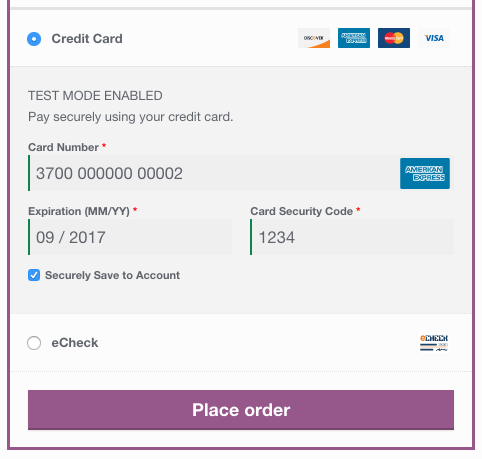
- Secure Credit Card and eCheck Payments
All major credit and debit cards are supported by the plugin. Visa, Mastercard, American Express, Discover, UnionPay, Diner’s Club, and JCB are among the payment methods available to customers.
It also allows payments through eChecks. This feature is available for customers with a U.S. bank account. eChecks are useful for businesses that offer subscription-based services.
- Seamless On-Site Checkout
Customers complete their payment without leaving the store. This lowers the possibility of cart abandonment and keeps them interested.
A smooth checkout process helps improve conversion rates. Redirecting customers to third-party payment sites can reduce trust. With Authorize.net, the entire transaction happens within the WooCommerce store.

- Tokenization for Saved Payment Methods
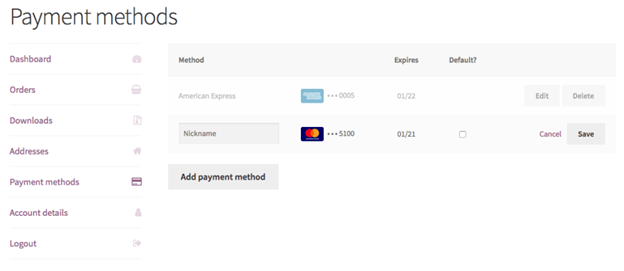
Consumers can safely store their payment information for use on subsequent transactions. This removes the need to repeatedly enter card information.
By using tokenization, the plugin substitutes a secure digital token for the card information. This guarantees PCI compliance and lowers the risk of fraud.
For enterprises that rely on subscriptions, saved payment methods are crucial. Customers can set up recurring payments without re-entering their details.
- Mobile-Optimized Checkout
Both desktop and mobile users can use the payment form. It includes numerical input fields for credit card numbers and security codes.
A mobile-friendly checkout experience is important for increasing sales. Many customers shop from their smartphones. The optimized form makes the process quick and hassle-free.
- Detailed Decline Messages for Failed Transactions
If a transaction fails, customers see a specific error message. This helps them understand why the payment was declined.
Generic error messages can confuse customers. They might abandon their purchase instead of fixing the issue. With detailed messages, they can take action immediately.
For example, a message might inform the customer that their card has expired. As a result, they can easily update their payment information.
- Automatic Refunds and Voids
Refunds may be processed straight from the WooCommerce dashboard for store owners. Their Authorize.net account does not require them to log in.
This tool streamlines order handling and saves time. The plugin will cancel a transaction rather than provide a refund if it hasn’t been finalized yet.
For businesses handling high transaction volumes, this automation is valuable. It speeds up the refund process and enhances customer satisfaction.

- Accept.js for Enhanced Security
The plugin includes Accept.js, a security features from Authorize.net. This improves security by ensuring card details never pass through the store’s server.
Instead, payment data is sent directly to Authorize.net for processing. This reduces the store’s PCI compliance requirements.
Customers experience the same smooth checkout process. However, their data is handled more securely behind the scenes.
- WooCommerce Subscriptions and Pre-Orders Compatibility
WooCommerce Pre-Orders and Subscriptions are fully supported by Authorize.net.
WooCommerce Subscriptions allow companies to take payments on a regular basis. This is useful for memberships, digital services, and subscription boxes.
Additionally, the plugin is compatible with WooCommerce Pre-Orders. Orders can be placed by customers prior to the products becoming available.Their payment details are stored and charged when the product is released.
- SSL Requirement for Secure Transactions
An SSL certificate is mandatory for using the plugin. SSL encrypts customer payment data and ensures safe transactions.
Without SSL, credit card details could be at risk. Most payment gateways, including Authorize.net, require SSL for compliance.
Store owners must have an active SSL certificate before enabling the plugin. This protects both customers and businesses from fraud.
Why Choose WooCommerce Authorize.net?
The WooCommerce Authorize.net plugin is an excellent choice for online businesses. It provides a secure, fast, and flexible payment solution.
A smooth and simple checkout process benefits customer. Store owners gain advanced security and automation features.
With support for subscriptions, refunds, and mobile payments, this plugin is a complete payment gateway solution. It boosts conversions and helps companies gain credibility.
- Security and Compliance
- Meets PCI DSS compliance standards with Accept.js.
- Uses tokenization to keep customer payment data secure.
- Supports Multiple Payment Methods
- Takes eChecks, debit cards, and credit cards.
- Works with WooCommerce Subscriptions and Pre-Orders.
- Saves Time with Automation
- Allows automatic refunds and transaction voids.
- Captures authorized payments when order status changes.
- Trusted Payment Processor
- Authorize.net is a Visa solution, making it reliable.
- Used by thousands of WooCommerce stores for secure payments.
How to Set Up and Configure the WooCommerce Authorize.net Plugin
For any online store, setting up a payment gateway is essential. WooCommerce Authorize.net allows businesses to accept secure payments. Technical expertise is not needed for the simple setup procedure.
You may install and configure the plugin by following this guide. It will also cover the key settings for smooth transactions. Follow these steps to get started with Authorize.net on your WooCommerce store.
How to Set Up WooCommerce Authorize.net Plugin
Before you start, ensure your store meets the system requirements. You need:
- A WooCommerce store with WordPress 5.6+
- WooCommerce version 3.6.0+
- PHP version 7.4 or higher
- An active SSL certificate for secure transactions
- An Authorize.net merchant account
After you have verified these prerequisites, proceed as follows.
Step 1: Purchase and Download the Plugin
- Visit the WooCommerce Marketplace and search for Authorize.net.
- Download the installation file (in ZIP format) after purchasing the plugin.
- Save the file on your computer for easy access.
Step 2: Install and Activate the Plugin
- Open your WordPress Dashboard and log in.
- Go to Plugins > Add New from there.
- Choose the downloaded ZIP file by clicking on Upload Plugin.
- After selecting Install Now, watch for the installation to finish.
- Click Activate Plugin to enable it on your store.
After activation, the plugin will be listed under WooCommerce > Settings > Payments.
Step 3: Obtain API Credentials from Authorize.net


To connect your WooCommerce store with Authorize.net, you need API credentials. These credentials allow secure communication between WooCommerce and Authorize.net.
How to Get API Credentials
- Log in to your Authorize.net account.
- Go to Account > Settings > API Credentials & Keys.
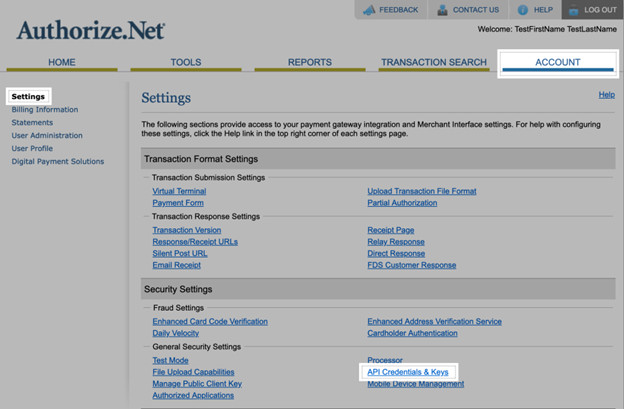
- Copy your API Login ID from this section.
- Click Submit after choosing New Transaction Key under Create New Key.
- Make a copy of the Transaction Key that is shown on the screen.
- If you want to use Webhooks, generate a Signature Key.
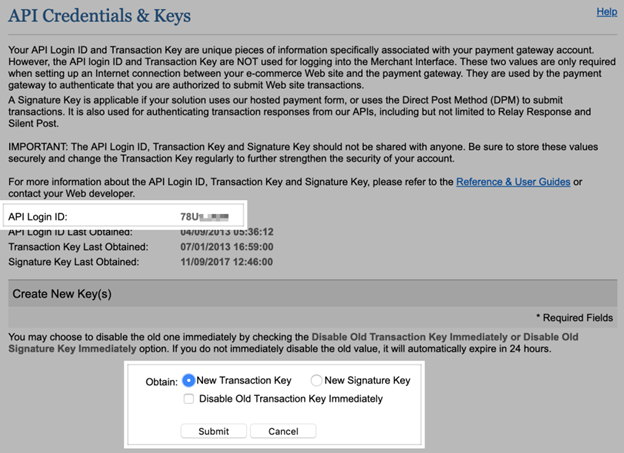
Keep these credentials safe. You will enter them in your WooCommerce settings.
Step 4: Configure the Plugin in WooCommerce
Now, enter the API credentials into your WooCommerce settings.
- Go to WooCommerce > Settings > Payments.
- Click on Authorize.net to open the settings page.
- Put in your transaction key and API login ID.
- If using webhooks, enter the Signature Key.
- Choose Live Mode for real transactions or Test Mode for testing.
- Click Save Changes.
Your WooCommerce store is now connected to Authorize.net.
Configuration Options & Settings
The plugin provides several options to customize payment processing. Proper configuration ensures a smooth checkout experience.
- Enable or Disable the Gateway
- This setting allows you to turn on or off the payment gateway.
- If enabled, customers can select Authorize.net at checkout.
- If disabled, the option will not appear on the payment page.
- Set a Custom Payment Title and Description
- The Title appears on the checkout page (e.g., “Credit Card via Authorize.net”).
- The Description explains the payment method to customers.
- Example: “Secure credit card payment via Authorize.net.”
- Card Verification (CSC) Requirement
- This option enables the Card Security Code (CVV) field.
- It gives transactions an additional degree of security.
- If enabled, customers must enter the CVV code during checkout.
- Transaction Type: Charge vs. Authorization
- Charge: Payments are immediately processed and funds are captured.
- Authorization: Payments are approved but require manual capture later.
- Authorization is useful if you need to verify orders before charging.
- Automatically Capture Payments on Order Completion
- If enabled, payments are captured when an order moves to Paid status.
- This feature reduces manual work for store owners.
- Accept eCheck Payments
- If you wish to take electronic checks, turn this option on.
- Customers can pay using their bank account instead of a credit card.
- eChecks require an active Authorize.net eCheck account.
- Tokenization for Saved Payment Methods
- Customers may safely store their payment information thanks to tokenization.
- Pre-orders and WooCommerce subscriptions require this.
- Customers can reuse their saved cards for faster checkout.
- Show Detailed Decline Messages
- Customers see specific reasons for failed transactions.
- Example: “Card expired” instead of a generic “Payment failed” message.
- Helps customers fix payment issues without abandoning their cart.
- Debug Mode for Troubleshooting
- If you encounter problems with payment processing, turn this option on.
- Logs transaction errors under WooCommerce > Status > Logs.
- Do not leave Debug Mode on for live stores, as it logs sensitive data.
- Test Mode for Sandbox Transactions
- Allows store owners to test payments without using real money.
- Need an independent test account on Authorize.net.
- In a live store, do not activate Test Mode.
Finalizing Your Setup
Once you have configured all settings, perform a test transaction.
- After adding an item to your cart, check out.
- Select Authorize.net as the payment method.
- Use a test credit card number provided by Authorize.net.
- Complete the checkout process.
- Check if the payment was processed successfully.
If everything works fine, disable Test Mode and go live.
Troubleshooting WooCommerce Authorize.net and Ensuring Compatibility
Setting up WooCommerce Authorize.net is simple, but issues may arise. Payments might fail, transactions could be declined, or errors may appear. These issues can frustrate customers and affect sales.
Common issues and their solutions will be covered in this handbook. It will also ensure that your WooCommerce store meets the compatibility requirements.
Troubleshooting Common Issues
- Subscription Renewals Failing Due to Missing Card Code
Some store owners report issues with subscription renewals. Payments may fail with an error stating, “Card Code is Required.”
Solution:
- Open your Authorize.net account and log in.
- Go to Account > Settings > Payment Form > Form Fields.
- Uncheck the “Require Card Code” option.
- Save the changes and retry the renewal payment.
Authorize.net does not store CVV codes for recurring transactions. Disabling this requirement will resolve the issue.
- Payment Token Errors for Subscription Renewals
WooCommerce Subscriptions require a saved payment method. Sometimes, customers get an error saying, “Payment token is missing or invalid.”
Solution:
- Ensure the customer has a saved payment method under My Account > Payment Methods.
- Check if the payment token matches the WooCommerce Subscriptions record.
- If not, ask the customer to re-add their payment method.
If tokens are missing, renewals will fail because WooCommerce cannot process the payment.
- eCheck Payments Declined – Error Code 246
This error appears when eCheck payments are not enabled in Authorize.net. Customers cannot complete checkout using their bank account.
Solution:
- Log in to your Authorize.net account.
- Open a support ticket and request WEB eCheck activation.
- Authorize.net may place a temporary hold on eCheck transactions.
- Call the Authorize.net underwriting team to verify your account faster.
Once WEB eCheck is enabled, customers can complete their transactions.
- Refund Processing Issues
WooCommerce allows automatic refunds, but some users experience errors. The system may show a “Partial voids not allowed” message.
Solution:
- If the transaction is not yet settled, WooCommerce will void it instead of issuing a refund.
- If the charge is already settled, issue a full or partial refund manually.
- To avoid delays, wait 24 hours before processing refunds.
Authorize.net does not allow partial voids. Transactions must settle before issuing refunds.
- Accept.js Errors – Payment Nonce Missing
Accept.js secures credit card transactions, but JavaScript conflicts can cause issues. Some users see a “Payment nonce is missing” error.
Solution:
- Disable caching or optimization plugins like Autoptimize, SG Optimizer, or Hummingbird Pro.
- Ensure that Accept.js is enabled in the Authorize.net plugin settings.
- Switch to a default WooCommerce theme like Storefront to check for conflicts.
If your site blocks Accept.js, payment data cannot be processed securely.
- Webhooks Not Working or Failing
Webhooks allow Authorize.net to send updates to WooCommerce. If they fail, payment details might not sync correctly.
Solution:
- Log in to WooCommerce > Settings > Payments > Authorize.net.
- A new API Signature Key can be generated using your Authorize.net account.
- Re-enter the key in the WooCommerce settings.
- Click “Reset Webhooks” and test a transaction.
This will re-establish the connection between WooCommerce and Authorize.net.
WooCommerce Compatibility & Requirements
To ensure smooth functionality, your store must meet WooCommerce’s technical requirements.
- WordPress and WooCommerce Version
- WordPress Version: 5.6 or higher.
- WooCommerce Version: 3.6.0 or higher.
- Tested with WooCommerce: 9.5.2.
Keeping your WooCommerce version updated prevents compatibility issues.
- PHP Version Requirement
- Minimum PHP Version: 7.4 or higher.
- Authorize.net may not work with outdated PHP versions.
- You can check your PHP version under WooCommerce > Status.
Get an upgrade from your hosting company if you’re still utilizing an outdated version of PHP.
- SSL Certificate for Secure Payments
- To process credit card payments, SSL is necessary.
- Without SSL, Authorize.net will block transactions for security reasons.
- Let’s Encrypt offers free SSL certificates through the majority of hosting companies.
You can check if SSL is enabled under WooCommerce > Status > Security.
- High-Performance Order Storage (HPOS) Support
- HPOS improves order processing speed and performance.
- The HPOS is compatible with the Authorize.net plugin.
- In WooCommerce > Settings > Advanced, you can activate HPOS.
Enabling HPOS helps manage high-volume transactions efficiently.
- Compatibility with WooCommerce Extensions
- WooCommerce Subscriptions: Supports recurring payments.
- WooCommerce Pre-Orders: Allows customers to reserve products.
- WooCommerce Sequential Order Numbers: Ensures proper order tracking.
If using other payment-related plugins, check for conflicts.
Conclusion
The WooCommerce Authorize.net plugin is a great choice for businesses. It ensures secure payments, seamless checkout, and support for subscriptions.
Businesses needing recurring payments and eCheck support will benefit greatly. While setup may take time, proper configuration ensures smooth transactions.
If you face issues, WooHelpDesk will assist you with setup and troubleshooting. Their expert team can help resolve payment errors and integration problems.
Authorize.net is a great option for a secure and trusted payment gateway. Visit the WooCommerce Marketplace to get started today.



