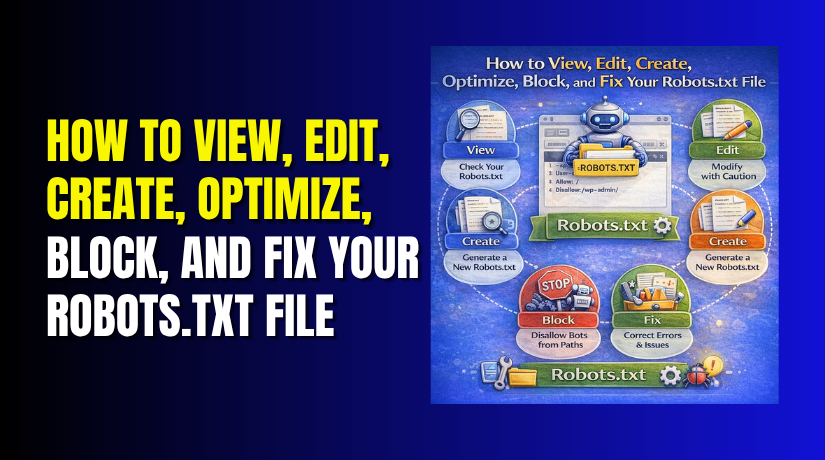
How to View, Edit, Create, Optimize, Block, and Fix Your Robots.txt File
Table of Contents
- Introduction to Robots.txt in WordPress
- What Robots.txt Does on a WordPress Website
- Why This File Matters for SEO and Site Health
- How to Check Whether Your WordPress Site Already Has a Robots.txt File
- How to Edit Robots.txt in WordPress Safely Without Causing Crawl Problems
- How to Create a New Robots.txt File If One Does Not Exist
- Best Practices to Improve Robots.txt for a WordPress Site
- Common Robots.txt Mistakes That Can Cause Problems
- Is Robots.txt Harmful for SEO? The Real Answer
- Quick Final Checks Before Publishing Changes
- Conclusion
Introduction to Robots.txt in WordPress
A WordPress robots.txt file is a small text file. It gives directions to search engine bots. These directions tell bots which areas they may crawl first. It helps website owners manage bot access in a simple way. Many users check this file during SEO work or indexing issues. Others review it when pages are not showing well in search.
If you want better crawl control, this file matters. It does not control everything, but it still helps. That is why many site owners search how to view robots.txt in WordPress when checking technical SEO settings. This guide section explains the file clearly before any changes are made.
What Robots.txt Does on a WordPress Website
The robots.txt file works like a guide for crawlers. It tells search bots where they can go or avoid. On a WordPress site, this may include admin paths or other low-value areas. The goal is to help crawlers spend time on useful content.
Still, this file has limits. It controls crawling, not full indexing. A blocked URL may still appear in search results. It also does not protect private content from public access. For that reason, it should never replace login protection or other security settings.
Here is what it mainly does:
- Guides search engine bots on crawl access
- Helps reduce crawling of less useful areas
- Supports better bot focus on important pages
- Works as a crawl tool, not a privacy tool
Why This File Matters for SEO and Site Health
A clean robots.txt setup can support better site management. It helps search engines avoid wasting time on weak sections. It can also help important content get more crawl attention. That matters on growing WordPress sites with many pages and plugins.
At the same time, wrong rules can cause real problems. A bad line may block key pages, images, or folders. That can hurt search visibility and confuse future SEO work. This is why users often ask is robots.txt bad for SEO. The real answer is no. The file itself is not harmful. Problems happen only when the setup is wrong.
Before learning how to edit robots.txt in WordPress, always understand its job first. A clear purpose leads to safer SEO decisions.
How to Check Whether Your WordPress Site Already Has a Robots.txt File
Before making any changes, first check whether your site already has a robots.txt file. Many WordPress websites already show one by default. In some cases, WordPress creates a virtual version instead of a real file on the server.
The easiest way to check is through your browser. Open your website and add /robots.txt at the end of the domain. This will show the current file if one is available. This is the most direct answer to how to view robots.txt in WordPress.
When you open it, you may see simple crawl rules. You may also see a sitemap line. If the page loads, your site already has some robots setup. If it shows an error or blank result, you may need to review your server files next.
What you should check first
- Does the file open in the browser
- Are crawl rules visible on the page
- Is there a sitemap line included
- Does the content look simple and readable
Ways to Access and Review the Current Rules
Once you confirm the file exists, review its rules carefully. Do not edit anything until you understand what is already there. This helps prevent mistakes that may block useful site content.
You can review the file in several simple ways:
- Open it directly in the browser
- Check it inside your SEO plugin settings
- Use your hosting file manager
- Access the root folder through FTP
The browser view is the fastest option for basic checking. Hosting file manager and FTP are better when you need deeper access. These methods help you confirm whether the file is virtual or physical.
When reviewing the file, look for blocked folders and special rules. Check whether admin areas are restricted correctly. Also review whether the sitemap path is present and correct.
Before learning how to edit robots.txt in WordPress, this review step is important. It helps you understand the current setup first. It also makes WordPress robots.txt management safer and easier.
If your site has no usable file, the next step is learning how to create robots.txt in WordPress the right way.
How to Edit Robots.txt in WordPress Safely Without Causing Crawl Problems
Once you review the current file, you can update it carefully. This step needs attention because a small mistake can affect crawling. Many users search how to edit robots.txt in WordPress after finding a crawl issue. The safest method is to make slow, clear changes.
Before editing, save a backup of the current version. This gives you a safe rollback option later. It also helps if a new rule causes an issue.
You can edit the file in a few common ways:
- Through an SEO plugin that supports robots settings
- Through your hosting file manager
- Through FTP access to the root folder
Choose the method you understand best. Do not change several rules at once. Edit one part, save it, and check the result. This approach makes troubleshooting much easier.
Safe editing steps to follow
- Back up the current file before making changes
- Review each line before saving the update
- Change only one rule at a time
- Reopen the file in your browser after saving
- Check important pages are still reachable by crawlers
Also be careful with blocked folders and media paths. A wrong line can stop search engines from reaching useful content. That is why safe editing matters more than fast editing.
How to Create a New Robots.txt File If One Does Not Exist
Some sites do not have a usable file yet. In that case, you need to create one properly. Many beginners search how to create robots.txt in WordPress when no file appears in the browser. The process is simple when done in the right place.


A new robots.txt file should be placed in the site’s root folder. This is usually the main public folder of your website. The file should be plain text and named exactly robots.txt.
A basic file usually includes crawler instructions and a sitemap line. Keep the setup simple. Avoid adding copied rules from random websites.
Basic creation process
- Open your hosting file manager or FTP tool
- Go to the main root folder of the website
- Create a new plain text file named robots.txt
- Add only the rules your site actually needs
- Save the file and open it in your browser
After saving, test the file by visiting your domain with /robots.txt. This confirms the file loads correctly. Once that works, your WordPress robots.txt setup is ready for the next step, which is learning how to optimize robots.txt in WordPress without creating SEO risks.
Best Practices to Improve Robots.txt for a WordPress Site
A clean file works better than a long and confusing one. Many site owners ask how to optimize robots.txt in WordPress after adding SEO tools or changing site structure. The best approach is to keep the file useful, simple, and easy to review.
Your robots file should guide crawlers, not fight them. It should help search engines reach important pages without wasting time on low-value areas. That is why every rule should have a clear reason.
Good practices to follow
- Keep the file short and easy to understand
- Block only areas that truly do not need crawling
- Make sure important pages stay open to crawlers
- Include the sitemap line when it is available
- Review the file after major plugin or theme changes
- Remove old rules that no longer fit your website
Be very careful with folders used by themes and plugins. Some files inside them help pages load correctly. If those resources are blocked, search engines may not read the page properly. That can affect how your content is understood.
Also avoid copying rules from random websites. Every WordPress site is different. A rule that helps one site may hurt another. Always review your own structure first.
Common Robots.txt Mistakes That Can Cause Problems
Many crawling issues start with one wrong line. A poor setup can confuse search engines and slow down SEO work. This is why WordPress robots.txt should always be checked with care.
One common mistake is blocking the full site by accident. This can happen during development and stay live after launch. Another mistake is blocking images, plugin resources, or useful folders. Search engines may then miss key parts of the page.
Mistakes you should avoid
- Blocking the entire website without noticing
- Blocking important pages, images, or script files
- Using old rules copied from another site
- Confusing crawl blocking with noindex control
- Leaving test rules active after site changes
- Trusting plugin defaults without checking them
Some users also think this file protects private data. That is not true. Robots.txt is not a security tool. It only gives crawl instructions to bots.
A better setup always starts with clear goals. Use each rule carefully. Keep the file updated as your site grows. When you follow these steps, it becomes much easier to manage crawl health and avoid SEO damage over time.
Is Robots.txt Harmful for SEO? The Real Answer
Many website owners worry after reading mixed SEO advice online. They often ask, is robots.txt bad for SEO when traffic drops or pages stop appearing. The simple answer is no. The file itself is not harmful. Problems usually start when the rules inside it are wrong.
A good robots file helps search engines crawl your site better. It can guide bots away from low-value areas. It can also help them focus on useful pages and content. That makes it a helpful support tool when used correctly.
Still, a bad setup can create SEO issues fast. If you block key pages, images, or scripts, search engines may miss important content. That is why every change should be reviewed carefully.
Quick Final Checks Before Publishing Changes
Before saving your final setup, do a few quick checks. These steps help confirm that your WordPress robots.txt file still supports crawling.
Final checks to do
- Open /robots.txt in your browser again
- Confirm the file loads without any error
- Review new rules one more time carefully
- Check important pages are not blocked
- Confirm the sitemap line is correct
- Keep a backup copy of the old file
These small checks can prevent bigger problems later. They also make future troubleshooting much easier.
Conclusion
A robots file does not need to be long or complex. It only needs clear and useful rules. When you understand how to view robots.txt in WordPress, review it properly, and update it with care, you reduce the chance of SEO mistakes.
If you need to make changes later, learn how to edit robots.txt in WordPress step by step. If no file exists, follow the right process for how to create robots.txt in WordPress. If you want better crawl control, focus on how to optimize robots.txt in WordPress with simple rules that match your site.
Used carefully, WordPress robots.txt supports site health, cleaner crawling, and stronger technical SEO. If you need expert help with robots.txt issues, crawl problems, or other WordPress technical errors, WooHelpDesk can help you fix them quickly with reliable WordPress support.