
How to Use “Extra Fees for WooCommerce” Plugin to Add Custom Charges Easily
Table of Contents
- Introduction & Overview
- What Is “Extra Fees for WooCommerce”?
- Why Add Extra Fees in WooCommerce?
- What Makes This Plugin Different?
- Types of Extra Fees You Can Add in WooCommerce
- Setup & Configuration for Extra Fees for WooCommerce
- Product Fee Setup
- Payment Gateway Fee Setup
- Order Total Fee Setup
- Shipping Method Fee Setup
- Reports: Tracking All Collected Fees
- Tips for a Smooth Setup
- Practical Use Cases
- Conclusion
Introduction & Overview
Running a WooCommerce store means thinking about more than just products. You may also need to add extra charges like handling fees, payment processing costs, or shipping surcharges. These costs help cover your store’s real-world expenses and keep your profits steady.
That’s where the Extra Fees for WooCommerce plugin becomes helpful.
What Is “Extra Fees for WooCommerce”?
Extra Fees for WooCommerce is a plugin that lets you charge extra fees. These fees can be based on different parts of a customer’s order. You can apply fees based on:
- The product itself
- The selected payment method
- The total value of the cart
- The chosen shipping method
This plugin is great for store owners who want full fee control. It helps you recover costs while offering flexible fee rules.
Why Add Extra Fees in WooCommerce?
You might want to charge extra for several reasons:
- To cover packaging or handling
- To pass payment gateway charges to the buyer
- To encourage larger cart values
- To set location-based shipping surcharges
- To charge fees only for certain products or customers
With this plugin, you don’t need to code or build custom rules manually.
What Makes This Plugin Different?
This plugin offers more control than default WooCommerce settings. You can:
- Set conditional fees based on user roles or countries
- Choose fixed or percentage-based fees
- Schedule fees during a specific date range
- Limit when and how fees appear
- Add fees for each product, not just the whole cart
It’s not just about adding a fee. It’s about adding the right fee for the right case.
Types of Extra Fees You Can Add in WooCommerce
The Extra Fees for WooCommerce plugin gives full control over extra charges. You can apply fees to products, orders, payment gateways, or shipping methods. Each type has flexible settings and rules.
Let’s look at each type in detail.
-
Product Fee
Product Fee allows you to add fees directly to individual products. This is useful for products that need extra packaging, customization, or handling.
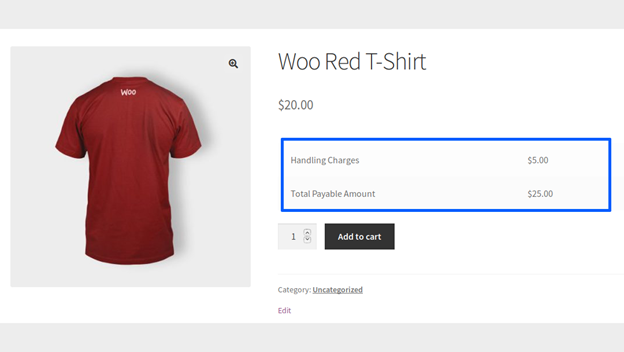
Where It Shows:
- Product page
- Cart page
- Checkout page
- Thank-you page
You can:
- Add a fixed fee (like $5)
- Set a percentage fee (like 10% of product price)
- Add multiple fees to a single product
- Display the fee on the Shop or Category page
Additional Options:
- Limit fee by product tags or categories
- Charge fee for one quantity only (not per item)
- Apply fee only during specific dates or time ranges
- Show fee text and description in a pop-up
- Update multiple products at once with Bulk Update
- Adjust fee based on coupon discounts
- Set different fees for variable product variations
Example Use Cases:
- $2 packaging fee on fragile items
- 5% design fee on personalized products
- $10 fee for large-sized products
-
Payment Gateway Fee
This fee is added when a customer chooses a specific payment method. It helps recover payment processor charges.
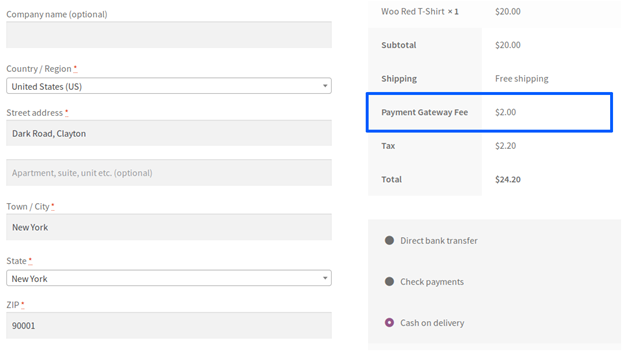
Fee Types Supported:
- Fixed fee (e.g., $2 per transaction)
- Percentage of cart or order total
- Fixed + Percentage combo
Customization Options:
- Apply to specific products or categories
- Apply based on user role or logged-in users
- Limit fee by country or region
- Apply only within certain cart total ranges
- Enable during specific date ranges
- Display a custom label and fee description
Other Settings:
- Set a minimum fee amount
- Choose tax class for the fee
- Fee is shown after payment method is selected at checkout
Example Use Cases:
- 2% charge for using credit card
- Flat $3 fee for Cash on Delivery
- No fee for bank transfer (to promote it)
-
Order Total Fee
Order Fee is charged based on the total amount in the cart. This helps set limits and encourage higher spending.
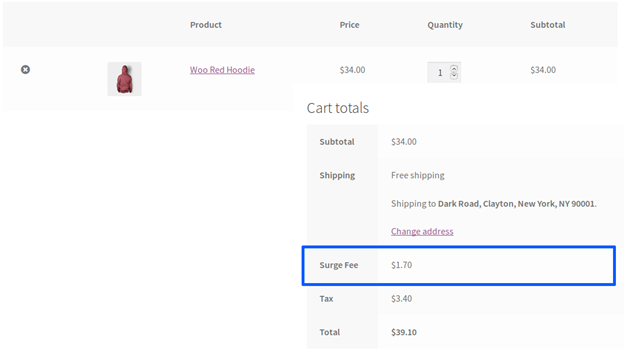
Fee Types:
- Fixed fee (e.g., $4)
- Percentage of cart subtotal
- Percentage of order total
You Can:
- Set multiple rules with different fee ranges
- Use Min and Max cart total conditions
- Choose whether first or last matching rule should apply
- Show a fee label and description
- Choose whether to include tax
Conditional Settings:
- Apply to selected users or roles
- Limit by product or category
- Exclude fee if certain shipping methods are chosen
Example Use Cases:
- Add $5 for orders under $50
- Add 10% fee for orders between $100 and $150
- Waive fee if cart exceeds $200
-
Shipping Method Fee
This fee is added based on the customer’s chosen shipping method. It helps add costs like express delivery charges or remote area shipping.
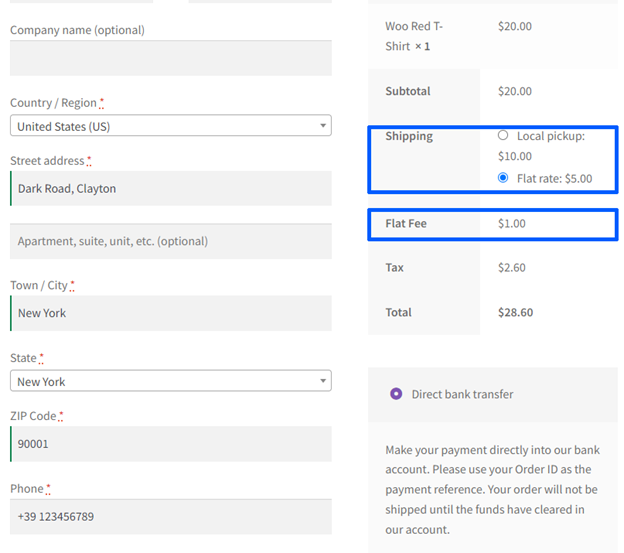
Fee Types:
- Fixed fee (e.g., $7)
- Percentage of cart subtotal or order total
Customization Options:
- Apply fee for specific shipping methods
- Restrict based on:
- User roles
- Product/category
- Cart total range
- Date range
More Features:
- Add minimum fee if calculated amount is low
- Set tax class
- Add custom label and pop-up description
- Show the fee only after the shipping method is selected
Example Use Cases:
- Add $10 for Express Delivery
- 5% surcharge for local courier
- Extra fee for remote area shipping zones
Setup & Configuration for Extra Fees for WooCommerce
Setting up extra fees in your WooCommerce store is easy with this plugin. It gives you full control over where, when, and how fees appear. Whether you’re charging per product, by shipping method, or payment gateway, everything is handled from one place.
Let’s walk through each setup section clearly.
Getting Started: Installing the Plugin
Follow these steps to install the plugin:
- Go to your WooCommerce account and download the plugin ZIP file.
- In WordPress dashboard, go to Plugins > Add New.
- Click Upload Plugin, then upload the ZIP file.
- Click Install Now, then Activate the plugin.
Once activated, you’ll find a new menu under WooCommerce > Extra Fees.
Product Fee Setup
This section lets you charge fees for individual products or product categories.
Global Product Fee Settings
- Go to WooCommerce > Extra Fees > Product Fee.
- Enable the Product Fee checkbox.
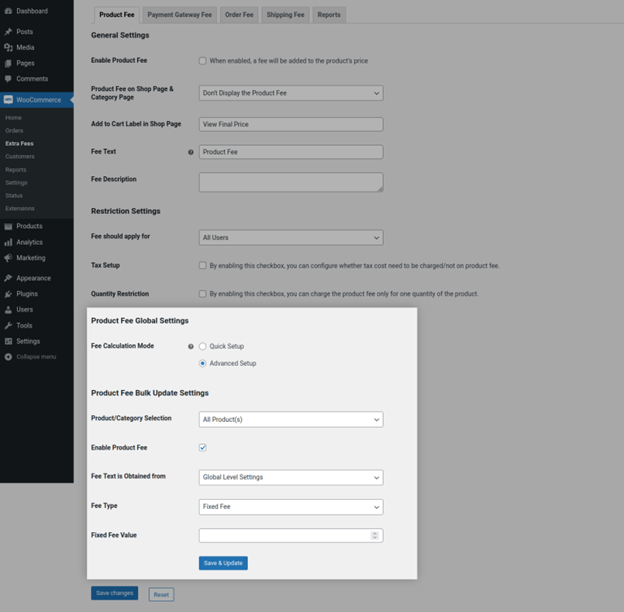
- Choose between:
- Quick Setup: one fee for all products.
- Advanced Setup: set different fees per product or variation.
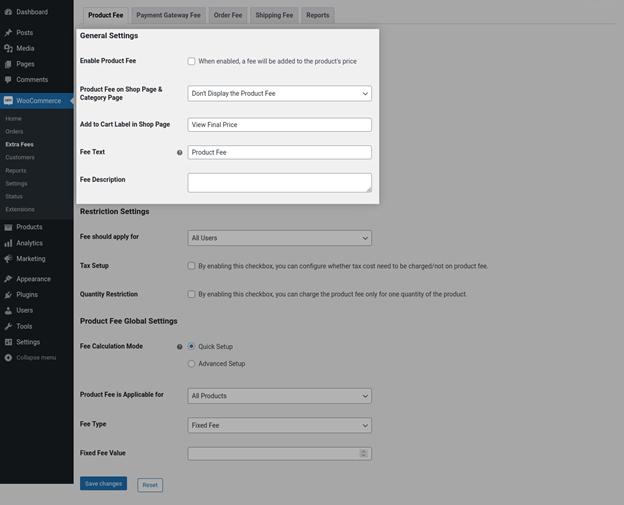
You can set:
- Fee type: Fixed fee or percentage of product price.
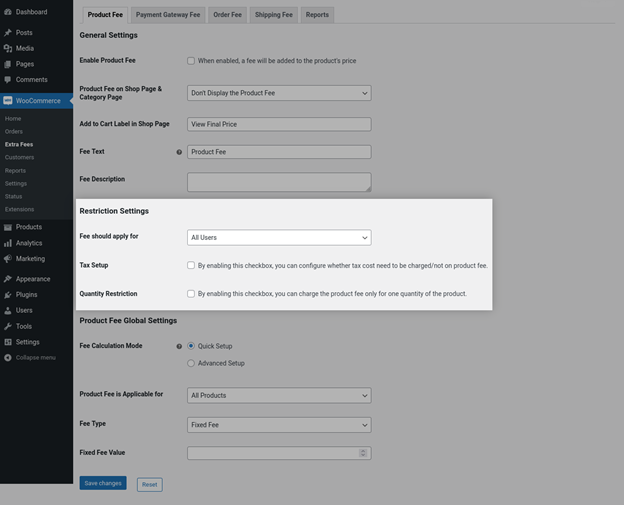
- Fee value (e.g., $3 or 5%).
- Fee label and description (shown on frontend).
- Choose whether to:
- Show fee on shop/category page.
- Add fee only for the first quantity.
- Adjust fee after coupon discounts.
Product Fee by Category or Tags
- Use the Include Categories filter.
- Add tags or product categories you want the fee to apply to.
Display Options


- Choose how to display the fee:
- Add fee to the original price.
- Show product fee + total payable.
Bulk Update Product Fees
If you want to apply the same fee across many products:
- Go to Product Fee > Bulk Update Settings.
- Select products or categories.
- Choose fee type and value.
- Click Save and Update.
Advanced Setup for Variable Products
For variable products:
- Go to each variation inside the product.
- You can assign separate fees for each variation.
Payment Gateway Fee Setup
This fee is added when customers choose specific payment methods at checkout.
Enabling the Fee
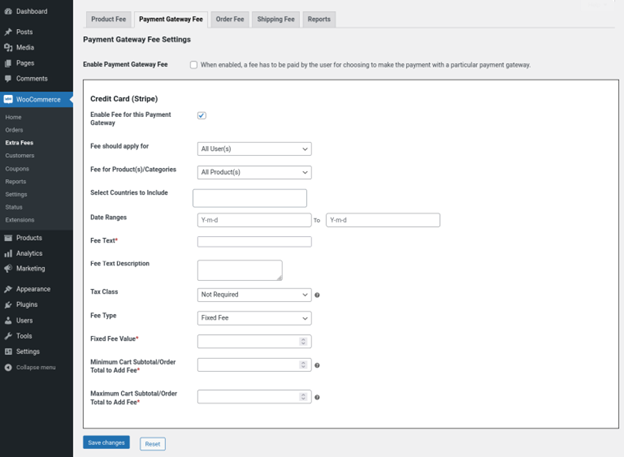
- Go to WooCommerce > Extra Fees > Payment Gateway Fee.
- Enable the checkbox to activate this section.
- Select which payment gateways you want to charge extra for.
Set Fee Type and Amount
You can choose:
- Fixed Fee (e.g., $2).
- Percentage of Cart Subtotal or Order Total.
- Fixed + Percentage Fee.
Conditional Settings
- Restrict fee by user role or specific users.
- Apply fee to specific products or categories.
- Add fee only if cart total is within min and max range.
- Limit fee to certain countries or regions.
- Enable the fee only for a date range.
Customization Options
- Add a custom label and pop-up description.
- Select a tax class for this fee.
Order Total Fee Setup
Use this to charge fees based on the cart or order total.
Enabling the Fee
- Go to WooCommerce > Extra Fees > Order Fee.
- Enable the checkbox to activate this section.
Fee Settings
- Set fee type:
- Fixed Fee
- Percentage of Cart Subtotal
- Percentage of Order Total
- Add fee label and description.
- Choose tax class if needed.

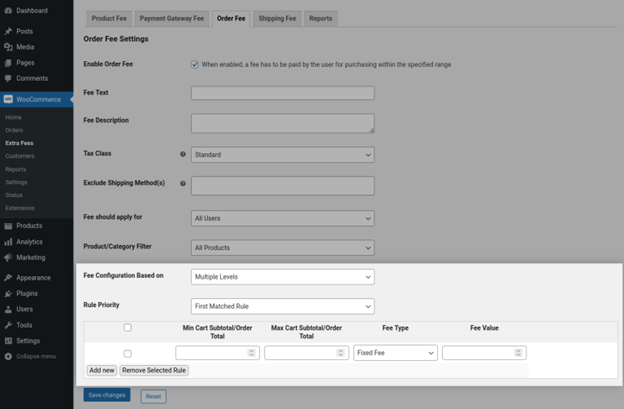
Rule-Based Fees
To charge different fees for different order totals:
- Select “Multiple Rules” under “Fee Configuration Based On”.
- Add rules using min and max cart/order total values.
- Choose whether first or last matched rule applies.
Restrictions
- Apply fee only to:
- Specific products or categories.
- Specific users or user roles.
- Exclude specific shipping methods.
Shipping Method Fee Setup
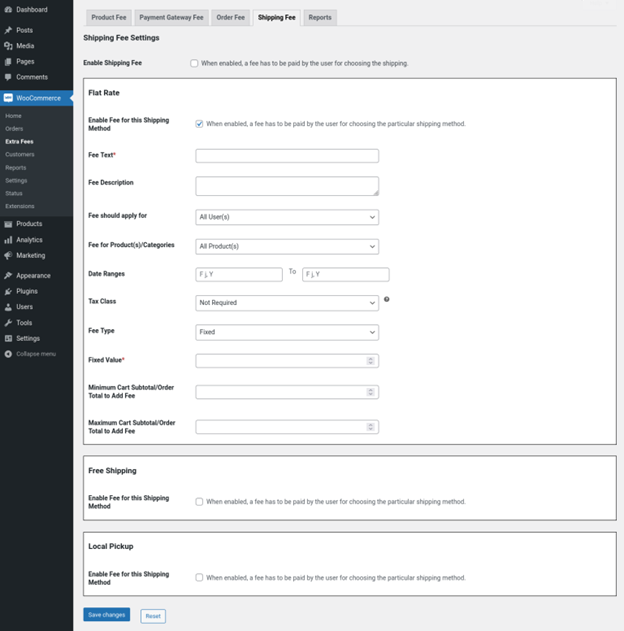
This lets you charge extra fees for selected shipping methods.
Enabling the Fee
- Go to WooCommerce > Extra Fees > Shipping Fee.
- Enable the checkbox to activate shipping-based fees.
- Select the shipping methods to add fees to.
Set Fee Type and Amount
- Choose from:
- Fixed fee (e.g., $5)
- Percentage of cart/order total
- Enter fee value, label, and optional description.
- Select the tax class if needed.
Conditional Settings
- Restrict fee by:
- User roles or users
- Products or categories
- Minimum and maximum order value
- Specific dates
Display Options
- Fee appears after shipping method is selected at checkout.
- Add a minimum fee if percentage value is too low.
Reports: Tracking All Collected Fees
You can view all the fees collected by going to the Reports section.
Reports show:
- Total fees collected for each fee type
- Product Fee
- Order Fee
- Payment Gateway Fee
- Shipping Fee
- Filter reports by:
- Weekly
- Monthly
- Custom date range
This helps track fee revenue and evaluate your pricing strategies.
Tips for a Smooth Setup
- Always fill in fee label and fee value fields.
- Double-check minimum and maximum values to ensure rules work.
- Use pop-up descriptions to explain fees to users clearly.
- Test checkout with different user roles and cart totals.
Practical Use Cases
Adding extra fees isn’t just about charging more. It’s about covering costs and improving profit margins. The Extra Fees for WooCommerce plugin makes that easy and flexible.
Here are some real-life ways store owners use extra fees:
- Add Handling or Packaging Charges
Some products need special packaging or care. You can add a product fee for:
- Fragile items
- Custom-made goods
- Gift wrapping
- Apply Payment Gateway Surcharges
Not all payment methods cost the same. Credit card or PayPal may have higher processing fees. Use a payment gateway fee to:
- Add 2% for PayPal
- Charge $3 for Cash on Delivery
- Offer no fee for bank transfers
This can also encourage preferred payment methods.
- Charge Order Fees for Small Carts
You can push customers to spend more. For example:
- Add $5 fee if cart total is under $50
- Waive the fee if total exceeds $100
This increases the average order value.
- Add Fees Based on Shipping Methods
Fast shipping or remote areas may need more fees. Use shipping method fees for:
- $10 for express delivery
- 5% fee for same-day shipping
- Extra charge for out-of-zone deliveries
- Apply Fees by Customer Type
You can apply fees only to certain users. For example:
- Wholesale customers
- Guest users
- Specific user roles
Conclusion
Adding extra fees in WooCommerce doesn’t have to be hard. The Extra Fees for WooCommerce plugin gives full control over fee settings. You can charge based on product, cart, shipping, or payment method.
This helps cover real business costs with ease. It also allows store owners to create smart pricing strategies. You can boost profits without hurting the customer experience.
Every fee type can be customized based on user role, location, or order total. Whether it’s a packaging charge or payment surcharge, the setup is flexible.
If you’re looking to manage fees better, this plugin is a solid choice. It’s powerful, easy to use, and made for WooCommerce users.
Need help with setup or troubleshooting? Visit WooHelpDesk or call +1 888 602 0119 (US & Canada) for WooCommerce customer support.
Take control of your store’s extra costs today and improve your bottom line.



