How To Use Bluehost File Manager To Edit WordPress Files
3 mins read

How To Use Bluehost File Manager To Edit WordPress Files

Introduction

The Bluehost File Manager provides a convenient way to manage and edit WordPress files directly from your hosting dashboard without using FTP software. It allows you to create new files, modify existing ones, rename files, and delete unnecessary files with just a few clicks. This guide walks you through accessing the File Manager from the Bluehost dashboard and performing essential file operations such as creating a PHP file, editing its content, renaming files, and safely deleting them. By following these steps, you can make quick updates to your WordPress site, test custom code, or troubleshoot issues directly on the server. Using the File Manager is especially useful for minor changes or when FTP access is unavailable, giving you flexibility and control over your website’s file structure.

1. Navigate to Websites Section
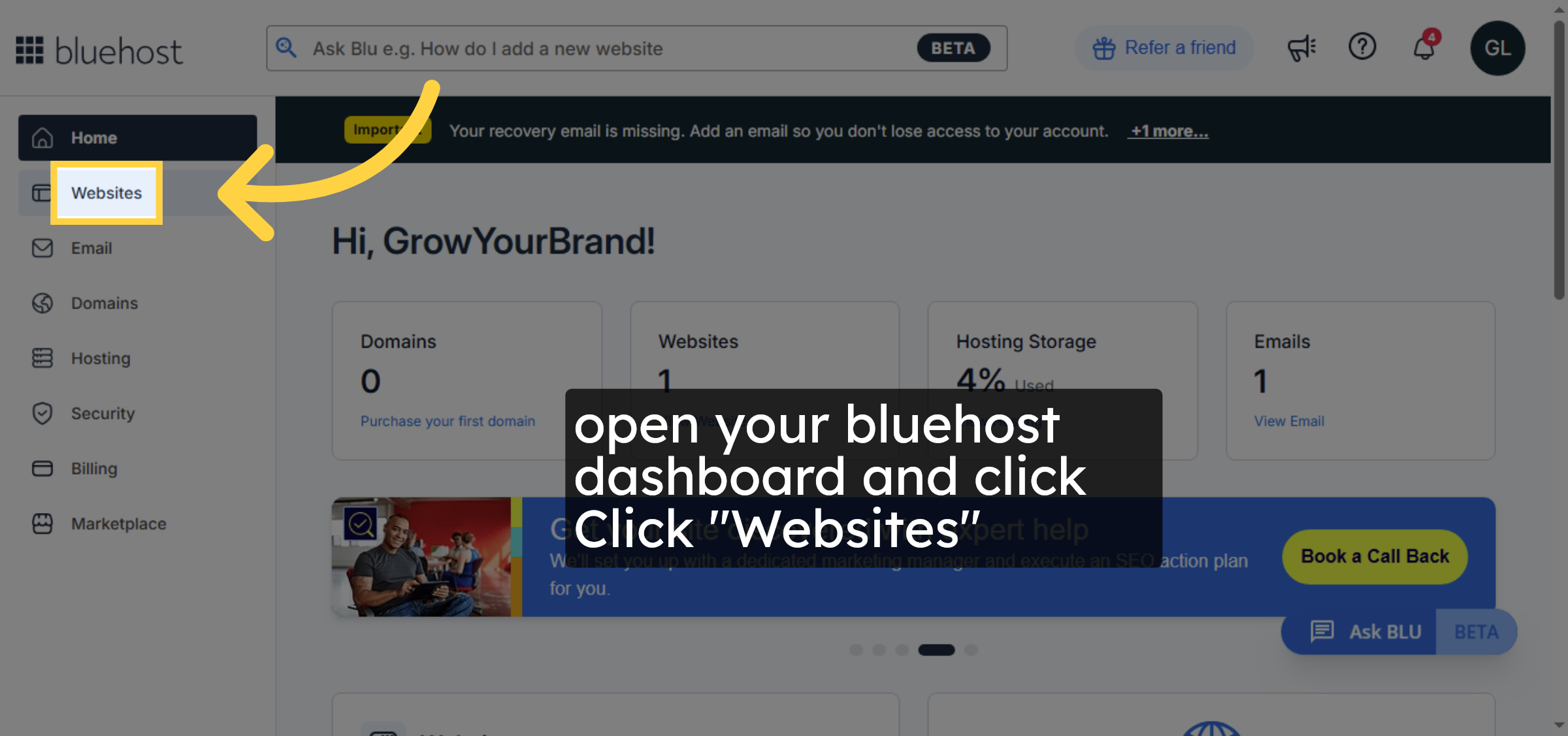
Click the Websites tab in your Bluehost account dashboard to access your website management options.

Navigate to Websites Section

2. Select your website
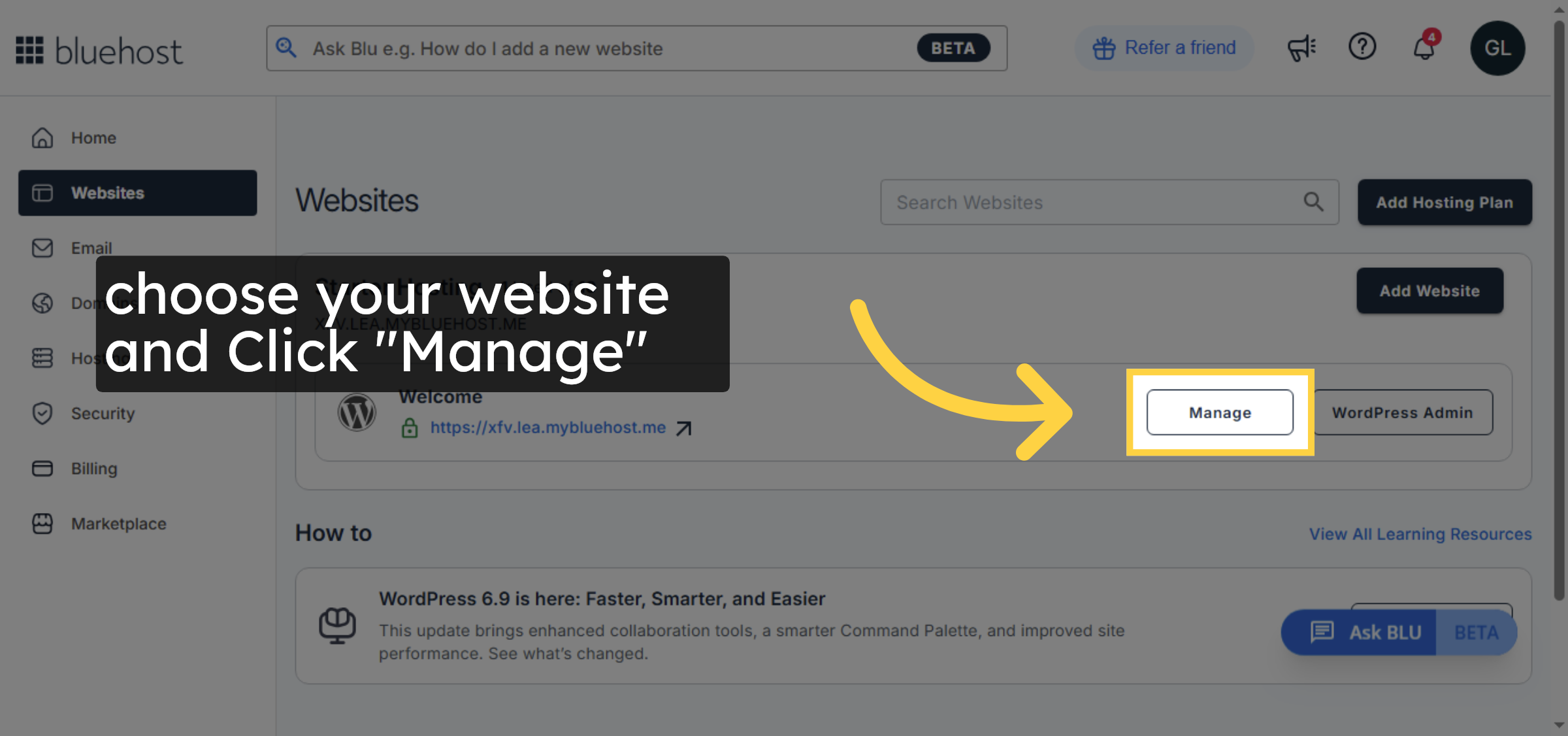
choose your website and Click “Manage”

Select your website

3. Access Files and Access Settings
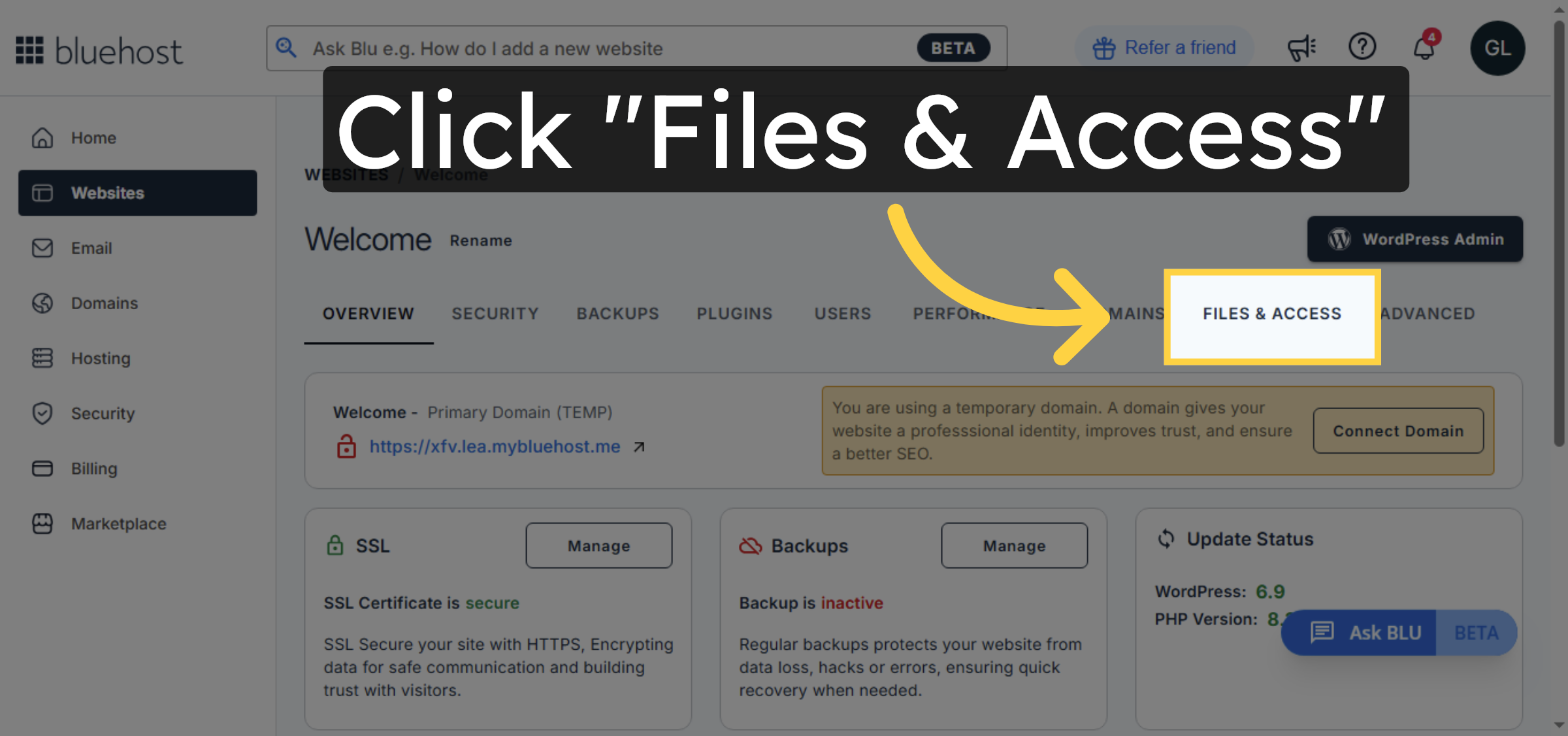
Click the Files & Access option to view file management and access controls for your website.

Access Files and Access Settings

4. Open File Manager
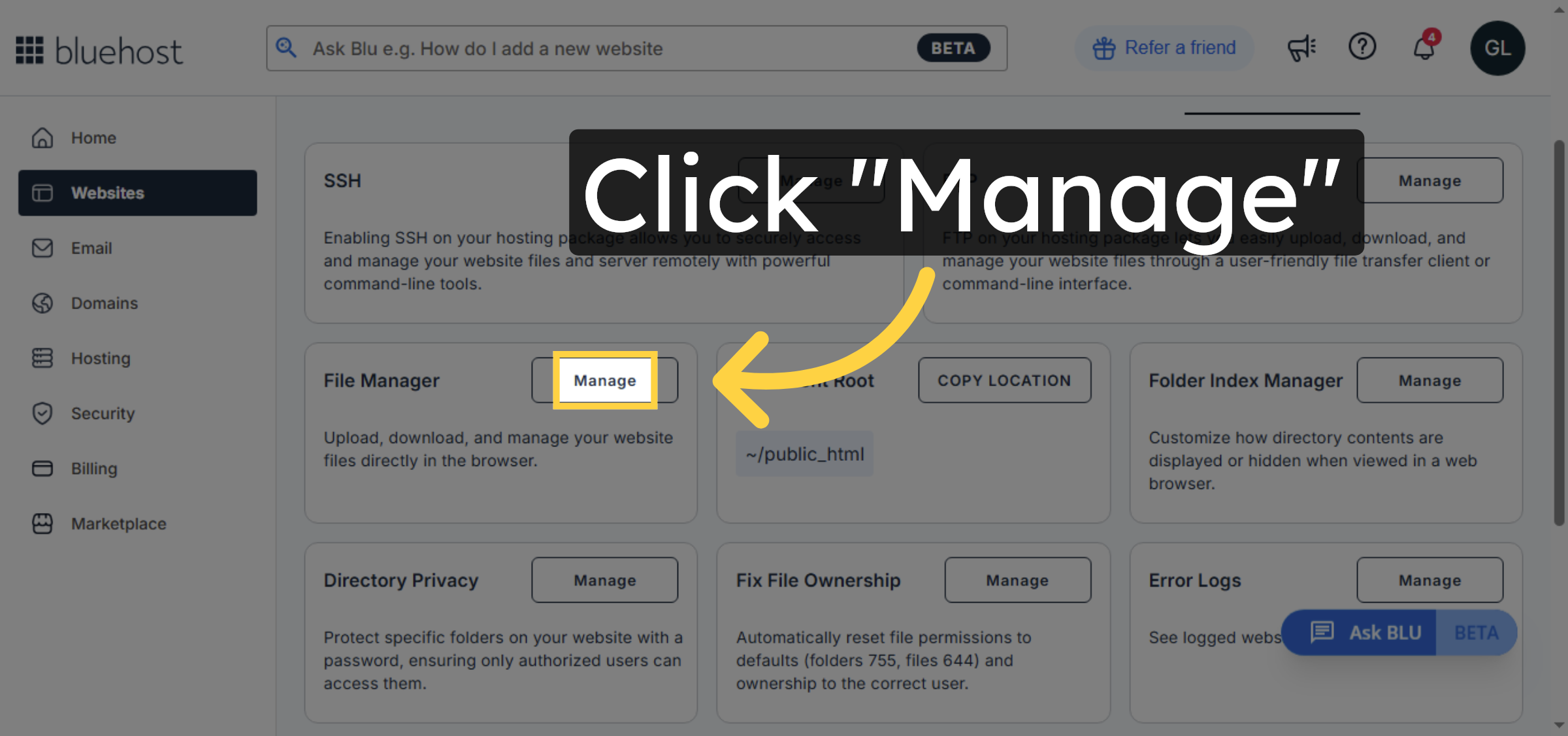
Click the Manage button under Files & Access to launch the Bluehost File Manager interface.

Open File Manager

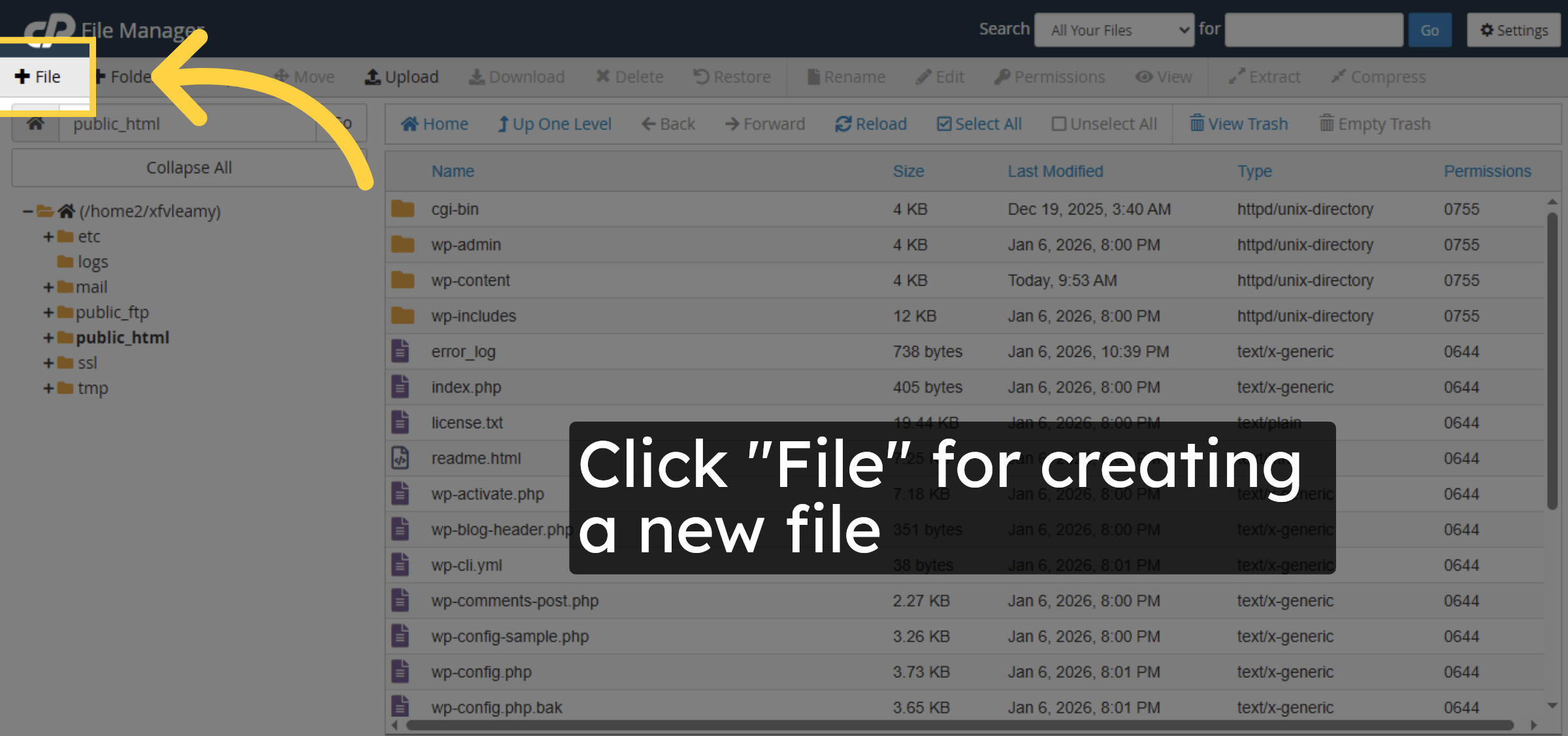
5. File creation

Click “File” for creating a new file.

File creation

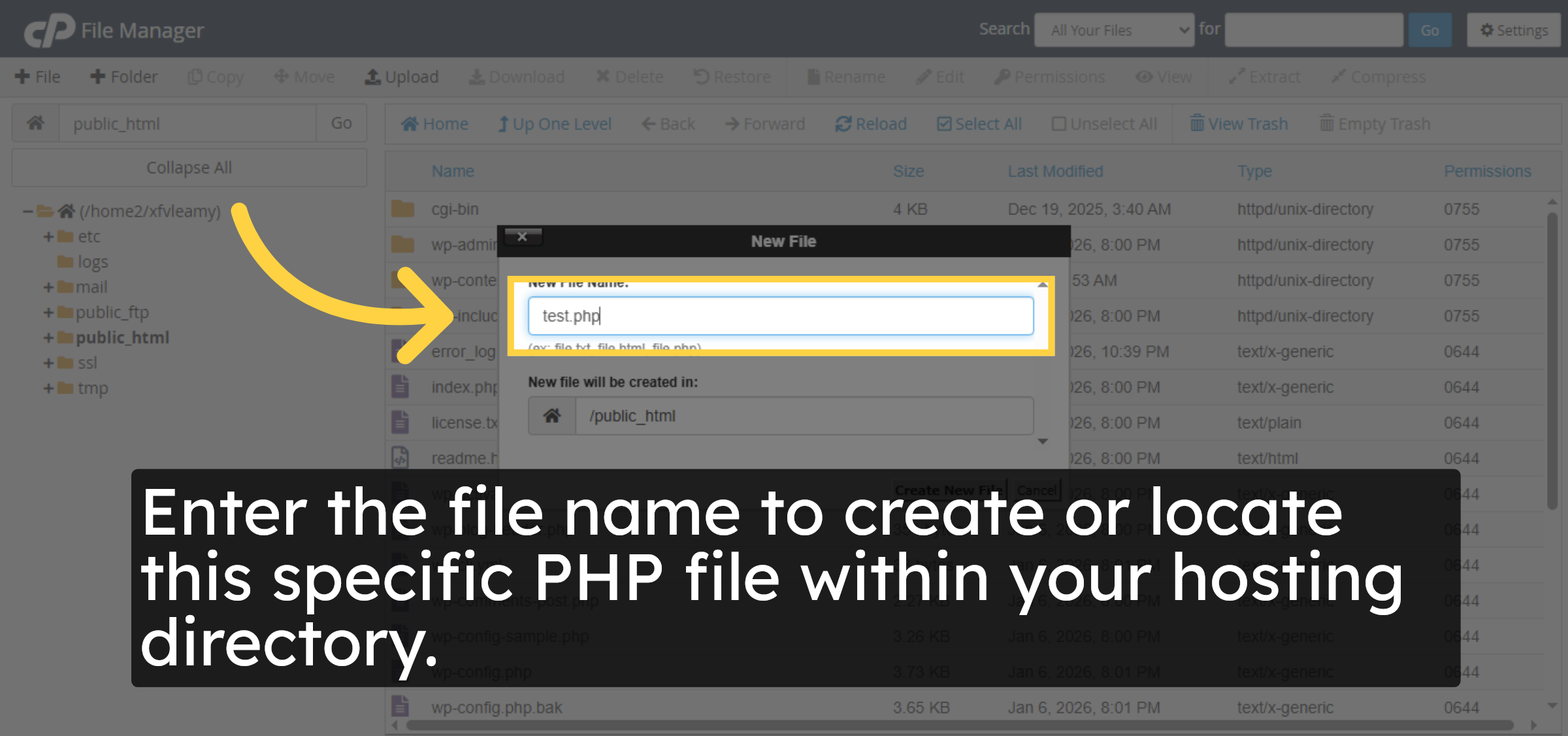
6. Enter File Name

Enter the file name to create or locate this specific PHP file within your hosting directory.

Enter File Name

7. Select File For Editing
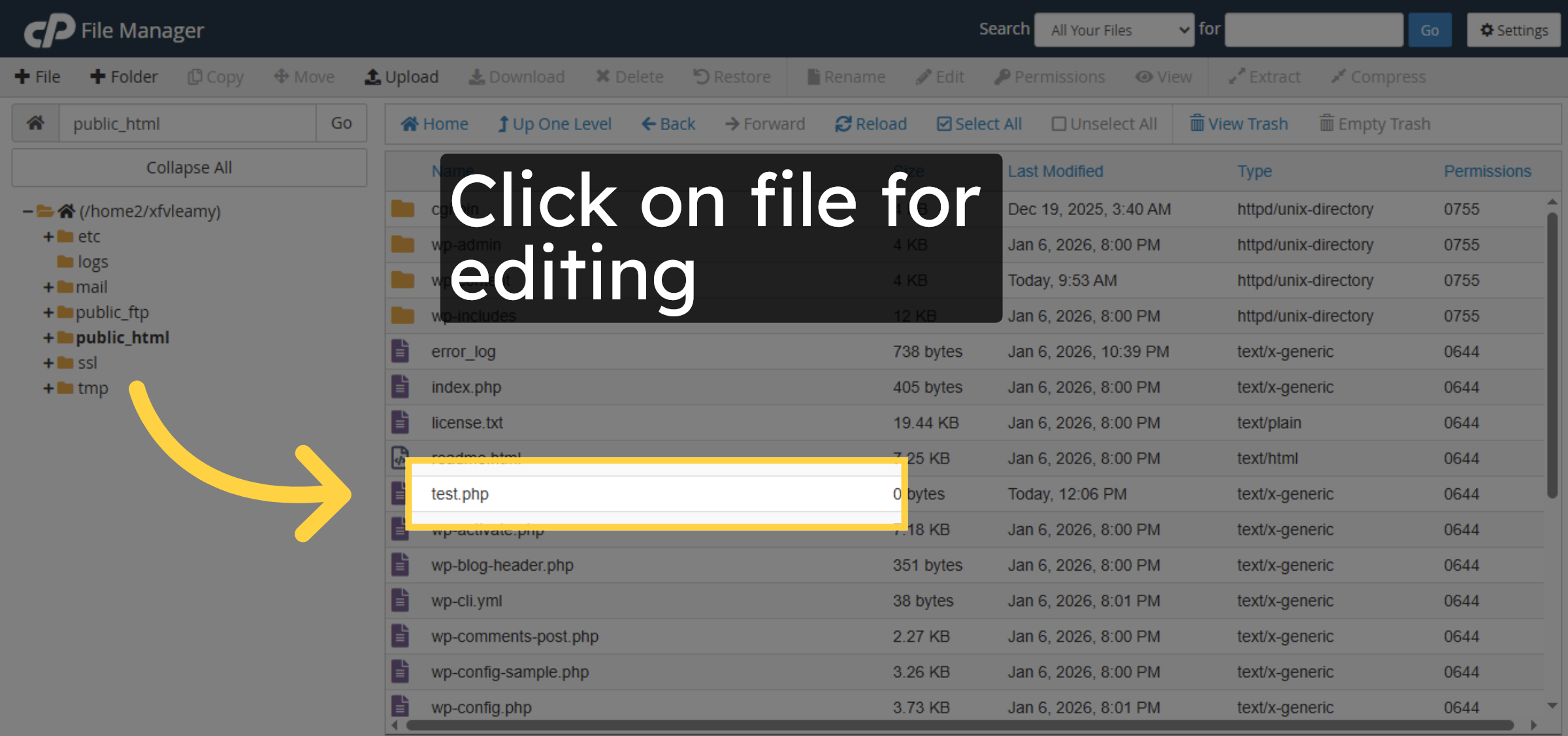
Click on file for editing.

Select File For Editing

8. Initiate Edit Mode
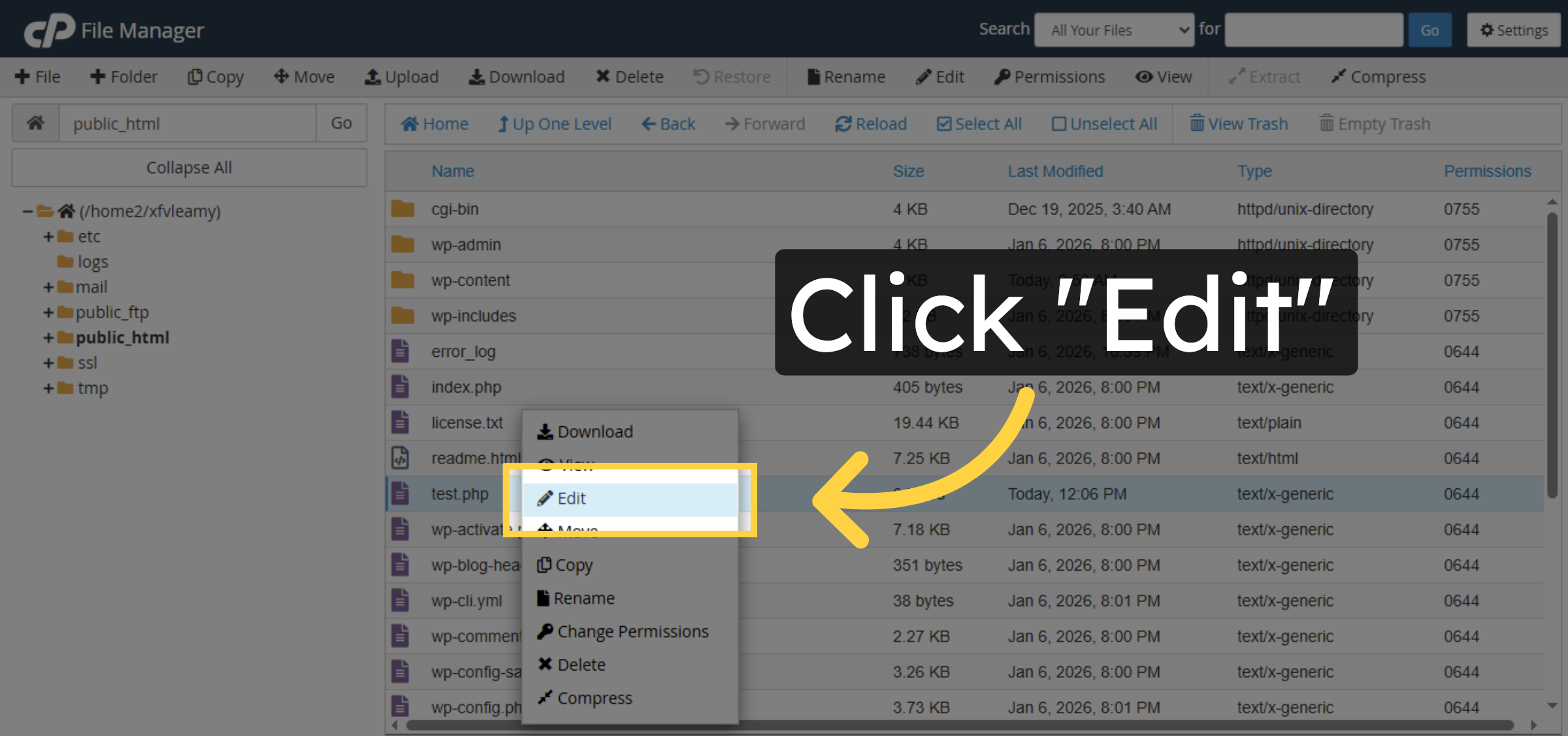
Click the Edit button to open the file in the text editor for making changes to its content.

Initiate Edit Mode

9. Confirm Edit Action
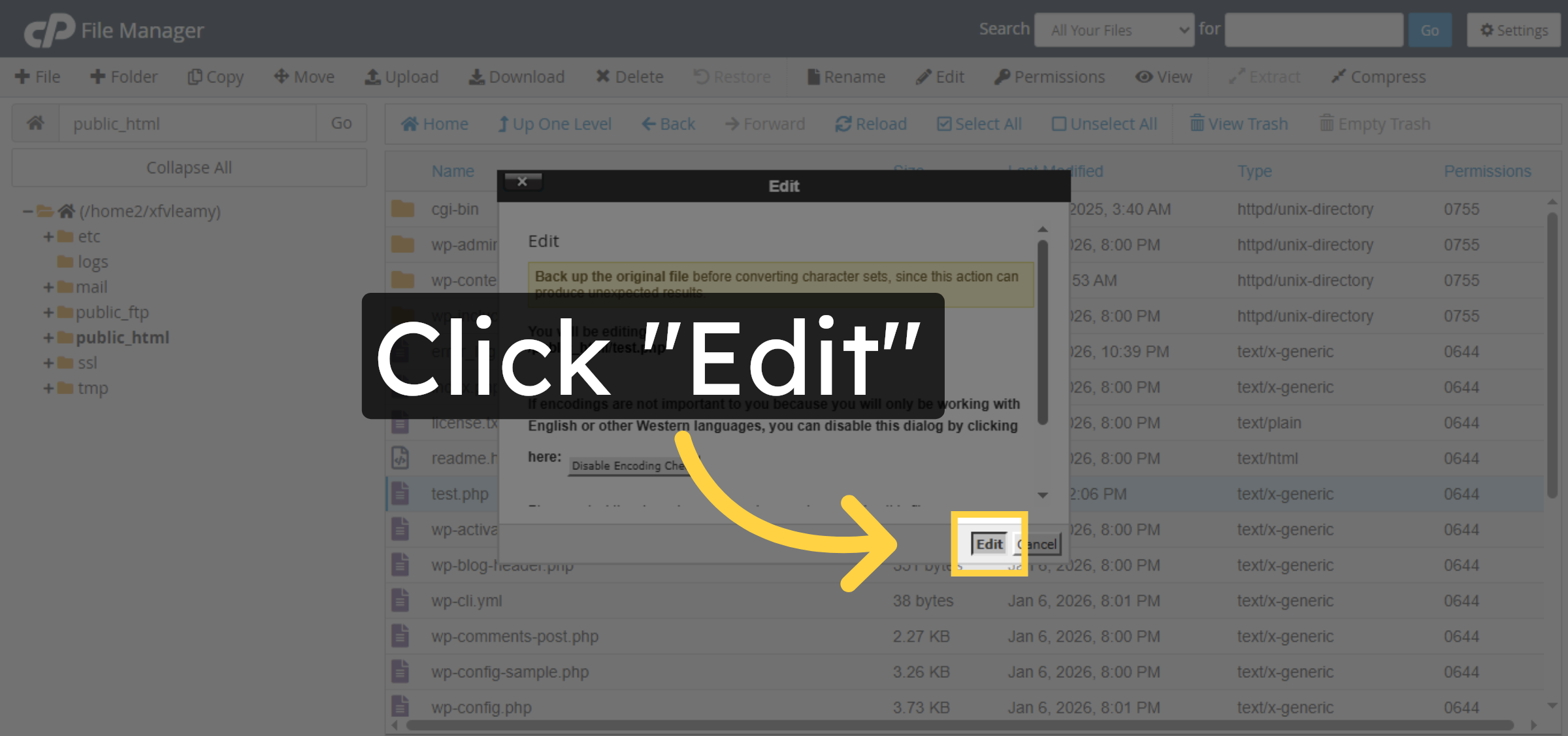
Click the Edit button again to confirm and proceed to the file editing interface.

Confirm Edit Action

10. Modify File Content
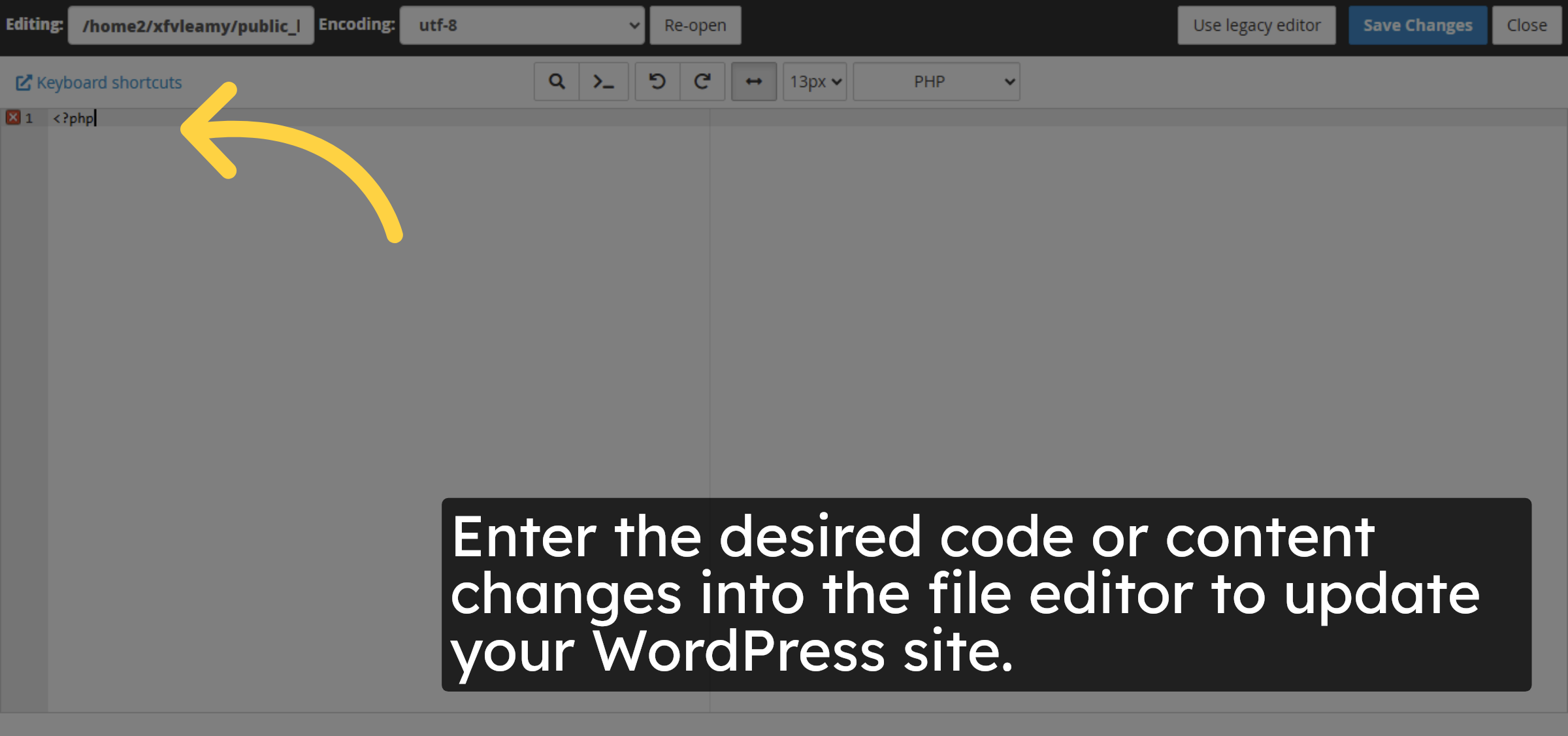
Enter the desired code or content changes into the file editor to update your WordPress site.

Modify File Content

11. Save File Changes
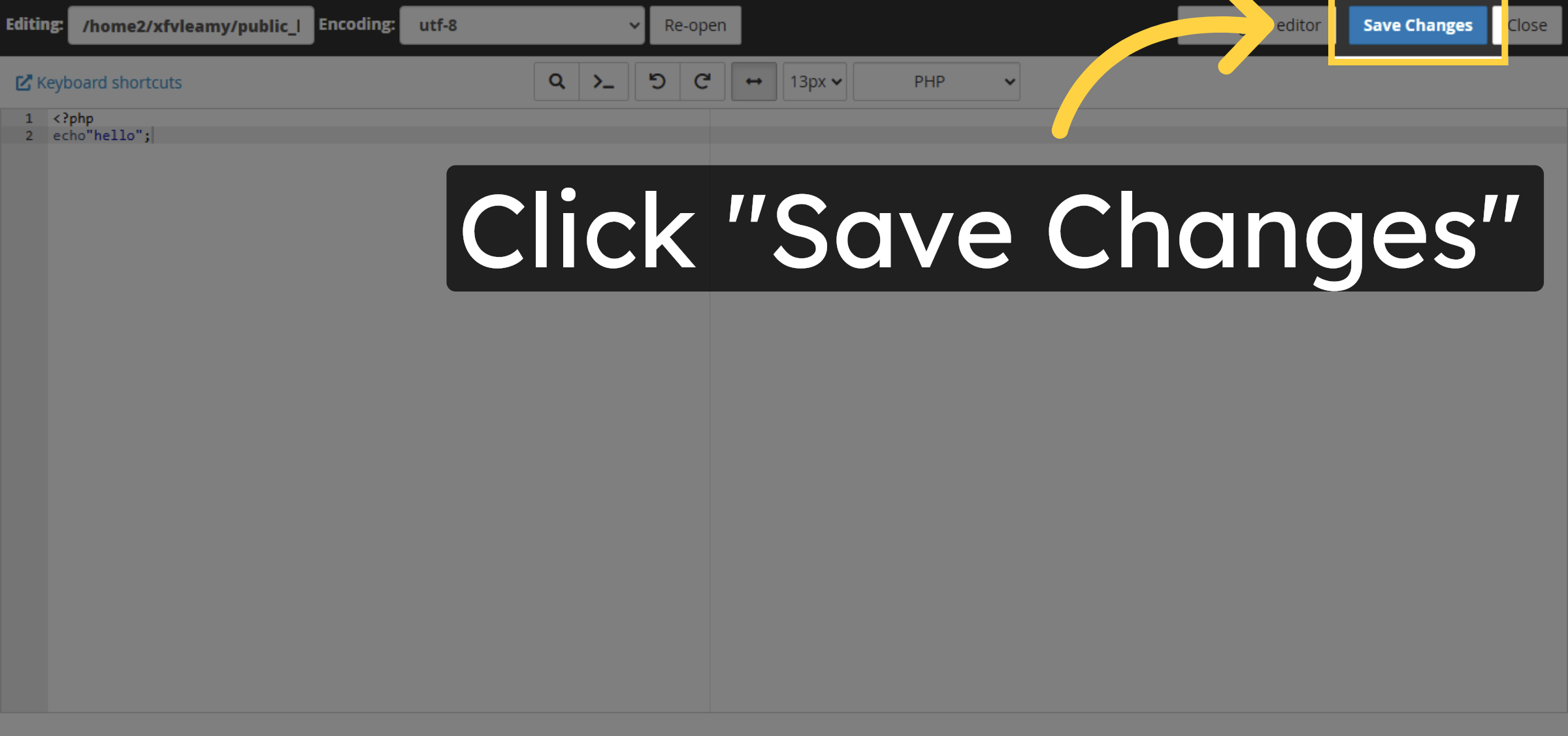
Click the Save Changes button to apply and store your edits to the test.php file.

Save File Changes

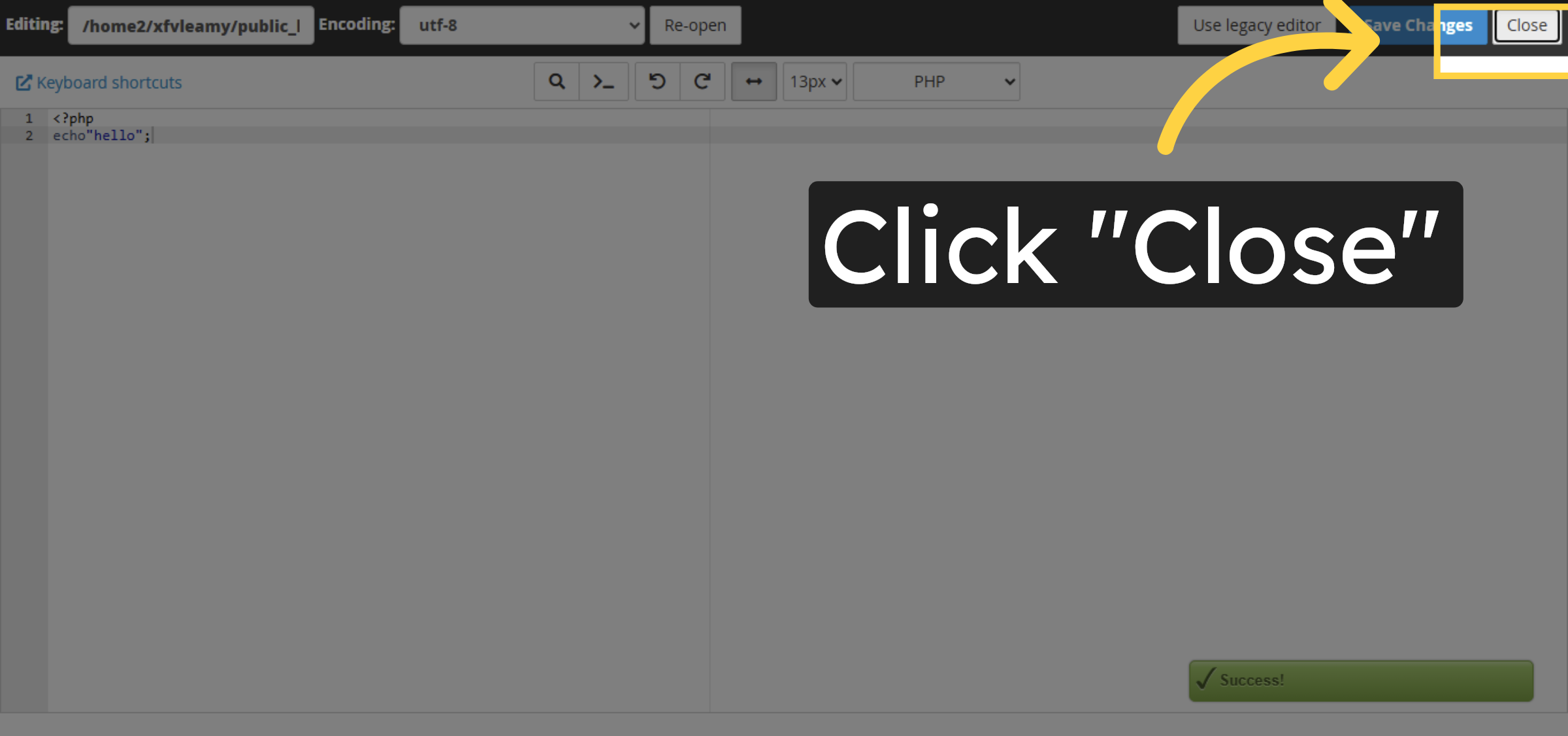
12. Close Editor

Click the Close button to exit the file editor and return to the File Manager interface.

Close Editor

Ad Banner

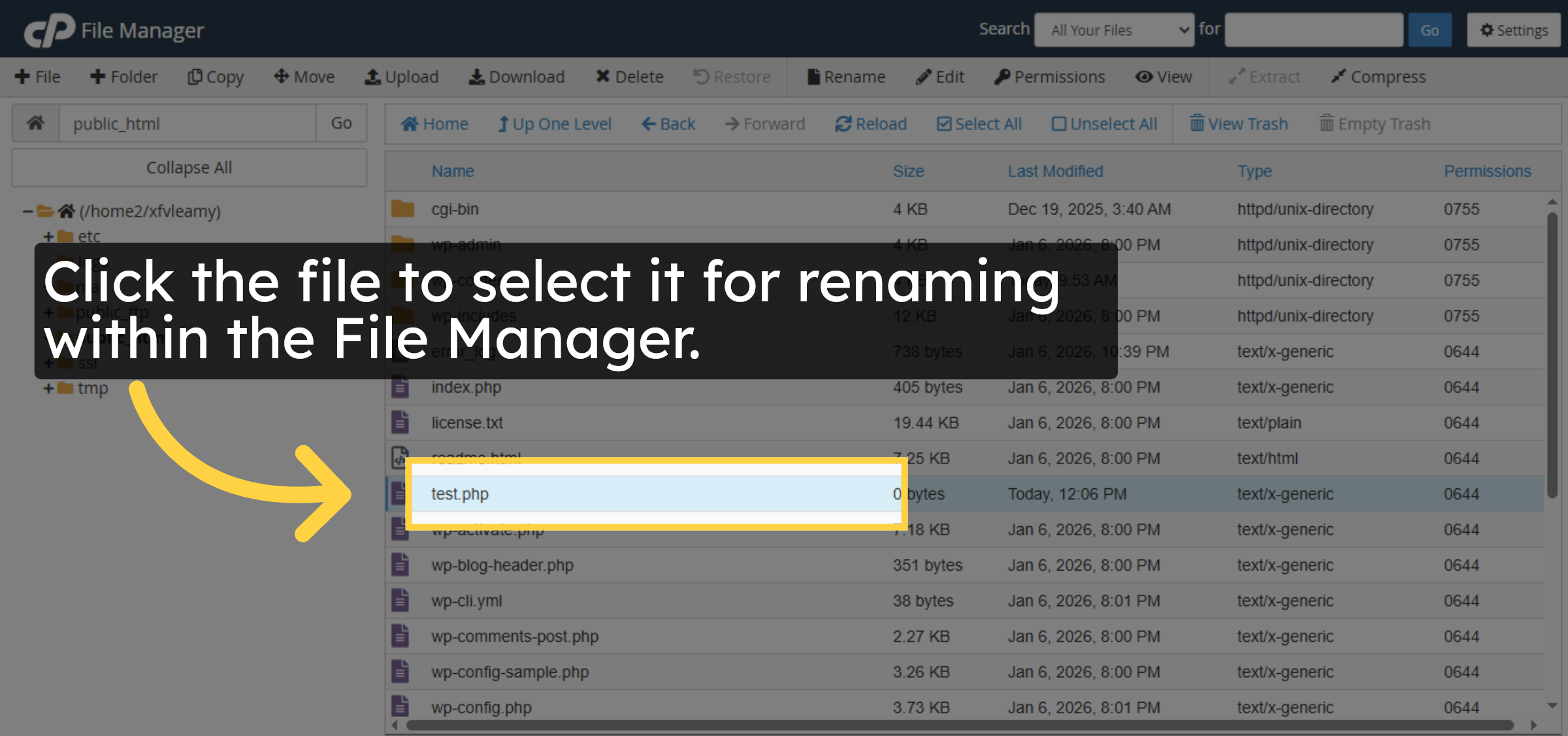
13. Select File For Rename

Click the file to select it for renaming within the File Manager.

Select File For Rename

14. Open Rename Option
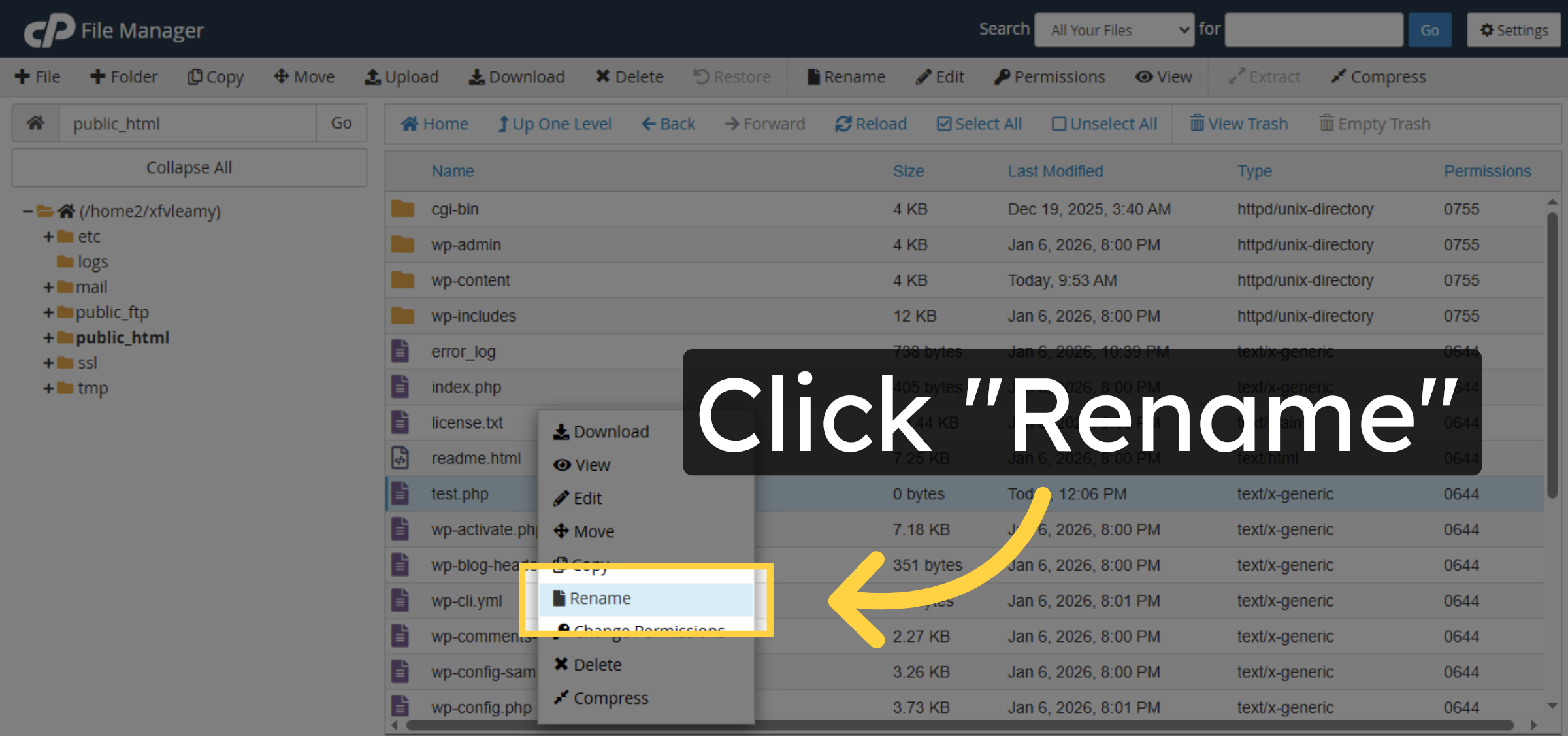
Click the Rename button to initiate changing the file name of test.php.

Open Rename Option

15. Enter New File Name
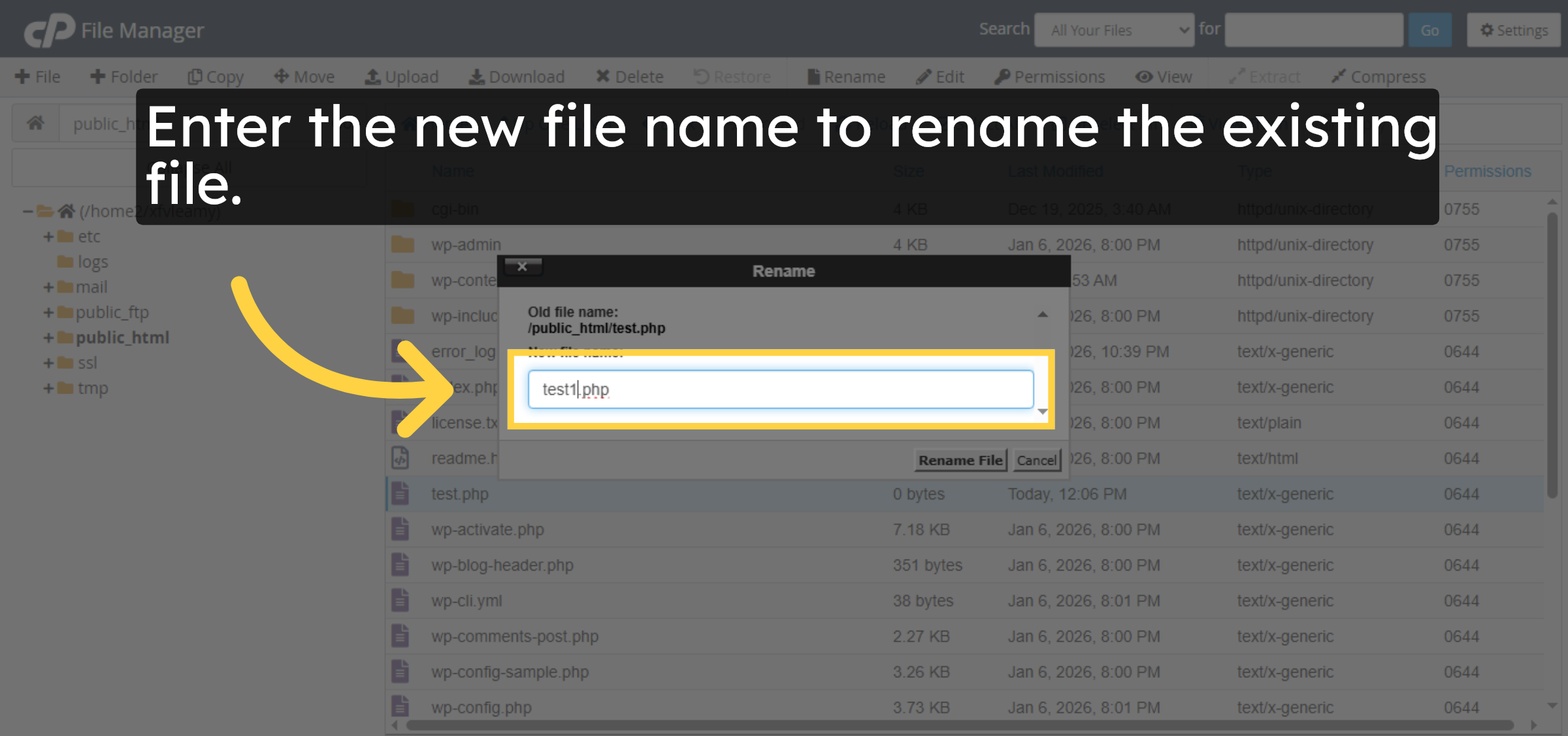
Enter the new file name to rename the existing file.

Enter New File Name

16. Confirm File Rename
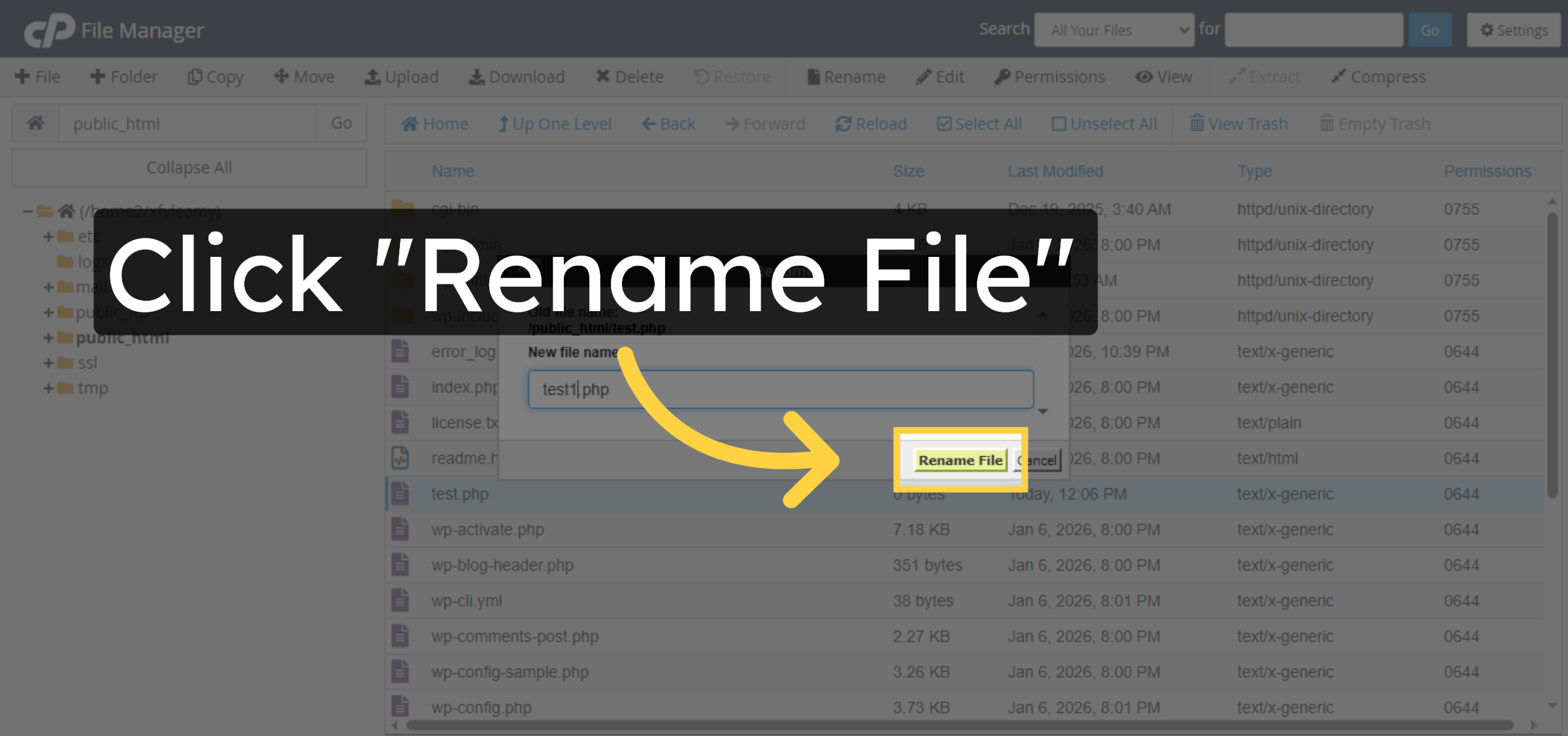
Click the Rename File button to save the new file name and update it in the directory.

Confirm File Rename

17. File deletion
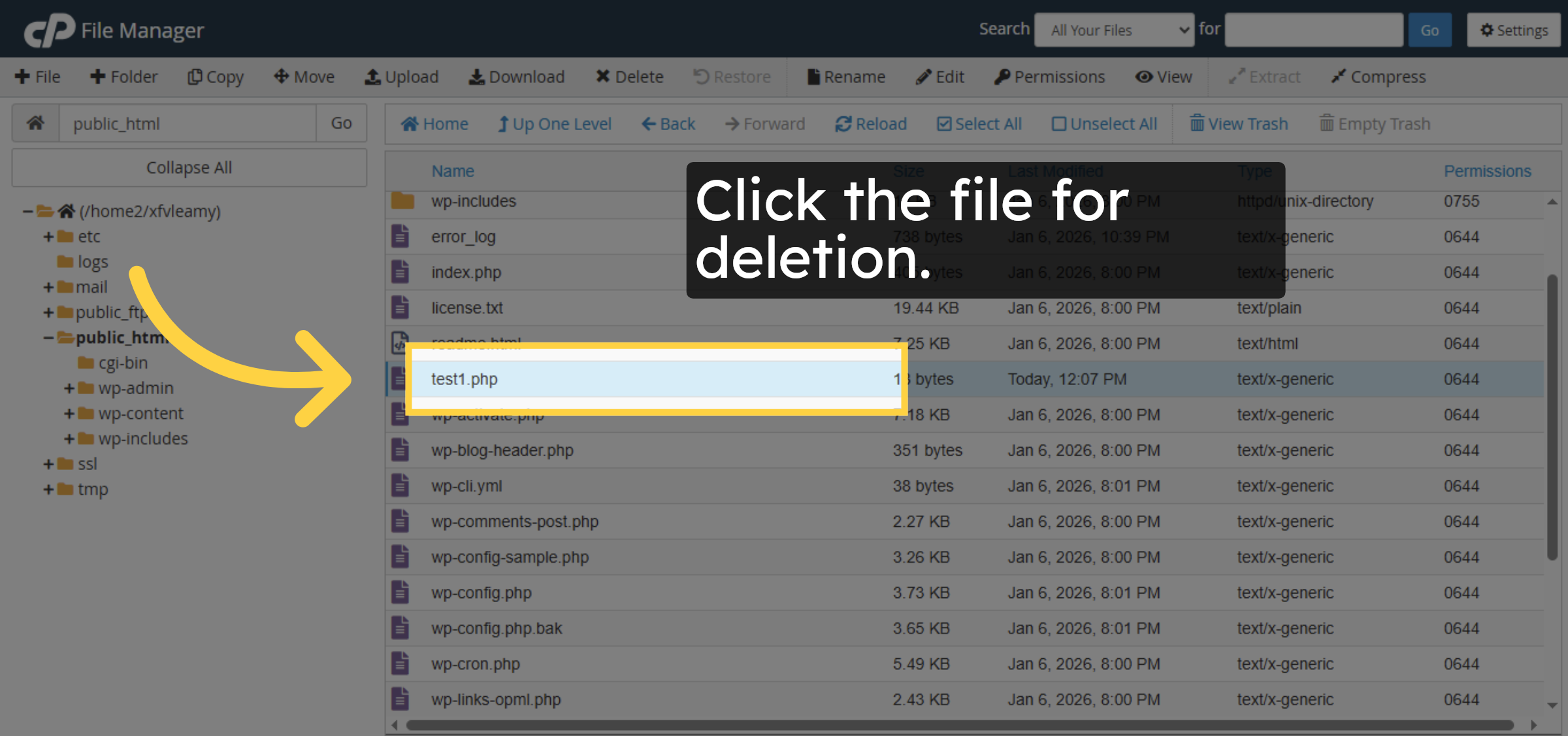
Click the file for deletion.

File deletion

18. Delete File

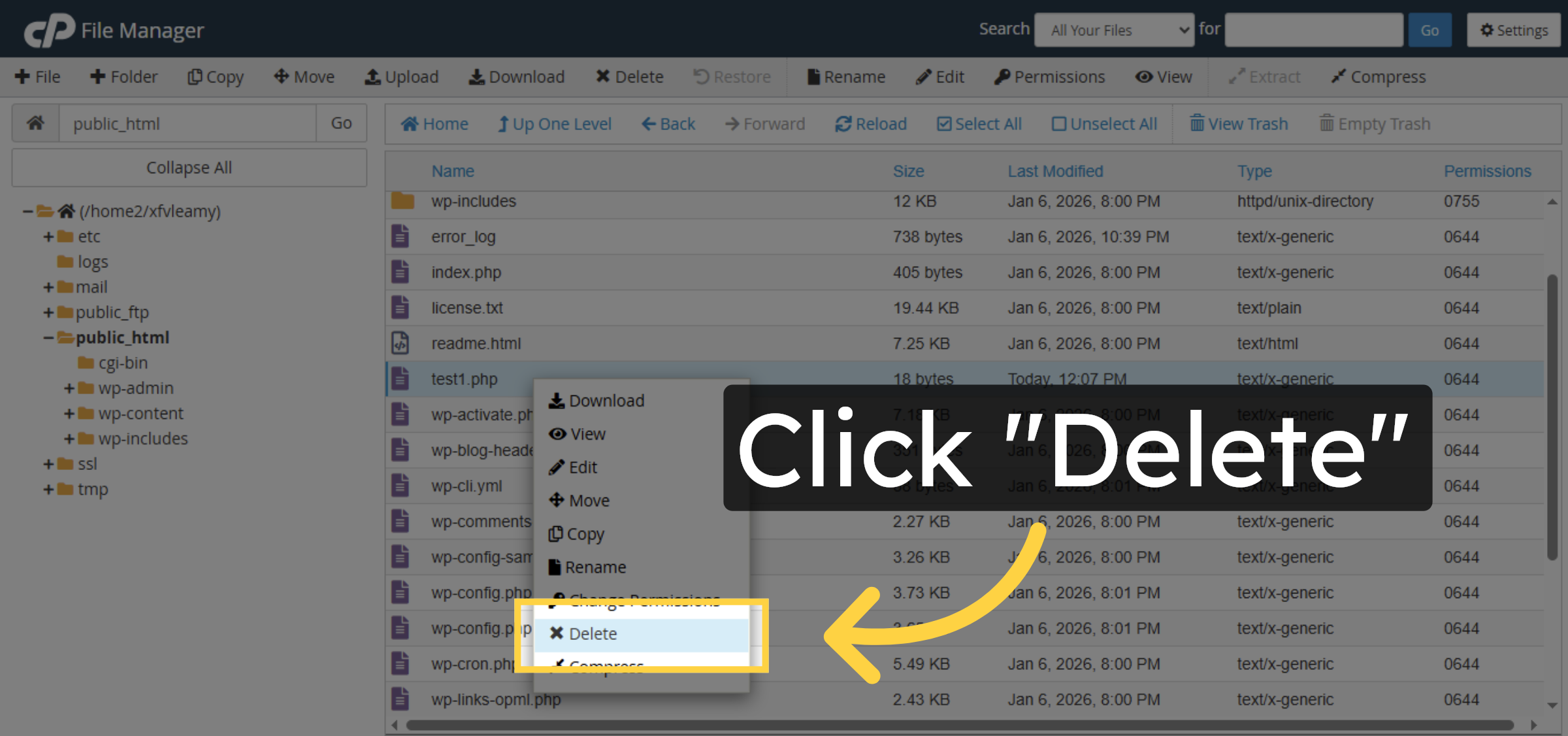
Click the Delete button to remove the test1.php file from your hosting directory.

Delete File

19. Confirm File Deletion
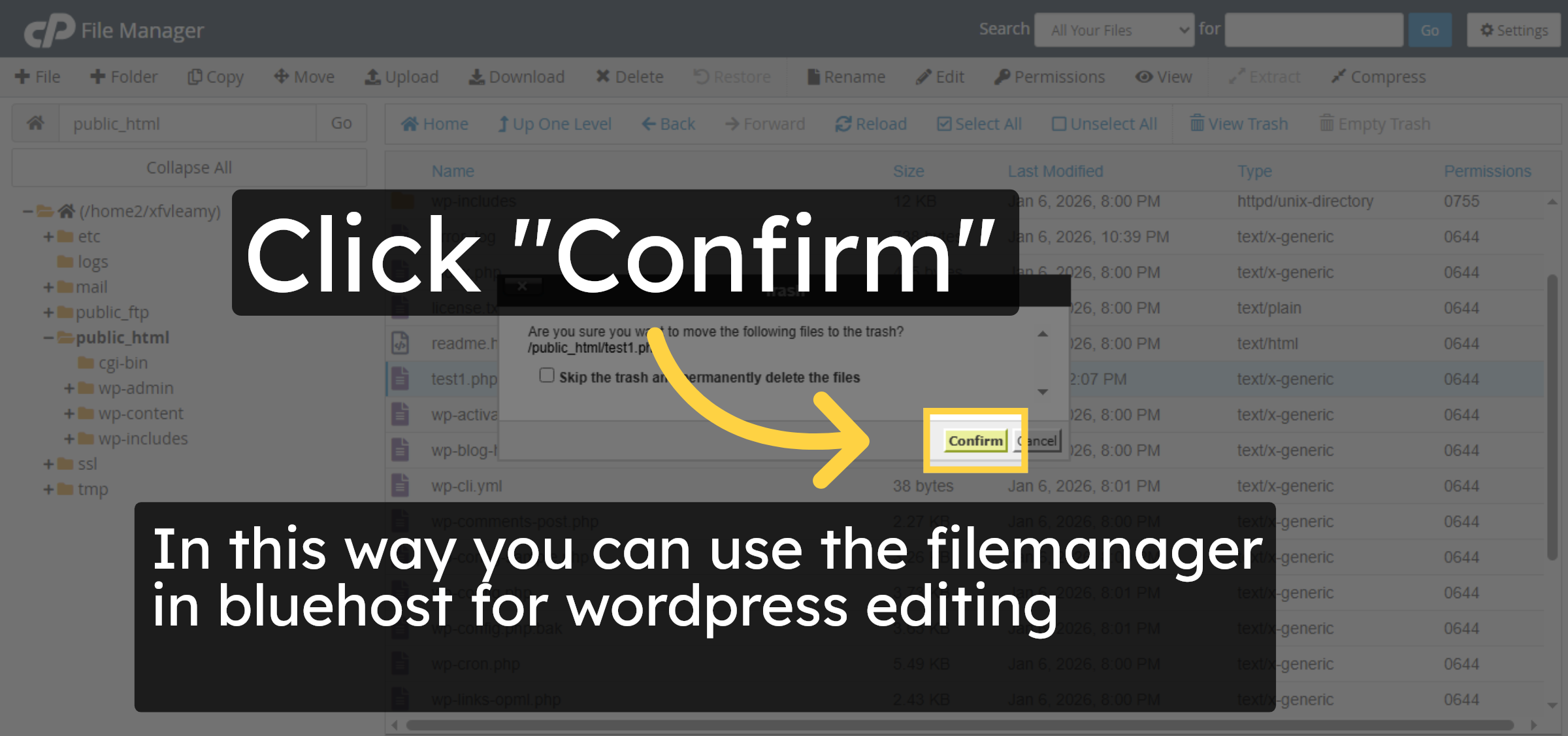
In this way you can use the filemanager in bluehost for wordpress editing

Confirm File Deletion

Conclusion

By completing the steps in this guide, you have successfully used the Bluehost File Manager to create, edit, rename, and delete WordPress files. This method allows you to manage your site’s files efficiently without relying on external tools, making it ideal for quick edits and basic maintenance tasks. Proper file management helps maintain a clean directory structure and ensures smoother WordPress site operation.

  • Visit: https://www.woohelpdesk.com

  • Call Us Toll-Free: +1 888 602 0119 (US & Canada)

  • Get professional support for WordPress file editing, Bluehost hosting management, troubleshooting, security updates, and WooCommerce solutions


Leave a Reply

Your email address will not be published. Required fields are marked *

Leave a Reply

Your email address will not be published. Required fields are marked *