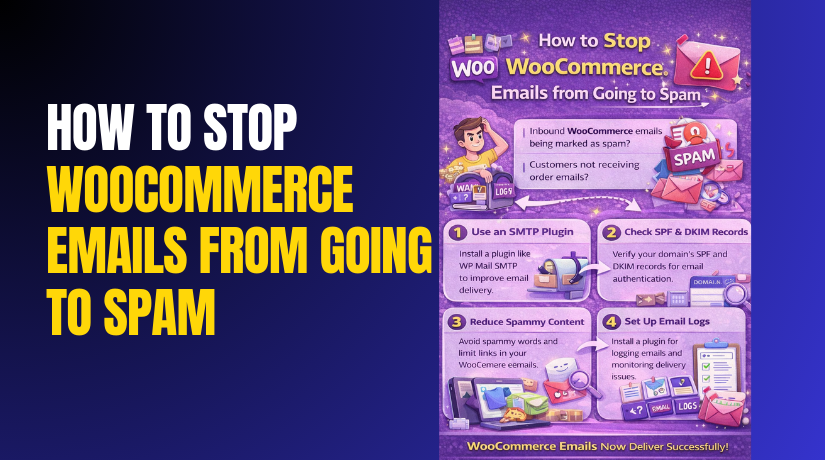
How to Stop WooCommerce Emails from Going to Spam Step by Step?
Table of Contents
-
- Introduction
- What is Meant By Email Going To Spam?
- What Are The Signs To Know WooCommerce Emails Are Going to Spam?
- What Are The Reasons For Going WooCommerce Emails To Spam?
- How to Stop WooCommerce Emails from Going to Spam Step by Step?
- What Are The Top 3 Best Plugins to Stop WooCommerce Emails Going to Spam?
- What Are The Long-Term Best Practices to Prevent Spam Issues?
- Final Verdict
Introduction
WooCommerce emails are critical for every online store. Order updates, invoices, and password resets build customer trust. But many store owners face one common problem. WooCommerce emails going to spam can hurt sales quickly.
Customers miss order confirmations and think payment failed. They also miss shipping updates and start raising support tickets. This creates refund requests and negative reviews. Fixing this issue improves store reputation and customer experience.
WooCommerce sends emails using WordPress mail functions by default. Many hosting servers send emails without proper authentication. Spam filters look for authentication and sender reputation.
If those checks fail, emails get marked as spam. Many stores also use free email addresses as senders. This increases spam filtering risk even more. Fix WooCommerce email issues by using proper SMTP and DNS settings. This improves delivery and reduces spam complaints.
This guide focuses on WooCommerce email deliverability step by step. You will learn why emails land in spam folders. You will learn how to stop WooCommerce emails from spam permanently. You will also learn the best setup practices for long term stability.
What is Meant By Email Going To Spam?
Email going to spam means the inbox provider does not trust it. Gmail, Yahoo, Outlook, and others filter risky emails automatically. They use spam rules to protect users from fraud and malware.
When an email fails rules, it lands in a spam folder. Sometimes it gets blocked and never reaches the mailbox. This is a deliverability issue, not a WooCommerce feature issue.
Spam placement usually happens due to poor sender authentication. It also happens due to low domain reputation or content triggers. Sometimes it happens due to server IP reputation problems.
Many WooCommerce stores share hosting and share email IPs. If another site sends spam from that IP, your emails suffer too. This is why WooCommerce email deliverability needs proper setup.
How do spam filters decide email placement?
Spam filters evaluate many signals before placing email. These signals can be technical, content based, and behavior based. You must fix all important signals for best results.
- Authentication signals like SPF, DKIM, and DMARC records.
- Sender reputation signals like domain age and complaint history.
- IP reputation signals from your hosting mail server IP.
- Content signals like spam words, links, and formatting style.
- Engagement signals like opens, replies, and safe sender actions.
WooCommerce SMTP setup helps with sending reliability and trust. DNS records help with authentication and domain protection. Together they help stop WooCommerce emails from spam.
What Are The Signs To Know WooCommerce Emails Are Going to Spam?
Many store owners do not notice this issue quickly. Customers may not complain until orders pile up. Look for these signs and confirm deliverability early.
- Customers say they did not receive order confirmation emails.
- Customers say password reset email never arrived in the inbox.
- Customers find emails inside spam folders after searching.
- Admin misses new order email notifications repeatedly.
- Email logs show sent status but customers say not received.
When you see these signs, start fixing immediately. Waiting causes more deliverability damage over time.
What Are The Reasons For Going WooCommerce Emails To Spam?
This section explains the real causes behind spam placement. Each reason has a technical cause and a store side fix. Understanding the reason helps you choose the right solution faster.
- WooCommerce sends mail using PHP mail function
By default, WordPress uses a basic mail function. This method does not guarantee authentication and reputation. Many hosts also restrict mail sending using this method. Spam filters often flag emails sent without proper SMTP signing. This is the biggest cause of WooCommerce emails going to spam.
Fix WooCommerce email issues by using SMTP sending instead. SMTP improves reliability and supports authentication alignment.
- Missing SPF record for your domain
SPF is a DNS record that allows sending servers. If SPF is missing or wrong, email fails verification. Spam filters see this as suspicious and lower trust. Many WooCommerce stores forget to set SPF for their domain.
WooCommerce email deliverability improves when SPF is correct. SPF must include your actual email sending source.
- Missing DKIM signing for outgoing emails
DKIM adds a digital signature to your email. It proves your email content was not altered in transit. If DKIM is missing, spam filters reduce trust. If DKIM fails, spam filters often push emails to spam.
Stop WooCommerce emails from spam by enabling DKIM. Many SMTP providers provide DKIM records for your domain.
- No DMARC policy or misaligned DMARC setup
DMARC ties SPF and DKIM together under one policy. It helps inbox providers validate the sender identity. Without DMARC, spoofing risk increases and trust decreases. A weak DMARC setup can also cause spam placement.
WooCommerce email deliverability improves when DMARC is configured. Start with a monitoring policy and then tighten later.
- Using a free email address as sender
Many stores use Gmail or Yahoo as sender addresses. This is not ideal for transactional email. Sending from a free address often fails alignment checks. Some SMTP systems also restrict sending from free addresses.
Fix WooCommerce email issues by using a domain based email. Example is [email protected] for order emails.
- Shared hosting mail server reputation issues
Shared hosting often shares server IP for email sending. If other sites send spam, your IP reputation drops. Then your store emails land in spam even with correct content. This is common for WooCommerce stores on cheap hosting.
WooCommerce SMTP setup helps because SMTP providers use better IP reputation. This can bypass bad shared server IPs.
- Poor email content and formatting triggers
Spam filters scan content for patterns and risky triggers. Too many links, too many images, and heavy formatting can hurt. Overuse of sales words can also trigger spam filters. Some WooCommerce email templates include excessive styling too.
Stop WooCommerce emails from spam by keeping templates clean. Use simple text, clear branding, and balanced links.
- Incorrect From name, From email, and Reply To settings
Inconsistent sender identity can reduce trust. Spam filters prefer consistent sender details across messages. If your From email differs from reply email, issues can occur. If From name looks suspicious, spam filters may flag it.
Fix WooCommerce email issues by using consistent sender settings. Use a professional From name and a real mailbox address.
- Low domain reputation or new domain issues
New domains have little reputation. Sending high volume suddenly can look suspicious. Spam filters can push early emails to spam until trust builds. This affects WooCommerce email deliverability for new stores.
Warm up sending volume slowly for new domains. Use proper authentication from day one for best results.
How to Stop WooCommerce Emails from Going to Spam Step by Step?
This is the full step by step process to fix WooCommerce emails going to spam. Follow the steps in the same order for best results. Each step improves WooCommerce email deliverability and helps fix WooCommerce email issues permanently.
Step 1: Confirm your “From” name and “From” email
Wrong sender details are a common spam trigger. Use a real mailbox on your domain.
WordPress Dashboard → WooCommerce → Settings → Emails → Email Sender Options
- Set From name as your store brand name.
- Set From email as [email protected] or [email protected].
- Avoid Gmail or Yahoo as sender for store emails.
- Avoid noreply if customers need support replies.
- Save changes and keep sender details consistent always.
Step 2: Add or fix SPF record in DNS
SPF tells inbox providers which servers can send your emails. Missing SPF causes spam placement.
Domain DNS Panel → DNS Records → Add Record → TXT
- Search if an SPF TXT record already exists.
- Keep only one SPF record for your domain.
- Add your SMTP provider include value inside SPF.
- Save the record and wait for DNS to update.
- Avoid exceeding SPF lookup limits with too many includes.
Step 3: Enable DKIM signing for your domain
DKIM signs your emails and improves trust. Without DKIM, spam filters reduce delivery score.
SMTP Provider Panel → Domain Settings → DKIM → Copy Record
DNS Panel → DNS Records → Add Record → TXT
- Generate or locate DKIM records in your SMTP provider.
- Copy selector host name and DKIM TXT value exactly.
- Paste DKIM value without adding spaces or breaks.
- Save the record and confirm the provider shows it as verified.
- Use the same domain as your From email address.
Step 4: Add DMARC record for policy and reporting
DMARC protects your domain and improves alignment. Start with monitoring and tighten later.
DNS Panel → DNS Records → Add Record → TXT → _dmarc.yourdomain.com


- Add a DMARC TXT record at yourdomain.com.
- Start with a monitoring policy first to avoid blocking.
- Add a report email address you can access.
- Save the record and monitor reports for failures.
- Move to quarantine later once SPF and DKIM pass.
Step 5: Install an SMTP plugin for WooCommerce SMTP setup
SMTP replaces default WordPress mail sending and improves reliability.
WordPress Dashboard → Plugins → Add New → Install SMTP Plugin → Activate
- Install one SMTP plugin only, not multiple plugins.
- Open plugin settings and select your mailer method.
- Use SMTP or API mailer based on your provider support.
- Save settings before testing emails.
- Disable any other email routing plugin to avoid conflicts.
Step 6: Configure SMTP settings correctly
Wrong ports or encryption cause failures and spam issues.
WordPress Dashboard → SMTP Plugin → Settings → SMTP Configuration
SMTP Provider Panel → SMTP Settings → Copy Host, Port, Security
- Enter the SMTP host provided by your email provider.
- Select encryption as TLS or SSL based on provider rules.
- Use the correct port for selected encryption.
- Add SMTP username and password or app password.
- Save settings and recheck values after saving.
Step 7: Send a test email and check inbox placement
Testing confirms sending and deliverability are both working.
WordPress Dashboard → SMTP Plugin → Tools → Send Test Email
- Send test email to Gmail and check inbox and spam.
- Send a test email to Outlook and check the junk folder.
- If spam, review SPF DKIM DMARC and From alignment.
- Reduce links and heavy design in email templates.
- Re-test after each change until inbox placement improves.
Step 8: Enable email logs to track WooCommerce email issues
Logs help you confirm emails were sent and show errors clearly.
WordPress Dashboard → SMTP Plugin → Email Log → Enable
WordPress Dashboard → WooCommerce → Status → Logs
- Enable logging in the SMTP plugin settings.
- Trigger WooCommerce emails using a test order.
- Check logs for errors like auth failed or timeout.
- Fix errors and retest until logs show clean sending.
- Keep logs enabled for ongoing monitoring.
Step 9: Clean WooCommerce email template content
Even with SMTP, poor email content can still trigger spam filters.
WordPress Dashboard → WooCommerce → Settings → Emails → Email Template
- Keep formatting simple and professional.
- Avoid too many links in one email message.
- Avoid spammy words and all caps formatting.
- Add clear contact details in the email footer.
- Keep your brand name consistent in subject lines.
Step 10: Prevent future spam issues with stable practices
After fixing, you must maintain settings to keep delivery stable.
WordPress Dashboard → Plugins → Updates
DNS Panel → DNS Records → Review Records
SMTP Plugin → Test Email Tool
- Test emails after plugin updates or theme changes.
- Recheck SPF DKIM DMARC after migrations or DNS changes.
- Avoid sudden high volume email sending from new domains.
- Keep only one SMTP plugin active at all times.
- Monitor customer complaints about missing emails quickly.
What Are The Top 3 Best Plugins to Stop WooCommerce Emails Going to Spam?
1. WP Mail SMTP
WP Mail SMTP is a popular WordPress plugin for improving email sending. It helps fix WooCommerce emails going to spam by sending emails through trusted mailers. It also adds testing tools and better error reporting for faster troubleshooting.
Key Features
- Multiple mailer options for better delivery
You can send emails using SMTP or API based mailers. API mailers usually give better WooCommerce email deliverability. This also reduces the risk of emails landing in spam folders. - Setup wizard for quick configuration
The plugin includes a guided setup flow for beginners. It helps you configure mailer settings step by step. This makes WooCommerce SMTP setup easier and faster. - Force From Email and Force From Name options
It can force a single From email and name across the site. This keeps the sender identity consistent for every WooCommerce email. Consistency helps stop WooCommerce emails from spam over time. - Email test tool inside WordPress dashboard
It lets you send test emails directly from the plugin settings. You can confirm if emails reach inbox or spam quickly. This helps fix WooCommerce email issues without guessing. - Clear error reporting and troubleshooting logs
When sending fails, the plugin shows helpful error messages. This helps you detect wrong credentials, blocked ports, or DNS issues. It saves time during email deliverability troubleshooting. - Compatibility with WooCommerce transactional emails
It routes all WooCommerce order emails through the same configured mailer. This includes order confirmation, refunds, and password reset emails. It improves overall WooCommerce email deliverability. - Secure authentication support
Many mailers support secure login and authentication methods. This protects your SMTP connection and reduces sending failures. It also keeps your setup safer for long term use. - Works with popular hosting and caching setups
It usually works smoothly with most WordPress hosting setups. It also works with most caching plugins, since it runs on server side. This helps stores keep stable email sending performance.
Pros
- Improves deliverability for WooCommerce emails
It reduces WooCommerce emails going to spam in many cases. It does this by using authenticated mail sending methods. This makes inbox providers trust your emails more. - Easy for beginners and non technical store owners
The setup wizard makes configuration simple. You do not need deep server knowledge for basic setup. This is useful for stores needing quick results. - Supports SMTP and API mailers
You can choose SMTP if you already have provider details. You can also choose API mailers for stronger deliverability. This flexibility helps different store sizes and needs. - Useful for diagnosing email sending failures
It shows clear errors for blocked ports and wrong passwords. It helps identify missing authentication or server restrictions. This makes it easier to fix WooCommerce email issues quickly. - Good for stores needing email testing and monitoring
The test email tool helps you verify delivery after changes. You can test after DNS updates or plugin updates. This reduces future email surprises for customers. - Works across many WordPress email sources
It routes emails from WooCommerce, WordPress, and plugins. This means password resets and contact emails also improve. It helps maintain consistent email behavior across the site. - Helps keep sender identity consistent
Force From settings help align sender email with domain records. This reduces mismatches that trigger spam filters. This supports WooCommerce email deliverability strongly.
Cons
- Deliverability still depends on your domain setup
The plugin cannot fix missing SPF, DKIM, and DMARC alone. If DNS records are wrong, emails may still go to spam. You must set authentication correctly for best results. - Some advanced features may require paid version
Depending on the plugin version, some features can be limited. Advanced reporting, logging, or certain mailer features may need upgrade. This can be a concern for small stores on tight budgets. - SMTP can fail on hosts that block outbound ports
If your host blocks SMTP ports, sending can fail. You may need hosting support or an API mailer option. This is common on some shared hosting plans. - Wrong configuration can still cause spam placement
If you use a free sender email, spam risk stays high. If the From domain does not align with authentication, issues remain. Setup must be done carefully to stop WooCommerce emails from spam. - Email content issues are not solved by the plugin
Spam triggers in email templates can still cause problems. Too many links or heavy design can push emails to spam. You still need clean WooCommerce email template formatting. - Conflicts can happen if multiple SMTP plugins are active
If you use another SMTP or email plugin together, conflicts happen. This can cause random sending failures and wrong headers. You should always keep only one SMTP plugin active.
Download Link: WP Mail SMTP by WPForms – The Most Popular SMTP and Email Log Plugin
2. FluentSMTP
FluentSMTP is a lightweight WordPress SMTP plugin made for clean email sending. It helps improve WooCommerce email deliverability by routing emails through stable SMTP connections. It is a good choice for stores that want control without heavy features.
Key Features
- Simple SMTP connection setup
FluentSMTP provides a clean setup screen for SMTP details. You can enter host, port, encryption, and login credentials quickly. This helps complete WooCommerce SMTP setup without confusion. - Multiple SMTP connections support
You can add more than one SMTP connection in the plugin. This is useful when you want separate mailboxes for store emails. It is also useful for switching providers during issues. - Connection routing and control options
You can choose which connection should send the emails. Some stores use one connection for WooCommerce orders. Other stores use another connection for contact forms. This keeps email identity consistent and reduces spam risk. - Email logs and sending history options
FluentSMTP can provide logs depending on your setup configuration. Logs help confirm WooCommerce emails were triggered and sent. Logs also help fix WooCommerce email issues faster. - Detailed error messages for debugging
When an email fails, the plugin shows useful sending errors. This helps detect wrong ports, blocked connections, or login problems. It reduces troubleshooting time during deliverability problems. - Supports common SMTP providers
You can connect FluentSMTP with many SMTP providers easily. This includes hosting SMTP and dedicated SMTP services. This flexibility helps stores choose the best sending reputation option. - Force sender identity options in many setups
Many SMTP setups require consistent From email and From name. FluentSMTP helps keep sending identity stable across the site. This helps stop WooCommerce emails from spam over time. - Lightweight performance focused design
The plugin is built to stay fast and minimal. It avoids heavy dashboards and complex workflows. This is good for stores that want stable delivery without extra load.
Pros
- Free and clean option for many WooCommerce stores
FluentSMTP works well for stores needing a simple free solution. It handles WooCommerce emails without complex setup requirements. This is helpful for small stores and beginners. - Stable SMTP routing improves deliverability quickly
It sends emails through authenticated SMTP connections. This reduces issues caused by WordPress default mail sending. This improves WooCommerce email deliverability for order emails. - Supports multiple providers and easy switching
You can keep backup SMTP connections available. If one provider fails, you can switch faster. This improves reliability and reduces downtime in sending. - Good debugging support for common SMTP failures
Clear errors help detect connection blocks and bad credentials. It helps fix WooCommerce email issues without guesswork. It is useful when hosts block ports or restrict sending. - Lightweight plugin with fewer conflicts
Because it is simple, it often causes fewer conflicts. It fits well with stores that want fewer moving parts. This supports stable WooCommerce SMTP setup long term. - Works well when you already have a trusted SMTP provider
If you already use a reliable mail server, FluentSMTP is enough. You can connect and send without extra tools. This makes it ideal for stores with existing email infrastructure.
Cons
- Does not replace SPF DKIM DMARC setup
FluentSMTP cannot fix domain authentication issues alone. If SPF, DKIM, and DMARC are missing, spam risk remains. You must configure DNS properly for best deliverability results. - Deliverability depends on the SMTP provider reputation
If your SMTP provider has a weak reputation, spam can continue. Hosting SMTP on shared servers can still cause inbox issues. A better provider may still be required for stable results. - Email logs may depend on settings and environment
Logging features can vary by configuration and setup. If logs are limited, troubleshooting can be harder. You may need additional logging support in some cases. - Less guided experience for advanced mailer types
FluentSMTP is focused on SMTP and clean routing. If you need deep mailer integrations or advanced dashboards, it may feel limited. Some stores prefer more guided tools for API mailers. - Still requires careful sender alignment
If your From email differs from your authenticated domain, issues remain. If you use a free sender address, spam risk stays high. You must keep sender identity aligned for best results.
Download Link: FluentSMTP – WP SMTP Plugin with Amazon SES, SendGrid, MailGun, Postmark, Google and Any SMTP Provider
3. Post SMTP Mailer
Post SMTP Mailer is a WordPress SMTP plugin focused on diagnostics and deeper troubleshooting. It is useful when WooCommerce emails going to spam happen due to server limits. It is also helpful when emails fail due to blocked ports or timeouts. It gives stronger reporting and connection checks than many basic SMTP tools.
Key Features
- Setup wizard with guided configuration flow
Post SMTP includes a wizard to configure sending quickly. It asks for SMTP host, port, encryption, and credentials. It also helps validate settings during the setup process. This helps reduce wrong configuration mistakes early. - Connectivity and port checking tools
It can help detect blocked SMTP ports on your hosting server. This is useful when port 587 or 465 is restricted. Many WooCommerce email issues are caused by such blocks. This feature helps find the root cause faster. - Detailed email logs and message tracing
Post SMTP can show detailed logs for emails sent from WordPress. Logs help confirm whether WooCommerce triggered the email properly. Logs also show failure reasons and server responses. This makes it easier to fix WooCommerce email issues quickly. - Advanced diagnostics for common SMTP failures
It provides deeper diagnostics for authentication errors and TLS issues. It also helps identify certificate problems and handshake failures. These issues are common on shared hosting environments. This helps improve WooCommerce email deliverability once resolved. - Fallback connection support in some configurations
Some setups allow fallback or alternate sending configurations. This can help when one SMTP route fails unexpectedly. It reduces the risk of checkout emails failing during busy hours. It supports better reliability for WooCommerce transactional emails. - Sender identity and header control
It supports settings that help keep From name and From email consistent. It also helps reduce header mismatch that triggers spam filters. Consistent identity supports Stop WooCommerce emails from spam efforts. - Works across WordPress and WooCommerce email sources
It can route WooCommerce order emails and WordPress system emails. This includes password reset emails and admin notifications. It helps maintain a single sending path for all important messages.
Pros
- Best option when emails fail due to hosting restrictions
Many stores face SMTP timeout or blocked port issues. Post SMTP is strong in diagnosing these problems. It helps identify whether the host is blocking outbound connections. This makes it valuable for fixing WooCommerce email issues caused by hosting. - Strong debugging tools save troubleshooting time
The detailed logs and diagnostics reduce guesswork. You can see exact failure points and server responses. This is helpful when WooCommerce emails do not reach customers. It also helps when emails go to spam due to misalignment. - Useful for technical teams and support workflows
If you manage many client sites, diagnostics matter. Post SMTP helps you gather evidence for hosting support tickets. It also helps you replicate issues and confirm fixes properly. This supports stable WooCommerce email deliverability long term. - Helps detect blocked ports and TLS problems quickly
Many SMTP failures happen due to TLS mismatch or blocked ports. Post SMTP helps confirm which setting is failing. This reduces trial and error and speeds up resolution. - Helpful when basic SMTP plugins show unclear errors
Some simple plugins provide limited error messages. Post SMTP often provides deeper context and message trace details. This helps stop WooCommerce emails from spam by fixing root problems.
Cons
- Can feel complex for beginners and non technical users
Because it focuses on diagnostics, it can feel heavy for beginners. Some users prefer simpler plugins with fewer settings. If you want only basic WooCommerce SMTP setup, it may feel advanced. - Deliverability still depends on DNS and domain alignment
Like any SMTP tool, it cannot replace SPF, DKIM, and DMARC setup. If domain authentication is missing, emails can still go to spam. You must set DNS records correctly for best results. - Provider reputation still matters
If you use a weak SMTP server or shared hosting mail server, spam risk can continue. Post SMTP can help troubleshoot, but it cannot improve provider reputation by itself. A trusted provider may still be required. - May overlap with other email logging tools
If you already use a separate email log plugin, you may get duplicate logs. Running multiple email plugins can create conflicts in some cases. You should keep only one SMTP routing plugin active. - Fallback support can depend on environment and configuration
Some fallback setups depend on server behavior and provider support. If your host blocks most ports, fallback may not help. You may still need hosting changes or an API based mailer.
Download Link: Post SMTP – Complete Email Deliverability and SMTP Solution with Email Logs, Alerts, Backup SMTP & Mobile App
What Are The Long-Term Best Practices to Prevent Spam Issues?
Deliverability is not a one-time task. These habits keep WooCommerce emails healthy. They protect your sender reputation over time.
- Keep transactional emails separate from marketing
Marketing emails behave differently from order emails. Mixing them can damage transactional trust. Keep systems separated.
- Send marketing emails using a dedicated marketing tool.
- Do not send promotions through WooCommerce templates.
- Use WooCommerce emails only for order communication.
- Keep transactional email volume predictable.
- Avoid sudden spikes in email sending
Spam filters monitor sending patterns closely. Sudden volume spikes look suspicious.
- Increase email volume gradually for new stores.
- Avoid bulk order status changes in a short time.
- Test before sending large batches of emails.
- Space out manual order updates when possible.
- Keep email content clean and predictable
Transactional emails should look professional. Clean content improves trust and engagement.
- Avoid aggressive sales language in order to send emails.
- Avoid too many links or images.
- Use simple branding and readable formatting.
- Include store contact details in the footer.
- Maintain a trustworthy website presence
Inbox providers evaluate sender domain credibility. A real business presence improves trust.
- Keep Contact and About pages updated.
- Show clear refund and shipping policies.
- Use HTTPS and valid SSL always.
- Avoid broken pages and suspicious redirects.
Final Verdict
WooCommerce emails going to spam is a serious store problem that can impact sales quickly. Customers may miss order confirmations, invoices, and shipping updates. This creates confusion and increases support tickets and refund requests.
In most cases, WooCommerce is not the real cause of the issue. The main reasons are weak email authentication and unreliable sending methods. When emails are sent through basic server mail, spam filters often distrust them.
If your domain is not properly authenticated, inbox providers may flag messages. This is why many stores see WooCommerce email deliverability drop without warning.
The best long term fix is to use SMTP with correct DNS authentication. A proper WooCommerce SMTP setup sends emails through trusted mail servers. SPF, DKIM, and DMARC records help prove your sender identity.
They also protect your domain from spoofing and improve inbox trust. A reliable SMTP plugin keeps sending consistently and adds testing and logs. Clean email templates reduce spam triggers and improve customer engagement. Keep sender name and sender email consistent across all messages.
Monitor logs and customer feedback so problems are caught early. When you follow these steps, you can stop WooCommerce emails from spam. You also maintain strong WooCommerce email deliverability over time.
Have questions before starting with WooCommerce & WordPress? Get support here at WooHelpDesk.
