How To Speed Up A Slow WooCommerce Website?
Table of Contents
- Introduction
- What is a WooCommerce Website?
- What Are the Key Features of Speeding Up A WooCommerce Website?
- What are the Benefits of Speeding Up A WooCommerce Website?
- Why is WooCommerce Website Slow?
- How to Speed Up A WooCommerce Website?
- What are the Best Practices for Long-Term WooCommerce Speed Optimization?
- How to Maintain WooCommerce Speed During High Traffic Periods?
- Final Verdict
Introduction
A slow WooCommerce website can hurt your business in multiple ways. If your pages take too long to load, customers may abandon their cart, leading to a loss in sales and revenue.
Moreover, Google considers site speed as a ranking factor in its search algorithms. If your website is slow, it will likely rank lower in search results, meaning fewer potential customers will find you online.
In today’s competitive eCommerce landscape, ensuring fast WooCommerce performance optimization is no longer optional, it’s a necessity. Fast-loading websites ensure better user experience, customer satisfaction, and overall store success.
This article will cover the best practices to optimize WooCommerce speed, speed up WooCommerce websites, and fix slow WooCommerce websites, making your online store faster, more reliable, and better-performing. You will learn how to improve WooCommerce website speed from various angles, including hosting setup, caching, image optimization, and much more.
What is a WooCommerce Website?
WooCommerce is an open-source eCommerce plugin for WordPress. It allows you to turn your WordPress website into a full-fledged online store, providing features like product management, order tracking, payment processing, and shipping integration.
WooCommerce comes with an array of customization options, letting store owners manage product catalogs, apply various shipping methods, integrate payment gateways, and offer discounts and promotions, all while keeping costs low.
Key Features of WooCommerce Websites
- Product catalog: Organize and manage products, categorize them, and display them attractively for customers.
- Payment gateways: Accept various forms of payment like credit cards, PayPal, Stripe, and bank transfers.
- Shipping management: Configure different shipping methods, calculate rates based on customer location, and offer tracking.
- Inventory management: Keep track of stock levels and set automatic alerts when products run low.
- Order management: Manage and track customer orders with ease, including handling refunds and cancellations.
- Customer management: Collect customer details, manage customer accounts, and track purchase history.
Although WooCommerce offers powerful features, its performance can degrade as the store grows, with slower load times, especially when there are many products, images, or high traffic. Optimizing your WooCommerce site’s speed ensures it runs smoothly, even as you scale up your product catalog and handle more customers.
What Are the Key Features of Speeding Up A WooCommerce Website?
When it comes to speeding up WooCommerce websites, several key features are essential to improving performance. These factors contribute significantly to how quickly your website loads and how efficiently it runs:
1. Caching
Caching helps reduce load times by storing a static version of your pages and serving them to visitors without regenerating the entire content each time they visit. This process reduces server load and speeds up your website’s performance.
- Page caching: Stores entire pages and serves them to visitors without regenerating the page.
- Object caching: Caches frequently used objects (like product data) to avoid querying the database repeatedly.
- Browser caching: Saves static resources (such as images, CSS, and JavaScript files) in the user’s browser, preventing them from being downloaded repeatedly.
2. Image Optimization
Images are often the heaviest elements on a webpage, and large images can significantly slow down your site. Optimizing images reduces their file size without compromising quality, helping your website load faster.
- Image compression: Reduces image file size by removing unnecessary data, improving page load time.
- Image lazy loading: Defers loading images that are below the fold, ensuring only the visible content is loaded initially.
- Image formats: Use modern formats like WebP to reduce image size while maintaining quality.
3. Minification and Compression
Minification reduces the file size of CSS, JavaScript, and HTML files by removing unnecessary characters (like spaces and comments). Compression further reduces file sizes when transferring them from the server to the user’s browser. Both help to reduce page load times.
- Minify CSS, JavaScript, and HTML: Compresses these files to make them smaller and faster to load.
- GZIP/Brotli Compression: Compresses the files before sending them to the browser, reducing data transfer time.
4. Database Optimization
A cluttered database can slow down your WooCommerce website over time. Database optimization ensures that your database runs efficiently by cleaning up unnecessary data and optimizing tables.
- Cleaning up revisions and transients: Removes old data like post revisions and expired transients to reduce database bloat.
- Optimizing database tables: Ensures that database tables are running efficiently, improving the time it takes to retrieve data.
What are the Benefits of Speeding Up A WooCommerce Website?
There are numerous benefits to speeding up WooCommerce websites. Optimizing your store’s performance can result in better user experience, higher conversion rates, and improved SEO rankings.
1. Improved User Experience
- A fast WooCommerce website ensures a smooth shopping experience for users.
- Quick page loads prevent customers from abandoning the site due to frustration, ensuring they stay engaged longer.
- Fast load times lead to reduced bounce rates, keeping users on your website and improving their overall experience.
2. Higher Conversion Rates
- Studies show that slower websites have higher bounce rates and lower conversion rates.
- By speeding up WooCommerce, you can encourage more visitors to complete their purchases.
- Faster load times also allow for quicker checkout processes, preventing cart abandonment and increasing the likelihood of purchase completion.
3. Better Search Engine Rankings
- Google’s Core Web Vitals metric now factors in page speed and user experience when ranking websites.
- Faster WooCommerce websites are more likely to rank higher in search results, increasing organic traffic to your store.
- Speed optimizations ensure that Googlebot can crawl your website efficiently, leading to better indexing.
4. Increased Mobile Traffic
- Mobile users expect fast websites. A slow WooCommerce website leads to poor mobile performance, which affects user retention.
- Optimizing speed ensures that your store runs smoothly on all devices, especially smartphones, which is crucial in the era of mobile-first indexing.
5. Lower Server Costs
- Optimizing speed reduces the load on your server, which can help you lower server costs.
- When your website is well-optimized, you don’t need high-performance, expensive hosting to keep it running smoothly.
Why is WooCommerce Website Slow?
There are various factors that can cause slow WooCommerce websites. Identifying the root causes is the first step to resolving them and improving your WooCommerce website speed. Let’s look at some common slow WooCommerce website issues and how to address them.
1. Slow Hosting Environment
- Web hosting is one of the primary factors affecting your site’s speed. If your hosting server is slow or doesn’t offer enough resources, your WooCommerce store will struggle to handle traffic, causing slow load times.
- Shared hosting plans often lead to slower load times because your server is shared with many other websites. This can cause performance issues when multiple websites use the same resources.
2. Unoptimized Images
Images, especially large product images, are one of the heaviest elements on your website. If they are not properly optimized, they can significantly slow down the page load time.
3. Unnecessary Plugins and Bloat
Installing too many plugins or unused plugins can cause significant performance issues. Plugins that aren’t optimized or that load unnecessary scripts and styles can slow down your website.
4. Unoptimized Database
WooCommerce stores accumulate a large amount of data, such as orders, product revisions, customer data, and transients, which can make your database bloated and slow.
5. Excessive HTTP Requests
Every time your website loads, it sends an HTTP request to the server for resources like CSS files, JavaScript files, images, fonts, and others. Too many requests can slow down your website significantly.
6. Too Many Redirects
Redirects are a natural part of a website, especially when pages are moved or renamed. However, too many redirects can cause additional requests and slow down the page loading time.
How to Speed Up A WooCommerce Website?
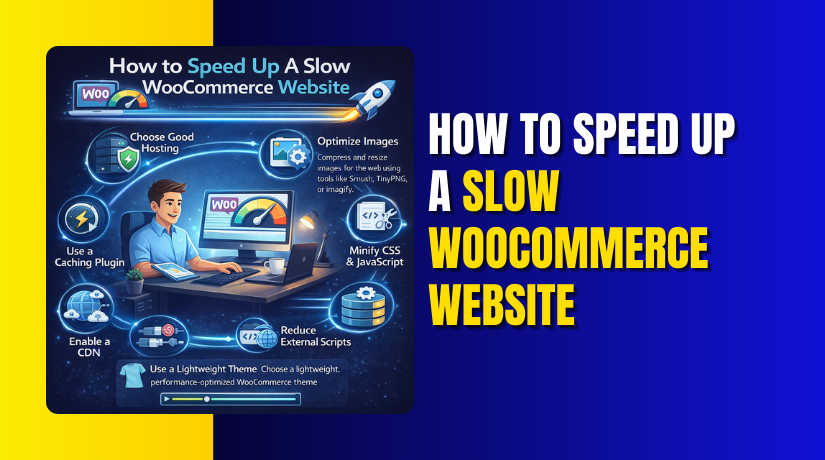
Now that we’ve covered the reasons behind slow WooCommerce websites, let’s dive into the tips to optimize and speed up WooCommerce website performance. These actionable steps will help you implement the necessary changes and make your store load faster.
1. Use a Content Delivery Network (CDN)
- Choose a reputable CDN provider (e.g., Cloudflare, KeyCDN, StackPath).
- Integrate the CDN with your WooCommerce store by following the provider’s setup instructions.
- Most CDN services offer easy integration with WooCommerce and WordPress.
Choose CDN provider ➡ Integrate CDN with WooCommerce ➡ Test performance with GTMetrix or Pingdom.
2. Enable Caching
- Install a caching plugin like WP Rocket or W3 Total Cache.
- Enable page caching, browser caching, and object caching to speed up page loads.
- Set up cache preloading for your important pages like the homepage, product pages, and checkout page to ensure faster load times.
Install caching plugin ➡ Enable caching ➡ Test site speed improvement.
3. Optimize Your WooCommerce Database
- Use a database optimization plugin like WP-Optimize or WP-Sweep.
- Remove old revisions, spam comments, expired transients, and unnecessary data that slow down the database.
- Schedule automatic cleanups to keep your database optimized over time.
Install database plugin ➡ Clean up database ➡ Schedule automatic cleanups.


4. Enable GZIP or Brotli Compression
- Enable GZIP or Brotli compression via your website’s settings.
- Most caching plugins like WP Rocket enable compression automatically.
- Test using tools like GTMetrix to ensure compression headers are working.
Enable GZIP/Brotli compression ➡ Test with GTMetrix ➡ Monitor compression results.
5. Minify CSS, JavaScript, and HTML Files
- Use a plugin like Autoptimize or WP Rocket to minify your site’s files.
- Combine CSS and JavaScript files where possible to reduce HTTP requests.
Install minification plugin ➡ Minify CSS, JS, HTML ➡ Combine files ➡ Test speed improvement.
6. Optimize Images and Implement Lazy Loading
- Optimize images by compressing them with tools like Smush or ShortPixel.
- Enable lazy loading for images below the fold so they only load when visible to the user.
Optimize images ➡ Enable lazy loading ➡ Test load time improvement.
7. Use a Fast WooCommerce-Optimized Hosting Provider
- Switch to a WooCommerce-optimized hosting provider like SiteGround, Kinsta, or WP Engine.
- These hosting providers offer fast servers, optimized PHP configurations, SSL certificates, and WooCommerce-specific support.
Choose WooCommerce hosting ➡ Migrate your store ➡ Test performance improvement.
8. Limit External HTTP Requests and Trackers
- Audit third-party scripts like Google Analytics, Facebook pixels, and social sharing tools.
- Limit external calls and make sure they’re loaded asynchronously to prevent blocking page rendering.
Audit third-party scripts ➡ Limit unnecessary requests ➡ Test performance improvement.
9. Use a WooCommerce-Optimized Caching Plugin
- Install a caching plugin like WP Rocket, W3 Total Cache, or LiteSpeed Cache.
- Enable page caching, which will store static HTML files of your pages to serve to visitors instead of generating them dynamically.
- Enable object caching for frequently accessed database objects, reducing the load on your server.
- Use database caching to avoid repeated queries, which helps your store run faster.
Install caching plugin ➡ Enable page and object caching ➡ Test speed improvement.
10. Optimize WooCommerce Product Pages
- Compress and optimize product images (use tools like Smush or ShortPixel).
- Minimize product page scripts and third-party tools (e.g., social media sharing buttons, analytics scripts).
- Use Lazy Loading for product images and media, ensuring they load only when visible on the screen.
- Remove unnecessary product attributes or use lightweight plugins for additional product features.
Compress images ➡ Minimize scripts ➡ Enable lazy loading ➡ Test product page speed.
11. Implement Server-Side Optimizations
- Upgrade your PHP version: WooCommerce recommends using PHP 7.4 or higher. A newer PHP version improves processing speed and performance.
- Enable HTTP/2: HTTP/2 speeds up your website’s data transfer between the server and the user’s browser, reducing the page load time.
- Configure a fast and efficient database: Consider using MySQL or MariaDB for faster database performance. Make sure your database is tuned for performance by adjusting buffer sizes and query caching.
- Use server-level caching: If you’re using a managed WooCommerce host, they often offer server-side caching to further boost performance. Enable this feature for faster response times.
Upgrade PHP ➡ Enable HTTP/2 ➡ Optimize database ➡ Use server-level caching.
12. Limit External HTTP Requests and Third-Party Scripts
- Audit third-party scripts: Review your website for unnecessary third-party scripts, such as social media widgets, external tracking codes, or ad networks.
- Asynchronously load scripts: Use tools to load non-critical scripts asynchronously, so they don’t block the page rendering.
- Limit external HTTP requests to essential services only. Remove unused tracking scripts, ads, or other external integrations.
Audit third-party scripts ➡ Load scripts asynchronously ➡ Limit external requests ➡ Test performance improvement.
13. Use a Faster Theme
- Choose a lightweight theme: Consider using themes that are specifically optimized for WooCommerce, such as Storefront, GeneratePress, or Astra.
- Avoid bloated themes: Themes with a lot of pre-installed features may slow down the site. Select a theme that offers essential features and allows customization without extra bloat.
Choose a lightweight theme ➡ Install theme and test performance ➡ Remove unused theme features.
14. Enable Gzip Compression for Faster File Transfers
- Enable GZIP compression via your server settings or through a caching plugin like WP Rocket.
- If you use a hosting provider with caching support, this feature might already be enabled. Check with your hosting provider to confirm.
Enable GZIP compression ➡ Verify with GTMetrix ➡ Check transfer speeds.
15. Optimize External Scripts and Fonts
- Limit external scripts: Only load essential third-party scripts such as Google Analytics, social sharing buttons, or ad services.
- Use asynchronous loading: Load external scripts asynchronously to prevent them from blocking the rendering of page content.
- Serve fonts locally: Rather than relying on external font hosting services, serve fonts locally on your server.
Limit external scripts ➡ Use asynchronous loading ➡ Serve fonts locally ➡ Test performance with tools.
16. Implement Server-Side Caching and Object Caching
- Use server-side caching: Check if your hosting provider offers server-side caching as part of their service (e.g., Varnish Cache, Redis).
- Enable object caching: Use a plugin like Redis Object Cache to store data in memory for faster access.
Enable server-side caching ➡ Enable object caching ➡ Test site performance.
17. Use a Lazy Load Plugin for Videos and Iframes
- Install a lazy load plugin such as a3 Lazy Load or WP Rocket (which includes lazy loading features).
- Configure the plugin to load media content like images, videos, and iframes only when the user scrolls to them.
Install lazy load plugin ➡ Configure lazy loading for media ➡ Test page load times.
18. Regularly Monitor Your WooCommerce Website Speed
- Use tools like Google PageSpeed Insights, GTMetrix, or Pingdom to check the speed of your website regularly.
- Track Core Web Vitals (LCP, FID, and CLS) to measure the user experience.
- Set up alerts for performance drops and take immediate action.
Monitor speed regularly ➡ Track Core Web Vitals ➡ Optimize based on test results.
What are the Best Practices for Long-Term WooCommerce Speed Optimization?
To maintain a fast website, it’s important to stay on top of key optimizations over time. Here are some best practices to follow for ongoing WooCommerce performance optimization:
- Keep Plugins and Themes Updated: Regular updates ensure that your plugins, themes, and the WooCommerce platform itself stay optimized for speed.
- Perform Regular Database Cleanups: Schedule automatic database optimizations to keep your store’s database free of unnecessary data.
- Limit Third-Party Scripts: Only load essential external scripts (like analytics and ads) to avoid unnecessary HTTP requests.
- Use Lazy Loading for Media: Implement lazy loading for images, videos, and other media so they only load when needed.
How to Maintain WooCommerce Speed During High Traffic Periods?
High traffic events, such as promotions, sales, or holiday shopping, can strain your WooCommerce website, leading to performance drops. To maintain speed during high traffic periods:
- Ensure your hosting provider offers scalability: Choose a hosting provider that can handle traffic spikes and scale resources quickly. Managed WooCommerce hosts often have scalable options.
- Preload important pages: Use cache preloading for pages like the homepage and product pages to ensure they load instantly for users.
- Optimize for mobile: Since more users are shopping on mobile devices, mobile optimization is critical. Focus on mobile-first design to improve load times for mobile visitors.
- Monitor server performance: Check server logs and CPU usage during high traffic to ensure your site stays stable
Final Verdict
After going through the steps and techniques for optimizing your WooCommerce website speed, you now have a comprehensive set of strategies to ensure that your store runs efficiently, delivers great user experience, and achieves higher conversion rates. Let’s review the key takeaways and the best approach to keep your WooCommerce store fast
Choosing the right WooCommerce-optimized hosting is critical for your website’s speed. A managed WooCommerce hosting provider like Kinsta, SiteGround, or WP Engine offers fast servers, optimized PHP settings, and server-level caching, ensuring that your store performs well even during high traffic periods. Speed improvements should start from the server itself because it lays the foundation for your site’s performance.
Speed is a key element of WooCommerce success. Optimizing your site’s speed helps improve user experience, conversion rates, SEO rankings, and overall business performance. By following the step-by-step guide outlined above, you can tackle all aspects of WooCommerce website speed and transform your store into a high-performing, fast website. Remember that site speed optimization is an ongoing process. As your store grows, continue monitoring, testing, and optimizing to keep delivering the best performance.
By prioritizing speed in your WooCommerce performance optimization strategy, you’ll give your store the best chance to succeed in a competitive eCommerce market.
Have questions before starting with WooCommerce & WordPress? Get support here at WooHelpDesk.