
How to Setup Buy Once or Subscribe for WooCommerce Subscriptions
Table of Contents
- Introduction
- What Is Buy Once or Subscribe for WooCommerce Subscriptions?
- Key Features of Buy Once or Subscribe for WooCommerce Subscriptions
- Setup and Configuration Process
- What Customers See on the Product Page
- How Checkout and Cart Behavior Works
- Advanced Features for Developers
- Use of Filters and Hooks
- Compatibility with Other WooCommerce Plugins
- Known Limitations of the Plugin
- Conclusion
Introduction
Selling products online is not just about offering good prices. It’s also about offering flexibility. Many customers prefer to subscribe to products they use often. Others want to buy something just once. Giving both options on the same page can boost your sales.
The Buy Once or Subscribe for WooCommerce Subscriptions plugin can be useful in this situation. It enables you to market the same product as a subscription or a one-time purchase. Your clients are free to select what suits them best. Additionally, you raise the likelihood of recurring business.
You may learn more about what the plugin does and how it can help your store from this blog. Additionally, you will discover its salient characteristics and how it enhances the client experience. If you run a WooCommerce store in the USA, this plugin might be exactly what you need.
What Is Buy Once or Subscribe for WooCommerce Subscriptions?
If you run a WooCommerce store in the US, you might need this plugin. To use it, WooCommerce Subscriptions must be installed. You can add a subscription option to any product after it’s activated.
It can be used for:
- Simple products
- Variable products
- Product bundles
- Composite products
With this plugin, you don’t need to create new products for subscriptions. Both one-time and recurring sales of the same product are possible. This makes managing your store easier and more flexible.
Here’s why many store owners love this plugin:
- Customers get more buying choices
- You increase recurring revenue
- It’s easier to manage inventory with one product SKU
Whether you’re selling coffee, vitamins, or pet supplies, the plugin makes it simple to offer both purchase options.
Key Features of Buy Once or Subscribe for WooCommerce Subscriptions
The plugin is packed with features that are both powerful and easy to use. Below are its main highlights, broken down clearly.
- Sell One-Time or Subscription from the Same Page
Customers don’t like to jump between pages. This plugin puts both options in one place. The same product page allows users to select:
- “Buy Once”
- “Subscribe and Save”
This makes the shopping experience smoother. It also leads to fewer cart abandonments.
- Use the Same Product SKU for Both Options
It is not necessary to produce two distinct items. The same SKU can be offered as a subscription service and as a one-time purchase. This means:
- Easier stock management
- Cleaner product catalog
- Better sales reports
This setup is simple and works perfectly even with large inventories.
- Set Subscription Frequency Options
You can let customers choose how often they want the product. Subscription intervals include:
- Weekly
- Monthly
- Custom intervals (based on Woo Subscriptions)
These options appear in a dropdown on the product page. Customers can pick what suits them best.
- Add Subscription Discounts
Offering subscription discounts is made possible by the plugin. This encourages people to choose recurring orders. Discounts can be:
- A percentage (like 10% off)
- A fixed amount (like $5 off per order)
You can set different discounts for each product or variation.
- Product-Specific and Variation-Specific Plans
Not all products are the same. You may want different subscription settings for each. This plugin supports:
- Global plans for entire categories
- Product-specific plans
- Variation-specific plans
For example, you can offer:
- Monthly plans for one product
- Weekly plans for another
- Different plans for product sizes or colors
It’s flexible and tailored to your needs.
- Supports Bundles and Composite Products
You can sell subscription boxes or kits easily. The plugin integrates with:
- Product Bundles
- Composite Products
This is perfect for stores offering sets of items. For example, a skincare bundle delivered monthly.
- Works with Self-Service Dashboard
Customers can use a self-service dashboard to manage their subscriptions. They can:
- Pause or resume subscriptions
- Change frequency
- Update payment details
This reduces your support workload and improves customer satisfaction.
Setup and Configuration Process
Setting up the Buy Once or Subscribe for WooCommerce Subscriptions plugin is simple. You will be guided through each step in this section. Even if you’re not a tech expert, you can follow along easily.
This part covers:
- How to install the plugin
- How to create different types of subscription plans
- How to customize the display for customers
- How to manage coupon behavior
Let’s get started.
- Install the Plugin
There are two methods for installing the plugin. Select the approach that suits you the best.
a. Install from the WordPress Dashboard
This is the easiest method.
- Go to Plugins > Add New in your WordPress admin panel
- Click Upload Plugin
- Select the ZIP file you downloaded
- Click Install Now
- After it installs, click Activate
That’s all. Your store is now using the plugin.
b. Install Using FTP
This is for more advanced users.
- Unzip the plugin file on your computer
- Open your FTP client and connect to your website
- Upload the plugin folder to wp-content/plugins
- Log in to your WordPress dashboard
- Go to Plugins > Installed Plugins
- Find the plugin and click Activate
Once it’s activated, you can start creating subscription plans.
- Create Subscription Plans
The plugin gives you three ways to create subscription plans:
- Global plans
- Product-specific plans
- Variation-specific plans
Each type offers flexibility, depending on how you want to sell.
a. Global Subscription Plans
Use global plans when you want to apply the same subscription options to many products. These plans are applied by product category.
Steps:
- Go to WooCommerce > Settings > Buy Once or Subscribe > Global Subscriptions
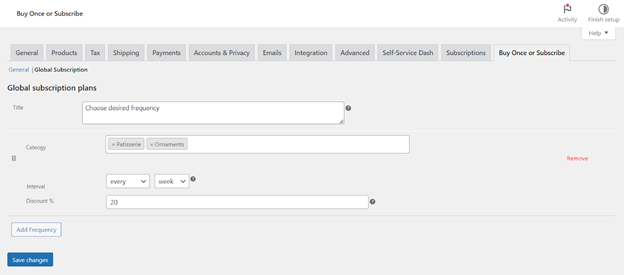
- Click Add Frequency
- (Optional) Enter a call-to-action title, like “Choose a plan”
- Choose the product categories to which you wish to implement the plan.
- Choose the subscription interval (like monthly or weekly)
- Add a percentage discount (e.g., 10 for 10% off)
- Click Save
You can add multiple global plans. To customize the order in which they show up on product pages, use drag-and-drop.
Global plans are a quick way to cover many products at once.
b. Product-Specific Subscription Plans
Use product-specific plans when you want to control subscriptions per product.
Steps:
- Edit the product you want to change
- Scroll to Product Data > Subscriptions tab
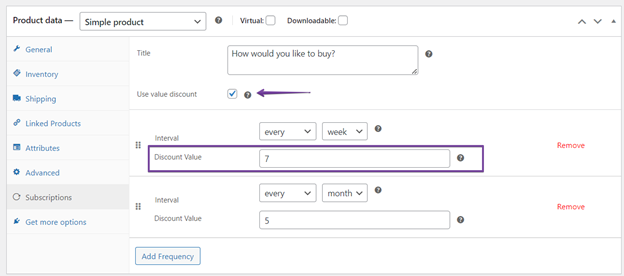
- (Optional) Enter a title for the plan section
- Click Add Frequency
- Choose the interval (like 1 month or 2 weeks)
- Add a percentage discount or fixed value discount
-
- For a fixed discount, check Use Value Discount
- Click Update or Publish
You can add multiple plans to one product. Customers will see a dropdown to pick the plan they prefer.


c. Variation-Specific Subscription Plans
If you’re selling variable products (like size or color), this option is helpful.
Steps:
- Edit the variable product
- Go to Product Data > Variations tab
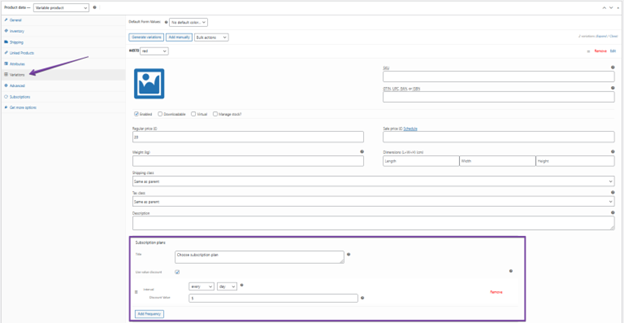
- Click to expand each variation
- Scroll to Subscription Plans for each one
- (Optional) Add a title like “Pick a plan”
- Click Add Frequency
- Choose the interval
- Set a percentage or value discount
- Click Save Changes, then Update the product
These plans override both product-level and global plans.
- Customize the Display for Customers
You can change how options and labels appear on product pages. This helps keep your store on-brand and user-friendly.
Go to:
WooCommerce > Settings > Buy Once or Subscribe > General
You can edit the following:
- Subscribe and Save text – shown next to the price
- One-time purchase label – shown on the radio button
- Subscription frequency label – before the plan dropdown
- Dropdown options – customize interval, price, discount format
- Add to Cart button text – change based on purchase type
- Select Options text – for variable product buttons
This section helps you control the customer experience. Use it to speak in your brand’s voice.
- Manage Coupon Behavior
Coupons are automatically applied to both one-time and recurring purchases. But you can change that.
Steps to exclude subscriptions from coupons:
- Go to WooCommerce > Settings > Buy Once or Subscribe
- Find the setting: Exclude products bought as subscriptions from coupons
- Check the box
- Click Save changes
Native subscription items are unaffected; only products that use the Buy Once or Subscribe plugin are impacted.
What Customers See on the Product Page
The plugin adds simple, clear options to each product. On the product page, customers can select between a one-time purchase and a subscription. No extra pages or confusion.
Here’s what appears:
- A radio button or toggle to pick the purchase type
- A drop-down menu to choose subscription frequency (if available)
- A label like “Subscribe and save 10%” (you can customize this)
This design keeps everything in one place. It avoids forcing buyers to choose between different products for subscriptions. Users with small or mobile screens will particularly benefit from this.
If multiple subscription plans exist, the dropdown will show them in the order you set. This allows customers to see your preferred frequency first — like monthly or quarterly.
The Add to Cart button also changes based on the option selected. If a customer picks a subscription, the button can say “Subscribe Now” or any label you’ve set in the settings.
How Checkout and Cart Behavior Works
The plugin works smoothly with the WooCommerce cart and checkout process. Once a customer selects a subscription, the cart updates accordingly.
Here’s how it works:
- If the customer chooses “Buy Once”, the product is treated like any regular item.
- If the customer chooses a subscription, WooCommerce Subscriptions takes over the logic.
This means:
- The subscription is created automatically
- Renewal billing is handled by WooCommerce Subscriptions
- All active subscriptions can be managed by the customer (if you use a dashboard plugin)
If multiple products with different plans are added to the cart, they are split into separate subscriptions. For example:
- Two distinct subscriptions will be created by a monthly subscription and a quarterly subscription.
This setup is useful if you sell a mix of items that renew at different times.
Note: Subscription behavior depends on WooCommerce Subscriptions. This plugin simply lets the user pick the option.
Advanced Features for Developers
If you’re a developer or have a custom setup, this plugin gives you more control. You can create custom add-to-cart links for one-time or subscription purchases.
Example: Add-to-Cart Link for Subscriptions
https://yourstore.com/?add-to-cart=1234&bos4w-purchase-type=1&convert_to_sub_plan_1234=1_month_10
- 1234 is the product ID
- bos4w-purchase-type=1 tells WooCommerce to treat it as a subscription
- 1_month_10 is the interval and discount
You can add quantity too:
&quantity=2
This is useful for email campaigns or promotional links. Customers can be directed directly to the cart using a pre-selected plan.
Use of Filters and Hooks
If you want to customize pricing logic, you can use the filter:
- bos_use_regular_price
This filter allows you to apply discounts to the regular price even if a sale price is set. That’s useful if you don’t want subscriptions to stack with sale prices.
There are other filters and hooks available too. These let you change button text, labels, or even how intervals are displayed.
Compatibility with Other WooCommerce Plugins
One of the biggest strengths of this plugin is how well it works with other tools in the WooCommerce ecosystem. It’s designed to fit into your store smoothly, without breaking features or creating conflicts.
It is fully compatible with:
- Product Bundles – sell grouped items as a subscription box
- Composite Products – build customizable subscription kits
- Self-Service Dashboard for WooCommerce Subscriptions – allows users to manage their own subscriptions
These integrations make the plugin ideal for stores with complex product offerings. You can design customizable bundles and give your clients a choice in how they want to make their purchases. Whether it’s one item or a bundle, the experience stays consistent.
When combined with the Self-Service Dashboard, your customers can:
- Pause, resume, or cancel subscriptions
- Change frequency or payment method
- Reduce the number of support requests
This raises customer happiness and enhances your customer service. It also increases your store’s long-term revenue by reducing churn.
Known Limitations of the Plugin
Although the plugin has a lot of power, there are some restrictions to be mindful of. These won’t affect most users, but they are good to know.
What it doesn’t support:
- No support for sign-up fees in subscription plans
- You cannot sync subscriptions or add prorated items
- Subscription discounts do not apply to products already on sale by default
- The coupon exclusion setting applies only to products using this plugin, not standard subscription products
Also, if your store uses custom subscription setups, some features might need extra configuration. Developers can use filters and hooks to work around this.
Conclusion
If your store sells both one-time and recurring products, this plugin is a must-have. It keeps the user experience clean and gives shoppers more choices. It is versatile, simple to use, and compatible with the majority of store kinds.
You’ll be able to:
- Boost recurring revenue
- Simplify product management
- Give your customers control
For WooCommerce stores in the USA, where flexible payment options are key, this plugin is a smart investment. Whether you sell monthly boxes, digital content, or refillable goods, this plugin makes subscriptions easier to manage.
Need help setting it up? At WooHelpDesk, we specialize in WooCommerce and WordPress website support. Our team can assist you with plugin setup, theme integration, or full store management.
📞 Call us at +1 888 602 0119 (US & Canada) for friendly and expert support!



