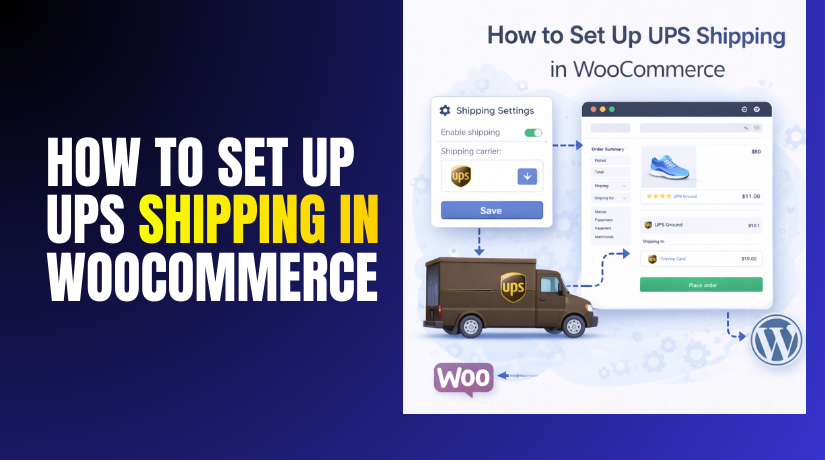
How to Set Up UPS Shipping in WooCommerce Easily Step-by-Step
Table of Contents
- Introduction
- What Is UPS Shipping in WooCommerce and How It Works
- Why Choose UPS Shipping in WooCommerce?
- What You Need Ready for a Smooth WooCommerce UPS Shipping Setup
- Understand the Two Main Ways to Connect UPS in WooCommerce
- How to Set Up UPS Shipping in WooCommerce Using a Plugin
- How to Set Up UPS Shipping in WooCommerce Using A Multi-Carrier Shipping Tool
- Common Issues And Fixes For UPS Shipping WooCommerce
- Conclusion
Introduction
You want fast, trusted shipping options in your WooCommerce store. UPS is a popular choice for many online sellers. This guide explains UPS shipping WooCommerce in simple, clear steps. You will learn what UPS shipping means inside WooCommerce. You will also learn why many stores pick UPS services. You will not feel lost with heavy tech words here. You will understand how shipping choices appear on checkout pages. You will also understand what settings you manage in admin.
Both methods support a smooth UPS WooCommerce integration flow. By the end, you will feel ready to configure UPS shipping. You will be able to add UPS shipping in WooCommerce confidently. You will also reduce shipping errors and checkout confusion. This guide focuses on clarity, speed, and real store needs. It keeps every step practical for daily WooCommerce shipping work.
What Is UPS Shipping in WooCommerce and How It Works
UPS shipping in WooCommerce means offering UPS services at checkout. Customers see UPS options during the shipping step in checkout. They can pick a service based on speed and cost. Common options include UPS Ground and faster air services. WooCommerce can show these services as shipping methods in zones. You can also limit services to match your store policy.
Many owners want live rates shown for each cart order. Live rates help you charge customers accurate shipping costs. Live rates depend on correct product weight and size values. Without weight and size, rate results may be wrong. UPS shipping WooCommerce can work in a few different ways. In the simplest setup, you add flat rates for UPS. That method works, but it is not always accurate.
A smarter setup uses UPS rate tools through a plugin. That is where you connect UPS to WooCommerce using settings. The plugin requests rates from UPS and shows them live. Some plugins also support label printing from your dashboard. Some plugins also add tracking numbers to customer emails. That depends on the plugin plan and feature set. This is what most people mean by UPS WooCommerce integration. It brings rates, labels, and tracking into one workflow.
Why Choose UPS Shipping in WooCommerce?
Better Trust At Checkout With A Known Carrier
UPS is a trusted name for many online buyers. Customers feel safer when they see UPS shipping WooCommerce options. This trust reduces checkout fear and improves order completion rates. It also lowers support questions about unknown shipping providers.
More Delivery Speed Options For Different Buyer Needs
UPS offers economy and fast delivery options in one system. Customers can choose slower shipping to save money. They can also choose express shipping for urgent deliveries. This flexibility helps you convert more buyers with different budgets.
More Accurate Shipping Prices With Live Rates
Flat rates can overcharge or undercharge many orders. Live rates calculate shipping based on address and cart data. When you connect UPS to WooCommerce, customers see fair charges. This reduces refund requests and improves pricing control for you.
Faster Order Handling With Label Printing Support
Many tools support label creation directly from WooCommerce. This reduces manual work and cuts shipping entry mistakes. It also speeds up dispatch for high order volumes. A good WooCommerce UPS shipping setup makes daily shipping smoother.
Easier Customer Updates With Tracking Integration
Tracking links help customers check delivery status anytime. Some setups add tracking to order emails automatically. This reduces “where is my order” messages for your team. It also increases trust after purchase and improves customer experience.
Strong Domestic And International Shipping Support
UPS works well for USA shipping and many global routes. This helps stores sell across states and across countries. You can set shipping zones for local and international buyers. A stable UPS WooCommerce integration supports long-term store growth.
More Control With Insurance And Signature Options
Some orders need extra safety during shipping and delivery. UPS supports features like insurance and signature delivery. Many plugins let you enable these options during setup. This helps protect high-value orders and reduce delivery disputes.
Stable Setup With WooCommerce Shipping Zones And Methods
WooCommerce already uses zones and methods for shipping rules. UPS tools fit into that structure without custom code. This makes the setup safer during WordPress updates. It also helps you add UPS shipping in WooCommerce without risky changes.
What You Need Ready for a Smooth WooCommerce UPS Shipping Setup
Confirm WooCommerce Is Installed and Store Basics Are Completed
Make sure WooCommerce is installed and working without any errors. Check that your store can add products and accept orders. Update WordPress, WooCommerce, and your theme to stable versions. This reduces conflicts during UPS WooCommerce integration later. Also confirm your checkout page works with one test product. A stable base helps you set up UPS shipping in WooCommerce safely.
Set Your Store Address, Currency, and Measurement Units Correctly
Go to WooCommerce settings and check your store address. This address is used as the ship-from location for rate quotes. Set the correct currency for your selling region and pricing. Now confirm weight unit and dimension unit settings carefully. UPS rates depend on these values for accurate calculations. Wrong units can break your WooCommerce UPS shipping setup results.
Add Product Weight and Dimensions for Accurate UPS Rates
Open each product and add weight and size details correctly. Include length, width, and height for boxed shipping items. If weight is missing, UPS rates may not show at checkout. If size is wrong, rates can look too high for customers. This step is critical for UPS shipping WooCommerce live rate accuracy. It also prevents “no shipping available” issues during checkout.
Plan Your Shipping Zones Based on Where You Deliver
Shipping zones decide which methods appear for which addresses. Create zones for key regions like USA, Canada, or worldwide. Add states or pin codes if you ship in specific areas. A correct zone plan avoids confusion during service selection. It also supports a clean connect UPS to WooCommerce flow. You can keep checkout simple by using fewer zones first.
Prepare Your UPS Account Details in Advance
Most setups need a UPS account for live rates and labels. Keep your UPS account login details available for configuration. Some tools require API access details based on their process. Your shipper address must match what UPS expects in settings. If details mismatch, rates or labels may fail sometimes. This preparation supports a stable UPS WooCommerce integration outcome.
Keep One Test Product and One Test Address Ready
Create one simple test product with proper weight and dimensions. Use a real address for your target shipping zone testing. You will use these to confirm rates show at checkout. You will also confirm services appear with correct names. Testing early prevents problems after you go live. It helps you add UPS shipping in WooCommerce confidently.


Understand the Two Main Ways to Connect UPS in WooCommerce
Method #1: Use a Dedicated WooCommerce UPS Plugin
This method connects UPS directly inside your WooCommerce settings. It is best if you mainly ship with UPS only. Many plugins support live rates and service selection features. Some plugins also support labels and tracking, based on plans. This is a common WooCommerce UPS shipping setup approach for stores. It gives a simple workflow inside the WordPress dashboard.
Method #2: Use a Multi-Carrier Shipping Tool That Includes UPS
This method is best for stores using multiple shipping carriers. It can include UPS plus USPS, FedEx, and other carriers. You get one dashboard for rates, labels, and tracking tasks. Many tools offer shipping rules and bulk label workflows too. This helps bigger stores manage orders faster and with fewer errors. It is a strong UPS WooCommerce integration option for growth.
Which Method Should You Pick
A UPS plugin is simple and works well for UPS-first stores. A multi-carrier tool is better for stores using many carriers. Plugin setups can be faster and easier for small stores. Multi-carrier tools can offer stronger automation and workflows. Your budget may also affect which option fits better long term.
Both methods can help you set up UPS shipping in WooCommerce. Both methods can help you connect UPS to WooCommerce correctly. The best choice depends on your shipping volume and carrier needs.
How to Set Up UPS Shipping in WooCommerce Using a Plugin
Step 1: Choose The Right WooCommerce UPS Plugin For Your Store
- Pick Your Goal First before you connect UPS to WooCommerce.
- Rates Only Plugins show live UPS rates at checkout.
- Rates + Labels Plugins help you print labels faster.
- Tracking Support helps customers follow orders without extra emails.
- Confirm Service Coverage for domestic and international shipping needs.
- Check Plugin Reviews for support quality and update frequency.
Step 2: Install And Activate The UPS Plugin In WordPress
- Go To Plugins and click Add New inside WordPress.
- Search The Plugin Name and verify it matches UPS features.
- Click Install Now and wait until installation completes fully.
- Click Activate Plugin to enable UPS shipping WooCommerce settings.
- Open WooCommerce Settings and confirm the new UPS tab appears.
Step 3: Enter UPS Account Details And Basic Plugin Settings
- Use Your UPS Account details to start UPS WooCommerce integration.
- Add Shipper Information that matches your store shipping origin address.
- Select Pickup Type based on how UPS collects parcels.
- Enable Residential Option if you ship to home addresses often.
- Turn On Debug Mode only while testing the UPS connection.
Step 4: Configure Packaging Rules For Accurate UPS Rates
- Choose Packaging Type like customer packaging or UPS packaging.
- Add Default Box Sizes to improve rate accuracy at checkout.
- Use Weight And Dimensions for every product you sell.
- Set Handling Fee if you need packing cost included.
- Avoid Guess Values because they cause wrong UPS rate quotes.
Step 5: Select UPS Services You Want To Show At Checkout
- Enable Only Needed Services to keep checkout simple for buyers.
- Offer UPS Ground for affordable shipping on most USA orders.
- Offer Faster Services only if you can ship quickly.
- Rename Service Labels for clarity, without changing service logic.
- Hide High-Cost Services that cause cart drop-offs for customers.
Step 6: Enable Negotiated Rates If Your UPS Account Supports It
- Check Your UPS Plan to confirm negotiated rates eligibility.
- Enable Negotiated Rates inside plugin settings if available.
- Test With Real Addresses to confirm discounted rates show properly.
- Compare Rates Carefully against standard rates before going live.
Step 7: Test The WooCommerce UPS Shipping Setup Before Launch
- Add A Test Product with weight and dimensions saved properly.
- Use A Real Address inside your shipping zone for testing.
- Check Checkout Shipping to confirm UPS services show correctly.
- Place A Test Order to validate the full shipping flow.
- Confirm Tracking Output if your plugin supports tracking features.
- Disable Debug Mode after testing to keep logs clean.
If you follow these steps, you can set up UPS shipping in WooCommerce smoothly. This method is ideal when you want to add UPS shipping in WooCommerce without extra tools.
How to Set Up UPS Shipping in WooCommerce Using A Multi-Carrier Shipping Tool
Step 1: Confirm This Method Fits Your Store Needs
- Choose This Method if you ship with more carriers.
- Use It For Scale when daily orders are increasing fast.
- Pick It For Automation like rules and bulk label printing.
- Use It For Teams when many staff handle shipping tasks.
- It Still Helps set up UPS shipping in WooCommerce cleanly.
Step 2: Create An Account And Connect Your WooCommerce Store
- Sign Up In The Tool using your business email address.
- Connect Your Store using the tool’s WooCommerce connection option.
- Approve Permissions so orders can sync for label creation.
- Confirm Store Sync by checking one recent test order.
- This Starts the base UPS WooCommerce integration workflow.
Step 3: Add UPS Carrier And Verify The Connection
- Open Carrier Settings inside the multi-carrier tool dashboard.
- Select UPS Carrier and start the UPS connection setup.
- Enter UPS Details as required by the shipping tool.
- Verify Connection Status until it shows active and ready.
- This Helps you connect UPS to WooCommerce through one hub.
Step 4: Enable Live UPS Rates On WooCommerce Checkout
- Turn On Live Rates so checkout shows real UPS pricing.
- Select UPS Services you want to offer to buyers.
- Set Handling Fee if you need packing cost included.
- Limit Services to avoid confusing customers during checkout.
- This Improves UPS shipping WooCommerce rate accuracy.
Step 5: Enable Label Printing And Tracking Updates
- Enable Label Printing to create UPS labels from one screen.
- Choose Label Format that matches your printer and workflow.
- Enable Tracking Sync so tracking updates reach WooCommerce orders.
- Turn On Email Updates so customers receive tracking links.
- This Makes add UPS shipping in WooCommerce more complete.
Step 6: Set Shipping Automation Rules For Faster Dispatch
- Create Rules By Zone like USA, Canada, and worldwide orders.
- Create Rules By Weight for heavy products needing special service.
- Create Rules By Value for signature or insurance on high orders.
- Auto Select Service to reduce manual choice mistakes.
- This Keeps WooCommerce UPS shipping setup faster every day.
Step 7: Test Everything Before You Go Live
- Test Checkout Rates using real addresses from your shipping zones.
- Create A Test Order and generate a UPS label successfully.
- Verify Tracking Link inside the WooCommerce order details.
- Confirm Customer Email includes tracking where supported by tool.
- Fix Issues before you open shipping to real customers.
This method is best when you ship with multiple carriers daily. It also helps when you need automation rules and bulk label printing. Always test checkout rates, label creation, and tracking emails first. Keep product weight and dimensions updated for correct rates. This approach makes UPS shipping WooCommerce easier at scale. It also keeps your WooCommerce UPS shipping setup stable long term.
Common Issues And Fixes For UPS Shipping WooCommerce
Issue 1: UPS Rates Not Showing At Checkout
- Check Shipping Zones and confirm UPS is added to that zone.
- Check Product Weight because missing values can block rates.
- Check Store Address because wrong origin can stop rate replies.
- Disable Cache Plugins during testing to avoid old checkout data.
- Recheck Service Selection because disabled services will not appear.
Issue 2: UPS Rates Look Too High Or Incorrect
- Confirm Units for weight and dimensions in WooCommerce settings.
- Fix Product Sizes because wrong dimensions inflate shipping cost.
- Check Packaging Setup because wrong box logic changes rates.
- Remove Extra Fees if handling fees are set too high.
- Test With New Cart to avoid cached shipping calculations.
Issue 3: Checkout Shows No Shipping Available
- Confirm Customer Address matches your zone coverage rules.
- Check Zone Priority because wrong ordering can block methods.
- Enable A Backup Method like flat rate for safety.
- Check Plugin Conflicts by disabling one plugin for testing.
- Re-Test Checkout after each change for clear results.
Issue 4: UPS Services Are Missing From The List
- Enable Services inside the plugin or tool service settings.
- Match Services to your shipping zone country and region.
- Check Account Type because some services need eligibility.
- Update The Plugin because old versions can hide services.
- Save Settings Twice to ensure changes apply correctly.
Issue 5: Labels Not Generating Or Printing Correctly
- Confirm UPS Account is verified and active for label creation.
- Check Address Format because small errors can stop label creation.
- Confirm Package Data because missing weight can fail labels.
- Try Another Format like PDF if printer issues keep happening.
- Review Tool Logs if the platform offers a debug section.
Conclusion
UPS is a strong shipping option for many WooCommerce stores today. You can set up UPS shipping in WooCommerce using two trusted methods. Method A works best when you mainly ship with UPS only. Method B works best when you ship with multiple carriers daily.
Both options help you connect UPS to WooCommerce and improve checkout trust. Keep product weight and dimensions accurate for better live rates. Test rates, services, labels, and tracking before going live. A stable UPS WooCommerce integration reduces errors and saves time daily. With the right setup, UPS shipping WooCommerce becomes simple and reliable.
Get expert WordPress and WooCommerce help fast with WooHelpDesk. Fix errors, speed issues, checkout problems, and plugin conflicts with clear, step-by-step support. Visit WooHelpDesk today and keep your store running smoothly.