
Teams for WooCommerce Memberships: The Best Way to Manage Group Access
Table of Contents
- How Group Memberships Help Grow Your WooCommerce Store
- What Is Teams for WooCommerce Memberships?
- Key Features of the Plugin
- How Customers Use It: The Team Owner Experience
- Step-by-Step: How to Set Up Teams for WooCommerce Memberships
- Subscription Compatibility and Billing
- Conclusion
How Group Memberships Help Grow Your WooCommerce Store
If you’re selling access-based content or services, group memberships can help. They allow families, businesses, and organizations to buy shared access under one account. Instead of managing multiple users individually, a team leader handles everything.
This is made possible with the Teams for WooCommerce Memberships plugin. It adds powerful group membership features to your store. It’s perfect for schools, training sites, family plans, sports clubs, or corporate accounts.
This plugin connects directly with your WooCommerce Memberships plugin. It allows a customer to buy a membership for multiple users at once. The main customer becomes the team owner and controls access for the whole team.
You no longer need to sell one membership at a time. With this extension, you can:
- Sell memberships to families, clubs, or corporate groups
- Let one person manage billing and user access
- Set how many users can join a team
- Offer flexible pricing per user or per group
Group memberships save time and improve the buying experience. This setup also encourages customers to bring more users to your site.
What Is Teams for WooCommerce Memberships?
WooCommerce offers a premium addon called Teams for WooCommerce Memberships. It gives store owners the ability to sell group-based membership products. It’s built to work with the existing WooCommerce Memberships plugin.
Here’s how it works:
- You create a special team-based membership product
- A customer buys it and becomes the team owner
- The owner invites others to join the team
- All members share the same membership access
- One person handles billing and renewals
This plugin supports different pricing options. You can charge by the number of users or sell in fixed packages. The owner can even add more seats later.
It’s ideal for:
- WooCommerce group accounts
- WooCommerce team memberships
- WooCommerce family memberships
- WooCommerce corporate memberships
With this tool, you give your customers control. And you reduce your support workload.
Key Features of the Plugin
Teams for WooCommerce Memberships gives you powerful team access control. It lets you sell memberships to groups with just one transaction. Families, schools, and corporations can all benefit from this feature.
Each team has a single owner who handles payment and access. The owner has the authority to provide invitations to team members. Members get access to all membership benefits. They don’t have to buy individual plans.
You can choose from two pricing options:
- Per-member pricing: Charge based on the number of users
- Per-team pricing: Set a flat price for the full team
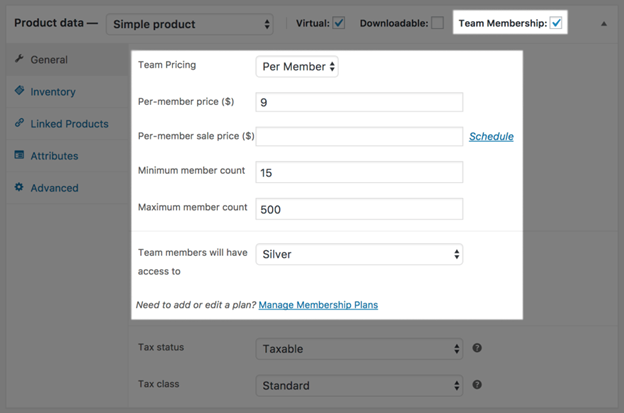
Both pricing models give you control over how access is sold.
You can also set:
- There must be a minimum number of members.
- A maximum number of members allowed
- Optional sale prices for team plans
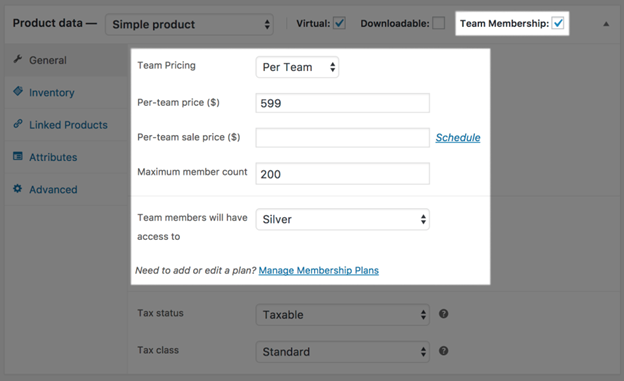
This helps you manage how many people can join a single team. You can sell simple or subscription-based products using this plugin. It works well with variable products too.
Another great feature is flexible team roles. There are three roles:
- Owner: Manages billing, invites, and full team access
- Manager: Can invite and manage team members
- Member: Gets access but no admin rights

This makes it perfect for WooCommerce group memberships and corporate plans. Owners can assign managers to help run the team. That reduces their workload and gives you fewer support tickets.
Team management happens right inside the customer’s My Account page. Owners can:
- Invite users with an email or shareable link
- Add or remove members if needed
- See pending invites and resend them
- Upgrade seat count as their team grows
Customers can easily manage access on their own with the help of these tools.
How Customers Use It: The Team Owner Experience
When a customer buys a team membership, they become the team owner. During checkout, they choose:
- A name for their team
- How many seats or blocks of users they want
- Whether or not they will join the team themselves
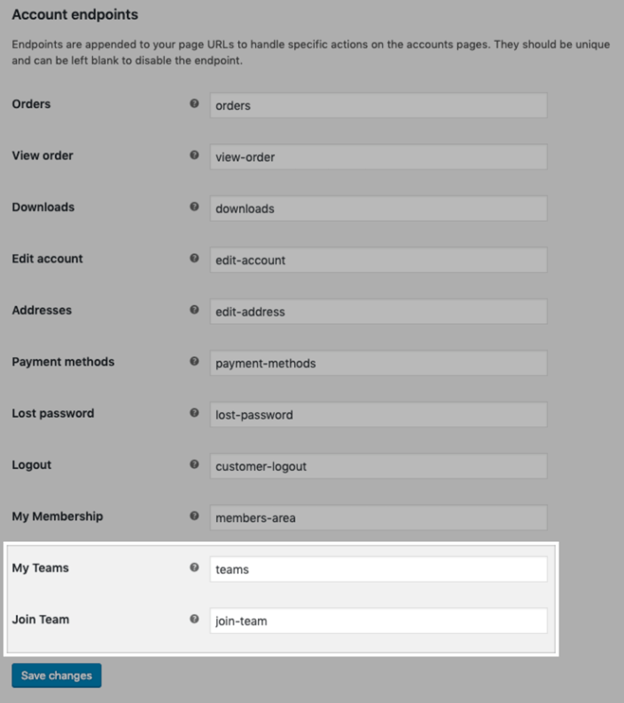
After purchase, they go to My Account > Teams to invite users. They can copy a join link or send email invites. They can also set user roles and monitor member activity.
If you allow it, owners can assign managers to help run the team. This is helpful for schools, clubs, and companies.
Everything is simple, guided, and built into the WooCommerce experience. It’s an ideal solution for sites that need WooCommerce team memberships or group accounts.
Step-by-Step: How to Set Up Teams for WooCommerce Memberships
Setting up the Teams for WooCommerce Memberships plugin is simple. Technical expertise is not necessary to get started. Just follow these clear steps to begin selling team access.
- Install the Plugin
- Go to your WordPress admin dashboard.
- Click Plugins > Add New > Upload Plugin.
- Upload the plugin ZIP file.
- Click Install Now, then Activate the plugin.
You are prepared to produce your first team product after it has been activated.
- Create a Team Membership Product
Go to Products > Add New in your WooCommerce dashboard. Choose one of these product types:


- Simple product
- Variable product
- Simple subscription
- Variable subscription
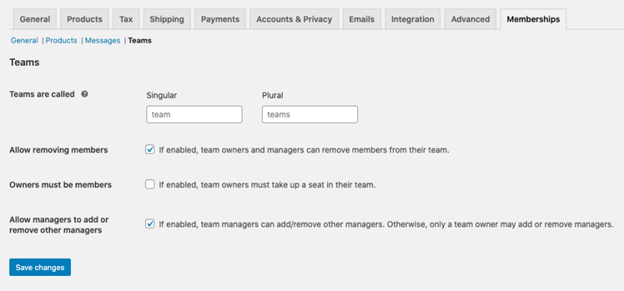
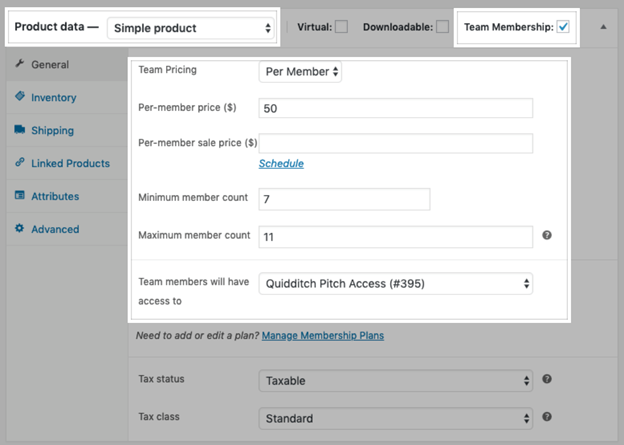
Next, check the box that says “Team Membership”. This enables team options for your product.
- Configure Product Settings
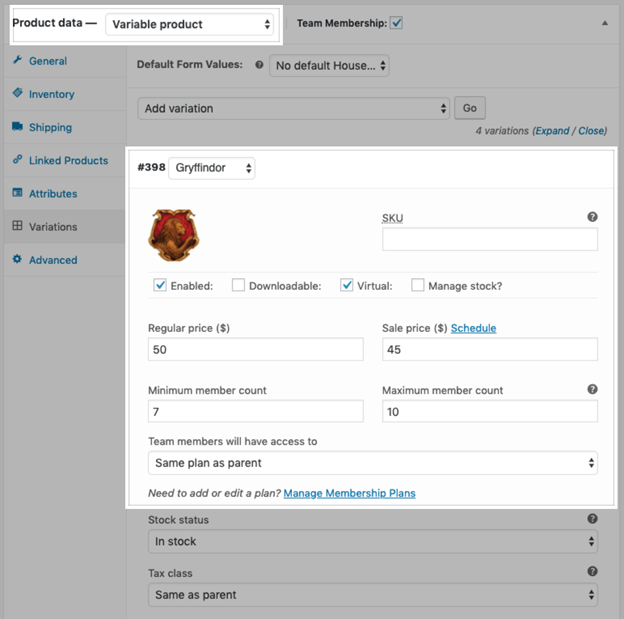
After enabling team membership, fill in the following:
- Pricing Type: Choose per-member or per-team pricing
- Price: Enter the main price or a sale price
- Seat Limits: Set minimum and/or maximum seats if needed
- Membership Plan: Link this product to the correct membership plan
You can use variations to offer different team sizes or price tiers.
Publish your product once it’s ready. Customers can now buy team memberships from your store.
- Let Customers Manage Their Team
After purchasing, customers go to My Account > Teams. There, they can:
- Add team members using a join link or email invite
- Assign roles like manager or member
- View and manage team members
- Add more seats as needed
They don’t need to contact you to manage the team. Both the customer and the store owner save time as a result.
Admin Controls and Flexibility
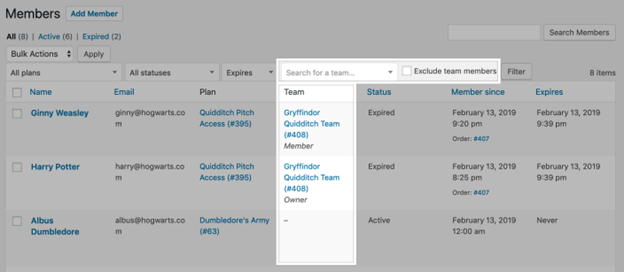
As the store admin, you have full control. Go to WooCommerce > Memberships > Teams to:
- View all active teams
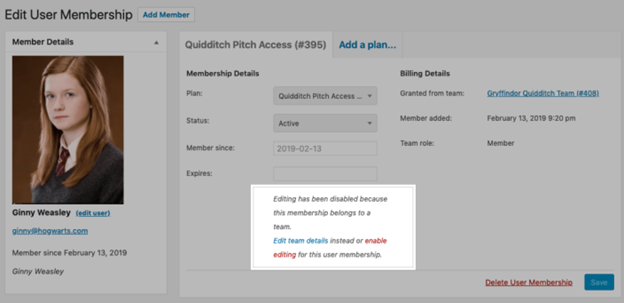
- Add or remove team members manually
- Edit seat limits or billing settings
- Rename “teams” to anything (like “clubs” or “families”)
You can also set:
- If owners take a seat or not
- If supervisors have the ability to add or remove people
- If individuals are able to depart from the team
All settings are found under WooCommerce > Settings > Memberships > Teams.
This plugin gives you flexible control without the need for coding. It’s great for managing WooCommerce group accounts with ease.
Subscription Compatibility and Billing
Subscriptions are ideal for the Teams for WooCommerce Memberships plugin. This is helpful if you sell ongoing access, like online courses or premium content.
You can sell memberships using:
- Simple subscriptions
- Variable subscriptions
Subscription billing supports both per-member and per-team pricing. All billing is associated with the team owner when a team is connected to a subscription.
Here’s what happens during the billing cycle:
- If the owner pauses the subscription, all members lose access
- If the owner cancels, the entire team’s membership ends
- If the owner adds new seats, pricing is prorated for the current cycle
- If the owner removes seats, billing adjusts on the next renewal
You can also allow owners to renew their memberships manually. This keeps their team active without admin support.
Conclusion
This plugin is ideal if you want to expand your membership site with group access. It works well for schools, training platforms, agencies, clubs, and families.
Your customers will love how easy it is to manage their teams. You’ll also spend less time handling account access manually.
Looking for help setting this up?
📞 Contact WooHelpDesk — your trusted partner for WooCommerce and WordPress support.
Call us at +1 888 602 0119 (US & Canada)
Whether you’re launching a new store or need technical help, we’re here for you.



