
How to Set Up Force Sells for WooCommerce to Boost Cart Value
Table of Contents
- Introduction & Overview
- Key Functionalities Explained
- How to Set Up Force Sells for WooCommerce
- Real-World Use Cases
- When to Use Force Sells Over Other Plugins
- Smart Strategy Tips
- Conclusion
Introduction & Overview
Running a WooCommerce store means offering a smooth shopping experience. Customers should be able to find what they need fast. But sometimes, they miss important items that go with a product. That’s where the Force Sells for WooCommerce plugin helps.
You can add related products to your shopping cart automatically using this plugin. It links one or more products with the main item. When a shopper adds the main product, the linked item is also added. This keeps customers from missing required or helpful products.
For example, if you sell phone repair services, you can link a screen part. When a customer chooses the service, the screen is added to the cart too. This makes shopping easier and avoids confusion at checkout.
The plugin is perfect for:
- Selling services that need extra parts
- Offering bundles without using a bundle plugin
- Making sure required items are not skipped
- Selling accessories with a main product
There are two ways you can link products:
- Force Sell (Normal):
By selecting this option, the linked product is added to the cart. But customers can still remove it or change its quantity. - Synced Force Sell:
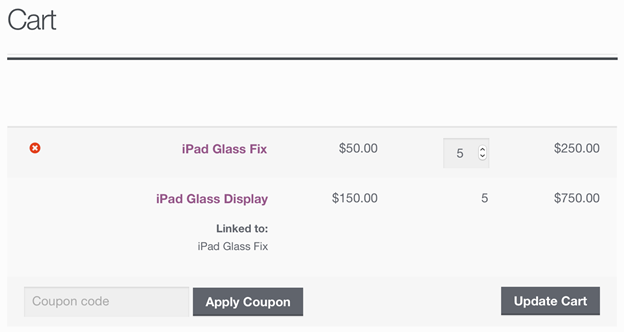
This adds the product in a locked way. Customers can’t remove or edit it. If the main product is removed, the linked one goes too. If quantity changes, it updates for both.
These two options give you control. You can choose what the customer must buy and what’s optional. The flexibility makes it a great tool for many store types.
In short, Force Sells for WooCommerce improves cart behavior. It gives your store a polished look, boosts order value, and saves time. This plugin can make your sales process run more smoothly, regardless of whether you sell services, kits, or bundles.
Key Functionalities Explained
The Force Sells for WooCommerce plugin offers two powerful ways to link products. These features let you control what is added to the cart. It works automatically, helping you manage product relationships with ease.
There are two main types of product linking:
- Force Sell (Normal)
- Synced Force Sell
Let’s explore what each one does and when to use them.
Force Sell (Normal)
This is the basic mode of the plugin. It links products in a flexible way. The linked product is also added to the cart when the primary product is. But customers can still change or remove it.
Key features of normal force sell:
- Linked product is added automatically
- The quantity corresponds to the primary product.
- The quantity can be altered by the customer.
- The item can be taken out of the customer’s cart.
Example:
You sell a laptop and want to suggest a mouse. The mouse will be added when the laptop is added. But the customer can remove it or change the number.
This method works well when:
- The extra product is helpful, but not required
- You want to increase order value with suggestions
- You want to keep control light
Synced Force Sell
You have more control over the cart in this mode. The linked product is locked in place. Customers cannot remove it or change the quantity.
Key features of synced force sell:
- Linked product is added automatically
- Quantity stays linked to the main product
- Cannot be removed by the customer
- Cannot be changed or edited
Example:
You offer a service that requires a setup fee. That fee is added as a synced force sell. The customer cannot remove or change it.
This method is perfect for:
- Required service fees or one-time charges
- Essential parts needed with the main product
- Any item that must be bought with the main item
Synced products are also labeled in the cart. They show as “linked,” so users know they are connected. This improves clarity during checkout.
Both force sell types offer benefits. Depending on what your store needs, you can make a choice. Whether you want to allow choices or lock them in, this plugin gives you the tools to do it right.
How to Set Up Force Sells for WooCommerce
The Force Sells for WooCommerce plugin is simple and quick to set up. You don’t need coding skills or advanced tools. Just follow these simple steps to start linking products in your store.
Step 1: Install the Plugin
Installing the plugin file is the first step.
- To obtain the.zip file, access your WooCommerce account.
- Select Plugins > Add New from the WordPress dashboard.
- Click Upload Plugin at the top.
- After selecting the downloaded zip file, select Install Now.
- After the install, click Activate Plugin.
The plugin is now operational and available for usage.
Step 2: Open a Product to Edit
You will now link products directly from the product page.
- Go to Products > All Products in your dashboard.
- Click on the product you want to edit.
- Scroll to the Product Data section.
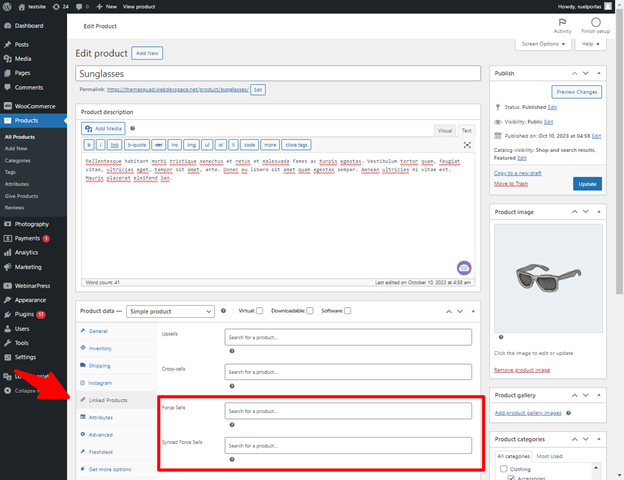
This section has all your pricing, inventory, and product settings.


Step 3: Link Products Under “Linked Products” Tab
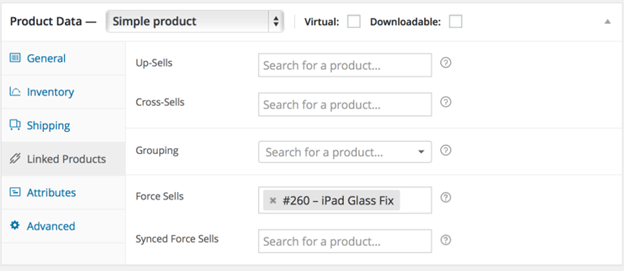
Inside the product data box, click the Linked Products tab.
Here you’ll find two fields:
- Force Sells
- Synced Force Sells
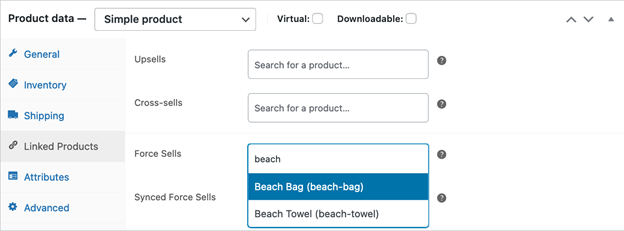
In either field:
- Enter the product’s name that you wish to link.
- Select the product from the dropdown.
You can add one or multiple items to each field.
- Use Force Sells for optional items.
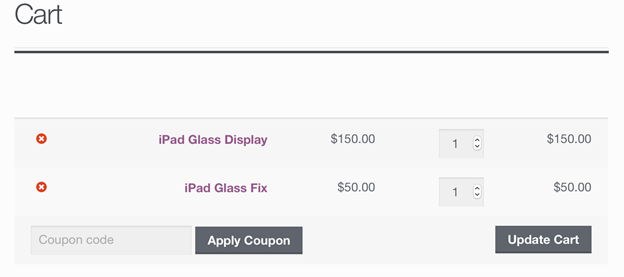
- Use Synced Force Sells for required items.
Step 4: Save and Test
Once you’ve added your linked products, click Update to save.
Visit your store and give the item a try:
- Add the main item to the cart.
- Check that the linked products appear as expected.
- Make sure quantities and removal options work as planned.
Optional: Use Developer Snippets
If you want to limit quantity or set special rules, developers can add custom snippets. These are placed in your theme’s functions.php file.
Most users won’t need this, but it’s available for advanced control.
Real-World Use Cases
The Force Sells for WooCommerce plugin is more than a linking tool. It helps store owners boost sales, reduce confusion, and improve checkout flow. Let’s look at how you can use it in real situations and when it works better than other plugins.
Many types of stores can benefit from this plugin. Whether you sell products, services, or digital items, force selling can add value.
Here are a few examples:
- Service-based stores:
If you offer phone repair, you can link to the screen or part needed. This ensures the customer pays for both at once. - Product kits and bundles:
You sell a camera and want to include a lens as required. Use synced force sell to lock it in. - Accessory add-ons:
A customer buys a gaming console. You add a controller or cable with a force sell.
These uses not only increase the average cart size but also make checkout smoother.
When to Use Force Sells Over Other Plugins
What sets this apart from other WooCommerce tools might be on your mind. Here’s when Force Sells is the better choice:
- You need to require certain products, not just suggest them.
- You want a lightweight solution without setting up full product bundles.
- You want to link services and fees directly to products.
Unlike upsell or cross-sell plugins, Force Sells does not wait for customers to act. It puts the item directly in the cart.
It is not necessary to build a distinct grouped product, in contrast to product bundle plugins. Force Sells works directly within the existing product.
Smart Strategy Tips
- Use normal force sell to recommend optional accessories.
- Use synced force sell to enforce needed items or services.
- Test different setups to see what converts best for your audience.
This plugin can shape how your store sells. Used right, it adds both control and value to the shopping experience.
Conclusion
The Force Sells for WooCommerce plugin makes selling smarter and easier. It helps you link important products and improve the customer journey. Whether you’re adding accessories, service fees, or bundles, this tool gives you control.
You can choose between flexible or fixed linking styles. This works well for both physical items and digital services. No coding is required, and the setup is quick and easy.
Using force sells can:
- Raise the average order value you place.
- Reduce cart errors or missed add-ons
- Improve your store’s checkout process
Any WooCommerce store hoping to expand would benefit greatly from it.
Need help setting it up or want expert WooCommerce support?
Call WooHelpDesk now at +1 888 602 0119 (US & Canada) for friendly support with WooCommerce or WordPress. Our staff is here to support the success of your store.
So that you may concentrate on sales, let us handle the technical details.



