
How to Set Up the ePay.bg Payment Gateway for WooCommerce: Full Guide
Table of Contents
- Introduction and Overview
- Key Benefits of Using ePay.bg WooCommerce Plugin
- How to Install and Set Up ePay.bg Payment Gateway
- Supported Payment Methods
- Flexible Checkout Display Options
- Debugging and Advanced Customization
- Conclusion
Introduction and Overview
One of the most important requirements for any business is the ability to accept online payments. Selecting the appropriate payment gateway is essential if you own a WooCommerce store in Bulgaria. This is where the ePay.bg payment gateway for WooCommerce becomes very important.
ePay.bg is the leading online payment system in Bulgaria. It gives customers many ways to pay online, safely and easily. With the ePay.bg WooCommerce plugin, you can connect your store directly to the ePay.bg platform. This makes it easy to accept local payments in Bulgarian Lev (BGN).
Numerous payment methods are supported by the plugin, including:
- Credit or debit cards (Visa, MasterCard, BORICA)
- ePay.bg micro account payments
- EasyPay cash payments at local points
- BPay payments through ATMs
The payment procedure is safe and easy. When a customer checks out, they are sent to the ePay.bg secure servers to complete the payment. They are automatically taken back to your store’s thank-you page once the payment has been successfully completed.
One significant benefit is that your website does not require an SSL certificate. The secure servers of ePay.bg manage all sensitive data. By doing this, you avoid wasting time and money on unnecessary security settings.
Whether your customers prefer paying with cards, cash, or ATM, ePay.bg covers all needs. This flexibility can increase trust and make shopping easier for your Bulgarian customers.
The ePay.bg integration for WooCommerce is built to be quick and simple. Store owners can start accepting payments within minutes after setup. This plugin is also tested to work with WooCommerce’s standard flows, giving peace of mind.
In short, if you want to offer trusted local payment methods and reach more Bulgarian shoppers, the ePay.bg WooCommerce extension is a smart choice. It brings a secure, flexible, and reliable payment system directly to your WooCommerce store.
Key Benefits of Using ePay.bg WooCommerce Plugin
Choosing the ePay.bg WooCommerce plugin gives store owners many real benefits. It is designed to help businesses in Bulgaria grow and make online payments simple. The following are the main justifications for using it:
Local Market Advantage
The plugin is made especially for the Bulgarian market. It supports payments in Bulgarian Lev (BGN), which builds trust with local customers. Buyers prefer to pay in their own currency, making them feel safe.
With ePay.bg, you can accept:
- Debit cards with the BORICA logo
- Credit cards like Visa and MasterCard
- Payments from ePay.bg micro accounts
- Cash payments through EasyPay locations
- BPay payments at ATMs
This wide choice covers almost every payment method your customer may want.
Multiple Payment Methods in One Plugin
Instead of using different plugins for different payments, ePay.bg handles all.
Customers can pick the payment option that suits them best. More options mean fewer abandoned carts and higher conversion rates.
You can offer:
- Quick card payments
- Secure online wallet payments
- Simple cash payments at local centers
- ATM payments for easy access
This flexibility improves the overall shopping experience.
No SSL Certificate Required
Normally, online payments need SSL certificates for safety. But with ePay.bg, payments happen on their secure servers. This means your store does not need extra SSL setup for transactions. It saves you money and reduces technical work.
Fast and Easy Setup
Installing and setting up the ePay.bg plugin is quick. You only need your API credentials to start accepting payments. Most stores can go live within 5 minutes after activation.
Checkout Flexibility
You can control how payment methods show on the checkout page. Choose to display all options under one ePay.bg label or show them separately. This gives you better design control and improves customer choice.
Built-in Debugging and Support
The plugin comes with a debug mode to find any payment issues fast. Plus, it offers regular updates, customer support, and a money-back guarantee.
How to Install and Set Up ePay.bg Payment Gateway
Installing and setting up the ePay.bg payment gateway for WooCommerce is very simple.
You do not need technical knowledge to complete the process.
Just follow these easy steps and you can start accepting payments quickly.
Step 1: Install the ePay.bg WooCommerce Plugin
Installing the plugin on your WooCommerce store is the first step. Here’s how to accomplish it:
- Get the plugin by downloading the zip file from your WooCommerce account.
- Log in to your WordPress Admin Dashboard.
- Go to Plugins → Add New.
- Click on Upload Plugin at the top of the page.
- After selecting the downloaded zip file, select Install Now.
- Click Activate to activate the plugin after installation.
The basic configuration of your plugin is now possible.
Step 2: Configure the General Settings
After installing, you must configure the general settings first. This will make the payment option visible at checkout.
- Go to WooCommerce → Settings → Payments.
- Find ePay.bg in the list and click Manage.
- Check the box to activate the payment gateway.
- Set the Title that customers will see at checkout.
- Add a Description to explain the payment method briefly.
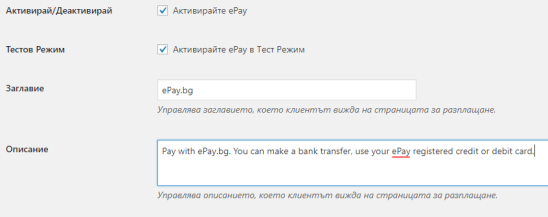
Keep the title and description short and clear for better user experience.
Step 3: Add Your ePay.bg Credentials


Entering your ePay.bg account details is very important. Without these, the plugin cannot work correctly.
You need to add:
- Merchant Identification Number (MIN): Given by ePay.bg after signup.
- Merchant Email: Must match the email registered with your ePay.bg account.
- ePay Secret Word: This is a private security word for safe transactions.
- Merchant Code: Needed especially if you want to accept EasyPay and BPay payments.
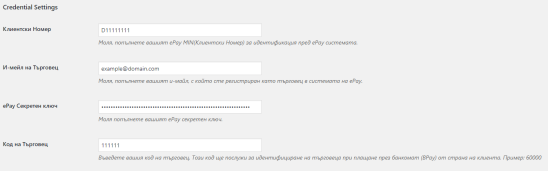
Always double-check these details to avoid payment errors.
Step 4: Set Transaction Options
Next, you can set some transaction rules for better control.
- Invoice Prefix: Add a unique number to avoid invoice conflicts.
- Order Expiration: Set how long a customer has to complete payment.
You can choose from 1 to 30 days. Default is 1 day. - ePay Pages Language: Select the language for the payment page.
Bulgarian is the default, but you can change it if needed.
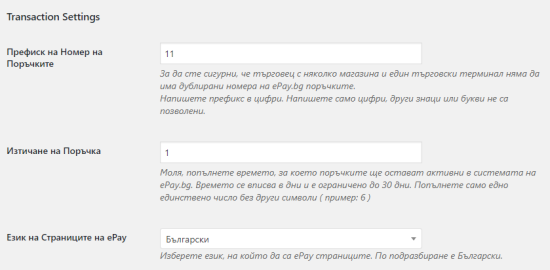
Adding an invoice prefix is very important if you run multiple stores.
Step 5: Design Your Checkout Page
You can control how the payment options appear during checkout.
Two template types are available:
- Grouped Payment Options: All methods shown under one ePay.bg label.
- Separate Payment Options: Each payment method shown as a separate choice.
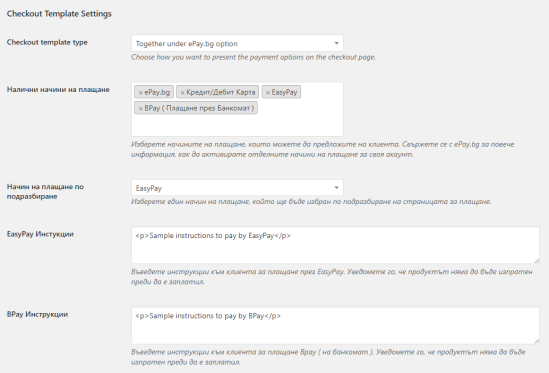
You can also:
- Decide which payment options to display.
- Set a default payment type that appears first.
- Add custom instructions for EasyPay or BPay payments.
Designing the checkout carefully can improve customer trust and payment success.
Step 6: Enable Debug Mode (Optional)
If you want to monitor payment activity or find issues, turn on Debug Mode. This mode records payment logs, which are helpful for troubleshooting.
- Go to plugin settings and enable Debug Mode.
- Logs can be found under WooCommerce → Status → Logs.
Always disable Debug Mode once testing is complete to improve speed.
Supported Payment Methods
The ePay.bg WooCommerce plugin provides flexible payment methods that fit all customer needs. With this plugin, you can offer a smooth payment experience and easily match your checkout page to your store’s design.
ePay.bg WooCommerce plugin supports several popular payment types. Customers can select their preferred option, which facilitates their ability to finish transactions. The supported methods include:
- Credit or Debit Cards: Accept payments from Visa, MasterCard, and BORICA cards.
- ePay Micro Account: Customers pay directly from their ePay.bg digital wallet.
- EasyPay: Customers can pay cash at any EasyPay physical location.
- BPay: Payments are made through ATMs using the BPay system.
Offering multiple payment options helps in building customer trust. It also reduces cart abandonment by giving customers flexible choices at checkout.
Flexible Checkout Display Options
You have control over how the payment methods show up at checkout, thanks to the plugin. You can display all options grouped under a single ePay.bg label or show each method separately.
Choosing the grouped option keeps the checkout page simple and clean. On the other hand, using separate options allows customers to see every payment choice clearly. You can choose the layout that works best for your store based on your target demographic.
Additionally, you can:
- Choose which payment types you want to offer.
- Set a default payment method to be pre-selected.
- Add specific instructions for EasyPay and BPay customers.
This level of control improves the shopping experience and can increase successful payment rates.
Debugging and Advanced Customization
For troubleshooting, the plugin includes a built-in Debug Mode. It records all payment activity, helping you find and fix any problems easily. Logs are accessible directly from the WooCommerce settings panel.
Developers can further customize the plugin by using available filters. These filters allow you to:
- Change payment icons at checkout.
- Modify available payment methods.
- Customize the invoice number rules.
- Adjust payment instructions and customer notes.
The flexibility in customization ensures the plugin fits different business needs while maintaining smooth operations.
Conclusion
Using the ePay.bg payment gateway for WooCommerce is a smart choice for Bulgarian businesses. It helps you accept local payments easily and securely. The plugin supports many payment methods, giving customers the flexibility they expect.
Even if you are not a technological expert, installation and setup are easy. With flexible checkout options and strong customization features, you can build a better shopping experience. Debugging tools and developer filters add extra control and peace of mind.
If you need help setting up the ePay.bg WooCommerce plugin or any other WooCommerce and WordPress services, we are here for you. Contact WooHelpDesk today for expert support and fast solutions.
📞 Call us at +1 888 602 0119 (US & Canada) for immediate WooCommerce and WordPress assistance.
Our friendly team is always ready to help you grow your online store!



