How to Set Up Donations in WooCommerce
Table of Contents
- Introduction
- Key Features of Donation for WooCommerce
- How to Set Up Donation for WooCommerce
- Why Use Donation for WooCommerce?
- Comparison with Other WooCommerce Donation Plugins
- Conclusion
Introduction
Online donations are growing rapidly. More nonprofits and businesses want easy donation systems. Donation for WooCommerce helps them collect funds directly from their store. It is a powerful WooCommerce donation plugin designed for charities, NGOs, and fundraising groups.
This plugin makes it simple to create fundraising campaigns on a WooCommerce store. One-time or regular donations can be set up by users. Additionally, they enable customers to round up their purchases for charity and watch the progress of donations.
Whether you run a nonprofit, crowdfunding campaign, or community fundraiser, this plugin makes collecting donations effortless. We will examine its main attributes and how they support WooCommerce fundraising in this part.
Key Features of Donation for WooCommerce
-
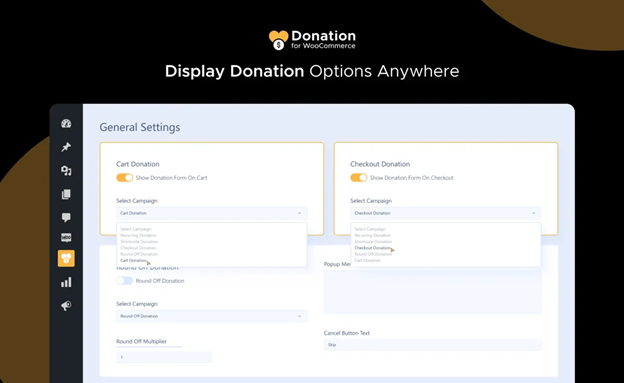
Add Donation Options Anywhere
This plugin allows store owners to display donation fields anywhere. Users can add a donation button to:
- Shop pages
- Product pages
- Cart & checkout pages
Clients have the option of entering a custom amount or selecting from predetermined donation amounts. Donors find it easier to make contributions because of this flexibility. The donation fields blend smoothly into the shopping experience.
For instance, a buyer may include a little donation at the time of purchase. This makes donations more accessible and convenient.
-
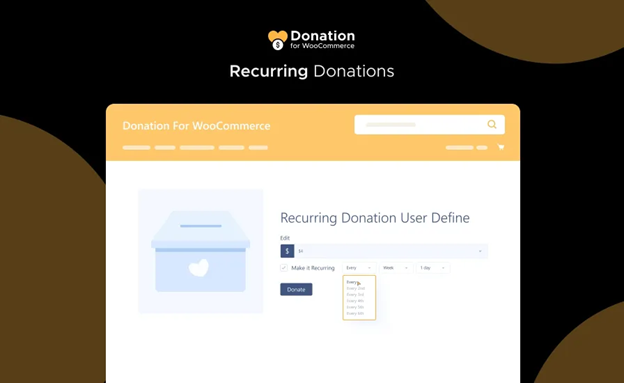
Enable Recurring Donations
Recurring donations help organizations get consistent funding. With this feature, donors can set up daily, weekly, or monthly contributions.
This feature works with WooCommerce Subscriptions. Store owners can create donation plans with automated billing. This ensures regular financial support for nonprofits.
For example, a charity can offer a $10/month donation plan. Supporters can subscribe and contribute effortlessly. Recurring donations increase donor retention and boost overall fundraising.
Note: This feature requires the WooCommerce Subscriptions plugin.
-
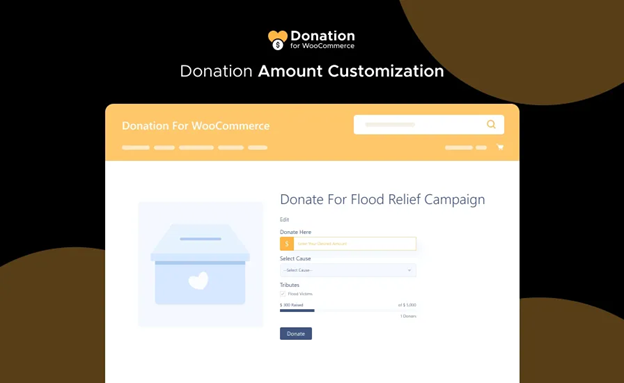
Flexible Donation Amounts
Not every donor has the same budget in mind. This plugin offers two types of donation options:
- Predefined Amounts: Set fixed donation values like $5, $10, or $20.
- Custom Amounts: Allow donors to enter any amount they wish.
Additionally, store owners can set minimum and maximum donation limits. This ensures donations stay within a manageable range.
For example, if a nonprofit wants donation between $5 and $500, they can set limits accordingly. This flexibility encourages more people to donate.
-
Set & Track Donation Goals
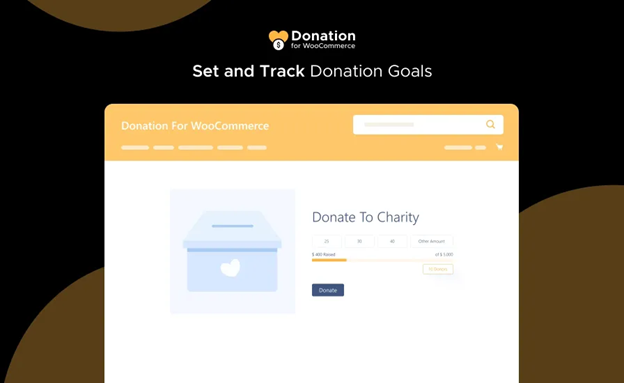
Displaying a fundraising goal can encourage more contributions. This plugin allows store owners to set and track donation goals. They can:
- Show a progress bar to display collected donations.
- Track total donation amounts or percentages completed.
- Display the number of unique donors.
Donation goals create urgency and motivation. For example, if an NGO wants to raise $10,000, they can show real-time progress. Seeing others donate builds trust and encourages more people to give.
The shop page, product pages, or a specific campaign page can all display the progress bar.
-
Support Multiple Causes in One Campaign
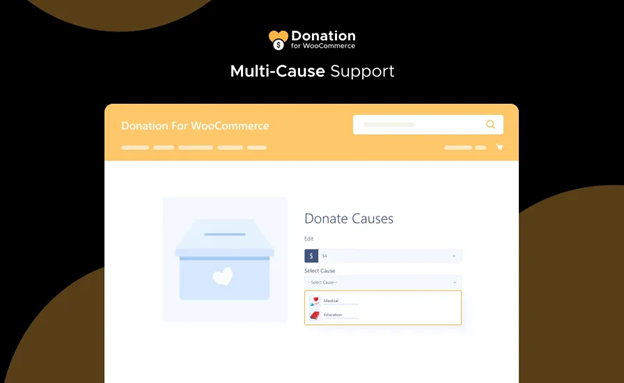
Many organizations support multiple causes. This plugin allows donors to choose which cause they want to support. Store owners can:
- Create separate donation campaigns within a single campaign.
- Provide descriptions, images, and donation goals for each cause.
- Let donors select a specific cause before donating.
For example, an NGO helping animals and children can set up two separate causes. Donors can then choose to support either animal rescue or child education.
This feature increases transparency and helps organizations manage multiple initiatives effectively.
-
WooCommerce Round-Up Donations
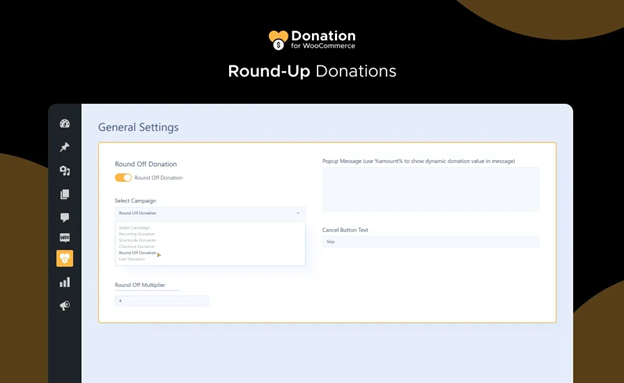
Round-up donations allow customers to donate small change effortlessly. When enabled, customers can:
- Round up their purchase total to the nearest dollar.
- Donate the difference as a small contribution.
For example, if a customer’s order is $19.45, they can round up to $20. The extra $0.55 is donated.
This feature is great for encouraging micro-donations. Since the amount is small, more people are likely to participate. Over time, these small contributions add up to significant amounts.
-
Charge a Donation Processing Fee
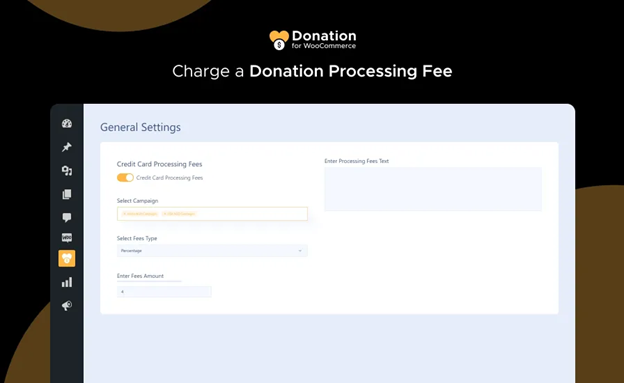
Transaction fees are assessed by numerous online payment systems. This feature gives store owners the option to cover or pass on this fee.
They can:
- Add a fixed or percentage-based fee to donations.
- Allow contributors to pay the cost themselves.
For example, if a donor gives $50 and the transaction fee is $2, they can pay $52 instead. This ensures that the full $50 goes to the cause.
This feature helps nonprofits cover processing costs and increase net donations.
-
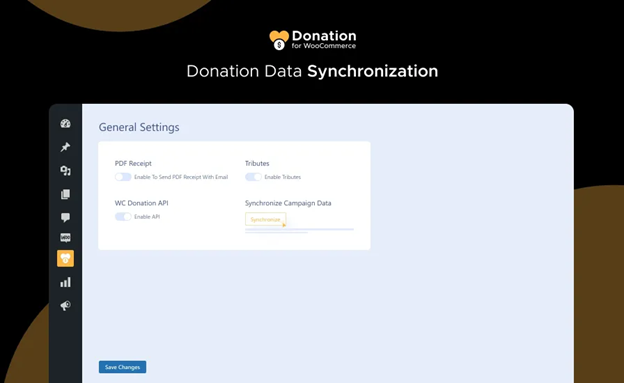
Donation Data Synchronization
Keeping donation records updated is important for accurate tracking. This plugin allows store owners to sync donation data manually.
With just one click, they can update:
- Total collected donations.
- Campaign progress.
- Unique donor count.
This ensures donation records are always accurate and up to date.
-
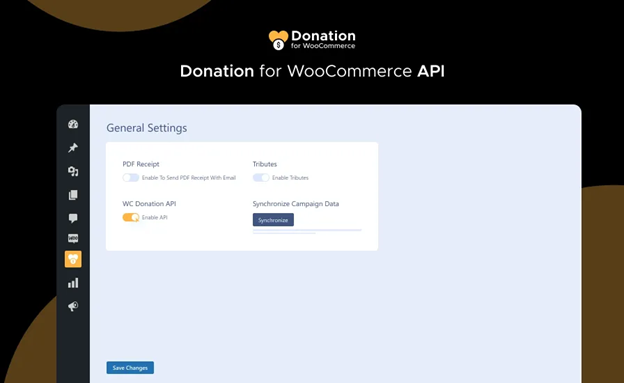
WooCommerce Donation API (For Developers)
For advanced users, the plugin offers a WooCommerce donation API. This allows developers to:
- Create donation campaigns programmatically.
- Retrieve donation data dynamically.
- Update campaigns via API requests.
This feature is useful for custom donation platforms or large-scale organizations.
-
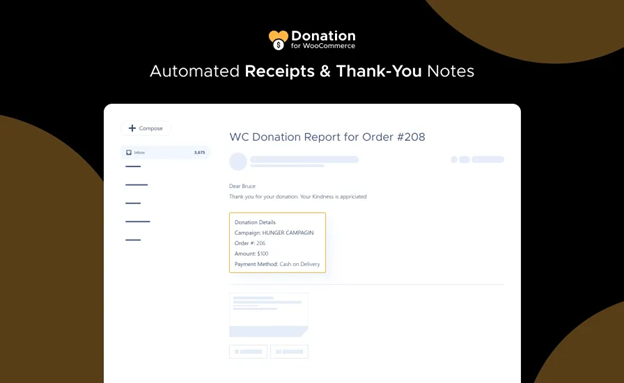
Automated Donation Receipts & Thank-You Notes
Acknowledging donors builds trust and encourages repeat donations. This plugin automates receipts and thank-you messages.
When a donation is made:
- The donor receives a PDF receipt via email.
- A thank-you message is included.
This improves donor experience and encourages long-term support.
-
Donation Widgets for Easy Access
Widgets help increase visibility of donation campaigns. With this plugin, store owners can:
- Add donation widgets to sidebars, footers, or landing pages.
- Customize widgets to match the website design.
Placing widgets in high-traffic areas makes it easier for visitors to donate.


How to Set Up Donation for WooCommerce
Setting up Donation for WooCommerce is simple. To install, set up, and begin receiving donations, follow these steps. Even beginners will find this tutorial straightforward to follow.
-
Installation & Activation
You must install and activate the plugin before you can use it. Take these actions:
- Purchase & Download the Plugin
- Visit the official WooCommerce store to explore and purchase the plugin.
- Look up “Donation for WooCommerce” in the WooCommerce store.
- Select “Purchase” and follow the steps to complete your checkout.
- Once the payment is complete, download the plugin’s ZIP file.
- Install the Plugin in WooCommerce
- Sign in to your WordPress admin panel.
- Navigate to the Plugins section and click on Add New.
- Press Upload Plugin, then choose the downloaded ZIP file.
- Hit Install Now, then click Activate to enable the plugin.
- Verify Plugin Activation
- Once activated, go to WooCommerce > Settings > Donations.
- If you see the Donation settings panel, the plugin is active.
Now the plugin is installed and ready for setup.
-
Configuring Donation Settings
After activation, configure the donation settings to match your needs.
- Access the Donation Settings Panel
- Navigate to WooCommerce > Settings > Donations.
- You will see multiple configuration options.
- Set Up Donation Amount Options
You can choose how donation amounts are set:
- Fixed Amounts – Set predefined values like $5, $10, $20.
- Custom Amounts – Allow donors to enter any amount.
To configure:
- Go to Donation Amount Type settings.
- Select Fixed Amount or Custom Amount.
- If using fixed amounts, enter your values.
- Set minimum and maximum donation limits if needed.
- Click Save Changes.
- Enable Recurring Donations (Optional)
Recurring donations allow donors to contribute regularly.
To enable:
- Install and activate WooCommerce Subscriptions.
- Go to WooCommerce > Settings > Donations.
- Enable Recurring Donations.
- Select billing options (daily, weekly, monthly).
- Click Save Changes.
Now, customers can choose one-time or recurring donations.
-
Creating a Donation Product
To collect donations, you need to create a donation product.
- Add a New Donation Product
- Go to Products > Add New.
- Enter a title like Support Our Cause.
- In the Product Data section, select Donation Product.
- Set Donation Options
- Choose One-Time or Recurring Donations.
- Choose between Fixed Donation Amounts or Custom Donation Amounts.
- Define the minimum and maximum donation limits as needed.
- Enable round-up donations if desired.
- Set a Donation Goal (Optional)
- Scroll down to the Donation Goal section.
- Enable Show Progress Bar.
- Enter the fundraising goal amount.
- Choose the percentage or amount display.
This feature motivates donors by showing fundraising progress.
- Publish the Donation Product
- Review the settings.
- Click Publish to make the donation product live.
Now, customers can donate directly from your WooCommerce store.
-
Displaying the Donation Button & Forms
You can place donation options in various locations for better visibility.
- Add Donations to Product Pages
By default, the donation product will appear on your shop page. You can also feature it separately.
- Add a Donation Button to Checkout Page
- Go to WooCommerce > Settings > Donations.
- Find the Display Options section.
- Turn on the Show Donation Option for the checkout page.
- Click Save Changes.
Now, customers can donate before completing their purchase.
- Add Donation Forms Using Shortcodes
The plugin provides shortcodes to add donation forms anywhere.
- Use [donation_product] to display the donation product.
- Use [donation_progress] to show the fundraising goal.
To add a donation form to a page or post:
- Go to Pages > Add New.
- Enter a title like Support Our Mission.
- Paste the shortcode [donation_product].
- Click Publish.
Now, your donation form is live and ready for contributions.
- Add a Donation Widget
- Go to Appearance > Widgets.
- Select Donation Widget and add it to a sidebar.
- Enter a title and configure settings.
- Click Save.
Widgets help increase visibility and engagement.
-
Automating Donation Receipts & Thank-You Messages
Donors expect instant confirmation and receipts. The plugin automates this process.
- Enable Automatic Receipts
- Go to WooCommerce > Settings > Donations.
- Enable Send Automatic Receipts.
- Customize the receipt message.
- Click Save Changes.
- Customize Thank-You Emails
- Go to WooCommerce > Emails.
- Find Donation Receipt Email.
- Click Customize and add a personalized thank-you note.
- Click Save Changes.
Now, every donor will receive a receipt and thank-you email automatically.
-
Managing & Tracking Donations
Keeping track of donations is important for reporting and transparency.
- View Donations in WooCommerce
- Go to WooCommerce > Orders.
- Filter by Donation Orders.
- View amounts, donors, and payment status.
- Sync Donation Data
- Go to WooCommerce > Settings > Donations.
- Click Sync Donation Data.
This updates total collected donations in real time.
- Export Donation Reports
- Go to WooCommerce > Reports.
- Select Donation Reports.
- Download CSV files for records.
This is helpful for tax reports and transparency.
Why Use Donation for WooCommerce?
Online fundraising requires a smooth and efficient donation system. All the resources required to manage effective donation campaigns are included in Donation for WooCommerce. It helps nonprofits, businesses, and individuals collect funds easily.
This section explains why this plugin is the best WooCommerce donation solution.
Advantages of Using Donation for WooCommerce
This plugin offers powerful features that make donation management simple.
- Easy Integration with WooCommerce
- Integrates effortlessly with all WooCommerce stores.
- No need for third-party donation platforms.
- Donations appear as regular WooCommerce orders.
- Uses WooCommerce payment gateways for secure transactions.
Users can accept donations alongside product sales, making fundraising effortless.
- One-Time & Recurring Donations
- Accept single or automated monthly donations.
- Works with WooCommerce Subscriptions for long-term fundraising.
- Recurring donations provide consistent financial support.
This feature helps NGOs and charities plan their budgets more effectively.
- Multiple Campaign Support
- Run multiple fundraising campaigns at the same time.
- Let donors choose specific causes to support.
- Set individual goals and tracking for each campaign.
Organizations supporting various projects can easily manage all donations in one place.
- Round-Up Donations for Extra Contributions
- Permit clients to round up their entire transaction.
- Small donations add up over time.
- Encourages more casual donors to contribute.
This is a simple way to collect extra funds without pressuring customers.
- Goal Tracking & Transparency
- Show a real-time progress bar for donations.
- Display collected amounts or percentage progress.
- Build trust with donors by maintaining transparency.
Seeing progress encourages more donations and repeat contributions.
- Automated Donation Receipts
- Instantly send PDF receipts to donors.
- Customizable thank-you messages improve donor experience.
- Saves time by automating tax receipts.
Automated receipts increase trust and reduce admin work.
Comparison with Other WooCommerce Donation Plugins
There are many WooCommerce fundraising extensions, but Donation for WooCommerce stands out.
- More Features Than Basic Donation Plugins
- Some plugins only allow one-time donations.
- Donation for WooCommerce includes recurring donations and round-ups.
- Supports multiple causes in a single campaign.
This plugin is a complete donation management system, not just a basic tool.
- No Third-Party Payment Restrictions
- Many donation platforms force users to use specific payment gateways.
- Donation for WooCommerce works with all WooCommerce payment methods.
Users can accept donations via PayPal, Stripe, credit cards, and more.
- Full WooCommerce Order Tracking
- Unlike other plugins, donations appear as WooCommerce orders.
- Store owners can track donations like regular sales.
- Helps with reporting, refunds, and data analysis.
This feature simplifies donation management for WooCommerce store owners.
Conclusion
One effective fundraising option for WooCommerce stores is Donation for WooCommerce.
It helps nonprofits, charities, and businesses collect donations effortlessly. With one-time and recurring donations, goal tracking, and round-up donations, this plugin makes fundraising simple and effective.
Managing donations is easy with automated receipts, donor tracking, and multiple campaign support. Users can receive donations in addition to product sales thanks to the plugin’s easy integration with WooCommerce.
WooHelpDesk is available to assist users who require assistance with setup or issues.st. Whether you need plugin guidance or advanced support, our experts are ready to help.
Start collecting donations today and make a bigger impact with Donation for WooCommerce!
For support and expert assistance, visit WooHelpDesk.



