How to Set Up Cash on Delivery in WooCommerce Step by Step?
Table of Contents
- Introduction
- What is Cash on Delivery (COD)?
- Benefits of Offering Cash on Delivery (COD)
- When Should You Offer COD in WooCommerce?
- Requirements Before You Enable COD
- Steps to Add Cash on Delivery in WooCommerce
- Best COD Settings For Shipping Zones and Delivery Areas
- How to Add a COD Fee the Right Way
- How to Reduce COD Fraud and Delivery Refusals
- Common COD Setup Issues and Quick Fixes
- Troubleshooting COD not Showing in WooCommerce
- Final Verdict
Introduction
Cash on delivery is still a strong option in 2026. Many buyers prefer paying after seeing the package. COD also helps stores convert shoppers who avoid online payments. This guide shows Cash on Delivery WooCommerce setup, step by step. You will learn the exact settings that matter most. You will also learn how to avoid common COD mistakes.
A good WooCommerce Cash on Delivery Setup is not only enabling a toggle. You must control where COD appears at checkout. You must also write clear instructions for the delivery flow. You should also restrict COD for risky shipping methods. When configured well, COD boosts trust and conversions. When configured poorly, COD increases fake orders and returns.
This WooCommerce COD Configuration Guide is written for beginners. It is also useful for store managers and developers. You will get clear steps with practical explanations. You will also get best practice settings that reduce COD risks. Use the keywords naturally while updating your store content.
What is Cash on Delivery (COD)?
Cash on delivery is an offline payment method for online orders. The customer places the order without paying online. The customer pays when the order is delivered or collected. Payment is usually in cash, but sometimes cards are allowed. The exact flow depends on your delivery carrier policies.
COD works best when you sell physical products locally. It also works for trusted delivery routes and repeat customers. COD is not ideal for every store or country. Some regions have higher COD fraud and return rates. You should treat COD as a controlled option, not default. This protects your revenue and your delivery team.
COD in WooCommerce is available as a built-in gateway. You can enable it from WooCommerce payment settings. You can also limit COD to certain shipping methods. You can also allow COD for virtual orders if needed. These options help you control when COD appears at checkout.
Benefits of Offering Cash on Delivery (COD)
Benefits for merchants
- COD can increase conversions for hesitant new customers. Many first-time buyers fear card fraud and scams. COD reduces their risk and increases checkout completion. COD also helps you reach buyers without online banking. This expands your addressable market in many regions.
- COD can also reduce failed payment issues during checkout. Online payment failures can cause abandoned carts quickly. COD removes gateway declines and authentication failures. You still need strong order confirmation checks. But COD can keep more orders flowing consistently.
- COD can support local brand trust and repeat purchases. Once customers successfully receive COD orders, trust increases. Trust often leads to prepaid orders later. COD can also help you test new markets. You can start with COD while building local credibility.
Benefits for customers
- COD lets customers pay only after receiving the package. This reduces fear of losing money to fake stores. It also helps customers who dislike sharing card details. Many customers feel safer with offline payments. That feeling increases shopping confidence and satisfaction.
- COD also helps customers manage cash flow more easily. Some buyers want products now and pay later. COD gives that flexibility without using credit services. It also helps buyers without credit cards. This makes your store accessible to more people.
- COD can also improve shopping comfort for high-value items. Some buyers avoid paying upfront for expensive items. They prefer checking packaging and delivery conditions first. COD supports that preference for certain categories. This can increase sales for cautious shoppers.
When Should You Offer COD in WooCommerce?
- COD works best when delivery is predictable and trackable.
- It works better when your average order value is moderate.
- It also works best with products that ship quickly.
- Long delivery times increase COD cancellations and returns.
- You should also consider your local customer behavior.
- Offer COD when you can verify orders and limit abuse.
- Use phone verification for high-risk orders and locations.
- Use COD only for serviceable pin codes and zones.
- Use minimum order rules if COD abuse is common.
- Use COD fees when delivery handling costs are higher.
Avoid COD for fragile items with high return rates. Avoid COD for custom items with no resale value. Avoid COD for very high-value orders without verification. Avoid COD for remote shipping zones with high RTO. RTO means return to origin and increases your costs.
Requirements Before You Enable COD
- Before you Enable Cash on Delivery in WooCommerce, check store basics. Make sure WooCommerce is installed and updated properly. Make sure your checkout page works with test orders. Make sure shipping zones and methods are already set. COD depends heavily on shipping method logic.
- You should also confirm your business process for COD orders. Decide who confirms COD orders and when. Decide what message the customer receives after ordering. Decide how the delivery staff collects money. Decide what happens if the customer refuses delivery. These steps reduce confusion and revenue loss.
- Also prepare your store policy text for COD. Add clear rules on order confirmation and cancellations. Add rules for refused deliveries and return handling. Add delivery timing and payment expectations clearly. Clear policies reduce disputes and customer support load.
Steps to Add Cash on Delivery in WooCommerce
These are the only core steps you need. Follow them in this exact order.
Step 1: Open the Payments settings
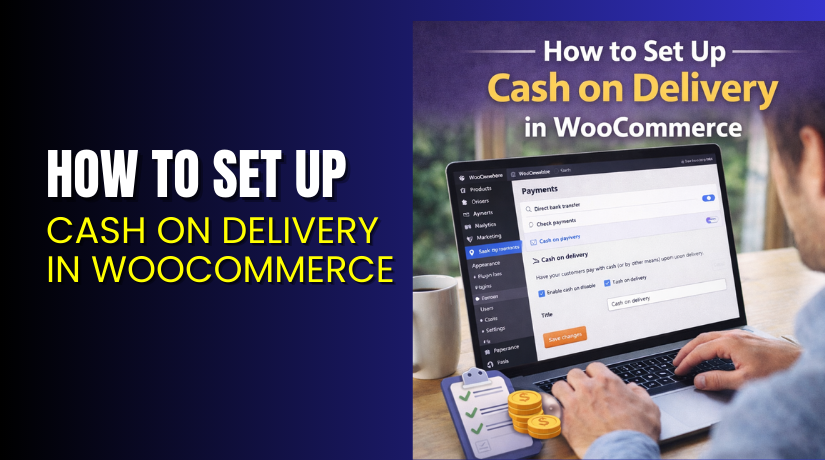
- Go to WP Admin → WooCommerce → Settings → Payments.
- This is where all checkout payment methods are managed.
Step 2: Enable Cash on delivery
- In Payments, find Cash on delivery → toggle ON.
- Click Manage to open its configuration settings.
Step 3: Set a clear checkout title
- In Manage → Title, write a simple name buyers trust.
- Use “Cash on Delivery” or “Pay on Delivery” for clarity.
Step 4: Add a short description for customers
- In Manage → Description, explain when the customer pays.
- Mention cash or card availability, if your courier supports it.
Step 5: Add instructions for the order received page and emails
- In Manage → Instructions, write what happens after ordering.
- Tell them to keep the payable amount ready at delivery.
Step 6: Restrict COD to specific shipping methods
- In Manage → Enable for shipping methods, select safe methods only.
- Example: allow COD for Local delivery, block COD for risky zones.
Step 7: Choose whether COD should work for virtual orders
- In Manage → Accept for virtual orders, tick only if needed.
- Keep it off for downloads, since there is no delivery collection.
Step 8: Save changes and test checkout
- Click Save changes at the bottom of the COD settings.
- Place a test order and confirm COD appears correctly.
Only if you cannot see shipping methods in Step 6


This is a common reason COD does not show. Set shipping first.
- Go to WP Admin → WooCommerce → Settings → Shipping → Shipping zones.
- Create a zone and add a method like Flat rate / Free shipping / Local pickup.
- Then return to Payments → Cash on delivery → Enable for shipping methods.
Best COD Settings For Shipping Zones and Delivery Areas
- COD works best when you control where it appears. Shipping zones help you apply that control cleanly. Create a zone for nearby serviceable locations first. Add Local pickup and one trusted delivery method there. Enable COD only inside that zone’s safe methods.
- For remote zones, consider prepaid only checkout. Remote COD orders have higher cancellation and return rates. If you still want COD, add tighter verification steps. Add higher minimum cart value for remote COD orders. This keeps Enable Cash on Delivery in WooCommerce profitable.
- If you deliver to multiple cities, create zones by delivery partners. Some carriers handle COD better than others in practice. Restrict COD to partners with reliable cash remittance timelines. Track remittance delays and adjust settings quickly. This protects cash flow and reconciliation processes.
How to Add a COD Fee the Right Way
COD has extra handling costs for packaging and cash collection. Many stores charge a small COD fee for this. A COD fee reduces low-intent orders and fake checkouts. It also offsets courier COD handling charges in many regions. Add a COD fee only when it stays reasonable.
- Add a small COD fee that does not scare buyers. Keep it simple and explain it clearly. Customers accept fees when they understand the reason. Use wording like “COD handling fee” on checkout. Clear labels reduce disputes and cart abandonment.
- Apply COD fees only to specific shipping methods. Delivery COD may need a fee, pickup COD may not. This keeps pickup orders attractive and increases local conversions. It also reduces fee complaints from customers collecting orders. Fees should match the actual service cost.
- Avoid very high COD fees for low priced items. High fees reduce conversion and increase customer frustration. Use a fixed fee for small orders if needed. Use a percentage fee for large orders when costs scale. Keep the rule consistent and easy to explain.
- Always test taxes and fee display after enabling COD fees. Some stores need fees to be taxable, others not. Confirm the checkout total matches your accounting expectations. Confirm the fee appears only when COD is selected. This keeps the checkout experience clean and trustworthy.
How to Reduce COD Fraud and Delivery Refusals
COD conversions can rise, but risks can rise too. Good controls keep COD profitable and stable. Use practical checks, not complicated manual work. Add only the controls your team can manage daily. Consistency matters more than perfection.
- Confirm phone numbers for first-time COD customers. Call once or send a quick verification message. Ask them to confirm address and delivery timing. This removes many fake orders immediately. It also improves delivery success rate for COD shipments.
- Use address verification for high-value COD orders. Ask for landmark and delivery gate instructions quickly. If details are unclear, request prepaid or partial payment. This protects high-value inventory from refusals. It also reduces courier return charges for large items.
- Limit COD availability for pin codes with high return rates. Track RTO by location monthly inside your reports. Disable COD for repeated high-risk areas if needed. This improves overall store profitability and logistics efficiency. It also protects delivery teams from wasted trips.
- Add a COD confirmation page message after checkout. Tell customers their COD order will be confirmed first. Explain that unconfirmed COD orders may be cancelled. This sets the right expectation from the start. It reduces anger when you cancel fake COD orders.
- Keep COD for returning customers with good history. Repeat buyers are lower risk and more profitable. Offer COD without strict limits for those customers. This improves loyalty and repeat sales quickly. It also rewards customers who respect delivery commitments.
Common COD Setup Issues and Quick Fixes
COD setup is simple, but small mistakes happen often. These fixes solve the most common COD checkout problems. Use them when COD is not showing correctly. Use them when COD appears in the wrong places.
Issue 1: COD is enabled, but not showing at checkout
- Check if you selected shipping methods in COD settings. If none match, COD will not appear. Also confirm your customer address matches a shipping zone. If no shipping zone matches, checkout cannot show COD. Fix zones first, then retest checkout.
Issue 2: COD shows for digital products and services
- Disable COD for virtual orders if you do not need it. COD is usually meant for delivery or pickup only. If you sell downloads, keep prepaid methods only. This protects fulfillment and reduces customer confusion. It also prevents unpaid access risks for digital products.
Issue 3: COD appears for remote shipping where you do not want it
- Review shipping zones and methods for those remote addresses. Remove COD-enabled methods from those zones. Alternatively, restrict COD to one local delivery method only. Then retest the checkout using a remote address. This ensures COD appears only in safe areas.
Issue 4: COD orders are created, but your team misses them
- Use order status and notifications to improve visibility. Add a label like “COD order needs confirmation” in notes. Train staff to check COD orders daily before packing. Use clear internal workflow steps for COD handling. This reduces delays and customer complaints.
Issue 5: Customers refuse COD delivery too often
- Add confirmation for first-time COD customers immediately. Add minimum cart value and COD fee controls if needed. Restrict COD to areas with lower refusal history. Add clearer delivery timing communication in emails. These actions reduce refusals and improve delivery success rate.
Troubleshooting COD not Showing in WooCommerce
Sometimes COD is enabled, but it still does not appear. This is usually a shipping method mismatch issue. It can also happen due to zone configuration problems. Use these quick checks before changing anything else.
COD is enabled, but it is missing at checkout
- Check if the customer address matches an existing shipping zone. If no zone matches, no shipping method appears. If no method appears, COD restrictions will hide COD. Shipping zones are the base for checkout shipping options.
- Check COD “Enable for shipping methods” is not empty. If you selected methods, confirm those methods exist. If a method was renamed, match it again. COD method settings include shipping method selection.
COD appears for the wrong locations or shipping methods
- Review shipping zones and zone order in shipping settings. A wrong zone order can show the wrong methods. Then COD can appear where you did not plan. Reorder zones so specific zones are above general zones. WooCommerce documents sorting shipping zones for correct matching.
- Restrict COD to one safe delivery method for remote zones. Keep COD open only for local delivery or pickup. This reduces refusal rates in remote and risky areas.
COD appears for virtual products when you do not want it
- Disable “Accept for virtual orders” inside COD settings. COD is usually meant for physical delivery collections. Virtual products do not have a delivery payment moment. WooCommerce COD settings include this virtual order option.
COD orders do not match your staff workflow
- Change your internal COD process, not only plugin settings. Add a confirmation step before dispatch for larger carts. Add staff notes and tags for COD orders. Assign COD orders to a specific staff role daily. This creates consistency and reduces missed orders.
Final Verdict
COD can improve conversions and buyer trust quickly. But COD must be controlled to stay profitable long-term. The best approach is simple settings plus strong workflow. First, enable COD and write clear customer instructions. Then, restrict COD to safe shipping methods only. Then, add confirmation and policy rules for risk control. WooCommerce COD settings support shipping method limits and virtual order options.
If you want the fastest safe setup, use core COD only. Configure shipping zones first and test checkout thoroughly. Then enable COD only for local delivery and pickup. Keep instructions short and remove confusion from checkout. This creates a clean Cash on Delivery WooCommerce experience. This also keeps Enable Cash on Delivery in WooCommerce safe for growth.
If you need advanced COD rules, add one plugin only. Add it only after you understand your refusal patterns. Start with user-role rules or product-level restrictions. Keep conditions simple and easy to maintain weekly. This protects your store while keeping COD conversions strong.