
How to Set Up and Use Intuit Payments Gateway for WooCommerce
Table of Contents
- Introduction
- Core Features at a Glance
- Why Choose Intuit Payments Gateway?
- Setup and Configuration for Intuit Payments Gateway for WooCommerce
- Features in Action (Customer & Admin Use Cases)
- PCI Compliance and Secure Checkout
- Support for WooCommerce Checkout Blocks
- Troubleshooting Common Issues
- Other Important Notes
- Conclusion
Introduction
Running an online store means you need a secure payment system. Customers must feel safe entering their credit card or bank details. That’s where the Intuit Payments WooCommerce plugin helps. It enables you to take payments straight from your website. No redirections. No confusion. Just a smooth and secure checkout.
This plugin is built by SkyVerge, a trusted WooCommerce developer. It connects your WooCommerce store with Intuit Payments, a reliable processor used by thousands of businesses. The checkout procedure is still under your control. Your customers enjoy a fast and trusted way to pay.
Core Features at a Glance
The Intuit Payments plugin offers more than just card payments.
Here are the standout features every store owner should know:
- On-site Checkout: Customers never leave your store during payment.
- Save Payment Methods: Let users store credit cards and eChecks securely.
- WooCommerce Subscriptions Ready: Works with recurring payments and Pre-Orders.
- Supports eChecks: Accept checking or savings account payments.
- Tokenization: Card data is turned into secure tokens, not stored on your site.
- Mobile Optimized: Offers a mobile-friendly checkout form.
- Fast Refunds & Voids: Process returns or cancel orders inside WooCommerce.
- Detailed Decline Messages: Shows real reasons for failed transactions.
These features help you build trust and give users a better experience.
Why Choose Intuit Payments Gateway?
When running a WooCommerce store, your choice of payment gateway matters. Your clients need it to be safe, dependable, and simple. The Intuit Payments WooCommerce plugin checks all the right boxes. Below are the main reasons why store owners in the USA should consider using it:
- Secure and PCI Compliant
For any online business, security is the most important consideration. The Intuit Payments plugin uses client-side tokenization, which protects sensitive card data. Tokenization means the actual card number never touches your server. Instead, a secure token is generated and used for transactions. This helps you meet PCI SAQ A-EP compliance, which is a security standard for accepting online payments.
To activate this level of protection, your site must have an SSL certificate. Once set up, you reduce your risk and protect customer data. That builds trust and confidence with every transaction.
- Full Control Over the Checkout Process
Unlike third-party payment services, Intuit keeps the customer on your site. The entire payment process happens right within your WooCommerce checkout. You now have total control over the client experience.
You can:
- Customize the checkout layout
- Add extra instructions
- Match your brand’s style
More completed sales and fewer abandoned carts are frequently the results of a quicker, more seamless checkout process.
- Built for Subscriptions and Recurring Payments
Selling subscriptions or memberships? Complete support for WooCommerce subscriptions is provided by this plugin. Consumers have the option to store a bank account or card for future charges. Once saved, the system can bill them automatically on a schedule.
It supports:
- Monthly or yearly plans
- Subscription upgrades or downgrades
- Payment retries if a charge fails
This makes it perfect for businesses offering digital content, boxes, services, or memberships.
- Easy Refunds and Charge Management
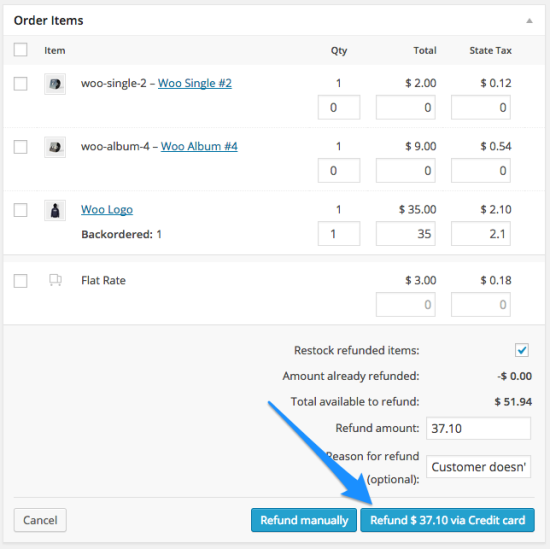
Processing refunds should not be a hassle. With this plugin, store owners can issue full or partial refunds right inside the WooCommerce dashboard. Logging into your Intuit merchant account is not required.
Also, if you choose to authorize payments first, you can later capture the charge directly from the order page. This gives you better control over when to take payments—great for custom or delayed delivery orders.
You can also void transactions if they haven’t settled yet. This saves time and avoids unnecessary fees.
- Save Payment Methods for Faster Checkout
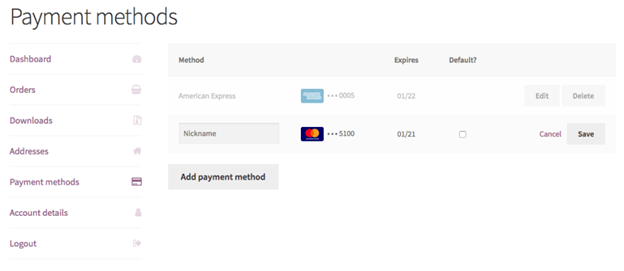
Customers love speed and convenience. With this plugin, they can securely save multiple credit cards or bank accounts to their WooCommerce account.
Benefits for customers:
- Faster checkout next time
- Ability to nickname cards (e.g., “Personal” or “Work”)
- Add or delete payment methods from their account
This is especially useful for returning customers or subscription-based services. It removes friction and increases satisfaction.
- Detailed Decline Messages Help Solve Issues Faster
Many gateways show generic error messages like “Transaction Failed.” That doesn’t help customers or store owners. This plugin displays specific decline messages when a payment is rejected. You’ll know if it’s a card issue, bank error, or missing detail.
This reduces confusion and support requests. Customers can fix issues and complete their order quickly.
- Developed by SkyVerge – Trusted WooCommerce Partner
The plugin is built and maintained by SkyVerge, a top-rated WooCommerce extension developer. You’re not just adding a payment gateway—you’re gaining trusted support, regular updates, and dependable performance. It’s a plugin you can trust for long-term use.
Setup and Configuration for Intuit Payments Gateway for WooCommerce
If you follow the correct instructions, setting up the Intuit Payments WooCommerce plugin is easy. The entire setup and configuration procedure is walked through in this process. Whether you’re a beginner or a store manager, these steps are easy to follow.
Let’s break it down step by step.
- Plugin Requirements
Before you install the plugin, check a few things:
- You should be using WordPress version 5.2 or later.
- WooCommerce version must be 3.6.0 or higher
- PHP 7.4 or later is required
- Your site must have SSL enabled (for security compliance)
- You need an Intuit Payments account (available for US merchants only)
- A QuickBooks Online account must be connected to enable payments
This plugin does not sync with QuickBooks, but a QuickBooks Online account is needed to access Intuit Payments.
- Installing the Plugin
To install the plugin:
- The plugin ZIP file can be downloaded and purchased at WooCommerce.com.
- Open your WordPress admin dashboard and log in.
- Go to Plugins > Add New > Upload Plugin
- Upload the ZIP file and click Install Now
- Once installed, click Activate
Now the plugin is active on your site.
- Creating an App in Intuit Developer Console
You must develop an application in order to link your website to Intuit Payments:
- Visit Intuit Developer Console
- Log in and go to Dashboard > Create an App
- Choose QuickBooks Online + Payments as your platform
- Give your app a name, and under the scope, choose Payments (US only).
- On the Production tab, update the URLs and enable “Payments / Money Movement”
- Fill in the App Questionnaire, including adding a reCAPTCHA on your site
- After approval, copy your client ID and client secret by going to Keys & Credentials.
- Update the Redirect URI in your Intuit app with the one provided in the plugin settings
You only need to create this app once. It is solely used to connect your Intuit store to WooCommerce.
- Connecting the Plugin to Intuit Payments
Now let’s connect your store to Intuit:
- Go to WooCommerce > Settings > Payments > Intuit Credit Card
- Enter your client secret and client ID in the designated areas.
- Click Save Changes
- Click Connect to QuickBooks
- Sign in with your Intuit credentials in the popup window
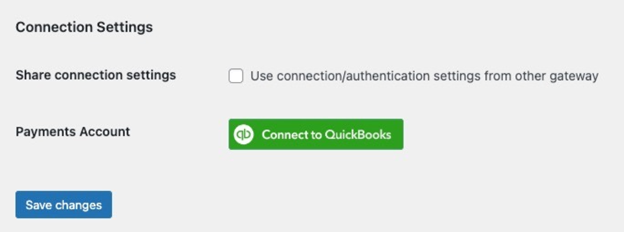
You are now connected. The plugin will handle future reconnections automatically.
- Configuring Payment Settings
Once connected, configure the gateway settings to match your store’s needs. Here are the key options:
- Enable/Disable: Toggle the gateway on or off for checkout
- Title: Shown to users on the checkout page
- Description: Add a short message under the title (e.g., “Pay securely using your card”)
- Card Verification (CSC): Ask users to enter the 3-digit security code
- Saved Card Verification: Require CSC for saved card usage
- Transaction Type:
- Charge: Payment is captured right away
- Authorization: Payment is approved first, but you must capture it later
- Auto-Capture for Virtual Orders: Capture payment immediately for virtual-only products
- Capture When Paid: Auto-capture payments when order status changes to “Paid”
- Accepted Card Logos: Choose which logos (Visa, MasterCard, etc.) show at checkout
- Enable Tokenization: Allow customers to save payment methods
- Detailed Decline Messages: Show real reasons when payments fail
- Debug Mode: For troubleshooting issues—enable only when needed
- Environment: Choose Test or Production mode
- Share Credentials: Share configuration between the eCheck and credit card gateways
- Reconnect or Disconnect: Manage your QuickBooks connection anytime
After making adjustments, remember to save your settings.
Final Checks
- Test the plugin in Test Mode before going live
- Ensure your site is SSL-secured
- Use the reCAPTCHA plugin to prevent bot card testing
- Contact your Intuit rep to enable tokenization and eChecks, if needed
You are prepared to begin taking payments after completing these procedures.
Your checkout is now secure, flexible, and fully powered by Intuit Payments.
Features in Action (Customer & Admin Use Cases)
Once the Intuit Payments plugin is set up, it starts working immediately. This part covers how customers and store owners interact with its features. You’ll see how it improves both the checkout experience and store management.


Let’s explore the real-world use cases.
Saved Payment Methods (Tokenization)
This plugin allows customers to securely save payment methods in their account. This applies to eChecks as well as credit cards. Your server never stores the data. Instead, Intuit safely stores it using tokenization.
With this feature:
- Customers can save multiple cards and bank accounts
- They can add nicknames like “Work Visa” or “Personal Card”
- Saved methods appear in the “My Payment Methods” area
- Customers can delete old or expired cards easily
- It makes future checkouts quicker and more convenient for your customers.
This is a key feature for customer retention. Faster checkouts mean fewer abandoned carts.
Checkout Experience
The plugin offers a smooth, user-friendly checkout. Customers stay on your site the entire time. No third-party page redirects are present.
The form is optimized for quick input and is responsive to mobile devices:
- Automatic formatting for card numbers
- Clear numeric input fields for mobile devices
- Retina icons for better design
During checkout, customers can:
- Select an existing card or create a new one.
- Use credit cards, debit cards, or eChecks
- See detailed decline messages if a transaction fails
This gives customers confidence and helps them fix issues quickly.
WooCommerce Subscriptions & Pre-Orders
The plugin is fully compatible with WooCommerce Subscriptions. This makes it ideal for stores selling:
- Memberships
- Subscription boxes
- Digital content
- Services with recurring billing
Key subscription features include:
- Automatically bill saved payment methods
- Handle subscription upgrades or downgrades
- Manage billing date changes
- Support payment retries if a charge fails
Customers can’t delete payment methods tied to active subscriptions. This avoids billing problems and ensures payments go through on time.
The plugin also works with WooCommerce Pre-Orders. You can collect payment details now and charge customers later when the product is ready. This helps build excitement while managing stock and delivery dates.
Refunds, Voids & Manual Captures
Managing transactions is easy from the WooCommerce admin panel. Your Intuit account does not require you to log in each time.
Here’s what you can do directly in WooCommerce:
- Full or Partial Refunds
Issue refunds from the order page with one click. Refunds are sent to Intuit automatically. - Voids
If a payment hasn’t settled yet, you can void it to cancel the charge. - Manual Captures
If you use “Authorization” mode, you can capture charges later. Simply click Capture Charge after opening the order.
These tools save time and reduce friction for store admins.
The Intuit Payments Gateway gives both customers and store owners more control. From fast checkouts to easy refunds, every part of the experience is smoother and safer.
PCI Compliance and Secure Checkout
The plugin is made to protect the payment information of your clients. It makes advantage of client-side tokenization, which substitutes secure tokens for credit card information. These tokens are then processed by Intuit.
Here’s what makes the checkout secure:
- Your server does not save any card information.
- Payment data is kept on the safe servers of Intuit.
- Meets PCI SAQ A-EP standards when SSL is active
- Reduces your PCI compliance burden
To meet these standards, your site must have an active SSL certificate. This keeps the entire checkout process encrypted and safe.
Support for WooCommerce Checkout Blocks
The WooCommerce Cart and Checkout blocks are now completely compatible with the plugin. This support was added starting from WooCommerce 8.3.
That means you can:
- Use the modern block-based checkout
- Customize the checkout experience more easily
- Take full advantage of WooCommerce’s latest updates
It also works with the classic checkout layout if needed.
Troubleshooting Common Issues
As with any plugin, problems can occur. Most, however, are easily fixable. These are the most typical ones, along with solutions:
- Connection Errors with Intuit
- Check if your app is using OAuth 2.0
- Make sure your Redirect URI is correct in the Intuit Developer App
- Confirm all App Questionnaire steps are completed
- JavaScript or Plugin Conflicts
Sometimes other plugins interfere with the checkout page.
Watch for known conflicts with:
- Autoptimize
- SG Optimizer
- Hummingbird Pro
Try disabling these plugins or excluding the checkout page from optimization.
- Card Testing Fraud
Some bots test stolen cards on WooCommerce checkouts. To prevent this:
- Use a reCAPTCHA plugin at checkout
- Monitor your store for suspicious activity
Other Important Notes
- The plugin does not sync orders to QuickBooks Online
- It does not support AVS (Address Verification Service)
- Only American-based retailers are eligible.
With the right setup and awareness of known issues, you can run a secure and smooth payment system using Intuit Payments Gateway for WooCommerce.
Conclusion
The Intuit Payments Gateway for WooCommerce is a powerful solution. It offers a secure, smooth, and flexible way to accept payments. From credit cards to eChecks, it handles everything with ease.
During the checkout process, your consumers remain on your website. They are able to store bank accounts and cards. You can process refunds, voids, and recurring payments without leaving WooCommerce. It’s fast, reliable, and built for growing stores.
With full support for Subscriptions and mobile checkout, it’s ideal for modern businesses. You also stay PCI compliant with tokenized payment data.
Need help setting up the plugin? Or facing an issue?
WooHelpDesk is here to help.
We offer expert support, setup guidance, and plugin troubleshooting.
📞 Call us today at +1 888 602 0119 (US & Canada)
Let’s get your WooCommerce store running better than ever.
Need setup support or plugin troubleshooting? Contact WooHelpDesk for expert help.



