How to Set Up a Shopping Cart in WordPress for Online Selling
Table of Contents
- Introduction
- What Is a Shopping Cart in WordPress and How It Works for Customers
- Features of a WordPress Shopping Cart That Matter Most
- Before You Add a Shopping Cart to WordPress: Full Preparation Checklist
- How to Set Up a Shopping Cart in WordPress (Step By Step)
- Common Shopping Cart Problems and Fixes in WordPress
- Conclusion
Introduction
A shopping cart helps you sell products directly from your website. Many WordPress sites start as blogs or service pages first. Later, owners want to sell products, plans, or downloads. That is where a shopping cart in WordPress becomes important. It helps customers pick items and buy without confusion. It also makes your website feel more trusted and complete.
When you add shopping cart to WordPress, you create a smoother buying path. Customers can add items, review totals, and move to checkout. This guide is written for beginners and busy store owners. It explains the basics in a simple and clear way. You will learn what a WordPress shopping cart is and why it matters. You will also learn how WordPress handles carts using plugins. By the end, you will understand the core idea clearly.
What Is a Shopping Cart in WordPress and How It Works for Customers
A WordPress shopping cart is a tool that holds selected items. It works like a basket in a physical store. A customer clicks add to cart on a product page. The item goes into the cart without leaving the site. The cart stores the item name, price, and quantity. It also keeps totals like tax and shipping values.
Customers can open the cart anytime and review items. They can remove products or change item quantity easily. This is the main purpose of a shopping cart in WordPress. It supports a simple flow from product selection to payment. It also reduces checkout mistakes and order confusion. Most carts also work well on mobile devices today.
Why WordPress Needs a Plugin to Add a Shopping Cart
WordPress does not include ecommerce features by default. It is mainly a content management system for websites. That is why you need a plugin for cart functions. Plugins add product pages, cart pages, and checkout steps. They also handle sessions to keep cart items saved. This is the real method for how to add shopping cart in WordPress. You install a plugin and enable store features inside WordPress. WooCommerce is the most common plugin for this need. Other simple cart plugins also work for small stores. The plugin you choose controls the cart features and layout. This is why setup choices matter from the start.
Features of a WordPress Shopping Cart That Matter Most
A good WordPress shopping cart should feel simple and fast. It should also guide users toward checkout smoothly. Below are the key features you should expect and use.
- Add to cart and remove items easily
Customers should add items with one simple click. They should remove items without page errors or reloads. This is the base feature of any shopping cart in WordPress. - Quantity update with automatic total refresh
Users often change quantity before they buy. The cart should update totals right after changes. This avoids wrong totals and improves trust during checkout. - Subtotal, tax, shipping, and grand total display
A cart should show clear price breakdown for the order. It should show subtotal first and final total last. Clear totals reduce confusion and reduce cart abandonment. - Coupon or discount code support
Most stores offer discount codes during festivals or campaigns. The cart should allow coupon entry and quick validation. This helps promotions work correctly without manual changes. - Mini cart in header or sidebar for quick access
A mini cart helps users check items without leaving pages. A header cart icon is also easy to notice quickly. This improves navigation and supports faster buying actions. - Guest checkout and account checkout options
Some users do not want to create accounts before buying. A good cart setup supports guest checkout for quick orders. It should also support account checkout for repeat customers. - Payment gateway support like Stripe and PayPal
A cart must connect with trusted payment gateways easily. Most users prefer cards, Stripe, or PayPal options. This matters when you plan how to add shopping cart in WordPress. - Order confirmation and email notifications
After checkout, the system must confirm the order clearly. Customers should receive a confirmation email automatically. This builds trust and reduces support tickets later. - Mobile-friendly cart and checkout layout
Many buyers shop using mobile devices in the USA. The cart should load fast and fit smaller screens properly. A clean mobile cart improves conversion and reduces drop-offs. - Secure session handling for cart items
The cart should remember items during browsing sessions. It should not clear items after page refresh or browser change. Secure sessions make the shopping cart in WordPress reliable.
Before You Add a Shopping Cart to WordPress: Full Preparation Checklist
Before you add a shopping cart to WordPress, prepare key settings first. This reduces setup errors and avoids checkout issues later. Use the checklist below before installing any cart plugin.
- Confirm You Have WordPress Admin Access: You need admin access to install and manage cart plugins. Without admin access, setup will stop at the first step.
- Enable SSL And Force HTTPS Across The Site: Checkout pages must load on HTTPS for safe payments. Many gateways reject stores that do not use SSL.
- Decide Store Currency And Selling Location Early: Currency and location impact taxes and shipping totals directly. Set them early to avoid changes after products go live.
- Prepare Product Details Before Installing Any Cart Plugin: Keep product name, price, and images ready for upload. This makes the first cart test faster and cleaner.
- Know Whether You Sell Physical Or Digital Products: Physical items need shipping rules and delivery details. Digital items need download settings and access controls.
- Create Or Verify Stripe Or PayPal Accounts For Payments: Payment setup becomes easier when accounts are already verified. You can also test payments using sandbox or test mode.
- Check Theme Compatibility With Your Cart And Checkout Layout: Some themes add custom layouts that break cart pages. Use a trusted theme and test all store pages.
- Set Cache Exclusions For Cart And Checkout Pages: Caching can freeze totals and break cart sessions easily. Exclude cart, checkout, and account pages from caching.
- Plan Basic Store Policies For Returns And Shipping: Clear policies reduce disputes and support tickets later. Add policy links near checkout for better buyer confidence.
How to Set Up a Shopping Cart in WordPress (Step By Step)
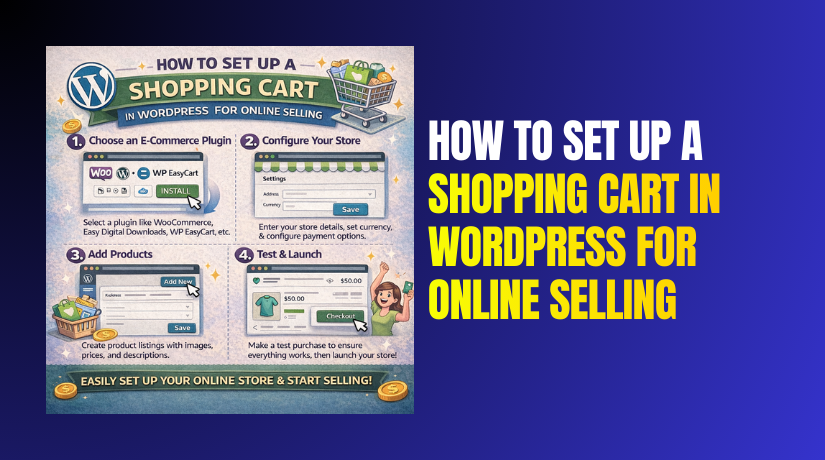
Step 1: Choose the Right WordPress Shopping Cart Plugin for Your Website
- Decide how many products you want to sell now.
- Decide if you will need shipping for physical products.
- Decide if you will sell digital files or services only.
- Choose WooCommerce for a full WordPress shopping cart setup.
- Choose a simple cart plugin for very small item lists.
- Pick a plugin that supports Stripe and PayPal payments.
- This choice impacts how to add a shopping cart in WordPress later.
Step 2: Install and Activate the Plugin to Add Shopping Cart to WordPress
- Go to your WordPress Dashboard and open Plugins.
- Click Add New and search for the “WooCommerce” plugin.
- Click Install Now and wait until installation completes.
- Click Activate to enable the shopping cart in WordPress.
- You will now see WooCommerce options in the dashboard menu.
- This is the first real step to add a shopping cart to WordPress.
Step 3: Run the Setup Wizard to Configure Store Basics
- Open WooCommerce and start the guided setup wizard.
- Add your store address, country, and your main currency.
- Select what you sell, like products, downloads, or services.
- Choose your theme option if the wizard shows it.
- Save settings to apply changes across your store pages.
- This makes your WordPress shopping cart work correctly.
Step 4: Set Up Payments So Customers Can Checkout Smoothly
- Go to WooCommerce settings and open the Payments tab.
- Enable Stripe for card payments with simple checkout.
- Enable PayPal if your customers prefer PayPal payments.
- Follow the connect steps to link your payment account.
- Turn on test mode to run safe demo transactions first.
- Payments are required when you add shopping cart to WordPress.
Step 5: Set Up Shipping If You Sell Physical Products
- Open WooCommerce settings and click the Shipping tab.
- Add a shipping zone like the USA or specific states.
- Add shipping methods like Flat Rate or Free Shipping.
- Set rates based on order totals or product weight.
- Save changes and test shipping on a sample order.
- Skip this section if you only sell digital products.
Step 6: Set Up Tax Settings for Correct Total Calculation
- Go to WooCommerce settings and open the Tax tab.
- Enable tax if your store needs tax in your region.
- Add basic tax rules for your store location.
- Set if prices include tax or show tax separately.
- Save changes to avoid wrong totals in cart pages.
- This improves accuracy of the shopping cart in WordPress.
Step 7: Create and Confirm the Cart and Checkout Pages
- Go to WooCommerce status tools or setup options.
- Click to create default pages if they are missing.
- Confirm these pages exist and are published correctly.
- Cart page helps users review items before checkout.
- Checkout page collects address and payment information.
- My Account page helps users track orders and downloads.
- These pages are key for how to add a shopping cart in WordPress
Step 8: Add Your First Product So the Cart Can Work


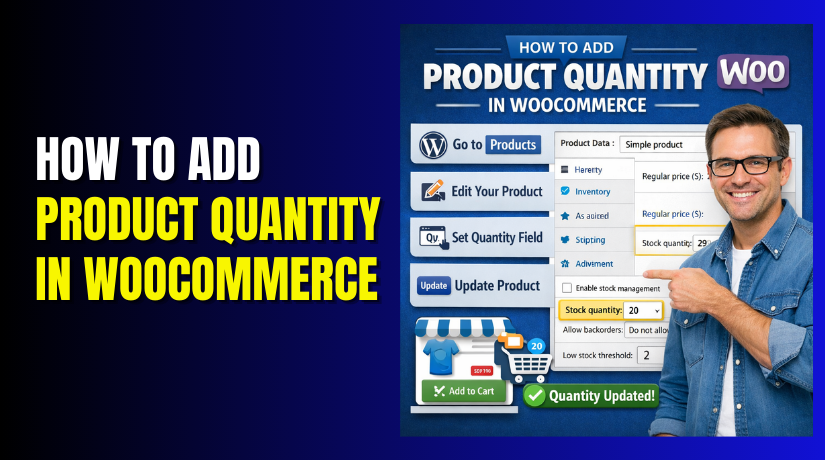
- Go to Products and click Add New in the dashboard.
- Add a clear product name and short description.
- Set the regular price and sale price if needed.
- Upload a clean product image for better trust.
- Choose a product type like Simple Product for beginners.
- Add stock settings if you track inventory and quantity.
- Publish the product to test your WordPress shopping cart.
Step 9: Add Cart Access So Users Can Find It Easily
- Add a cart icon in the header using your theme settings.
- Add cart and checkout links in your main menu.
- Use a mini cart widget if your theme supports it.
- Place cart access on product and shop pages also.
- Easy access improves checkout flow and reduces drop-offs.
- This is important when you add a shopping cart to WordPress.
Step 10: Test the Full Shopping Cart Flow Before Going Live
- Open your product page and click add to cart.
- Visit the cart page and change quantity to test updates.
- Apply a coupon code if you plan discounts later.
- Move to checkout and complete a test payment safely.
- Confirm the order appears inside WooCommerce orders screen.
- Confirm you receive the order email notification properly.
- Testing proves your shopping cart in WordPress works fine.
Common Shopping Cart Problems and Fixes in WordPress
Problem 1: Cart Is Not Updating When You Change Quantity
- Clear your browser cache and reload the cart page.
- Disable caching on cart and checkout pages in settings.
- Turn off minify options for cart and checkout files.
- Check if your theme uses old WooCommerce templates.
- Switch to a default theme and test cart updates.
- Disable other plugins to find a plugin conflict.
- This often fixes shopping cart issues in WordPress update issues.
Problem 2: Add to Cart Button Works but Cart Stays Empty
- Check if cookies are blocked in the browser settings.
- Test the site in an incognito window for quick checks.
- Disable security plugins that block cart sessions.
- Confirm your site uses HTTPS on all shop pages.
- Turn off aggressive CDN caching for dynamic pages.
- Re-save permalinks to refresh WordPress rewrite rules.
- This helps when you add shopping cart to WordPress newly.
Problem 3: Cart Page Shows Wrong Totals or Random Prices
- Confirm product price settings are correct in product editor.
- Check if tax settings match your store location details.
- Review shipping zone rules and method pricing carefully.
- Disable auto currency switcher plugins and test again.
- Clear WooCommerce transients from status tools section.
- Check if a discount plugin is applying wrong rules.
- This improves totals in your WordPress shopping cart quickly.
Problem 4: Checkout Page Is Blank or Not Loading Properly
- Temporarily disable caching and performance plugins first.
- Increase PHP memory limit if the hosting allows changes.
- Check error logs for a fatal error from a plugin.
- Disable plugins one by one to find the conflict.
- Switch to a default theme and test checkout again.
- Update WooCommerce and your theme to latest versions.
- This solves many cases of how to add shopping cart in WordPress failures.
Problem 5: Payment Is Failing or Payment Methods Are Missing
- Confirm your payment plugin is enabled in WooCommerce settings.
- Reconnect Stripe or PayPal account and refresh permissions.
- Check if SSL is active on checkout and account pages.
- Turn on test mode and run a test payment again.
- Confirm your currency matches the payment provider settings.
- Disable security rules that block payment callback requests.
- Payment fixes are key after you add shopping cart to WordPress.
Problem 6: Shipping Options Are Not Showing at Checkout
- Confirm the customer address falls inside your shipping zone.
- Add at least one shipping method inside each zone.
- Check product weight and shipping class settings properly.
- Ensure the cart has shippable products and not only downloads.
- Disable plugins that change checkout fields or address format.
- Clear cache and retest shipping with a new test order.
- This restores shipping inside your shopping cart in WordPress flow.
Problem 7: Coupons Are Not Applying or Showing Errors
- Confirm the coupon is active and not expired.
- Check coupon rules like minimum spend and product limits.
- Ensure the coupon applies to items present in the cart.
- Disable coupon plugins and test WooCommerce coupons only.
- Check if taxes affect coupon totals based on settings.
- Clear cache and retest with one simple product.
- This stabilizes coupon use in your WordPress shopping cart.
Problem 8: Cart Icon Is Not Visible in Header Menu
- Check if your theme supports WooCommerce cart icons.
- Add the Cart page to your menu manually.
- Use a block or widget to show a mini cart.
- Install a menu cart plugin for quick cart icon display.
- Clear cache and check the header on mobile screens.
- If needed, switch theme and confirm cart icon loads.
- This improves navigation after you add shopping cart to WordPress.
Problem 9: Cart Breaks After Enabling Cache or CDN
- Exclude cart, checkout, and my account pages from cache.
- Disable page caching for logged-in users if possible.
- Turn off HTML caching for dynamic WooCommerce pages.
- Exclude WooCommerce cookies from cache rules in CDN.
- Purge all cache and retest cart actions again.
- This is a common issue with shopping cart in WordPress sites.
Problem 10: Plugin Conflict Causes Cart or Checkout Errors
- Disable all plugins except WooCommerce and test again.
- Enable plugins one by one to find the conflict.
- Check if any plugin adds checkout fields or discounts.
- Update all plugins to avoid version mismatch issues.
- Replace outdated plugins with trusted alternatives if needed.
- Once fixed, retest the full cart flow end-to-end.
- This keeps your WordPress shopping cart stable long term.
Conclusion
A working cart helps customers buy without stress or confusion. Most issues come from caching, theme conflicts, or plugin problems. Fix them step by step using simple checks first. Once stable, your shopping cart in WordPress will work smoothly. Always test add to cart, cart updates, and checkout payments. This ensures your store stays ready for new orders. If you follow these steps, you will understand how to add shopping cart in WordPress properly and keep it working well.
WooHelpDesk helps you fix WordPress and WooCommerce issues fast with clear, step-by-step support and expert help, so your site stays secure, stable, and ready to sell.