How to Set Up a Monthly Subscription in WooCommerce (Step-by-Step Guide)
Table of Contents
- Introduction
- Why You Need to Set Up a Monthly Subscription in WooCommerce
- Benefits of Setting Up WooCommerce Subscriptions
- Prerequisites for Setting Up Monthly Subscriptions in WooCommerce
- How to Set Up a Monthly Subscription in WooCommerce (Complete Guide)
- How to Properly Test the Subscription Process in WooCommerce
- Common Problems and Solutions: Complete Troubleshooting Guide
- Conclusion
Introduction
In today’s e-commerce world, offering a subscription-based model has become a popular way to generate predictable revenue. WooCommerce, a flexible e-commerce platform for WordPress, makes it easy to set up a monthly subscription. Whether you sell products, services, or memberships, a WooCommerce monthly subscription can provide convenience for both you and your customers.
Subscriptions help businesses build long-term relationships and offer a consistent cash flow, making them an essential strategy for e-commerce success. Setting up monthly subscriptions allows your customers to enjoy seamless, recurring billing, while you benefit from steady income without having to make constant sales.
Why You Need to Set Up a Monthly Subscription in WooCommerce
Steady Revenue Stream
A WooCommerce recurring payment model ensures that you receive consistent income. With monthly subscriptions, your customers are billed on a recurring basis, providing you with predictable cash flow each month. This stability is especially valuable for businesses looking to scale while managing their finances effectively.
Improved Customer Retention
When you set up a monthly subscription in WooCommerce, your customers are more likely to stay engaged with your brand. Instead of making a one-time purchase, they have a reason to return each month. This subscription model fosters loyalty and enhances customer lifetime value (LTV), allowing you to build a solid relationship with your audience.
Convenience for Customers
Monthly subscriptions simplify the shopping experience for your customers. By automating payments, they don’t have to manually make purchases each time. Whether they’re buying products or accessing services, WooCommerce subscriptions ensure they receive what they need without hassle. Customers appreciate the convenience of not having to remember to make purchases each month.
Increased Average Order Value (AOV)
When you integrate WooCommerce recurring billing, you increase the chance of upselling and cross-selling within your subscription model. Since customers are automatically billed, they’re more likely to stick with the service or product, increasing the overall value over time. Offering bundles, discounts, or premium versions of your products can also boost your average order value.
Better Forecasting and Planning
With WooCommerce subscription setup, businesses can easily forecast future sales and plan ahead. Since subscriptions provide recurring income, you can predict your revenue more accurately, making financial planning and resource allocation simpler. This insight allows businesses to make better decisions and allocate resources more effectively.
Flexibility and Customization
One of the biggest advantages of the WooCommerce subscriptions plugin is its flexibility. You can offer different subscription lengths, including monthly, quarterly, or yearly options. You can also create subscription tiers based on customer preferences or offer customizable plans. This flexibility allows you to cater to a broader audience with varying needs.
Setting up a WooCommerce monthly subscription not only benefits your business but also enhances the customer experience by offering convenience and predictability. With the power of the WooCommerce subscriptions plugin, you can take advantage of recurring payments, offering customers a seamless purchasing experience while boosting your long-term revenue.
Benefits of Setting Up WooCommerce Subscriptions
Setting up a WooCommerce monthly subscription offers many advantages. First, it helps businesses achieve financial stability. With WooCommerce recurring billing, businesses can better predict cash flow. It’s easier to plan your finances, and there’s less uncertainty. Additionally, customers benefit from the convenience of automatic billing. This removes the need for them to remember to renew their subscription each month.
Moreover, the WooCommerce subscriptions plugin is designed to be easy to integrate with your existing WooCommerce setup. It supports multiple payment gateways, making it flexible for businesses worldwide. Whether you are using PayPal, Stripe, or other popular gateways, the plugin ensures secure and smooth transactions. By enabling WooCommerce recurring payments, you create a frictionless experience for your customers.
WooCommerce subscription setup is an essential feature for any business looking to create a consistent income flow. It benefits both businesses and customers, offering convenience and long-term engagement.
Prerequisites for Setting Up Monthly Subscriptions in WooCommerce
Before you can set up a monthly subscription in WooCommerce, there are a few essential prerequisites to ensure everything runs smoothly. Setting up a WooCommerce subscription setup involves using the right tools, plugins, and configurations to enable recurring payments for your customers. Let’s explore the key steps you need to follow.
Install WooCommerce
The first step is to install WooCommerce, the most popular e-commerce platform for WordPress. If you haven’t already set it up, head over to your WordPress dashboard, navigate to Plugins, and search for WooCommerce. After installation, activate the plugin, and WooCommerce will guide you through the initial setup process. This includes configuring basic settings like currency, shipping options, and payment gateways.
Install the WooCommerce Subscriptions Plugin
To enable monthly subscriptions and WooCommerce recurring payments, you will need the WooCommerce subscriptions plugin. This plugin allows you to create and manage recurring billing models for your products or services. Go to the WooCommerce Extensions page, search for the WooCommerce Subscriptions plugin, and install it. Once installed, activate it from the plugins menu in your WordPress dashboard.
Set Up Payment Gateways
For successful WooCommerce recurring billing, you must configure payment gateways that support recurring payments. Payment providers like PayPal, Stripe, and Authorize.net are popular options for subscription payments. These gateways will process the payments automatically on your customers’ billing dates. To set up a payment gateway, go to WooCommerce > Settings > Payments, select your preferred gateway, and follow the setup instructions.
SSL Certificate for Secure Transactions
Since you’re dealing with recurring payments, it’s crucial to ensure that your website is secure. Install an SSL certificate to encrypt the payment details and protect customer information. Most web hosts provide SSL certificates, or you can install one through your hosting provider. Once installed, your website URL will begin with https://, ensuring secure transactions for all payments.
How to Set Up a Monthly Subscription in WooCommerce (Complete Guide)
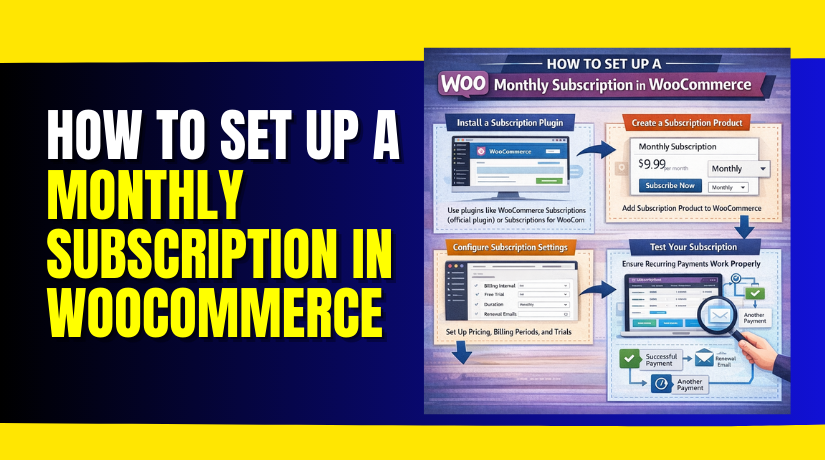
Setting up a monthly subscription in WooCommerce is a straightforward process, thanks to the WooCommerce Subscriptions plugin. Follow these steps to get started with WooCommerce recurring payments.
Step 1: Install and Activate the WooCommerce Subscriptions Plugin
- Go to WooCommerce Extensions: Navigate to your WordPress dashboard, then go to WooCommerce > Extensions.
- Search for WooCommerce Subscriptions: In the search bar, type “WooCommerce Subscriptions” and click the search button.
- Install and Activate: Once you find the plugin, click Install Now. After installation, click Activate to enable the plugin.
Step 2: Set Up Payment Gateways for Recurring Payments
- Go to WooCommerce > Settings > Payments: Navigate to WooCommerce > Settings > Payments to choose your payment gateways.
- Select Payment Gateways: Choose a payment gateway that supports recurring payments, like Stripe or PayPal. These gateways are compatible with the WooCommerce subscriptions plugin.
- Configure Payment Gateway: Follow the setup instructions for each payment gateway to enable recurring payments. Make sure to enable automatic renewals to ensure smooth WooCommerce recurring billing.
Step 3: Create a Subscription Product


- Go to Products > Add New: Navigate to Products and click on Add New to create a new product.
- Select the Subscription Product Type: In the Product Data section, select Subscription from the drop-down menu. This will activate subscription-specific options.
- Set the Subscription Price: Enter the price of your subscription product. This is the recurring cost that customers will pay every month.
- Set the Billing Period: In the same section, set the billing interval to 1 month (or the preferred monthly period) and configure any additional options like free trials or setup fees.
Step 4: Configure Subscription Options
- Set Subscription Length: You can choose how long the subscription will last. For monthly subscriptions, set it to no end date so that the subscription renews indefinitely unless canceled.
- Trial Period (Optional): If you want to offer a free trial, configure the trial period option. You can set this to a specific duration, such as 7 days or 30 days.
- Sign-Up Fee (Optional): If you want to charge an additional fee at the start of the subscription, enter this in the sign-up fee field.
- Add Subscription Tiers (Optional): If you offer different subscription levels (e.g., basic, premium), you can add these variations under the Product Data section.
Step 5: Add Subscription to Your Store
- Product Description: Add a clear description of your subscription product, explaining the benefits of subscribing, any terms or conditions, and what customers can expect.
- Publish the Product: Once you’ve set up the subscription details, click Publish to make the product live in your store.
- Add to Store Pages: If you want the subscription product to appear on specific pages (e.g., shop page or a custom subscription page), ensure it’s included in the appropriate categories.
Step 6: Test the Subscription Process
- Enable Sandbox Mode: To test the subscription process, enable sandbox mode for your payment gateway (e.g., Stripe or PayPal). This ensures that you can simulate transactions without using real money.
- Place a Test Order: Go to your store’s front end and place a test subscription order. Complete the checkout process as a customer would, ensuring that everything functions correctly.
- Check Emails: Verify that customers receive the necessary email notifications, such as order confirmations, renewal reminders, and subscription status updates.
- Check Subscription Management: Log into your account as a customer and ensure you can manage your subscription (e.g., pause, cancel, or update payment information).
Step 7: Monitor and Manage Subscriptions
- Go to WooCommerce > Subscriptions: After customers start subscribing, monitor all active subscriptions under WooCommerce > Subscriptions in your WordPress dashboard.
- Manage Renewals: If a renewal fails or a customer wants to update their payment method, you can manage these actions directly from the subscription management screen.
- View Subscription Reports: WooCommerce also provides reports for tracking subscription sales, renewals, and cancellations. Use these insights to manage and optimize your subscription business.
By following these steps, you’ll have your WooCommerce recurring payments set up and running smoothly, ensuring a seamless subscription experience for both you and your customers.
How to Properly Test the Subscription Process in WooCommerce
Once you’ve set up your WooCommerce subscription setup and configured everything, it’s crucial to test the subscription process to ensure everything works as expected. Testing allows you to confirm that the payments, subscription management, and email notifications are all functioning properly. Here’s how to do it:
Enable Sandbox Mode for Payment Gateways
- Before processing real payments, enable sandbox mode for your payment gateway (e.g., Stripe or PayPal) to simulate transactions. This ensures you won’t charge real money during the testing phase.
- In your WooCommerce settings, navigate to WooCommerce > Settings > Payments. Select the gateway you’re using (e.g., Stripe), and enable sandbox mode.
Place a Test Order
- Go to the front end of your store and purchase the subscription product as a customer.
- Complete the checkout process, entering fake payment details in sandbox mode. This will simulate a real transaction without processing actual payments.
Verify Customer Email Notifications
- Once the subscription is successfully purchased, ensure that the customer receives the correct email notifications.
- WooCommerce should send an order confirmation, a subscription activation email, and, if applicable, a renewal reminder.
- Test both the initial purchase and the renewal cycle to make sure everything is set up correctly.
Check Subscription Management
- Log in as the customer and navigate to their My Account page. Ensure that they can view and manage their subscription.
- Test the ability to pause, cancel, and update payment methods. Customers should have a seamless way to manage their subscription directly from their account page.
Verify Recurring Billing
- After the initial subscription is processed, wait for the next billing cycle to occur.
- Verify that the payment is processed automatically and that the customer receives a renewal notification, along with an updated invoice.
Common Problems and Solutions: Complete Troubleshooting Guide
As with any system, issues can arise during the setup and management of WooCommerce recurring payments. Here are some common problems you might encounter and their solutions:
Subscription Not Appearing at Checkout
If your subscription product is not appearing at checkout, make sure that the WooCommerce subscriptions plugin is properly activated. Check that the product is set to the Subscription product type in the Product Data section. Additionally, ensure that the subscription price and billing interval are correctly configured.
Payment Failures or Declines
Payment failures can occur for a variety of reasons, such as incorrect payment details or an issue with the payment gateway. First, verify that the payment gateway is correctly set up in your WooCommerce settings. Also, ensure that the customer’s payment method is valid and supported by the chosen gateway (e.g., Stripe or PayPal).
Customers Can’t Manage Subscriptions
If customers cannot manage their subscriptions (e.g., pause, cancel, or update payment details), check that the WooCommerce My Account page is properly configured. Ensure that the necessary subscription management options are enabled in the WooCommerce > Settings > Accounts and Privacy section.
Subscription Renewal Issues
If subscriptions aren’t renewing correctly, double-check your subscription renewal settings under the WooCommerce Subscriptions plugin. Ensure that the automatic renewal option is enabled for each subscription product. You may also need to verify that your payment gateway supports automatic recurring payments.
Customers Not Receiving Email Notifications
Email notifications are essential for keeping customers informed about their subscriptions. If customers are not receiving email notifications, go to WooCommerce > Settings > Emails and ensure that the subscription-related emails are enabled. You can also use an email logging plugin to check if the emails are being sent correctly.
Subscription Product Not Showing in Cart or Checkout
If your subscription product is not showing up in the cart or checkout, check that you’ve correctly configured the subscription product type. Also, ensure that no conflicting plugins are affecting the cart or checkout process. You may need to disable other plugins temporarily to troubleshoot this issue.
Payment Gateway Not Supporting Recurring Payments
Some payment gateways do not support recurring payments out of the box. To resolve this, ensure that you are using a payment gateway like Stripe or PayPal, which supports WooCommerce recurring billing. If necessary, check the gateway’s documentation to ensure it is properly configured for recurring payments.
Conclusion
Testing your WooCommerce subscription setup and addressing common issues early on is essential for providing a smooth customer experience. By thoroughly testing the subscription process and knowing how to resolve common problems, you can ensure that your WooCommerce recurring payments run smoothly. Proper testing and troubleshooting help you avoid customer dissatisfaction and ensure that your business continues to grow with ease. If you run into any challenges or need further support, don’t hesitate to reach out to experts for assistance with your WooCommerce subscriptions.