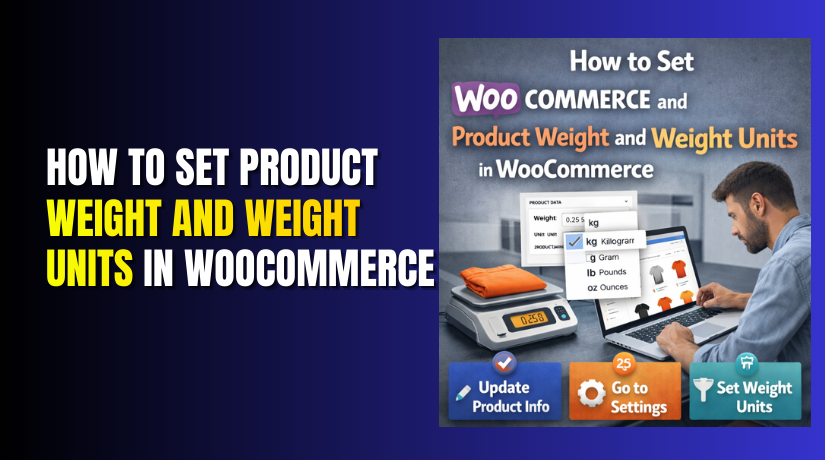
How to Set Product Weight and Weight Units in WooCommerce Step by Step?
Table of Contents
- Introduction
- Why Add Product Weight in WooCommerce?
- What is WooCommerce Product Weight Unit?
- How WooCommerce Uses Product Weight Internally
- Preparing Your Store Before Adding Product Weight
- What Are The Common Mistakes That Store Owners Should Avoid?
- When Product Weight Is Not Required?
- What Are Simple Products in WooCommerce?
- What Types of Products Come Under Simple Products?
- How to Set Product Weight in WooCommerce for Simple Products
- What Are Variable Products in WooCommerce?
- What Types of Products Come Under Variable Products?
- How to Set Product Weight in WooCommerce for Variable Products
- How to Set Product Weight Units in WooCommerce
- How Product Weight Impacts Checkout Experience
- Final Verdict
Introduction
Product weight is a critical setting for every WooCommerce store selling physical products. It directly affects shipping prices, delivery accuracy, and customer trust during checkout. Many store owners ignore WooCommerce product weight during setup, which later causes serious shipping calculation issues.
When weight is missing, WooCommerce shipping weight setup becomes unreliable and inconsistent. Shipping plugins cannot calculate rates correctly without proper product weight values. This often leads to overcharging or undercharging customers at checkout.
Incorrect shipping charges increase cart abandonment and refund requests. Setting product weight WooCommerce correctly prevents these problems from the beginning. It also helps your store scale smoothly as order volume grows.
In this guide, you will learn how to configure product weight in WooCommerce step by step. This part focuses on understanding concepts, preparation, and best practices. The actual product-level setup process will be covered in the next part.
Why Add Product Weight in WooCommerce?
Adding product weight is essential for accurate shipping calculations in WooCommerce stores. It is not an optional feature for stores selling physical products online. WooCommerce shipping systems rely heavily on product weight to calculate costs. Every shipping method uses weight in some form during checkout. If product weight is missing, shipping methods may fail or behave incorrectly.
- Accurate Shipping Cost Calculation
Shipping carriers calculate charges based on the total package weight. WooCommerce shipping weight setup sends product weight data to shipping methods automatically. If weight is missing, flat rates may apply incorrectly at checkout. This creates unfair pricing for both customers and store owners.
WooCommerce product weight ensures precise shipping cost calculation every time. Customers see correct shipping prices before placing their orders. This reduces disputes, refunds, and support requests.
- Supports Live Shipping Rates
Live shipping rates require accurate product weight information to function correctly. Carriers like USPS, FedEx, and DHL depend on weight data for rate calculation. If product weight is empty, live shipping rates may not display.
This can block checkout completely for some customers. Configure product weight in WooCommerce to ensure live rates work properly. This creates a smooth and reliable checkout experience.
- Improves Order Fulfillment Accuracy
Fulfillment teams rely on product weight to pack orders correctly. Accurate weight helps select the right packaging and shipping labels. Incorrect weight may cause shipment rejection by carriers.
It can also increase delivery delays and operational costs. WooCommerce product weight improves fulfillment accuracy and efficiency. This reduces manual corrections and shipping-related issues.
- Prevents Revenue Loss Over Time
Underestimated weight often leads to undercharged shipping fees. Over time, this reduces store profit margins significantly. Overestimated weight increases shipping costs and discourages customers.
Both scenarios negatively impact store revenue and conversions. Set product weight WooCommerce accurately to protect profitability. Balanced shipping pricing improves customer satisfaction and trust.
What is WooCommerce Product Weight Unit?
WooCommerce uses a global weight unit setting for the entire store. This unit applies to all products automatically once selected. Every product weight value follows this unit system. Understanding WooCommerce weight units is essential before adding product weight.
- What Are WooCommerce Weight Units?
WooCommerce weight units define how product weight values are measured. They control how shipping calculations interpret product weight. Available WooCommerce weight units include kilograms, grams, pounds, and ounces. Only one weight unit can be active at a time. All products in the store use the same unit.
- Why Weight Units Matter
Incorrect weight units cause major shipping calculation errors. For example, entering pounds while using kilograms inflates shipping costs. This results in incorrect totals shown at checkout. Customers may abandon carts due to unexpected shipping prices. WooCommerce shipping weight setup depends on consistent weight units. Always confirm units before entering product weight data.
- Where WooCommerce Uses Weight Units
Weight units affect shipping zones and shipping methods directly. They influence shipping classes and rate calculations. Carrier APIs also read product weight using this unit. Packing slips and shipping labels rely on accurate weight units. Configure product weight in WooCommerce carefully at the store level. This prevents errors across your entire shipping system.
How WooCommerce Uses Product Weight Internally?
WooCommerce does more than store product weight values. It actively uses weight in multiple internal calculations. Understanding this helps avoid configuration mistakes.
- Product Weight in Shipping Zones
Shipping zones apply rules based on customer location. Some shipping methods calculate costs using total cart weight. Each product contributes its weight to the final calculation. Missing values distort shipping zone pricing logic. WooCommerce product weight ensures accurate zone-based shipping rates.
- Product Weight and Shipping Classes
Shipping classes group products with similar shipping behavior. Heavier products often require different pricing rules. Product weight influences how shipping classes calculate rates. Set product weight WooCommerce before assigning shipping classes. This ensures class-based shipping rules work correctly.
- Product Weight in Third-Party Plugins
Most shipping plugins rely on WooCommerce product weight. Table rate plugins use weight-based conditions. Carrier plugins calculate live rates using product weight data. Missing weight causes plugin errors or incorrect shipping prices. Configure product weight in WooCommerce to ensure plugin compatibility.
Preparing Your Store Before Adding Product Weight
Proper preparation prevents future shipping and pricing issues. It saves time and avoids bulk corrections later.
- Choose Your Shipping Strategy First
Decide how your store will calculate shipping costs. Options include flat rate, weight-based, or live carrier rates. Each method uses product weight differently. WooCommerce shipping weight setup should match your shipping strategy. This ensures predictable checkout behavior.
- Select the Correct Weight Unit Early
Choose a weight unit matching supplier and carrier requirements. Changing units later requires updating all product weights. This becomes difficult for large product catalogs. WooCommerce weight units should be finalized early. This ensures long-term consistency.
- Collect Accurate Product Weight Data
Use supplier specifications or physical measurements for accuracy. Include packaging weight where applicable. Shipping weight should reflect the ready-to-ship condition. WooCommerce product weight must match real shipment weight. This avoids carrier rejections and pricing mismatches.
What Are The Common Mistakes That Store Owners Should Avoid?
- Most WooCommerce shipping issues come from basic setup mistakes. Avoiding them improves store performance immediately.
- Leaving product weight empty breaks shipping calculations. Some shipping methods may not appear at checkout. Always set product weight WooCommerce for physical products.
- Using incorrect weight units causes pricing errors. Grams entered as kilograms inflate shipping costs. Confirm WooCommerce weight units before entering data.
- Ignoring packaging weight leads to undercharged shipping fees. Over time, this reduces store profitability. Configure product weight in WooCommerce including packaging.
When Product Weight Is Not Required?
- Not all products require weight configuration in WooCommerce.
- Virtual and downloadable products do not require shipping. WooCommerce ignores weight for virtual products automatically. WooCommerce product weight is optional for digital items.
- Local pickup orders do not require shipping calculations. Weight may still help internal inventory tracking. WooCommerce shipping weight setup is optional for pickup-only stores.
What Are Simple Products in WooCommerce?
Simple products are the most basic product type in WooCommerce. A simple product represents a single item with no variations. It has one fixed price, one SKU, and one shipping configuration. Most stores start with simple products because they are easy to manage and quick to set up.
Simple products are commonly used for items that do not change based on size, color, or material. Examples include books, tools, accessories, or single digital downloads. From a shipping perspective, simple products are straightforward because they use one fixed product weight for all purchases.
When you set product weight for a simple product, WooCommerce applies that weight every time the product is added to the cart. This weight is used to calculate shipping costs, determine available shipping methods, and generate live carrier rates if enabled. If the weight is missing or incorrect, shipping prices may display inaccurately at checkout.
Simple products are ideal when the physical characteristics of the item remain consistent. Managing product weight is easier because you only need to enter it once. However, accuracy is still important. The weight should reflect the shipping-ready condition, including packaging if applicable. Correct weight ensures smooth checkout, reliable shipping calculations, and fewer customer complaints.
What Types of Products Come Under Simple Products?
Simple products are used when the physical characteristics of the item never change. These products always weigh the same and ship the same way.
Common examples of products that come under simple products include:
- Books, notebooks, and stationery items
- Tools and hardware items
- Electronics accessories like cables, chargers, and adapters
- Home decor items with fixed size and weight
- Single packaged food items with standard packaging
- Beauty and personal care products sold in one size
- Printed merchandise like posters or mugs
- Digital products when shipping is not required
These products work best as simple products because customers do not need to choose variations. The shipping weight remains the same for every order, which simplifies WooCommerce shipping weight setup.
How to Set Product Weight in WooCommerce for Simple Products?
Simple products use one fixed weight value for shipping calculations. This weight is applied every time the product is added to the cart. Setting the correct weight ensures shipping costs are accurate and predictable. If the weight is missing or incorrect, WooCommerce may calculate shipping fees wrongly. This can lead to customer dissatisfaction, abandoned carts, or financial loss. Follow each step carefully to avoid shipping errors and ensure a smooth checkout experience.
Step 1: Log in to WordPress Dashboard
Dashboard → Log in using your admin credentials.
Logging in to the WordPress dashboard gives you full control over your website. Only users with administrator or shop manager access can modify product shipping settings. Without proper access, you cannot edit product data, including weight fields. Always ensure you are logged in with sufficient permissions before making changes. This prevents accidental misconfiguration and ensures your changes are saved correctly.
Step 2: Open Products Section
Dashboard → Products → All Products.
This section displays every product available in your WooCommerce store. You can use the search bar to find a specific product quickly. Filters allow you to narrow products by category, stock status, or product type. This is especially helpful for stores with large catalogs. Taking time to locate the correct product avoids editing the wrong item accidentally.
Step 3: Select the Simple Product
Products → All Products → Click the product name.
Clicking the product name opens the product edit screen. This page contains all important settings related to pricing, inventory, images, and shipping. You should always review the product details before making changes. This ensures you are editing the correct item and prevents configuration errors that could affect live orders.
Step 4: Confirm Product Type
Product data → Product type dropdown → Select Simple product.
The product type determines how WooCommerce handles pricing and shipping. Simple products represent single items without variations. Weight entered here applies to every purchase of this product. If the wrong product type is selected, weight fields may not behave as expected. Confirming the product type ensures WooCommerce uses the correct calculation logic.
Step 5: Open Shipping Settings
Product data → Shipping tab.
The Shipping tab controls how WooCommerce calculates shipping charges for the product. This section includes weight, dimensions, and shipping class options. Shipping methods and plugins read data from this tab during checkout. Opening the correct tab ensures you are editing the right fields and not confusing shipping settings with inventory or pricing options.
Step 6: Enter Product Weight
Shipping tab → Weight field → Enter product weight value.
Enter the exact shipping-ready weight of the product. This weight should reflect how the product will be shipped, not just the raw item weight. WooCommerce automatically applies the global weight unit selected in settings. You should never type the unit name in the field. Accurate weight values ensure correct shipping rate calculations across all shipping methods.
Step 7: Include Packaging Weight
Shipping tab → Weight field → Add box or wrapping weight.
Packaging adds extra weight during shipping. This includes boxes, padding, labels, and protective materials. Ignoring packaging weight often leads to undercharging shipping fees. Over time, this results in revenue loss. Including packaging weight ensures shipping charges reflect the actual cost charged by carriers. This step is critical for maintaining profit margins.
Step 8: Save Product Changes
Top right → Click Update.
Saving applies the product weight immediately. WooCommerce uses this value during checkout and shipping calculations. Always confirm the update message appears after saving. If changes are not saved, shipping rates will continue using old or empty weight values. It is good practice to refresh the page after saving to confirm settings were applied correctly.
What Are Variable Products in WooCommerce?
Variable products are used when a product comes in multiple options that affect price, size, or physical characteristics. Each option is called a variation. Common examples include clothing with different sizes, products with multiple materials, or bundles with different configurations.
Unlike simple products, variable products do not rely on a single weight value. Each variation can have its own weight, price, and SKU. This makes variable products more flexible but also more complex to configure correctly.


From a shipping perspective, variable products require extra attention. Each variation may weigh differently, and WooCommerce calculates shipping based on the selected variation. If variation weight is missing, WooCommerce may use incorrect fallback values or calculate shipping inaccurately.
What Types of Products Come Under Variable Products?
Variable products are used when product options affect physical characteristics, especially weight. These products cannot rely on a single weight value.
Common examples of products that come under variable products include:
- Clothing items with different sizes like small, medium, and large
- Shoes with different sizes and materials
- Furniture with size or material options
- Bottles or containers with different volume options
- Products sold in bundles or packs with different quantities
- Items available in different materials like metal, plastic, or wood
- Products with length-based variations such as cables or fabrics
- Subscription boxes with different package sizes
Each variation may weigh differently, so setting variation-level weight is essential. WooCommerce shipping calculations depend on the selected variation’s weight during checkout.
How to Set Product Weight in WooCommerce for Variable Products?
Variable products contain multiple variations, and each variation may weigh differently. Examples include size-based clothing, bundled items, or material-based products. Weight must be set at the variation level to ensure accurate shipping. Using only a parent product weight can cause incorrect calculations. Follow each step carefully for proper setup.
Step 1: Open Variable Product
Dashboard → Products → All Products → Click variable product.
This opens the product that contains multiple options like size, color, or material. Variable products require more attention because each option can affect shipping cost. Always confirm you are editing the correct product before making changes.
Step 2: Set Product Type
Product data → Product type dropdown → Select Variable product.
Selecting a variable product enables variation-specific fields. These fields include individual pricing, inventory, and weight settings. Without selecting the correct product type, variation-level weight fields will not appear. This step is essential for accurate shipping calculations.
Step 3: Open Variations Tab
Product data → Click Variations tab.
This tab displays all created variations. Each variation represents a unique product option customers can choose. Managing weight from this tab ensures WooCommerce calculates shipping based on the selected variation, not the parent product.
Step 4: Expand a Product Variation
Variations → Click individual variation arrow.
Expanding a variation reveals pricing, inventory, SKU, and weight fields. Each variation can have different physical characteristics. Reviewing each variation individually helps ensure weight accuracy across the catalog.
Step 5: Enter Variation Weight
Variation settings → Weight field → Enter exact weight.
Each variation may have a different size or material. These differences directly affect shipping weight. Entering accurate weight ensures WooCommerce calculates correct shipping fees. This is especially important for live carrier shipping and weight-based pricing rules.
Step 6: Repeat for All Variations
Variations → Add weight for every variation.
Leaving variation weight empty may cause WooCommerce to calculate shipping incorrectly. Some shipping plugins ignore parent weight when variation weight exists. Always enter weight for every variation to avoid fallback behavior or calculation errors.
Step 7: Save Variation Data
Variations tab → Click Save changes.
This action stores all variation-level weight data inside WooCommerce. Always wait for the confirmation message before proceeding. Unsaved variation data can cause inconsistencies during checkout.
Step 8: Update the Product
Top right → Click Update.
Updating applies all variation weight settings across checkout and shipping methods. After saving, test the product by adding different variations to the cart. This ensures shipping prices adjust correctly based on selected options.
How to Set Product Weight Units in WooCommerce?
Weight units define how WooCommerce interprets all product weight values. This setting affects the entire store. Choosing the correct unit is critical before adding product weights. Changing units later does not convert existing values automatically.
Step 1: Open WooCommerce Settings
Dashboard → WooCommerce → Settings.
This area controls global WooCommerce behavior. It includes product, shipping, tax, and payment settings. Always configure weight units here before adding product weight values.
Step 2: Navigate to Product Settings
WooCommerce → Settings → Products tab.
The Products tab contains measurement settings used across all products. This includes both weight and dimension units.
Step 3: Open General Product Settings
Products tab → Click General sub-tab.
General settings define default measurement units. These settings affect how WooCommerce stores and interprets numeric values.
Step 4: Locate Measurements Section
General → Scroll to Measurements section.
This section controls how WooCommerce reads and applies weight values. It is used by shipping methods, plugins, and carrier integrations.
Step 5: Select Weight Unit
Measurements → Weight unit dropdown → Choose preferred unit.
Select kilograms, grams, pounds, or ounces based on your carrier or supplier standards. Choose the unit that matches how your shipping provider calculates costs.
Step 6: Save Weight Unit Settings
Bottom of page → Click Save changes.
Once saved, all product weights will follow this unit automatically. Always double-check this setting before entering product weights.
Step 7: Verify Before Adding Product Weights
Confirm unit → Then add product weights.
Changing units later does not convert existing values. This means all products must be updated manually. Verifying early saves time and prevents costly errors.
How Product Weight Impacts Checkout Experience?
Checkout experience depends heavily on shipping accuracy. Product weight plays a key role here.
- When weight is correct, shipping prices remain stable. Customers trust checkout totals and complete purchases confidently.
- When weight is incorrect, prices change suddenly. This causes frustration and cart abandonment.
- WooCommerce product weight directly affects conversion rates. Accurate weight improves checkout confidence.
Final Verdict
Setting product weight correctly in WooCommerce is essential for accurate shipping, smooth checkout, and long-term store profitability. Whether you sell simple products or variable products, entering precise weight values ensures shipping rates are calculated fairly and consistently.
Configuring WooCommerce weight units before adding products prevents calculation errors and avoids time-consuming corrections later. When product weight includes proper packaging and variation-level differences, shipping plugins and live carrier rates work reliably. A well-configured WooCommerce shipping weight setup builds customer trust, reduces cart abandonment, and protects your margins.
By following the steps in this guide carefully, you create a stable, scalable shipping system that supports growth and delivers a better shopping experience.
Have questions before starting with WooCommerce & WordPress? Get support here at WooHelpDesk.